Formulae in Excel aren’t always easy to decode – even a
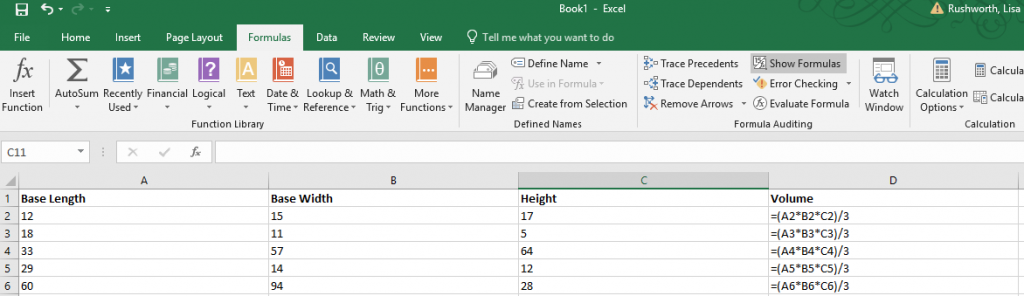
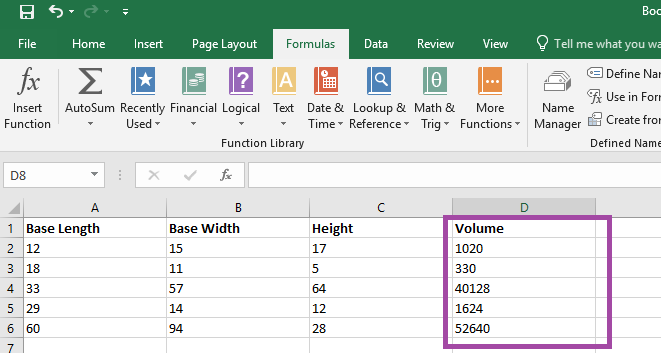
relatively simple formula, like the volume of a right rectangular pyramid below,
can be a little cryptic with the A2 type cell identifiers.
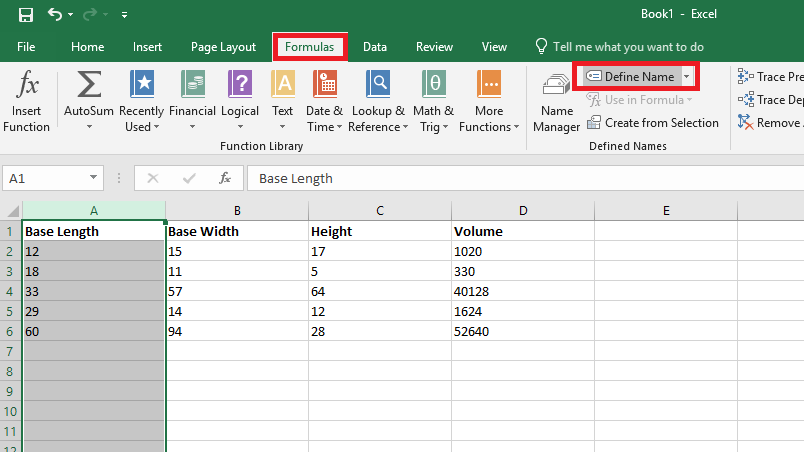
You can name ranges and use range names to make a formula easier to understand. Highlight a data set – in this case, I am highlighting the “length” values – column A. On the “Formulas” ribbon bar, click on “Define Name” (you don’t need to hit the inverted caret on the right of the button – just click the ‘define name’ text).
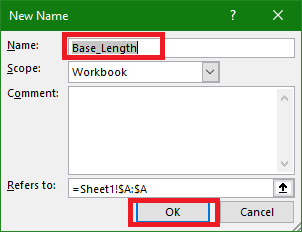
Supply a name for the range – in this case, I am calling it “Base_Length”
(range names need to start with a letter or underscore and cannot contain
spaces). Click OK to save the range name. Repeat this operation with all of the
other data groups – in my case, I named Column B “Base_Width” and Column C “Height”.
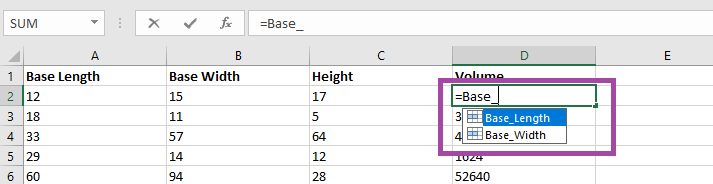
Use the name instead of the cell identifier – as you type
your formula, the range names matching your typed text will appear.
It is now a lot clearer
what this formula means – base length
times base width time height all divided by three. Which is the formula to calculate the volume of a right rectangular
pyramid.
The calculated answer is the same either way – but this
makes it easier to figure out what exactly you were computing when you open the
spreadsheet again in six months 😊 (Or share the
spreadsheet with others).
There are times when it is easy to tell who is speaking – there aren’t a lot of women in my group, so “the female voice” is usually me. My friend Richard is generally the only person with a New Zealand accent on any call (although someone who didn’t grow up in a Commonwealth country may have trouble distinguishing him from the guy from Australia). And after you work with someone for a while, you learn the voice and lexical nuances of colleagues. The rest of the time? I end up pausing the conversation to check who it was that volunteered to serve as my tester and clarify who is going to be getting back to me next week. In a Teams meeting, though, you can quickly tell who is speaking – and respond with a much friendlier “thanks, Jim, for offering to help”.
When you join a Teams meeting, you’ll see up to four large tiles
with meeting participants. If there are more than five participants (you don’t show
up on your own view!), the remaining people will be represented by smaller
images in the lower right-hand corner of the screen.
When someone is speaking, their tile will be highlighted in
a purply-blue and a brighter highlight circumscribes their image.
The four large tiles represent the most recent speakers, so
you will notice who is in these four tiles change throughout the call. And, yeah,
it’s possible for more than one person to be talking at a time – you’ll have
multiple highlighted tiles.
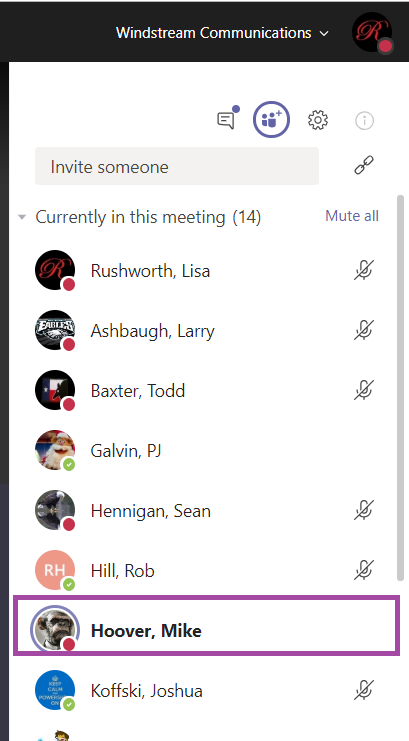
There is another place to view who is speaking. On the right-hand
column, click to enter the participant pane.
The current speaker will be bolded.
Bonus Features: Sometimes
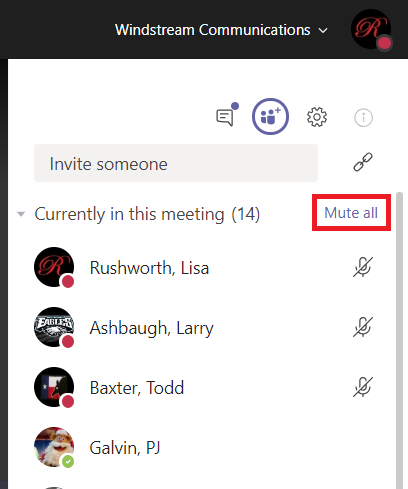
I’ll start a large call and have trouble getting everyone’s attention to start the call. In the participant pane,
you can click “Mute all” to mute all
participants. N.B. Any participant can do this – so don’t test it in the
middle of a real discussion!
And just like meetings through the PSTN system or other web-meeting
platforms, you’ll get the occasional person typing without hitting mute. Or speaking
to someone who popped into their office. Or experiencing feedback on the connection.
In Teams, it’s easier to identify who
is causing a disruption – they are going to be highlighted as speaking.
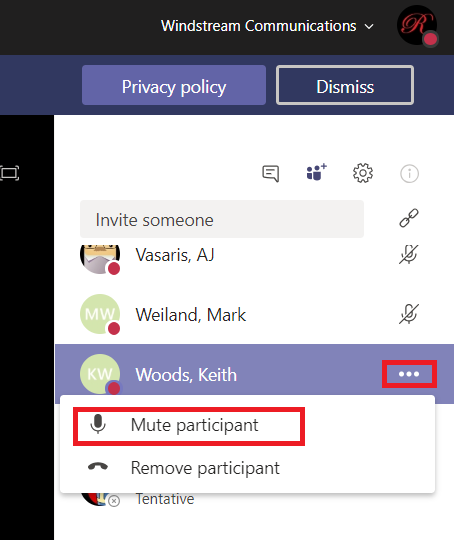
Once you’ve identified the source of the noise, click the
not-quite-a-hamburger-button next to their name and select “Mute participant”.
Thought I had a horrible sense of direction because I’d get lost any time I had to follow “head north on” type directions. It wasn’t a big deal to me — GPS had been a thing for years by the time I was driving myself around with any frequency (later everyone had a cell phone & navigation). I just contained my hiking to well-marked trails when I’d go out adventuring. Sure, it would have been nice to hike the poorly marked parts of the GRP trails in France. But there are *plenty* of marked and worn trails available. Never felt like I was missing out … it was more of a funny quirk.
I’d offhandedly mentioned my navigational issues to a friend around 2007. He offered to help figure out my error because it wasn’t like “sense of direction” is relevant when following instructions (and, obviously, a compass wouldn’t just “not work right” for me). He wrote up directions from his hunting cabin over to the duck blind, and we both had a compass and the instructions. Walked out onto the porch, took a few steps, and realized we were both going in different directions. He came back over to see how I’d managed to get lost already. Head SE 300 meters … OK, get red pointy direction thing to SE, walk 300 meters. He gave me a funny look and asked if I knew how compasses worked. “Of course, magnetic North attract … oooooooh”.
Applications can generate data in formats that aren’t quite useful – glomming multiple fields
together to make something unusable. And asking people to type information can
yield inconsistent results – is my name Lisa Rushworth, Lisa J Rushworth, or
just Lisa? Excel has several functions that allow you to produce consistent,
usable data (without copy/pasting or deleting things!)
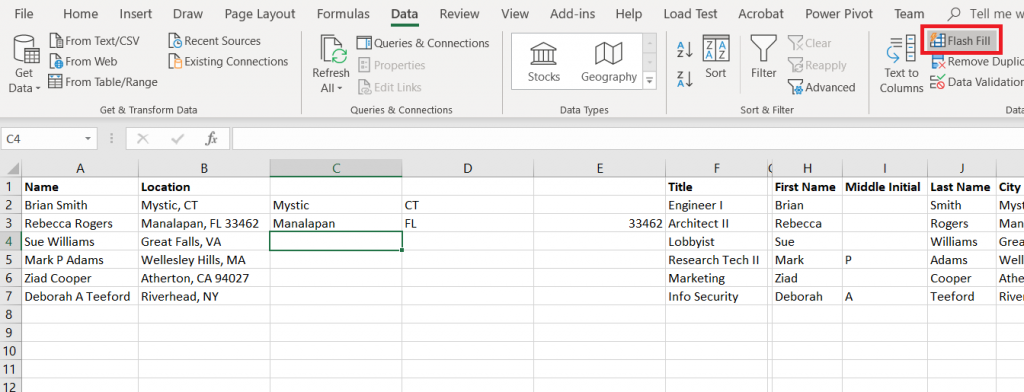
Flash Fill
Flash
Fill will try to figure it out for you. Add an empty column (or more) and manually
type one or two values. On the “Data” ribbon bar, select “Flash Fill” and Excel
will use the data you’ve entered into the row to figure out what should go in
the rest of the row.
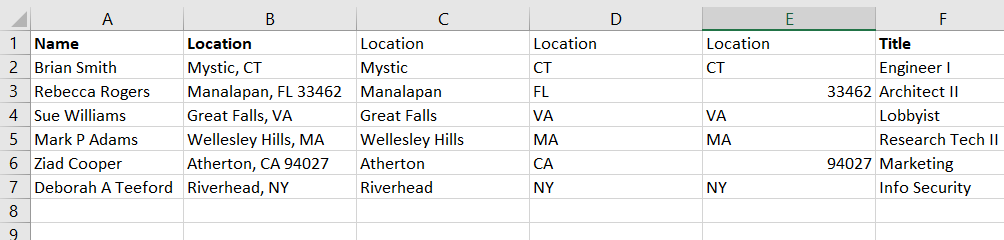
The guesses aren’t 100% accurate – especially if your
information is not consistent – but it’s a lot
easier to delete the handful of things that are obviously not zip codes …
Than to work out a formula that extracts the same
information
Text to columns
Text to columns uses the fixed-length file and delimited
file import wizard on a column of data – essentially treating that column as a
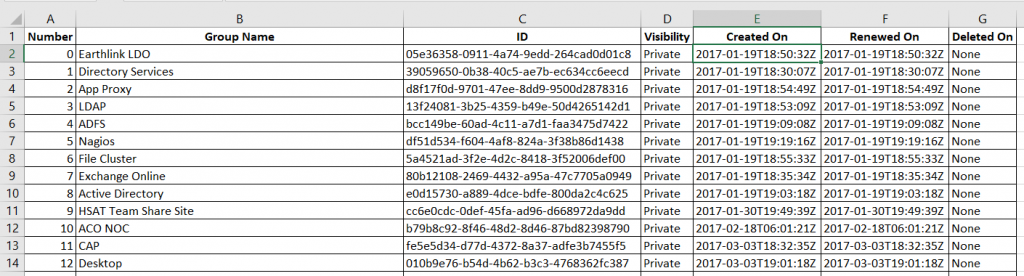
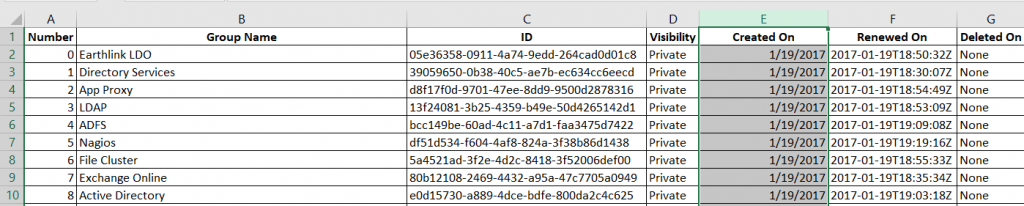
file to be imported. In this example, a DateTime value is provided in a way
that Excel only sees it as a string. And, frankly, I am not interested on the
exact hundredth of a second the event occurred. What I really want to do is group these creation dates by day, so all I
need is the date component.
If you want to retain all the data, you’ll need to insert empty
columns to the right – otherwise the data being split out can overwrite existing data. In my case, I only want to keep one of the new columns.
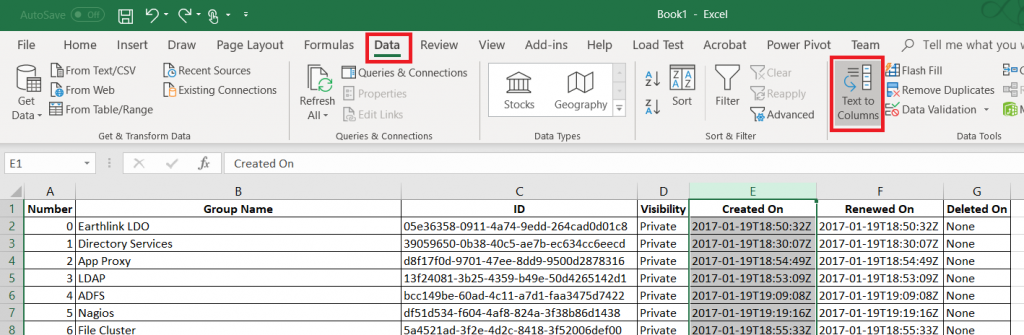
Highlight the column that holds your data. On the “Data”
ribbon, select “Text to columns”
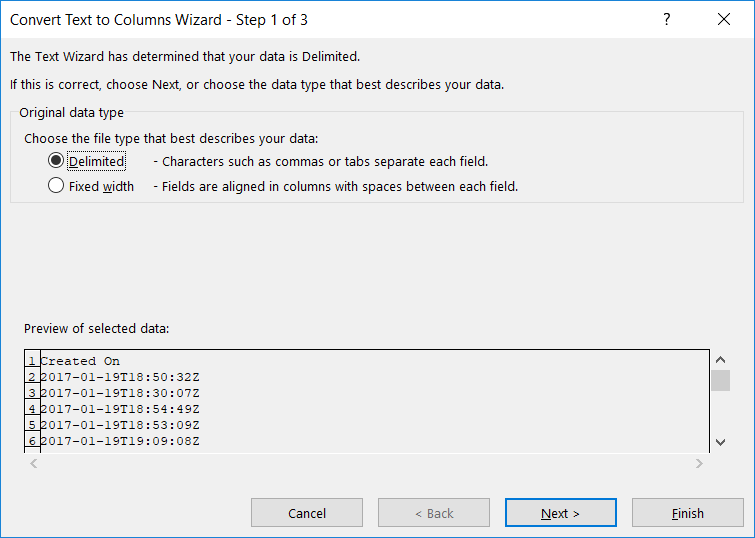
Select if the column should be split based on a fixed width
definition or a delimiter and click ‘Next’
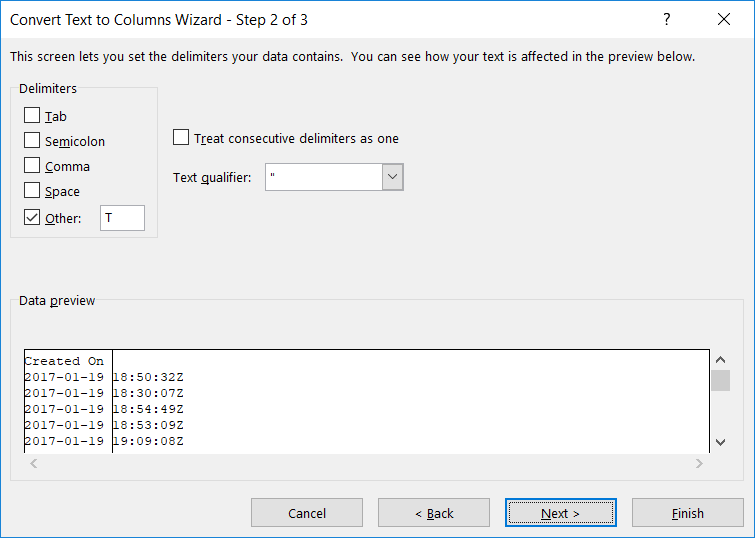
Indicate the proper delimiter – in this case, I need to use ‘Other’
and enter the letter T. A preview of the split data will appear below – make sure
it looks reasonable. Click “Next”.
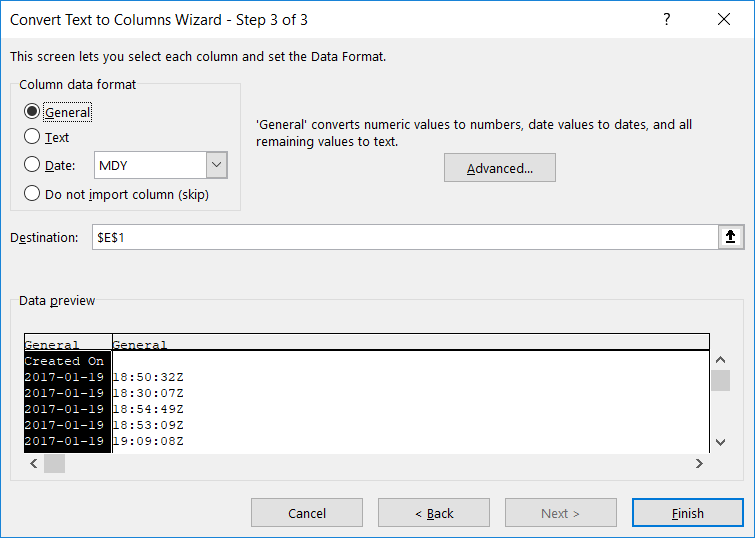
For each new row, you can
specify a data type. Or leave the type set to “General” and Excel will try to
figure it out.
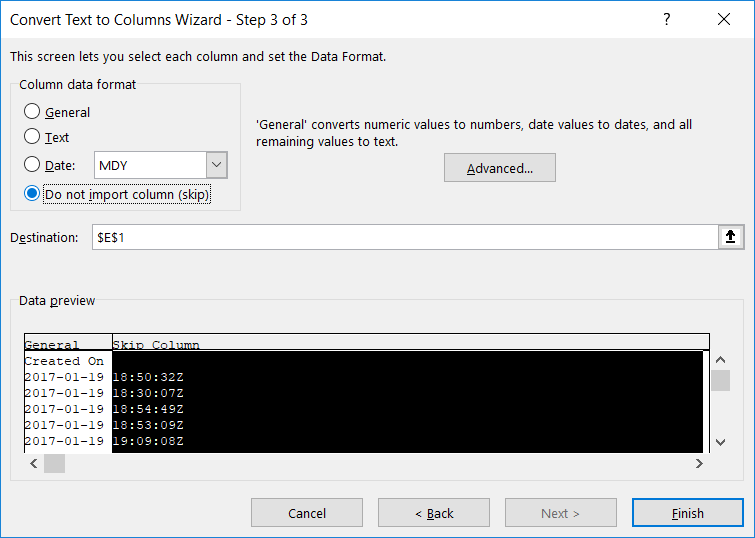
If you do not need to retain the data, select “Do not import
this column (skip)”. Click “Finish” to split your column.
Voilà – I’ve got a usable date value.
Notice, though, I have lost my original data. If you want to
retain the original data, create a
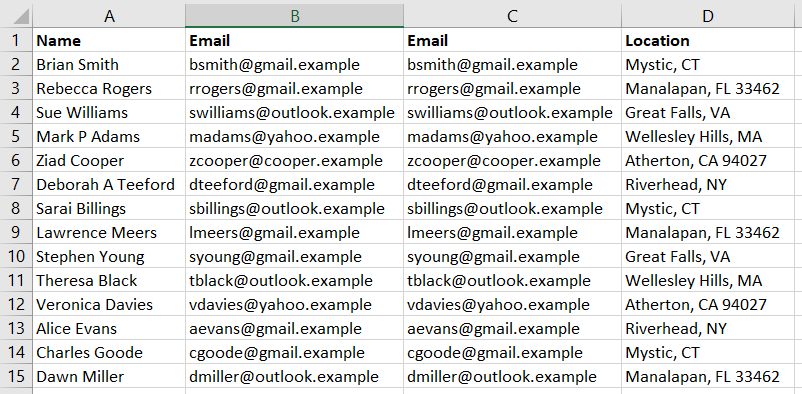
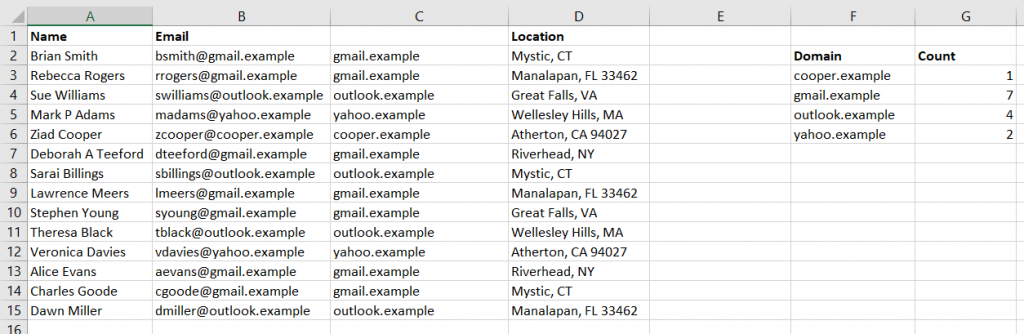
copy of the column. In this example, I want to know how many e-mail addresses
use each domain, but I want to have the e-mail addresses in a recognizable and
usable format too.
Text to columns will still replace the values from the selected column. But the copy will
contain the original text.
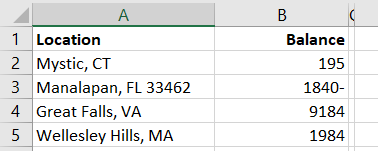
You can even use Text to columns to sort out odd data that doesn’t actually get split into multiple
columns. In this example, negative values have the minus sign after the number …
which isn’t actually a negative
number and isn’t usable in calculations.
Pick a delimiter that doesn’t appear in your data, and you’ll
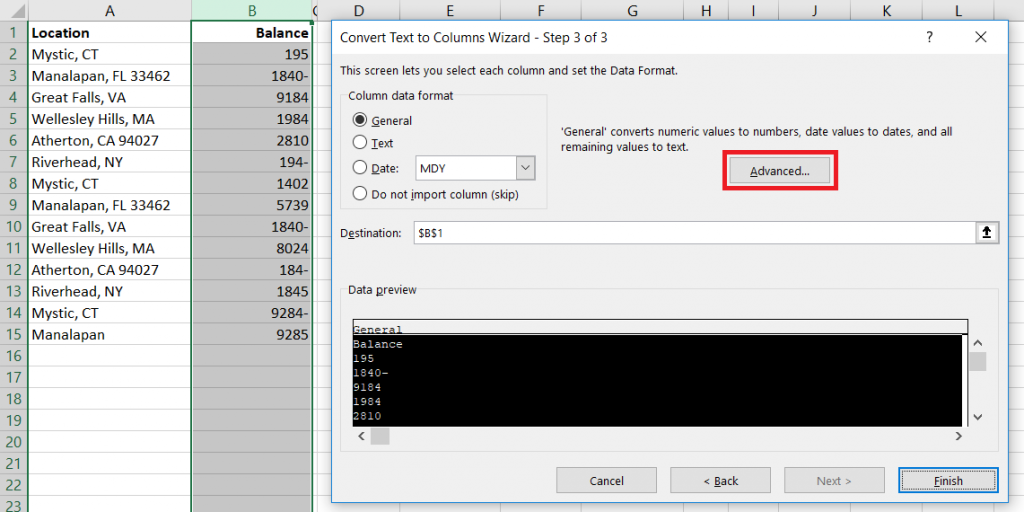
only have one column. When selecting the data format, click “Advanced”
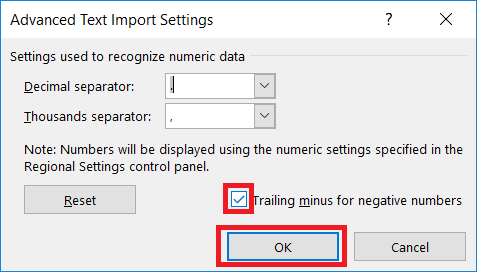
Make sure the “Trailing minus for negative numbers” checkbox
is checked and click OK.
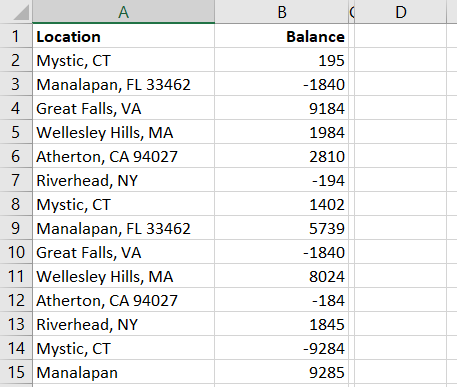
And we’ve got negative
numbers
Right, Left, Mid, and Search Functions:
You can also use the Search
function in conjunction with Right,
Left,
and Mid
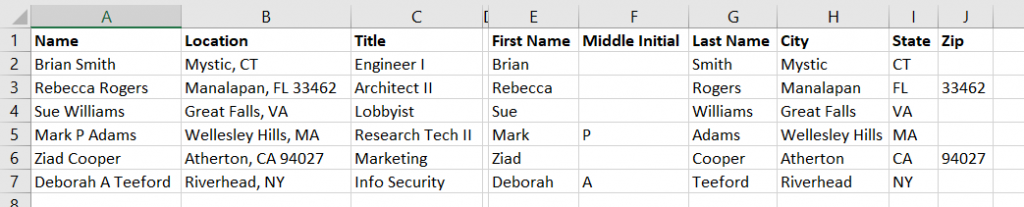
to extract components of column data. In this example, we have first and last
names. Since there are a few middle initials in there, we cannot just split on
the space character.
These formulae aren’t perfect – Mary Ann will have ‘Mary’ as
a first name – but
Working out where to start the text extraction and the number
of characters to extract can get complex. I’ll usually include the Substitute
function to simplify things a little – the zip code, in this case, is whatever
is left over after we find the city and state.
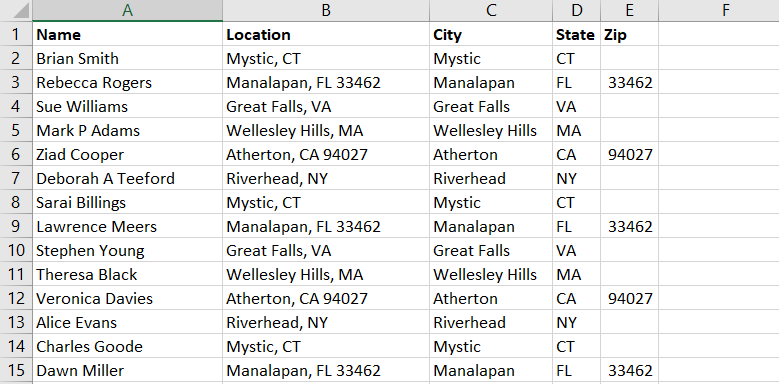
Producing columns with the city, state, and zip code from
the ‘Location’ column.
I got lucky when I got the laminated bird fabric for Anya’s book bag — it wasn’t super expensive, it is really cute, and it has a thick lamination. Since then, I’ve not been able to find much in the way of laminated fabric. I don’t want all of her stuff to have the same fabric. So I’ve been experimenting with the laminate-your-fabric iron-on stuff. I’ve used ThermoWeb’s Heat’n Bond and Pellon 100 Vinyl Fuse. Neither are as thick as the lamination on the Robert Kaufman Slicker line, which is a bummer since that’s really what matters. TL;DR: I like the ThermoWeb better, but not enough that I’d pay extra for it or go out of my way to find it.
I bought these as yardage, so the precut and boxed lengths may be different. The Pellon paper has no print on the back, whereas the ThermoWeb has a grid print. Didn’t think I would care either way, but since *most* of my pattern pieces were integer inch rectangles, I was able to cut the ThermoWeb without trying to clip the fabric to the laminate. Since the point of laminating fabric is to make it waterproof, poking holes in it seems like a bad idea. The melting process seems to have eliminated the pin holes, too.
Both products work the same way — it’s paper backed vinyl. They both claim to be sticky to help with placement on the fabric, but beyond being slightly rough and plastic (hence a higher coefficient of friction than polished plastic) they’re not like sticky adhesive sticky. Cut your shape, peel it off the paper, overlay your fabric, place the paper on top of the vinyl, and apply heat with an iron (no steam!). Voilà, laminated fabric. Since my pattern has two of every piece, I placed one paper backing (smooth side up) on the ironing board. Then the fabric, right side up. Then the laminate, again right side up, and smoothed it out with my hand to minimize wrinkles and bubbles. Topped it all with the other paper backing, smooth side down. Doing this, the laminate could be slightly bigger than the fabric piece without fusing to the ironing board 🙂
When ironing, the Pellon smelled like melty petro-chemicals. Didn’t smell anything with the ThermoWeb, but my sense of smell is really terrible so it’s possible both smell when heated. One other thing I don’t care for with the Pellon vinyl — the laminated fabric curls. Kind of a lot — I’m putting it all under my cutting mat for the night to see if it straightens out. I’m sure it will be fine once I start sewing it, but it’s certainly not stacking nicely on my desk!
Tomorrow, I’ll see how they sew!
Usage tip: when you’ve finished sewing your project and are ready to turn it, take a hair dryer to it. Warm it up a bit, then turn it the right way about. This gives you nicer corners and makes it easier to turn.
I think the wall is a completely stupid idea — based on emotion rather than statistics about the source of immigration violations, not an effective solution even if the problem were people sneaking across the border. But I am seeing a way to get this whole debacle sorted within the Executive branch (which may not be legal, because government budgeting isn’t quite the same as corporate budgeting). When we’ve got projects that are under-budget, the extra money can get moved over to some other purpose. Well, if we can shut down the government for no good reason during budget negotiations … what if the Executive branch shut down all those “non-essential” services for a while to free up money that can be transferred over to DHS? How long would the government need to be shut down?
For a five billion dollar wall (again, HA!) … since the FY2019 budget is like 4.4 trillion dollars, we spend 12 billion a day. Say 90% of that is essential. Five days of shutdown would fund the wall. Which doesn’t make the wall a good idea. Or mean Congress should just approve it to get the whole debacle over with. But it certainly says something about government spending that the wall is half of a day worth of spending. And it certainly says something about our government that it gets shut down over half a day worth of spending.
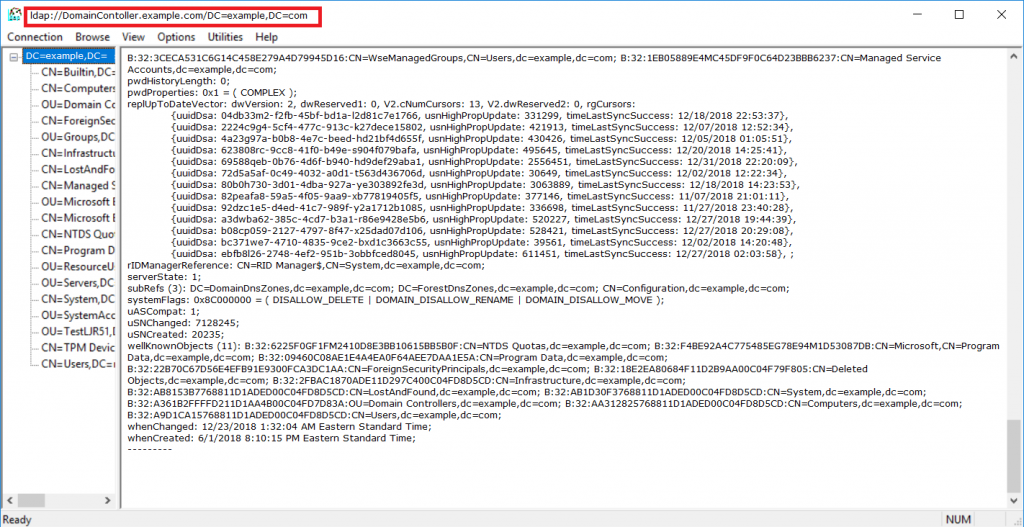
One of the RSAT tools, ldp.exe, can be quite useful if you are trying to interact with Active Directory via LDAP but don’t know anything about the domain.
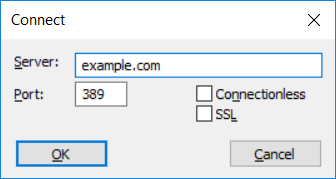
From “Connection”, chose “Connect”. Most domain controllers have A records registered for the domain name, so you can connect to the domain name.
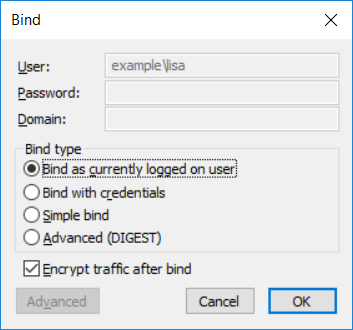
Active Directory generally prohibits anonymous read, so you’ll need to bind to the directory. From “Connection”, chose “Bind”. If your computer is logged into the domain, you can select “Bind as currently logged on user”. If not, select “Bind with credentials” — in addition to the fully qualified DN of an account, AD allows you to bind with both userPrincipalName and sAMAccountName. userPrincipalName is userid@<domain.name> and sAMAccountName is domain\userid.
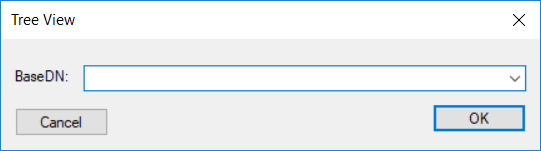
Now that you’ve logged into the domain, you can select “View” and “Tree”. If you leave the BaseDN blank, LDP will find the root of the directory partition.
Voila, you’ll see your domain. You can click around, or right-click the root of the domain and select “Search”. Look for something generic like “(&(objectClass=person))” to find user accounts. You’ll be able to see what attributes are used for what data.
Additionally, at the top of the window, you’ll see the hostname of the domain controller you are using and the root base DN for the domain.
Will withdrawing from Syria and Afghanistan be move that swings Senate Republicans against Trump? Matt Taibbi speculates exactly this. I’ve wondered why Republicans stand by Trump so relentlessly — it’s not like Pence *wouldn’t* deregulate environmental and financial industries, create refugee crises at the border, and cut taxes without a care to deficit spending. Figure it’s got to be the 30 percent (or whatever) of the voters who actually think Trump is doing the right thing. Say the country is split pretty evenly between the two parties — and that the 50% on the Democratic side aren’t likely to be talked into voting Republican … that means Trump’s deplorables *are* the majority of the Republican voters. Now a historically successful (not to mention reasonable) ploy is to adjust your platform to appeal to more voters … but evidently no one wants to walk that path. Motivate your voters or put the other guy’s voters off works too — but the circus act that is the Trump campaign is about the pinnacle of motivating voters, and no one is sure who is running next cycle to dissuade people from fully supporting the individual. So they’re sticking by Trump … unless. Could the military industrial complex — and all of that money — be the thing that turns them?
The question makes me think of Trent Lott. Who had all sorts of faults, but public opinion turned on him when he said “I want to say this about my state: When Strom Thurmond ran for president, we voted for him. We’re proud of it. And if the rest of the country had followed our lead, we wouldn’t have had all these problems over the years, either.” Which … anyone who bothered to find out could have known Lott liked Thurmond. It’s like Capone going down on tax evasion — yeah, I’m glad the dude got put in prison (or resigned from office, or thrown out) but over that?!?
Good news, we know know Trump’s secret plan to defeat ISIS — have Erdogan do it! Now I don’t think we’ve got much business in the Middle East (or Afghanistan). And “have countries in the region – Syria, Turkey, Iran, Iraq, Lebanon, Jordan – sort it” isn’t exactly a novel approach. But it is especially ironic for someone who touted their secret plan to subsequently say anyone else told him they’d take care of it.