Tag: docker

Docker for Java Builds

Instead of flipping back and forth between java versions for various builds, you can just use a docker container for the proper Java version to run the build.

[lisa@docker kafka-ui]# docker run --rm -it   --user $(id -u):$(id -g)   -v "$PWD":/workspace   -w /workspace   eclipse-temurin:25   bash -lc './gradlew clean build'
Downloading https://services.gradle.org/distributions/gradle-9.2.0-bin.zip
............10%.............20%.............30%.............40%.............50%.............60%.............70%.............80%.............90%.............100%

Welcome to Gradle 9.2.0!

Here are the highlights of this release:
 - Windows ARM support
 - Improved publishing APIs
 - Better guidance for dependency verification failures

For more details see https://docs.gradle.org/9.2.0/release-notes.html

Starting a Gradle Daemon (subsequent builds will be faster)
<=============> 100% CONFIGURING [1m 46s]
> Resolve dependencies of :api:detachedConfiguration273

Docker Registry: Listing Images and Timestamps

I wanted a quick way to verify that Docker images have actually been pushed to the registry … I’m using Distribution, and only wanted to report on images that start with sample (because the repository is shared & I don’t want to read through the very long list of other people’s images)

#!/bin/bash

registry="registryhost.example.net:5443"
authHeader="Authorization: Basic AUTHSTRINGHERE"

# List all repositories
repositories=$(curl -s -H "$authHeader" https://$registry/v2/_catalog | jq -r '.repositories[]')

for repo in $repositories; do
  # Check if the repository name starts with "npm"
  if [[ $repo == sample* ]]; then

    # List all tags for the repository
    tags=$(curl -s -H "$authHeader" https://$registry/v2/$repo/tags/list | jq -r '.tags[]')

    for tag in $tags; do

      # Get the manifest for the tag
      manifest=$(curl -s -H "$authHeader" -H "Accept: application/vnd.docker.distribution.manifest.v2+json" https://$registry/v2/$repo/manifests/$tag)

      # Extract the digest for the config
      configDigest=$(echo $manifest | jq -r '.config.digest')

      # Get the config blob
      configBlob=$(curl -s -H "$authHeader" https://$registry/v2/$repo/blobs/$configDigest)

      # Extract the last modified date from the config history
      lastModifiedDate=$(echo $configBlob | jq -r '[.history[].created] | max')

      echo -e "$repo\t$tag\t$lastModifiedDate"
    done
  fi
done

Another pretty buggy bug

We spent a morning trying to figure out why containers in a new installation of Swarm just couldn’t talk to each other. Overlay network looked fine. Firewall looked fine. You could get from the host to the container, just not from the container to a container on the other server. So … here’s a bug where your swarm (i.e. the thing you do when you want docker stuff to run across more than one server) cannot actually, ya know, talk to the other servers. Sigh!

https://github.com/moby/moby/issues/41775

NEO4J: APOC Plugin in Docker Container

I wanted to test some of the Awesome Procedures on Cypher (APOC) functions, but first I needed to install the plugins. I needed to modify my docker run statement slightly to persist the /plugins directory and install APOC core:


docker run -dit -p 7474:7474 -p 7687:7687 --volume=/docker/neo4j/data:/data --volume=/docker/neo4j/conf:/var/lib/neo4j/conf --volume=/docker/neo4j/plugins:/plugins -e NEO4J_AUTH=none -e NEO4J_apoc_export_file_enabled=true -e NEO4J_apoc_import_file_enabled=true -e NEO4J_apoc_import_file_use__neo4j__config=true -e NEO4J_PLUGINS=\[\"apoc\"\] --name neo4j neo4j

Running a Docker Container without *RUNNING* The Container

I needed to get files from a container image that I couldn’t actually start (not enough memory, and finding a box with more memory wasn’t a reasonable option) — fortunately, you can override the container entrypoint to start the container without actually running whatever the container would normally run.

docker run -ti --entrypoint=bash imageName

Quick Docker Test

I’m building a quick image to test permissions to a folder structure for a friend … so I’m making a quick note about how I’m building this test image so I don’t have to keep re-typing it all.

FROM python:3.7-slim

RUN apt-get update && apt-get install -y curl --no-install-recommends

RUN mkdir -p /srv/ljr/test

# Create service account
RUN useradd --comment "my service account" -u 30001 -g 30001 --shell /sbin/nologin --no-create-home webuser
# Copy a bunch of stuff various places under /srv
# Set ownership on /srv folder tree
RUN chown -R 30001:30001 /srv

USER 30001:30001
ENTRYPOINT ["/bin/bash", "/entrypoint.sh"]

build the image

docker build -t “ljr:latest” .

Run a transient container that is deleted on exit

docker run –rm -it –entrypoint “/bin/bash” ljr

ElasticSearch Java Heap Size — Order of Precedence

I was asked to look at a malfunctioning ElasticSearch server this week. It’s a lab sandbox, so not a huge deal … but still something they wanted online and functioning for some proof-of-concept testing. And, as a bonus, they’re willing to let us use their lab servers for our own sandboxing (IPv6 implementation, ELK upgrades). There were a handful of problems (it looks like the whole thing used to be a multi-node cluster but the second cluster node has vanished without any trace, the entire platform was re-IP’d, vm.max_map_count wasn’t set on the Docker server, and the logstash folder had a backup of a pipeline config in /path/to/logstash/pipeline/ … which still loads, so causes a continual stream of port-in-use exceptions). But the biggest problem was that any attempt at actually using the ElasticSearch server resulted in it falling over. Java crashed with an out of memory error because the heap space was exhausted. Now I’ve had really small sandboxes before — my first ES sandbox only had a gig of memory and was quite prone to this crash. But the lab server they’ve set up has 64GB of memory. So allocating a few gigs seemed like a quick solution.

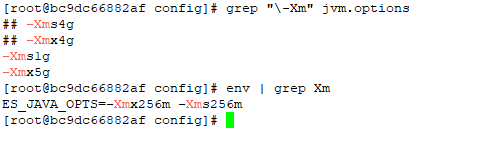
The jvm.options file and jvm.options.d folder weren’t mounted into the container — they were the default files held within the container. Which seemed odd, and I made a mental note that it was something we’d need to either mount in or update again when the container gets updated. But no matter how much heap space I allocated, ES crashed.

I discovered that the Docker deployment set an ENV variable for ES_JAVA_OPTS — something which, per the ElasticSearch documentation, overrides all other JVM options. So no matter what I was putting into the jvm options file, the 256 meg set in the ENV was actually being used.

Luckily it’s not terribly difficult to modify the ENV’s within an existing container. You could, of course, redeploy the container with the new settings (and I’ll do that next time, since I’ve also got to get IPv6 enabled). But I wasn’t planning on making any other changes.

Docker – Changing an Existing Container

I’ll start by acknowledging that, of course, you could just redeploy the container with the settings you want now. The whole point of containerized development is that anything “good” should either be part of the deployment settings or data persisted outside of the container. So, in theory, redeploying the container every day shouldn’t really be detectable. Even when you didn’t deploy the original container (i.e. you don’t have the Dockerfile or docker run command handy to tweak as needed), you can reverse engineer what you need from docker inspect. But sometimes? It’s quicker/easier/more convenient to just fix what you need to within the existing container. And it is possible to do so.

The trickiest part is finding the right file to edit.

# cd into docker container definition folder
cd /var/lib/docker/containers/
# find the guid for the container you want to edit
docker ps
# Find the corresponding folder name
ls -al | grep bc9dc66882af
# cd into that folder
cd bc9dc66882af18f59c209faf10031fe21765571d0a2fe4a32a768a1d52cc1e53
# Edit the config.v2.json file for the container
vi config.v2.json
# And, finally, restart docker
systemctl stop docker
systemctl start docker

Building a Docker Image Without Internet Access (kinda)

We’ve been moving a bunch of servers into magic cloudy land. A move which comes with a whole lot of additional security restrictions (and accompanying marketing that the cloud is so much more secure … uhh, no … any host to which you used a keylogged jump server to access & it had absolutely no access to the internal or external network without a specific request and firewall rule would be equally secure. You just haven’t bothered with all of those controls before!). As such, we cannot just pull an image from Docker Hub. We also cannot just use apt-get to install/update packages.

So … how can you build a Docker image with updated software for use on these locked down boxes? Bit of a trick question — you cannot. You can, however, build such an image elsewhere and then export/import the image.

Build the image using your Dockerfile

docker build -t my_app_base .

Then export the image you created

docker save my_api_base | gzip > myapp_image.tar.gz

Download the TGZ file and transfer it to your restricted-access host. Then import the image

docker load < myapp_image.tar.gz

Verify the image loaded successfully

[user@server ~]$ docker images
REPOSITORY              TAG         IMAGE ID      CREATED            SIZE
localhost/my_app_base  latest      5z8e35z99d5z  19 minutes ago     995 MB
<none>                  <none>     5zdbcfz6393z  About an hour ago  1.01 GB

Now use docker run with your my_app_base:latest image to create a running container based on the image.
