Category: Office 365

Did you know … Teams displays an alert when a new Planner task is assigned to you?

You will now be alerted in Teams when Planner tasks are assigned to you – this is another step toward making Teams the single hub for collaboration. Task assignment only creates activity when the Planner is a tab in one of your Teams spaces. If you create a Planner board that does not appear as a tab in a Teams space, new tasks assigned on that board will not create activity in Teams. To start getting Teams alerts for a board, just add it as a tab to a Teams space.

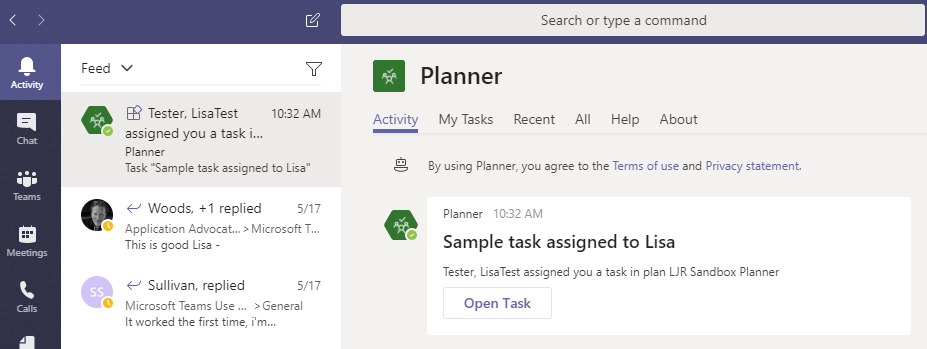
You’ll see an alert in your “Activity” feed

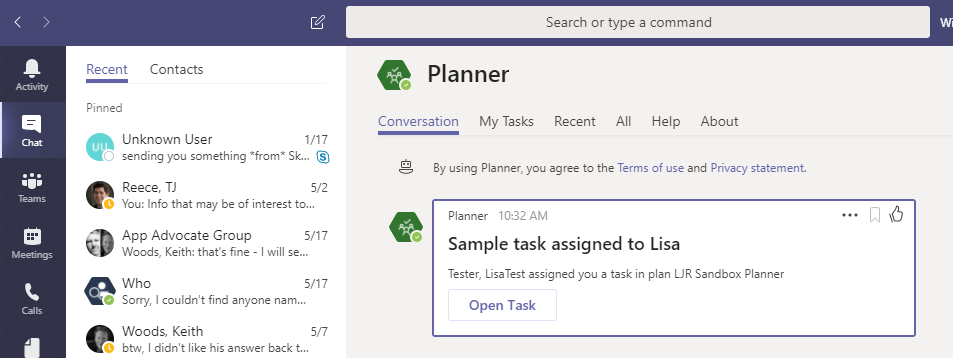
And in “Chat”. The card contains the task title, the name of the individual who assigned the task to you, the Teams space where the Planner is stored, and a link to view the task.

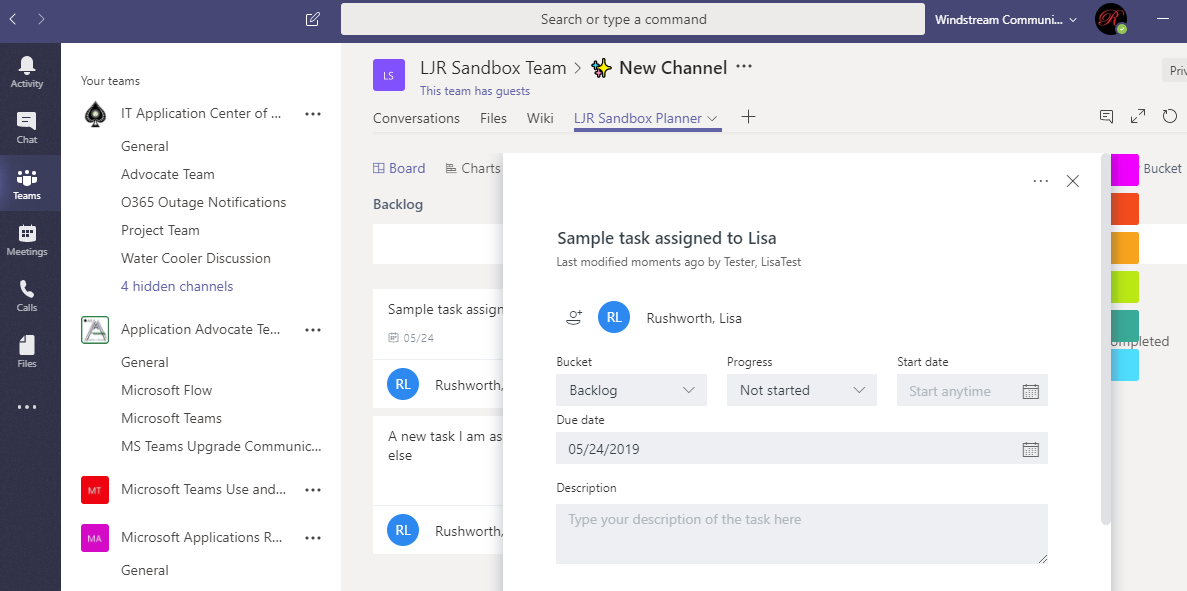
Click “Open Task” and you’ll be brought to the Planner board within the appropriate Teams space. The task will be open and ready to edit.

* If you have the mobile Planner app installed, you will receive push notifications in addition to seeing the task in your Teams activity.


Did you know … e-mails can be sent to a Teams channel?

I’ve mentioned before that we can send e-mails to a Teams channel – forward a message in my mailbox to a channel so we can discuss it. But did you know Teams channels can receive e-mail from outside of our Exchange Online environment too?

That doesn’t mean you’ll be seeing advertisements for low cost (and dodgy) prescription drugs or entreaties from the purported prince of far-far-away show up in your channel conversations. Until someone gets an e-mail address for a channel, it doesn’t have one.

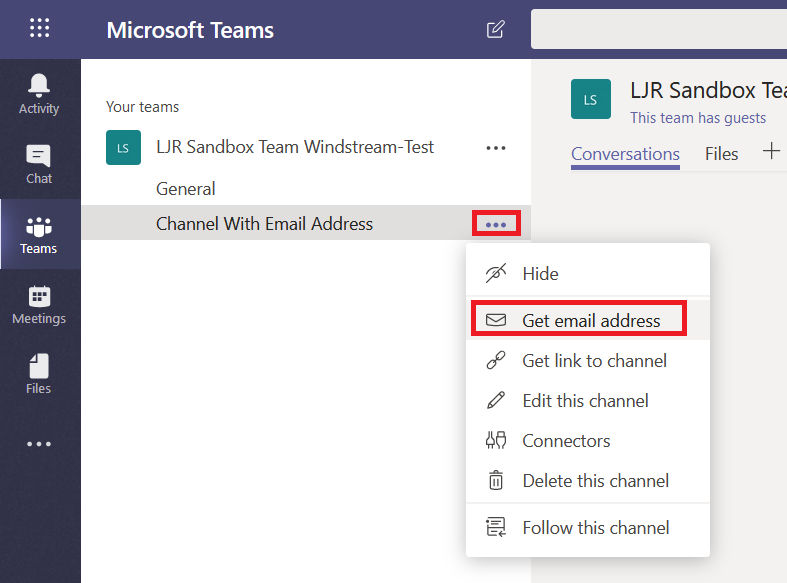
To associate an e-mail address, click the ellipsis next to a channel name and select “Get email address”

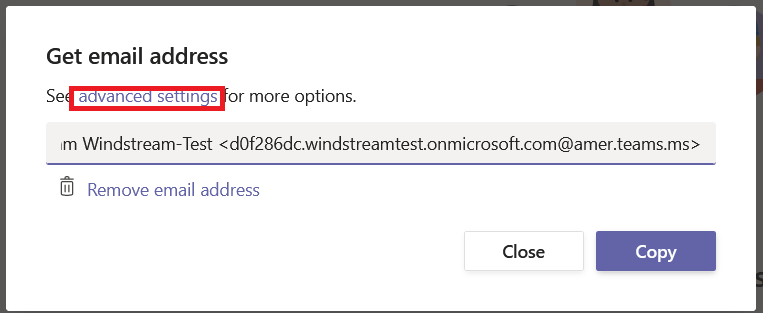
Copy the SMTP address. If you want to control which domains can send e-mails to the channel, click “advanced settings”

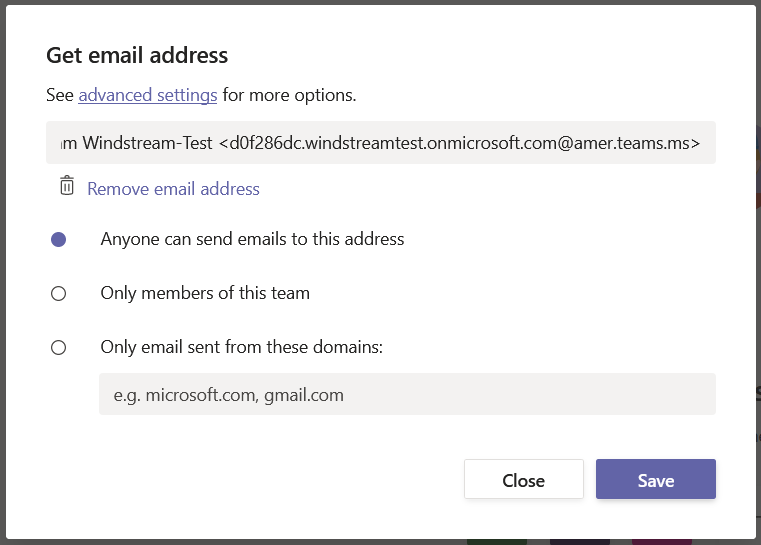
By default, anyone can send e-mails to the address. Simply select the appropriate radio button for the restrictions you want. “Only members of this team” lets members forward messages from their personal mailbox for discussion.

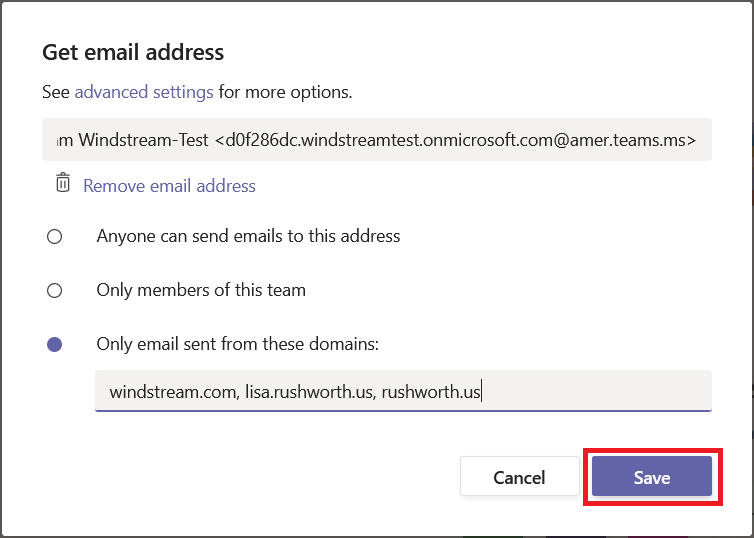
Selecting “Only emails sent from these domains” allows you to enter the list of domains from which you want to receive messages. Click “Save” to save your changes.

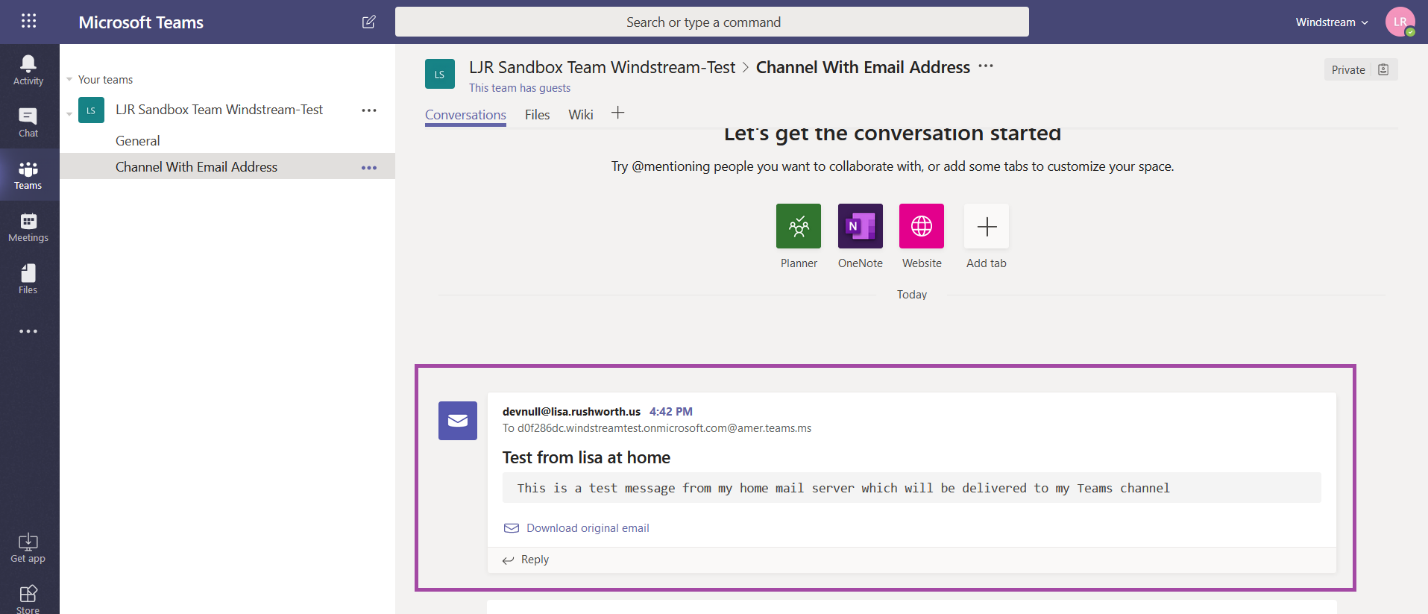
Send an e-mail message from an approved domain. Voila – a message from my home domain delivered to the Teams channel.

You can have monitoring systems, vendor ticketing systems, all sorts of e-mail sources deliver messages right into your Teams channels.


Did you know … you can add Teams channel meetings to your calendar?

Holding a meeting in a Teams channel allows channel members to attend if they have time and are interested in the meeting – it also lets Team members access meeting artifacts easily.

But when you schedule a meeting in a channel, only direct invitees see the meeting in their calendar. This is great for people who aren’t going to attend, but I end up joining the call ten minutes late because I didn’t see the meeting when I check my calendar to see what’s coming up.

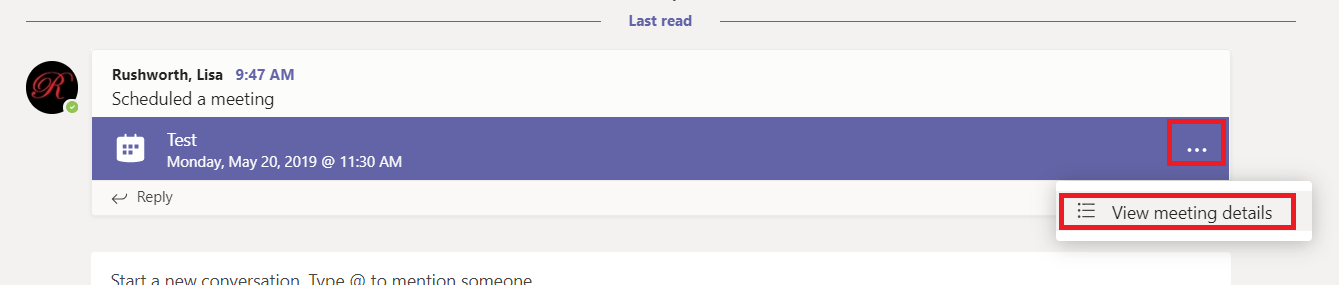
But you can add a channel meeting to your calendar – if you decide to attend the meeting, click the ellipses on the meeting item and select “View meeting details”

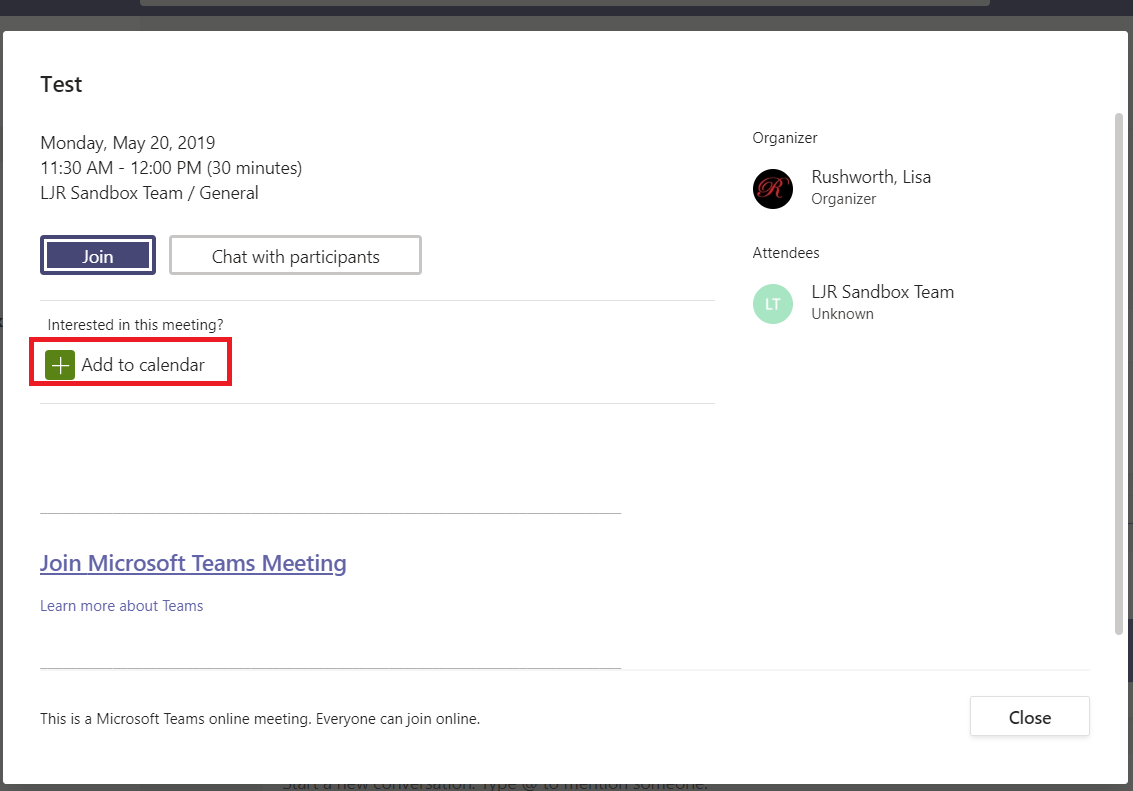
Click “Add to calendar”

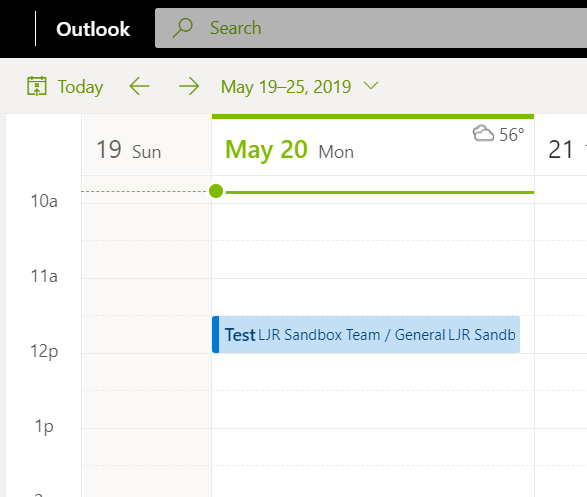
Voilà! Now the meeting appears in your calendar.


Information Barriers: Microsoft Teams

Information barriers preclude someone from communicating someone else (additional O365 services are going to implement it eventually, Teams just happens to be on the leading edge). Now there are lines of business where this is an awesome feature — law firm representing both sides of a case, for instance, don’t want people on side A chatting with people from side B. A company with a large front-line workforce may want to preclude the unwashed masses from communicating with Corporate.
If it were free and low effort to set up and maintain, I could come up with use cases for it here. Say, isolating the C11 people so someone unauthorized to talk to C11 people aren’t accidentally disclosing information. En mass blocking people from using federated communication is an interesting option — basically disallow it for everyone & have a specific request to be thrown into the “talks to people outside the company” group.
There’s some initial setup effort in building out the policies and applying them, and there would be effort in getting some mechanism for people to be moved into and out of policies. So it probably passes the ‘low effort’ test. Cost, not so much. It looks like, while anyone with an E3 SKU can use it during this preview, barrier’d accounts need an E5 or an add-on compliance/regulatory license once this goes GA.
Based on cost, I’m thinking we don’t want go dig into it. It’s an additional 8$/month for the compliance add-on license. Something like 15$/month to go from an E3 to an E5. And I don’t particularly care 8$ a user if people in our call center are inviting their friends from the MS call center to lunch over the chat federation.
Anyone else see a use case where it’d be worth the additional money for the technologically enforced barrier?

Microsoft Flow Usage Tracking Process Proposal

Assumptions: This proposal is predicated on having some reasonable way to download the Flow usage report that currently needs to be generated from the Flow admin page. Otherwise usage tracking is a manual process kicked off by logging into Flow admin site and downloading the CSV usage detail report.

This proposal is also predicated on the idea that our group is not-for-profit — we are not seeking to recoup O365 licensing cost through Flow usage billback.

Issue: Flow execution is “throttled” when usage exceeds the tenant limits. Per a response from a “Flow Staff” individual to ‘what actually happens when you exceed your allocated cycle limit’, “To clarify what is meant by throttling, flow run usage exceeding your tenant limits may be suspended at Flow’s discretion until the following billing cycle.”. While “at Flow’s discretion” is still vague, a tenant risks having Flow runs suspended when they exceed their allocated cycle limit.

Additional cycles can be purchased to continue Flow execution. As of 26 April 2019, an additional 50,000 runs costs 40$. We should ask Microsoft to clarify “Flow’s discretion”. Are enterprise customers able to have Flow execution continued and be billed for their overage? Do enterprise customers receive a short grace period during which time they can purchase additional execution cycles for upcoming months?

Farther complicating the issue, it is difficult for a manager to assess how many flow cycles are being executed by their subordinates. While Microsoft has added per-workflow usage statistics, even when workflows are maintained under shared spaces, individually checking each Team flow to determine how many times it has executed is cumbersome.

Solution: If we cannot purchase execution cycles after our limit has been reached, we will need to routinely track the number of cycles executed in our tenant to avoid both execution disruption and purchasing additional runs in months where we do not exceed our “free” cycle quota. To determine an appropriate alerting interval, we need to determine the time between identifying that our tenant is approaching its threshold and the activation of newly purchased cycles.

To create a financial incentive to maintain efficient Flow jobs, cycles should be billed back to the business units that are using Flow. Since each Office 365 license includes 2,000 Flow execution cycles, a BU is not charged when they are under their “free” allocation (i.e. # of O365 licensed users in the BU times 2,000). BUs may be charged at a rate of 0.0008$ per cycle over their “free” allocation (question: does this need to be rounded up to avoid fractional pennies? i.e. one cent per 1,250 cycles). In months were the Flow execution cycle limit in the tenant is exceeded, the BUs are charged. Many individuals do not use Flow so there are unused execution cycles. If we are under our tenant limit but a BU has exceeded their allocation, no additional money has been spent so no billback occurs. The BU owner would still be notified with a message that includes “due to low company-wide Flow usage, your overage does not incur any charge this month. This overage could result in a charge of up to {calculatedOverageCost} charged to your BU.”. The message will include the web link to help them understand who is using Flow in their organization.

We would develop a script to update a data table. This table will record each Flow user, the number of cycles used month to date, the number of cycles used during the previous month, the number of cycles used year to date, and the number of cycles used during the previous year. A web interface (which allows managers to view Teams usage of their sub-organization) would be created to provide visibility into the Flow usage data. We would also develop a script, run at the beginning of each month, that determines the BU for each Flow user, aggregates “previous month” Flow usage data per BU, calculates the total number of O365 licensed accounts per BU, calculates the BU’s cycle overage, notifies BU owners per the previous paragraph, and either initiates the billback process or produces the data which is needed to initiate the billback process.

I additionally suggest we create a “best practices” guide for using Flow. As an example, creating a workflow ‘perform some process every time our shared mailbox receives a message from BOB’ incurs a cycle execution every time the shared mailbox receives a message, regardless of the message source. When creating workflows triggered by e-mail messages, using a dedicated mailbox (research: can an O365 group mailbox be used as a trigger??) avoids non-trigger messages executing a Flow.

Did you know … Power Query can extract a unique list of records?

Remove duplicates is a quick way to obtain a unique list of records; every time the source data is updated, though, you’ve got to copy and ‘remove duplicates’ again. There’s a better way! Use Power Query to create a unique list that can be updated with a single click.

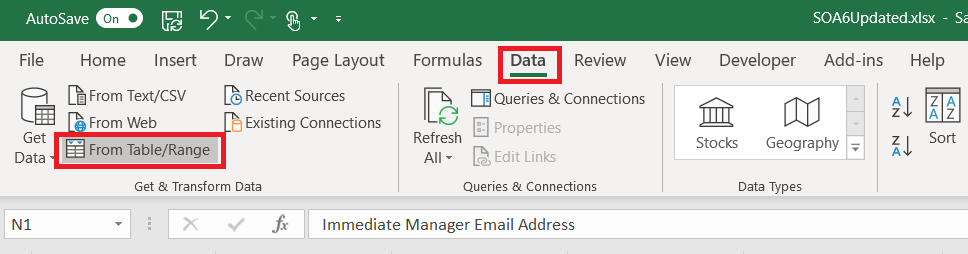
To use Power Query, first highlight the column containing the information for which you want a list of unique values.

On the “Data” ribbon bar, select “From Table/Range”

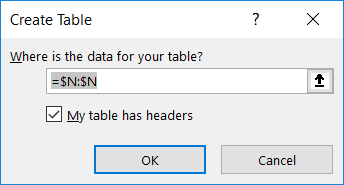
You’ll be asked to confirm where the source data is located – the highlighted selection should appear. Click “OK” to continue.

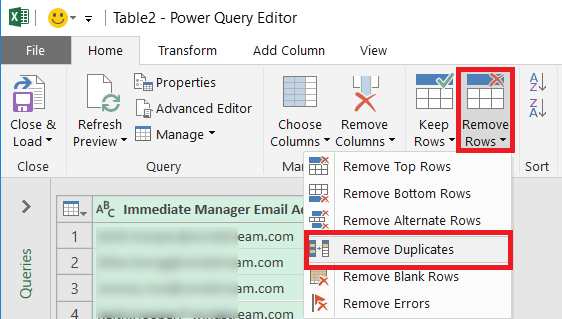
A new window will open – the Power Query Editor. On the “Home” ribbon bar, click on “Remove Rows” and select “Remove Duplicates”

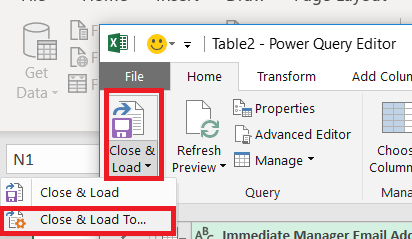
A unique list of values has been extracted in the Power Query editor – but you want to insert that data into your spreadsheet. Click the drop-down by “Close & Load” then select “Close & Load To …”

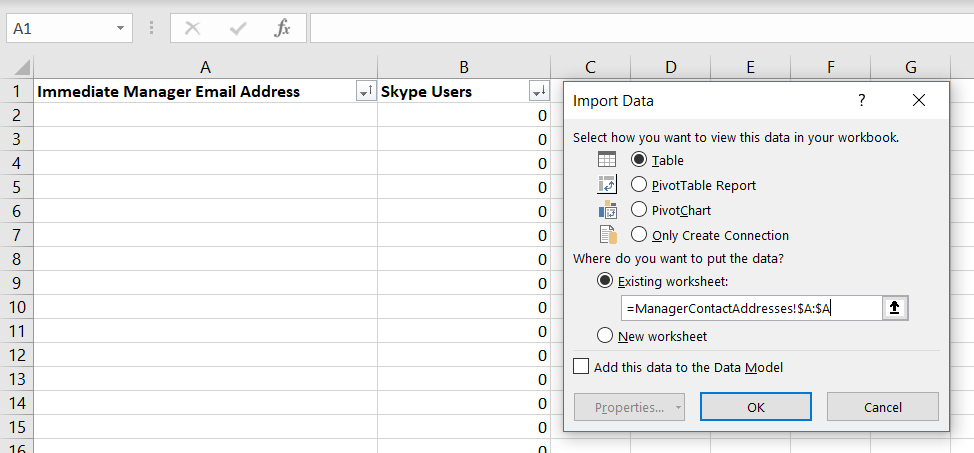
Now you can select where you want your list of unique values to appear – I am creating a table in an existing worksheet. Click “OK” to insert the unique list.

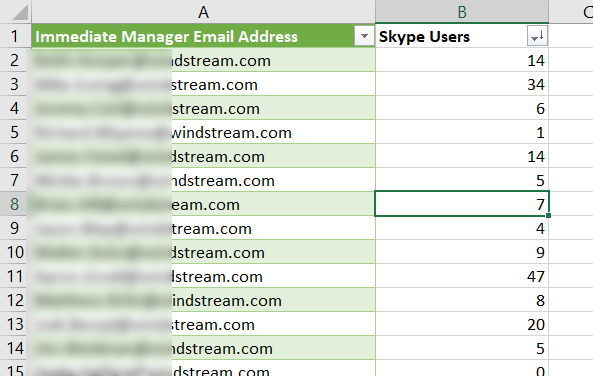
Voila, I now have a unique list.

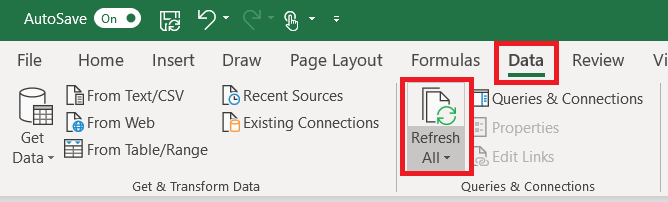
What happens when new records are added to my source data? The Power Query table does not automatically update as values are added to the source data. On the “Data” ribbon bar, click “Refresh All” to update the unique value list.


Did you know … you can redirect custom URLs to Microsoft Forms?

Microsoft Forms provides a simple framework for creating surveys and polls which can be distributed either to internal users or made publicly available. Including your Form URL in an a href tag is one way to avoid trying to communicate the super-long Form URL … but if you’re looking for a ‘pretty’ URL, something that can be included in print media or provided to someone verbally, you can redirect custom URLs to your Form URL.

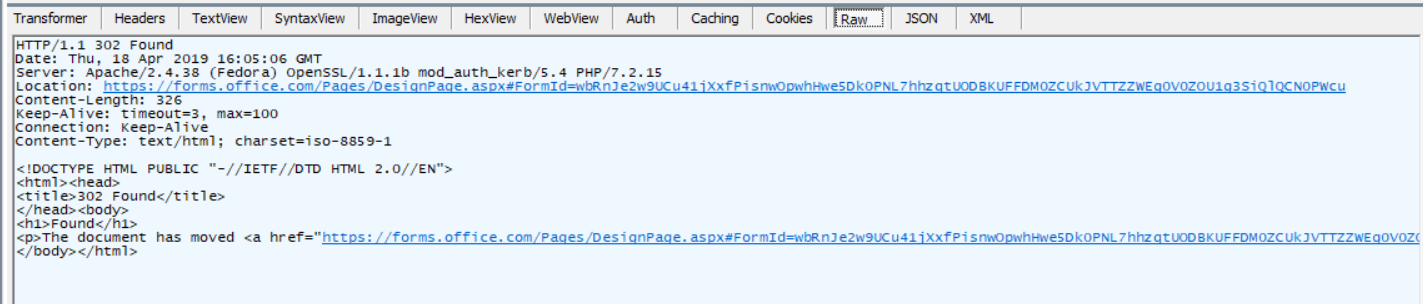
Generally, hosting a forwarding URL requires a web server; but URL-shortening services should work. To use a web server, you’ll need to configure a site (or path from a site) to serve an HTTP redirect. I am using 302 (temporary) redirection instead of 301 (permanent redirection) in case I want to forward my custom URL to a different Form.

Apache config

Use the “Redirect” directive in your virtual host config:

<VirtualHost 10.1.2.3:80>
     ServerName customsite.example.com
     ServerAlias customsite.example.com customsite
     Redirect / https://forms.office.com/Pages/DesignPage.aspx#FormID=wbRnJe2w9UCu41....
</VirtualHost>

IIS Config

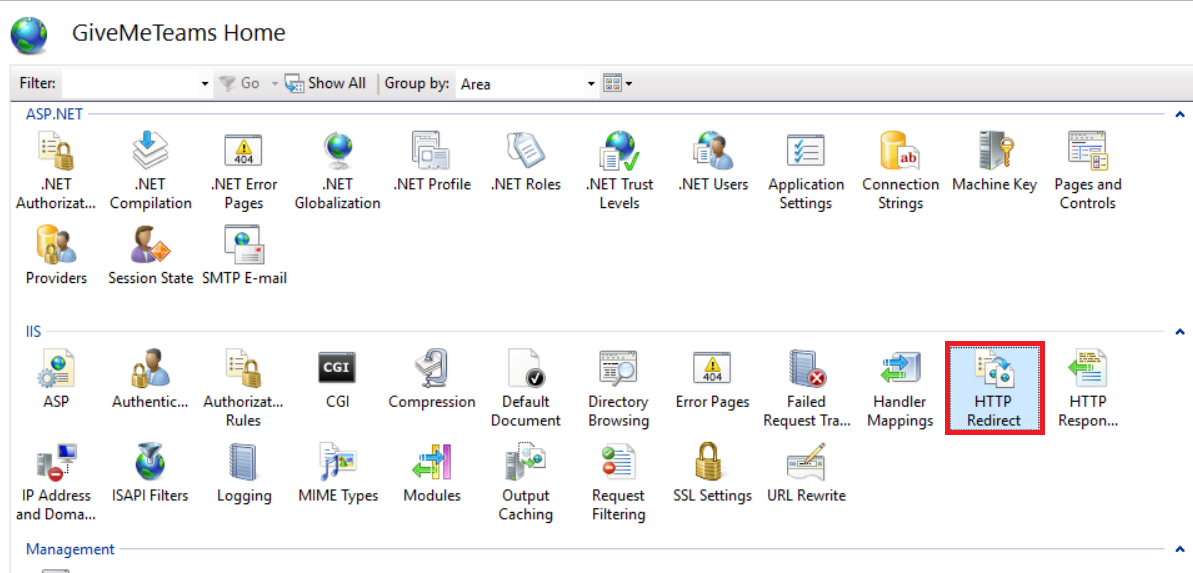
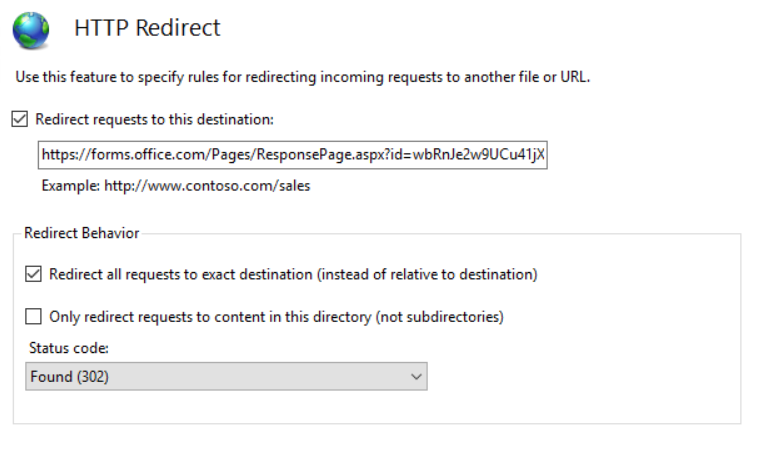
In the IIS management utility, navigate to your website and select “HTTP Redirect”.

Check the box to redirect requests and paste in your Forms URL. Check the box to redirect all requests to the exact destination.

When your site is accessed, the browser receives the HTTP redirect and displays your Form.


Did you know … you can add manager approvals in Microsoft Flow?

In my previous post, I demonstrated how the Office 365 User search could be used to record a Form responder’s email address instead of their logon ID. But other information about the user is available too – including their manager. This means you can use Flow to build workflows that require manager approval where “manager” is dynamically determined. How?

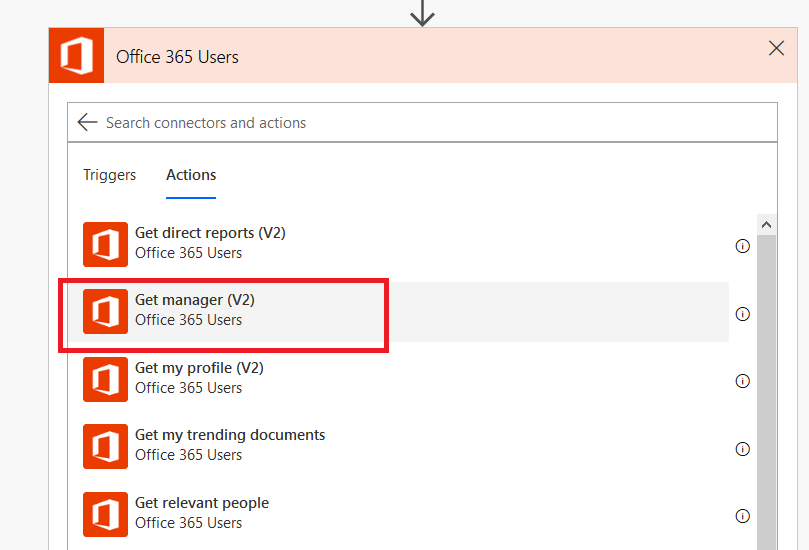
Select the “Get manager (V2)” action from the “Office 365 User” connector.

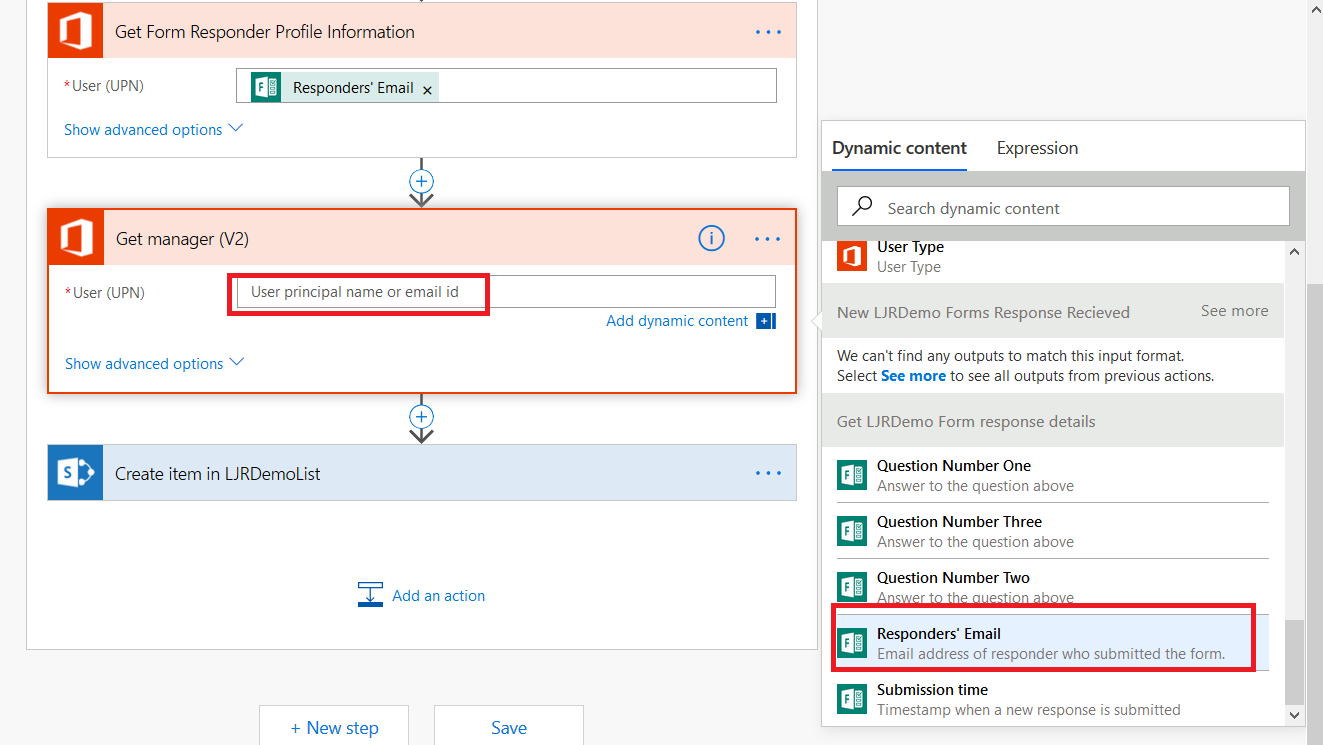
In this example, I am extending the sample workflow that creates a SPO list item from a Forms submission. I have inserted a step after getting the responder’s profile information. Click in the “User (UPN)” and select the input that contains the responder’s account (which, again, Forms calls an e-mail address)

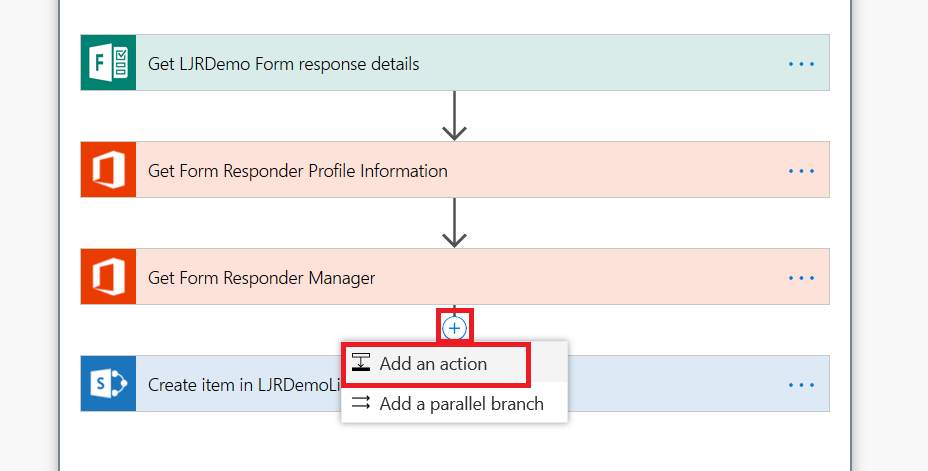
Insert a new action

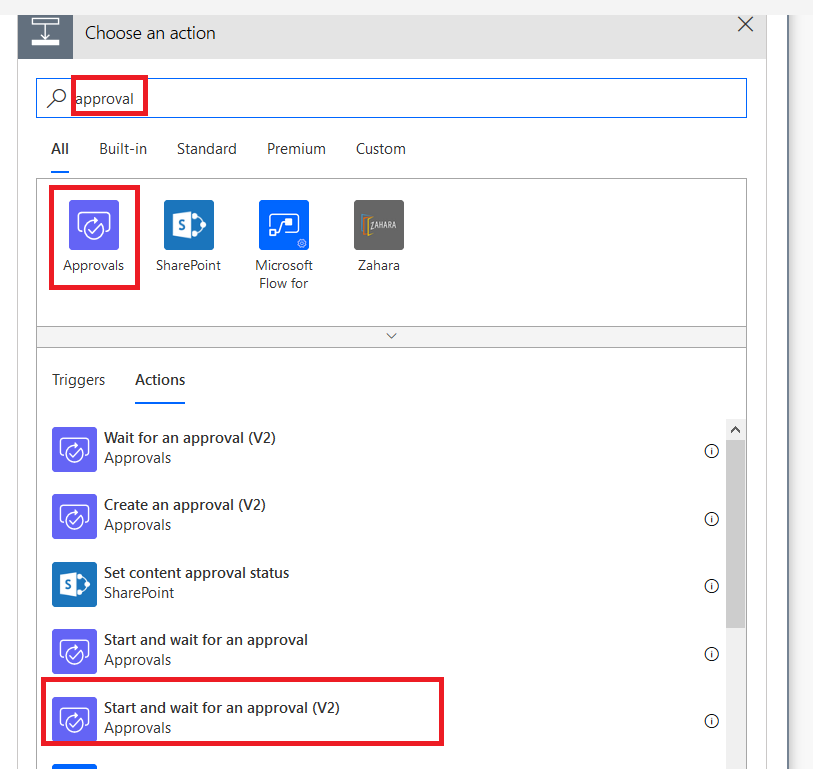
Search for and select “Approvals” and then select the “Start and wait for an approval (V2)” action.

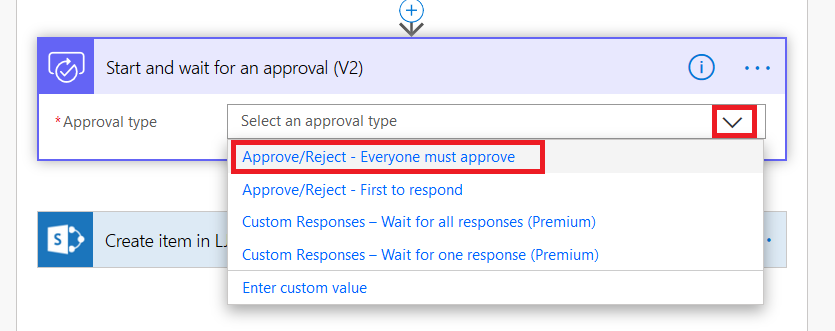
Click the drop-down for “Approval type” – since I am only adding a single approver, the first two options are essentially the same. I can, however, use “Everyone must approve” to have more than one level of manager required for approval, or a manager plus static application owner.

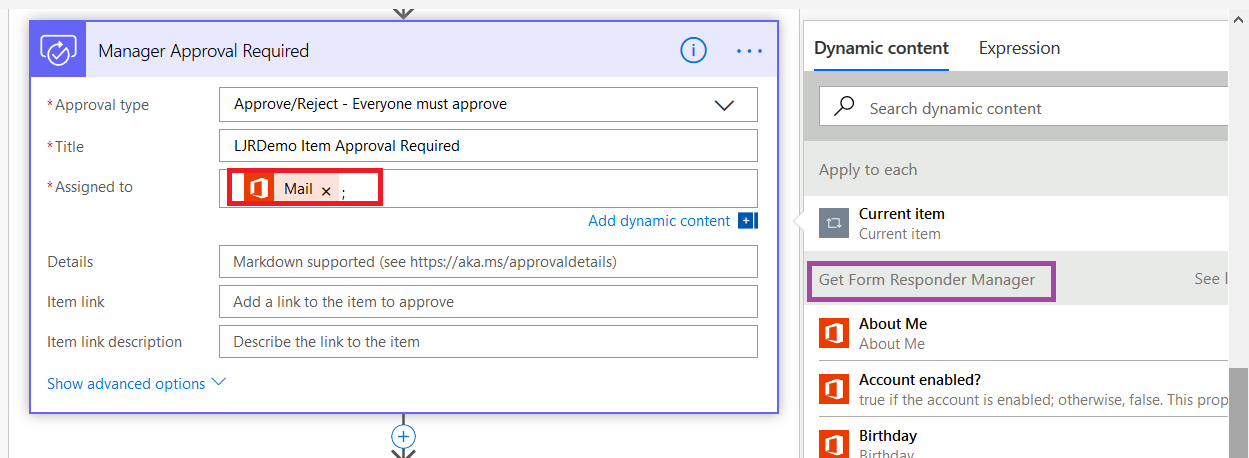
To assign the approval, find the dynamic content from the manager lookup and select “Mail” from that section. Add details that will appear in the approval notification – something to clearly explain what the person is approving.

Save your workflow. Now when a Form response is submitted, the responder’s manager will receive an e-mail which allows them to approve or reject the request.

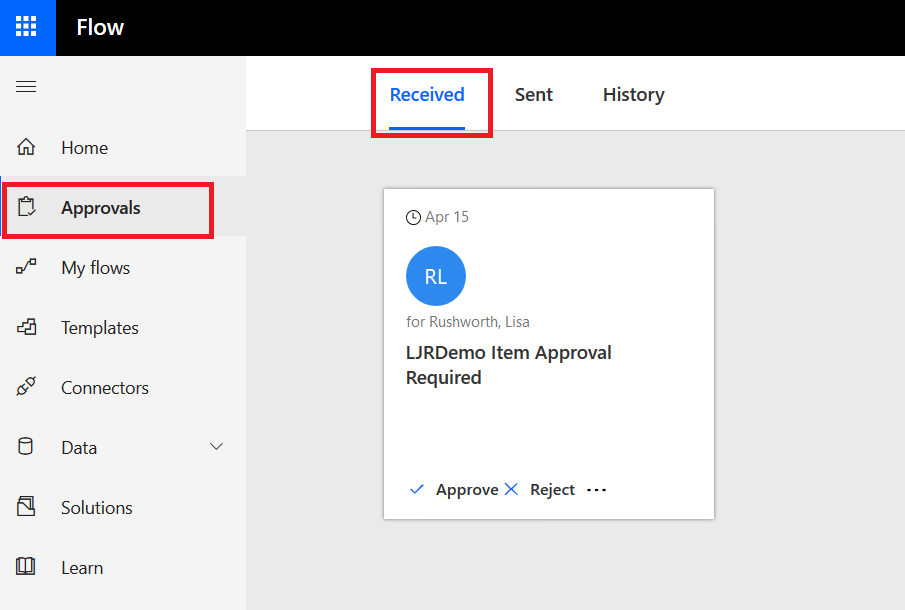
If they use the Flow site, they will see the approval in their Approvals section.


SPO Guest Access Stops Working

I ran across an interesting issue today — we have a really awesome SPO site for Project Management – tracking orders, equipment orders, installations, etc. The cool part about the site being hosted in SharePoint Online is that a customer can get set up as a federated partner and be granted access to see equipment readiness and installation scheduling within our system.

Guest access is an interesting concept – while I have an account in our tenant that is linked to my Active Directory account in our domain, you can also create links to accounts in other company’s directories. The guest account can then be set up to access our Azure resources – added to Azure groups, added to SharePoint Online groups, invited to join Teams.

A guest user had her computer replaced and could no longer access the site – SPO insisted that she was not a valid user. Looking in Azure AD, the account existed; the audit log even showed successful authentication events. I’m not sure if the computer replacement was a coincidence, the new computer had a different configuration, or if your browser stashes some information that allowed her to avoid authentication failures, but her guest account in our tenant was no longer working.

For companies that don’t have Azure AD, when an individual accepts guest account access … the guest account link in our tenant lists “Microsoft Account” as the source.

But when the company sets up Azure, the auth framework seems to get confused by the Azure AD account. Easy enough solution – we’ve got to delete the guest account that’s linked to their MS Account from Azure AD. Bonus step specific to SPO, a site administrator needs to use <site>/_layouts/15/people.aspx?MembershipGroupId=0 to delete the guest account from the SPO site.


Once the “Microsoft Account” guest account has been removed, the guest can be re-invited. They’ll step through the registration process again but the guest account will be linked up to their Azure AD account.

Re-add the new guest account to whatever they were using & their access will be restored.


Did you know … you can use Teams to collaborate with vendors?

There were a few organizations set up to “federate” with Skype for Business – from your Skype client, you could send messages to their Skype for Business account. This will continue to work when you move to Teams. Microsoft calls each company’s Office 365 environment a “tenant” – you are able to send messages from Teams in our tenant to a federated partner’s Skype or Teams in their tenant.

** If your account is upgraded to Teams Only, messages sent from federated partners will be delivered to you in Teams. Otherwise messages sent from federated partners will be delivered to you in Skype.

To chat with a federated partner, simply address a new chat message to them. The “We didn’t find any matches” message lets you know there wasn’t anyone found in our organization. Click to search for the account externally.
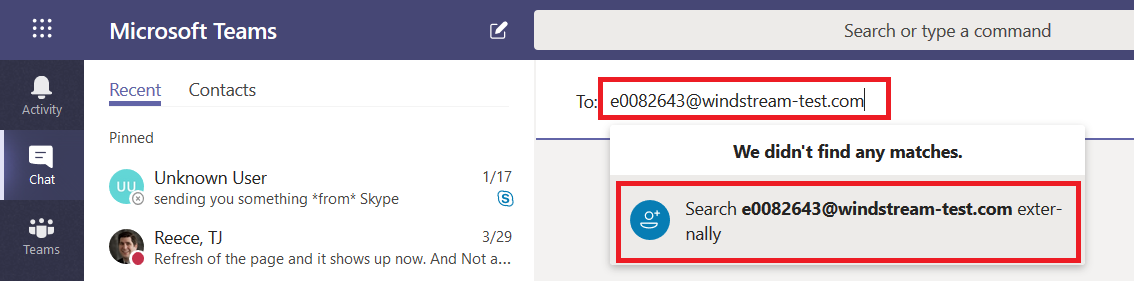
If you get an error indicating that the conversation cannot be set up, you may be mistyping the address. It is also possible that the organization is not on our list of allowed federation partners.

If their organization is on the allowed partner list, you’ll be able to start a new conversation. Along the top banner, there are a few indicators to ensure you realize you are sending information outside of our organization. Messages sent to external recipients transit Microsoft’s Skype/Teams interop gateway. Anything that is not supported through the interop gateway – screen sharing, file sharing, multi-party chat, rich text messages – will not be available when you are chatting with an external recipient.
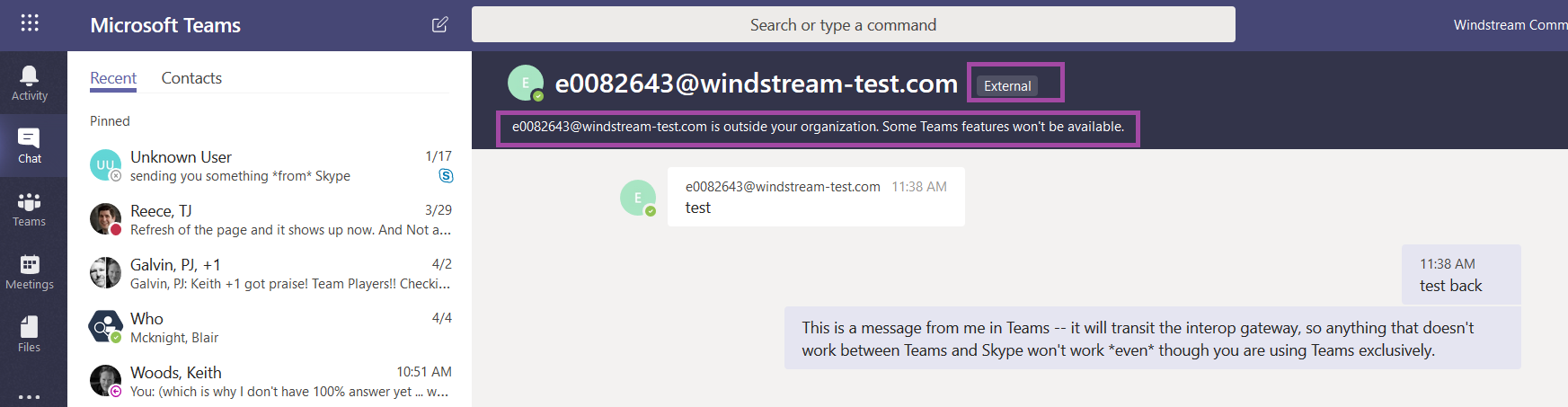
The other person will see your message in their Skype or Teams application – if they’ve been upgraded to Teams Only, the message will be delivered to them in Teams, otherwise it will be delivered in Skype.
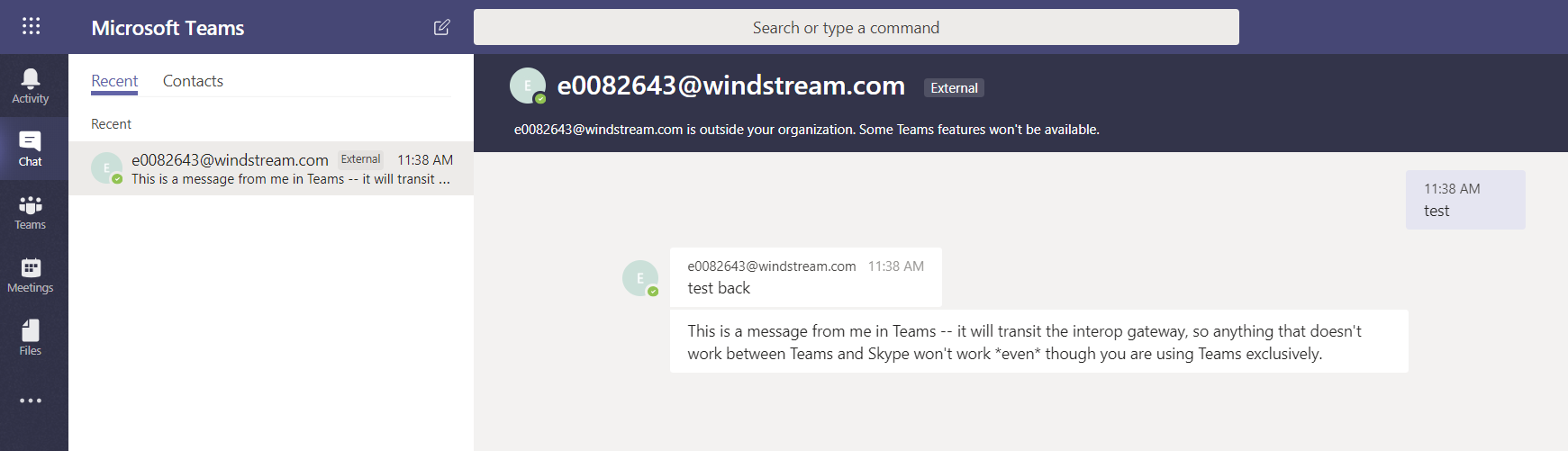
Teams expands on Skype’s federated messaging functionality – accounts from allowed organizations can be “guests” in our Teams. This means vendors can participate in collaborative discussions and access shared documents without having an “n99” account with an Office license. Federated partners can add you as a guest in their Teams spaces too.

Team owners add guests the same way they add internal Team members.
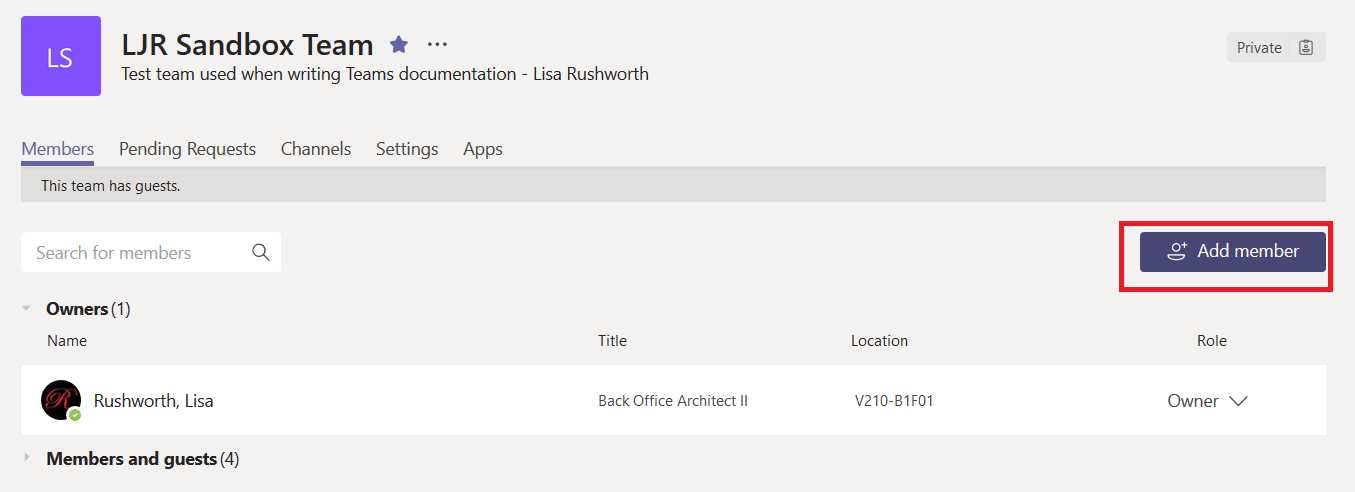
When you type the guest’s address, it will not match any records in our tenant and the option to add them as a guest will be displayed.
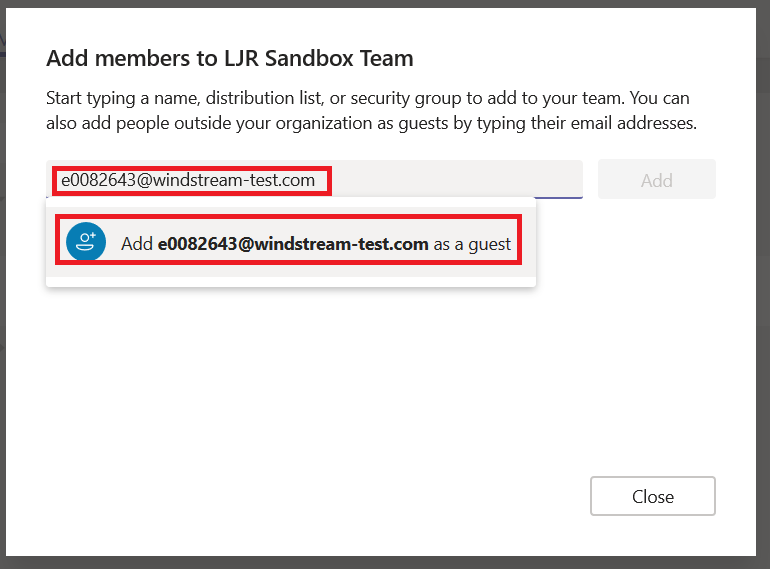
Once someone has been added as a guest to a Teams space, there are two ways you can send them chat messages – the external account and the guest account.
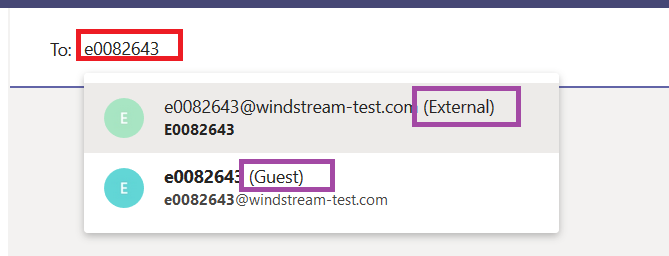
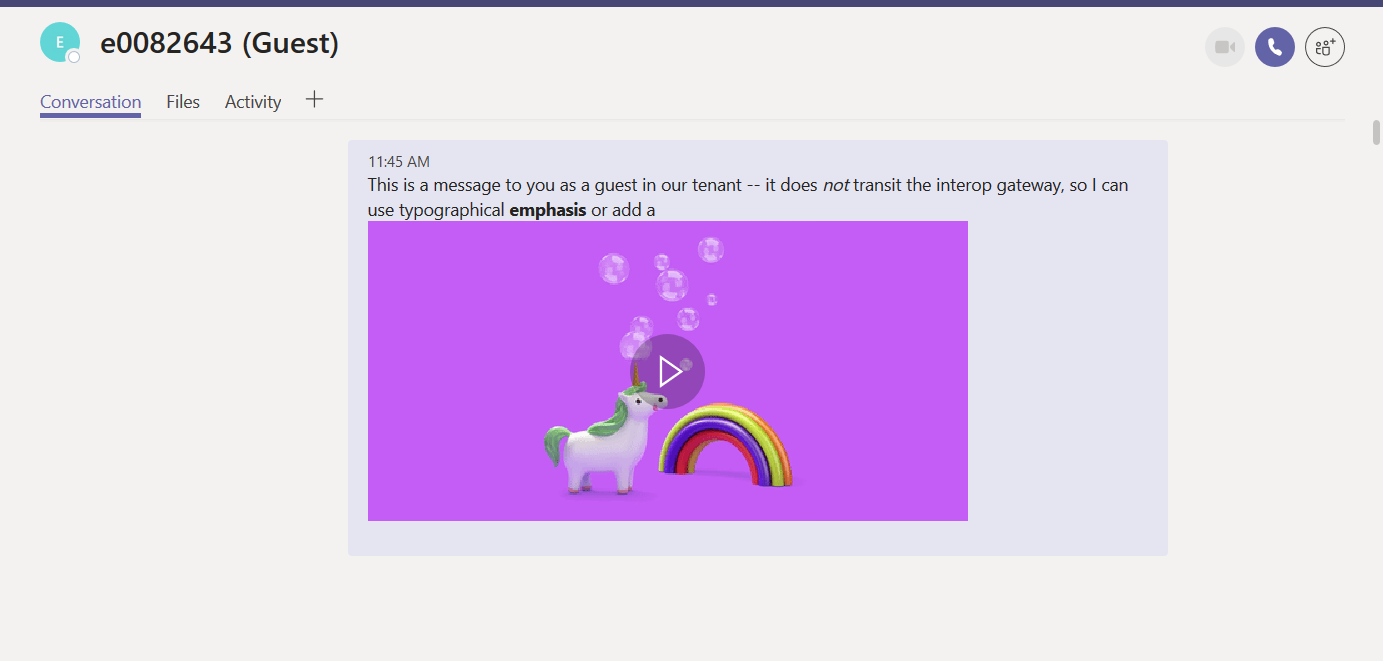
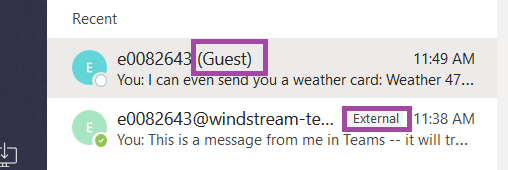
What’s the difference? Where the “external” listing delivered your chat message to Skype or Teams (depending on the individual’s account configuration) in the other person’s tenant, “Guest” will deliver the chat message to Teams within *our* tenant.

Good news – that means you can use features that aren’t supported through the interop gateway. Bad news – the person may not check our Teams tenant regularly to see if there are new messages.
A person added as a guest to our organization will see a drop-down tenant selector next to their avatar in Teams. They’ll be able to click the drop-down and switch contexts to our tenant.

They will be able to see our Teams … well, the ones of which they are a member anyway!
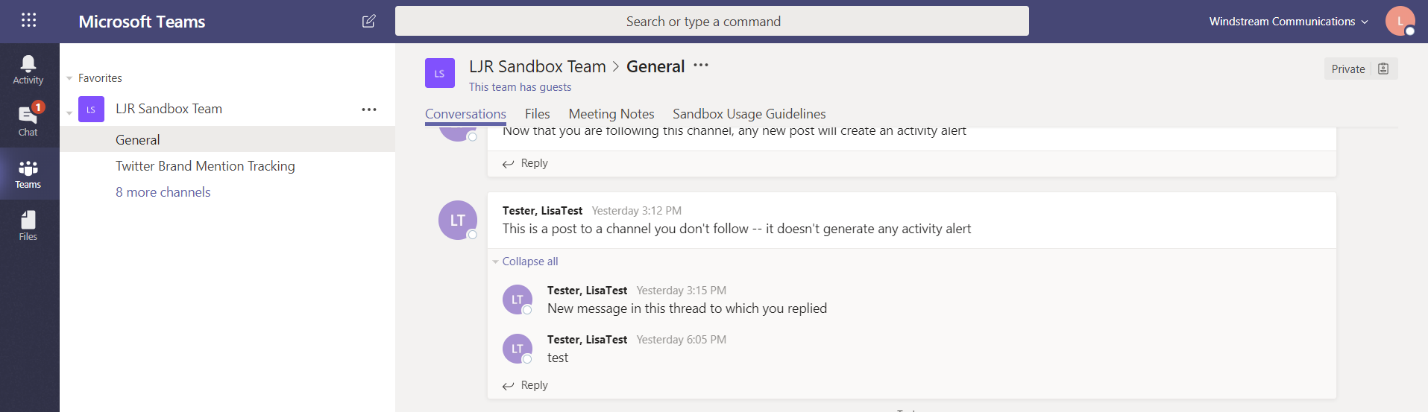
They’ll also see chat messages sent to their guest account.
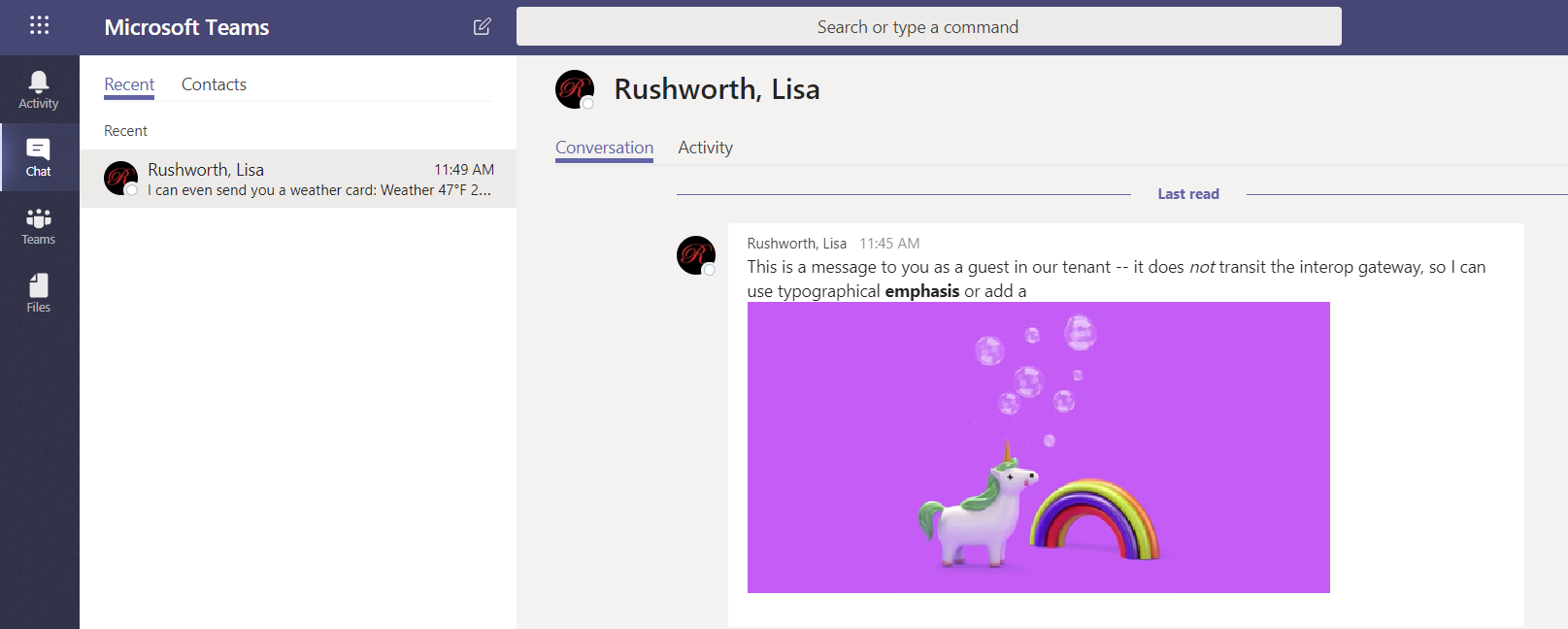
You may notice that the person appears twice in your chat history – the guest account in our tenant and the external account in their tenant are separate entities.
How will the person know they’ve got messages waiting for them in our tenant? A message count indicator will appear on the tenant selector. If they’re a guest in multiple tenants, clicking the drop-down will show them how many new messages are in each tenant.
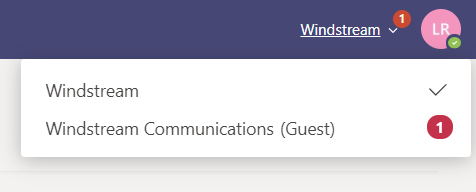
Usage Tip: This notification isn’t immediate (and sometimes the notification is significantly delayed), so time-sensitive communication should be sent to the ‘External’ listing instead of the ‘Guest’ one.

Warning: Conversations and documents in our tenant are under our purview. This means we can restore access if data becomes orphaned, our retention policies apply to the data, documents and conversations will be included in legal discovery activity, etc. Activity in partner tenants are under their purview. Be cognizant of communication and file content before storing information outside of our tenant.