Tag: Microsoft Flow

Microsoft Flow Usage Tracking Process Proposal

Assumptions: This proposal is predicated on having some reasonable way to download the Flow usage report that currently needs to be generated from the Flow admin page. Otherwise usage tracking is a manual process kicked off by logging into Flow admin site and downloading the CSV usage detail report.

This proposal is also predicated on the idea that our group is not-for-profit — we are not seeking to recoup O365 licensing cost through Flow usage billback.

Issue: Flow execution is “throttled” when usage exceeds the tenant limits. Per a response from a “Flow Staff” individual to ‘what actually happens when you exceed your allocated cycle limit’, “To clarify what is meant by throttling, flow run usage exceeding your tenant limits may be suspended at Flow’s discretion until the following billing cycle.”. While “at Flow’s discretion” is still vague, a tenant risks having Flow runs suspended when they exceed their allocated cycle limit.

Additional cycles can be purchased to continue Flow execution. As of 26 April 2019, an additional 50,000 runs costs 40$. We should ask Microsoft to clarify “Flow’s discretion”. Are enterprise customers able to have Flow execution continued and be billed for their overage? Do enterprise customers receive a short grace period during which time they can purchase additional execution cycles for upcoming months?

Farther complicating the issue, it is difficult for a manager to assess how many flow cycles are being executed by their subordinates. While Microsoft has added per-workflow usage statistics, even when workflows are maintained under shared spaces, individually checking each Team flow to determine how many times it has executed is cumbersome.

Solution: If we cannot purchase execution cycles after our limit has been reached, we will need to routinely track the number of cycles executed in our tenant to avoid both execution disruption and purchasing additional runs in months where we do not exceed our “free” cycle quota. To determine an appropriate alerting interval, we need to determine the time between identifying that our tenant is approaching its threshold and the activation of newly purchased cycles.

To create a financial incentive to maintain efficient Flow jobs, cycles should be billed back to the business units that are using Flow. Since each Office 365 license includes 2,000 Flow execution cycles, a BU is not charged when they are under their “free” allocation (i.e. # of O365 licensed users in the BU times 2,000). BUs may be charged at a rate of 0.0008$ per cycle over their “free” allocation (question: does this need to be rounded up to avoid fractional pennies? i.e. one cent per 1,250 cycles). In months were the Flow execution cycle limit in the tenant is exceeded, the BUs are charged. Many individuals do not use Flow so there are unused execution cycles. If we are under our tenant limit but a BU has exceeded their allocation, no additional money has been spent so no billback occurs. The BU owner would still be notified with a message that includes “due to low company-wide Flow usage, your overage does not incur any charge this month. This overage could result in a charge of up to {calculatedOverageCost} charged to your BU.”. The message will include the web link to help them understand who is using Flow in their organization.

We would develop a script to update a data table. This table will record each Flow user, the number of cycles used month to date, the number of cycles used during the previous month, the number of cycles used year to date, and the number of cycles used during the previous year. A web interface (which allows managers to view Teams usage of their sub-organization) would be created to provide visibility into the Flow usage data. We would also develop a script, run at the beginning of each month, that determines the BU for each Flow user, aggregates “previous month” Flow usage data per BU, calculates the total number of O365 licensed accounts per BU, calculates the BU’s cycle overage, notifies BU owners per the previous paragraph, and either initiates the billback process or produces the data which is needed to initiate the billback process.

I additionally suggest we create a “best practices” guide for using Flow. As an example, creating a workflow ‘perform some process every time our shared mailbox receives a message from BOB’ incurs a cycle execution every time the shared mailbox receives a message, regardless of the message source. When creating workflows triggered by e-mail messages, using a dedicated mailbox (research: can an O365 group mailbox be used as a trigger??) avoids non-trigger messages executing a Flow.
Did you know … you can add manager approvals in Microsoft Flow?

In my previous post, I demonstrated how the Office 365 User search could be used to record a Form responder’s email address instead of their logon ID. But other information about the user is available too – including their manager. This means you can use Flow to build workflows that require manager approval where “manager” is dynamically determined. How?

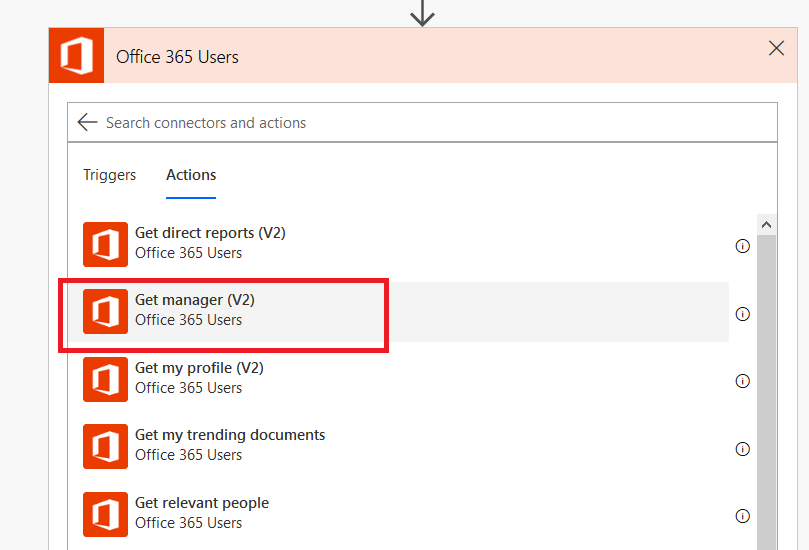
Select the “Get manager (V2)” action from the “Office 365 User” connector.

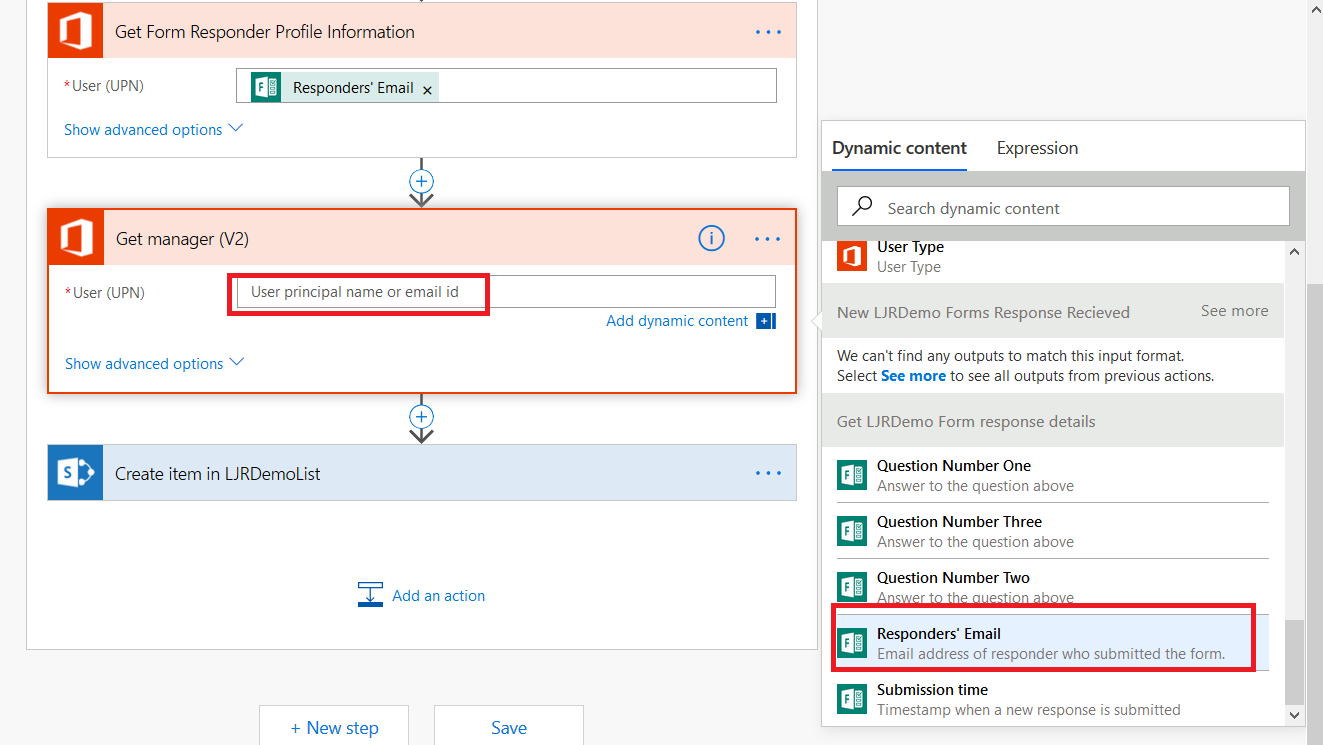
In this example, I am extending the sample workflow that creates a SPO list item from a Forms submission. I have inserted a step after getting the responder’s profile information. Click in the “User (UPN)” and select the input that contains the responder’s account (which, again, Forms calls an e-mail address)

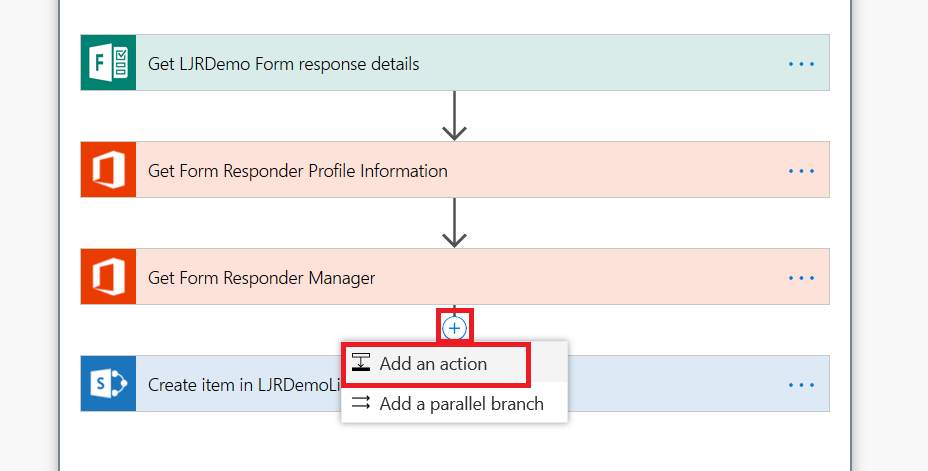
Insert a new action

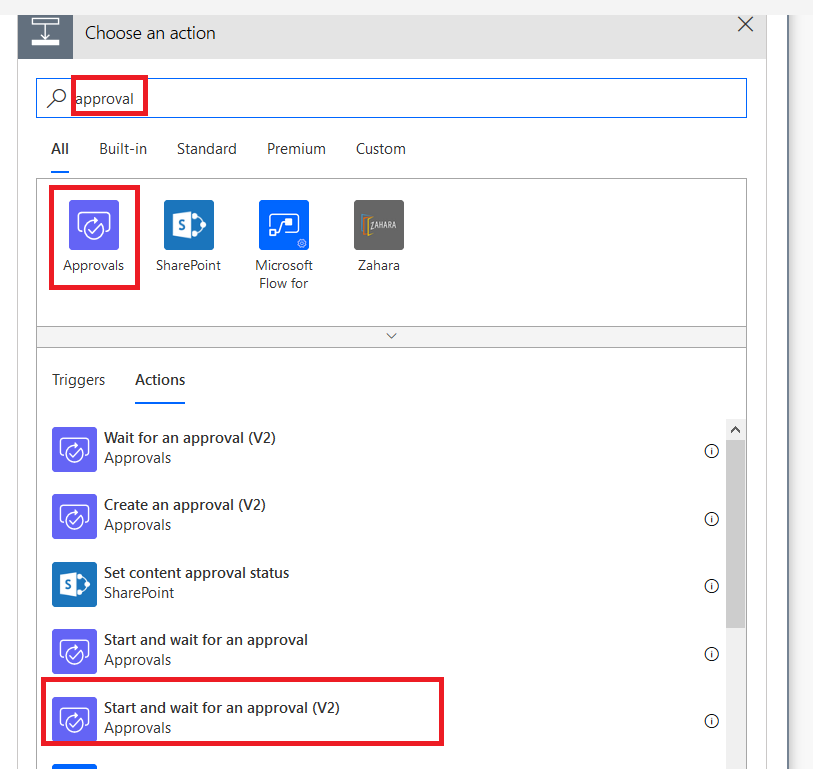
Search for and select “Approvals” and then select the “Start and wait for an approval (V2)” action.

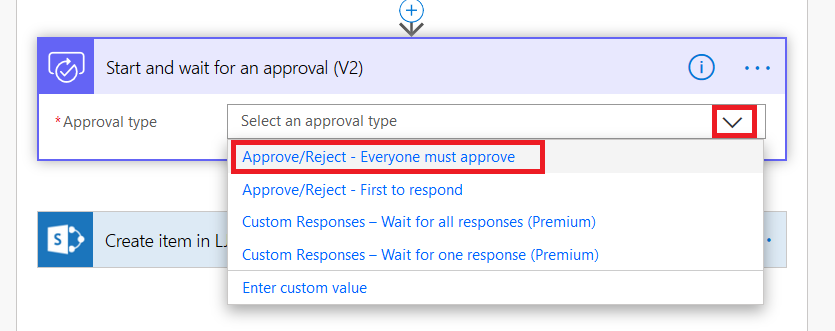
Click the drop-down for “Approval type” – since I am only adding a single approver, the first two options are essentially the same. I can, however, use “Everyone must approve” to have more than one level of manager required for approval, or a manager plus static application owner.

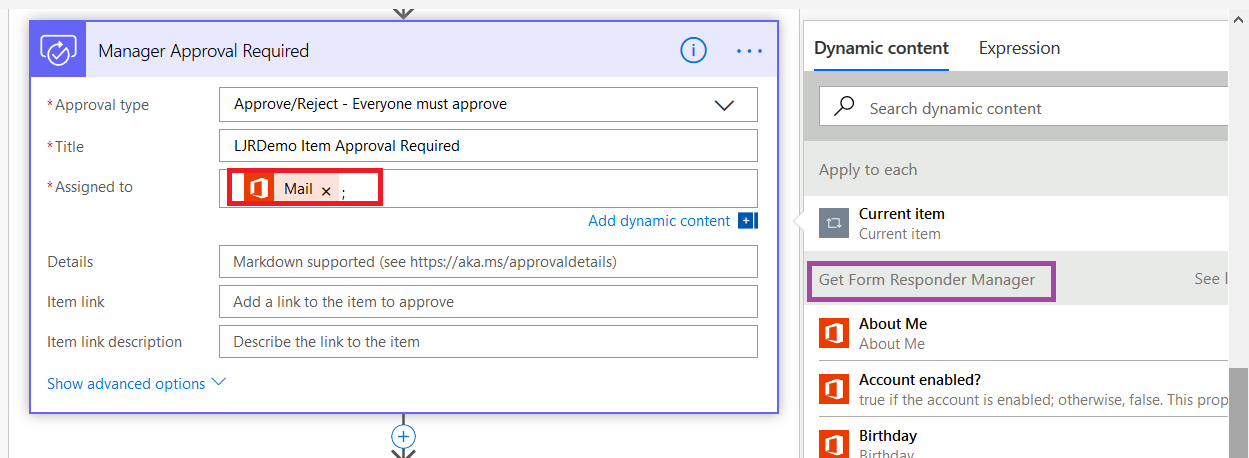
To assign the approval, find the dynamic content from the manager lookup and select “Mail” from that section. Add details that will appear in the approval notification – something to clearly explain what the person is approving.

Save your workflow. Now when a Form response is submitted, the responder’s manager will receive an e-mail which allows them to approve or reject the request.

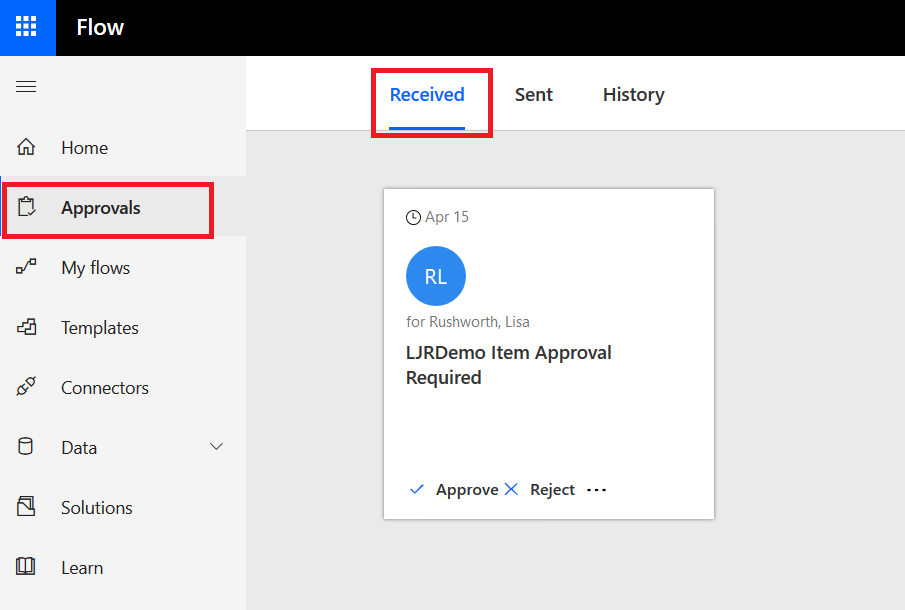
If they use the Flow site, they will see the approval in their Approvals section.


Moving A Microsoft Form Can Change The Form ID

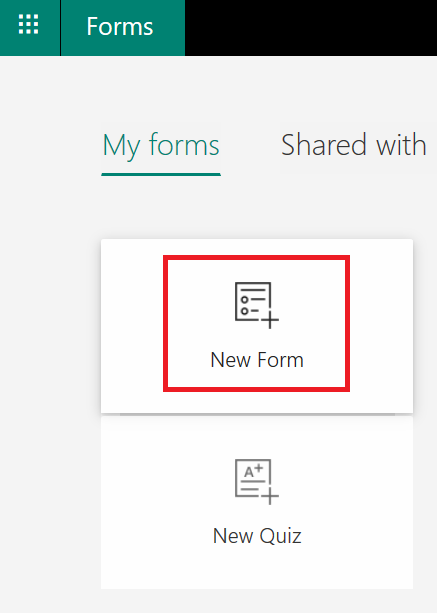
Create a personal form at https://forms.office.com

Look at the form ID – it’s in the form URL

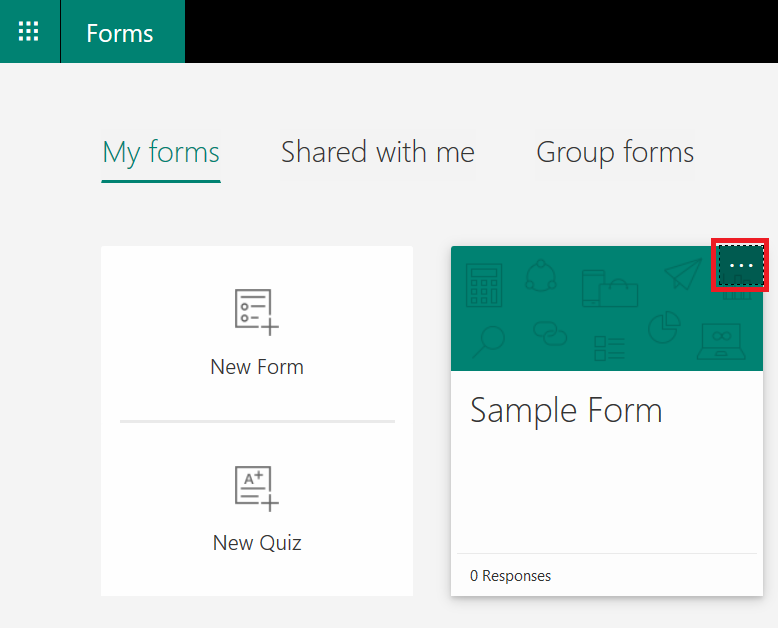
Now I’ve tested it & I’m ready to use it. I need to grant the rest of my team rights to modify the form. Click the fallen-over hamburger menu on the form

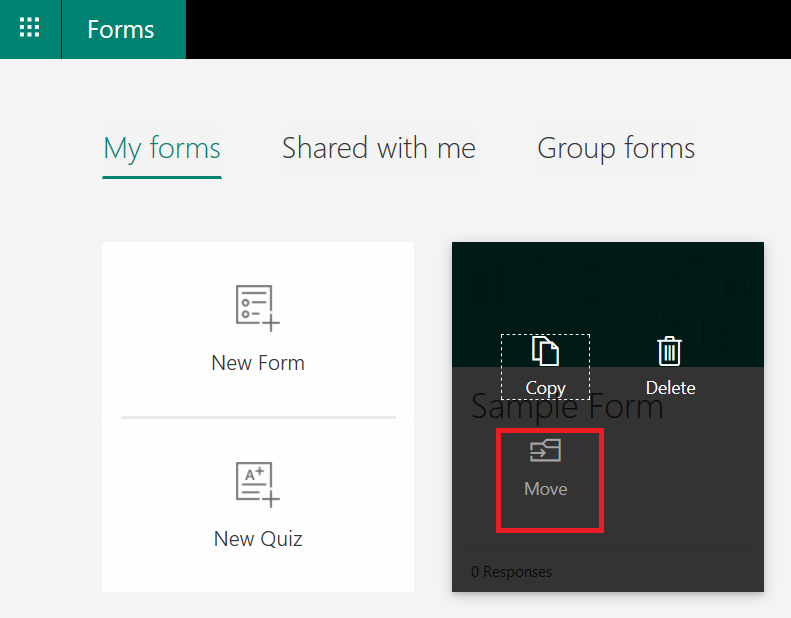
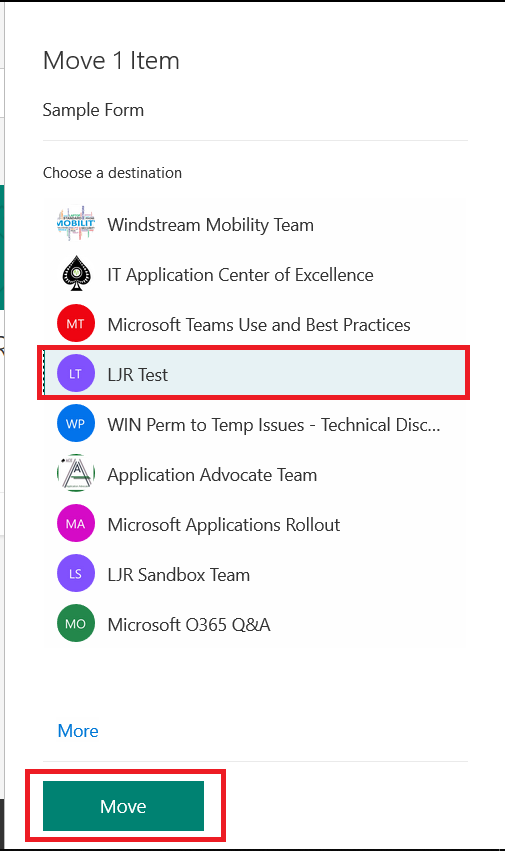
Select “Move”

Pick Teams space and click “Move”

Return to your Form – in the URL, look at the Form ID again. Compare it to the original … they don’t match!

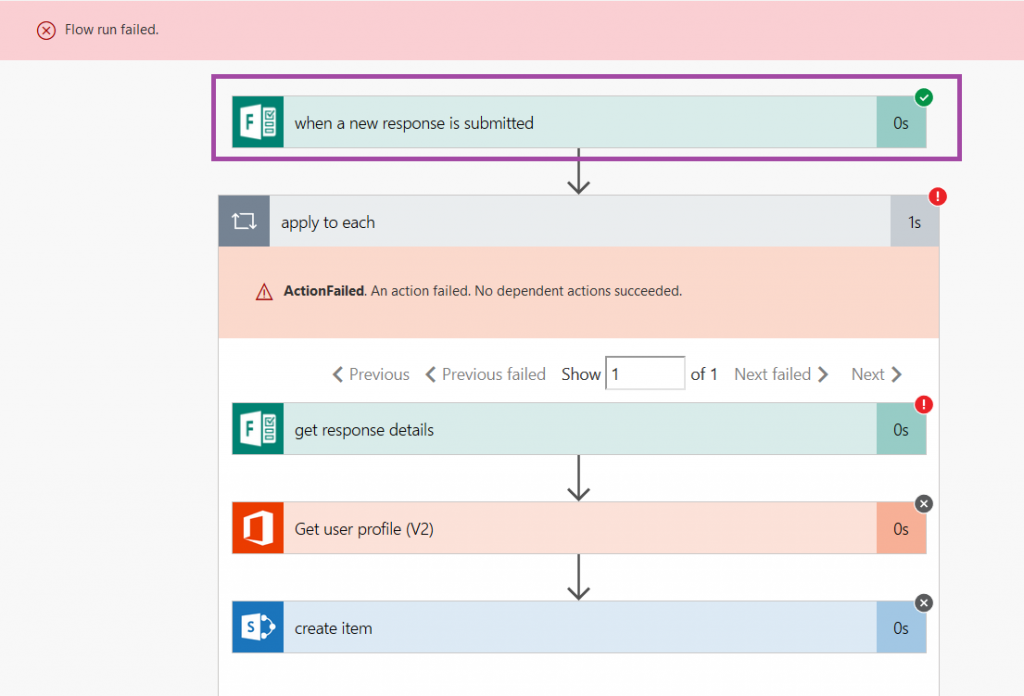
Why do I mention this? Well, if you use a form in Flow … it is referenced by the form ID. Creating a personal form, building a workflow in flow, then moving the form to your Teams space to allow others to edit it breaks the workflow. When you go into the Flow to add additional owners, you’ll need to update the Form ID as well. If you don’t update your Flow, it will start failing. Oddly not at the initial “when a new response is submitted” step where I would expect it to fail if the Form ID was not valid but at the “get response details” step.

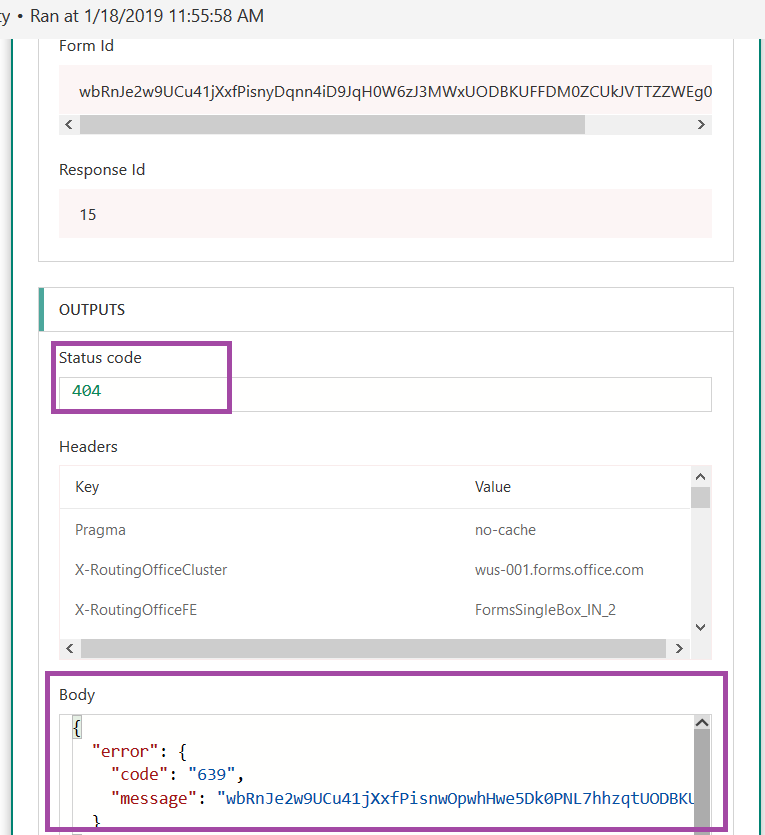
Looking at the error detail on “get response details”, the status code is 404 (HTTP error for ‘not found’, so I assumed it was used in the same context). The result body has an error code 639 which I couldn’t find anyone talking about online.

Did you know … you can send a “receipt” for Microsoft Forms submissions?

I had a maths professor who mused that, back when he was an undergrad, calculators were a newfangled thing that kids only halfway trusted. You’d complete your test; and, time permitting, you would power on that calculator and see if it agreed. Decades later, kids didn’t even do a mental check that the calculator’s results were halfway reasonable. As a technology becomes more familiar, innate trust is built. In the interim … trust but verify. Beyond trust, it’s nice to have a copy of what you’ve submitted when discussing your submissions with someone else. Or, for a periodic survey, to remind you what you said last time. Or because you are particularly proud of a particular turn of phrase and would like to use that one again. For whatever reason you want to create a “receipt” for Forms submissions, you can do it.

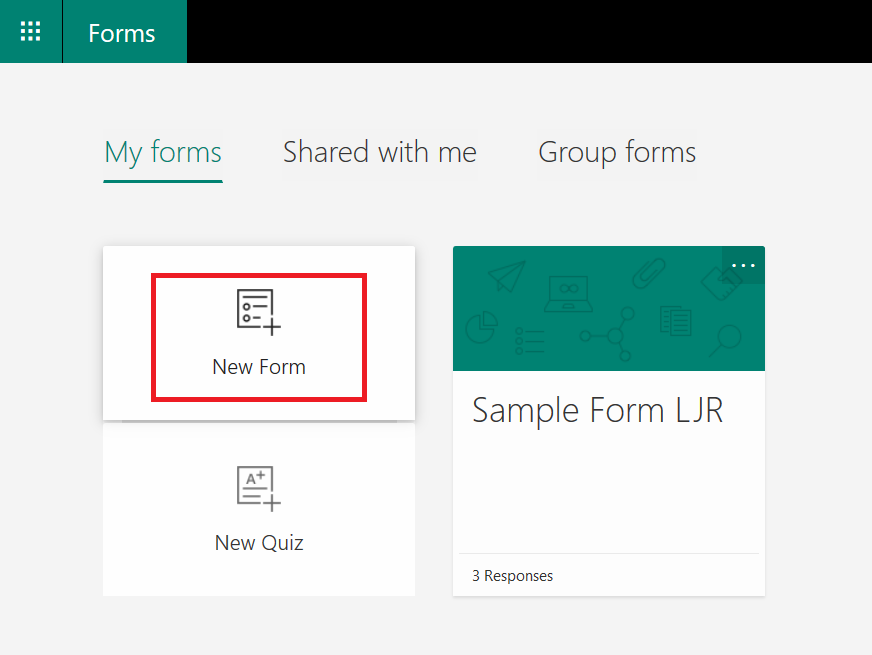
The first thing you need is a Form created under your user ID. Go to https://forms.office.com/ and click “New Form”

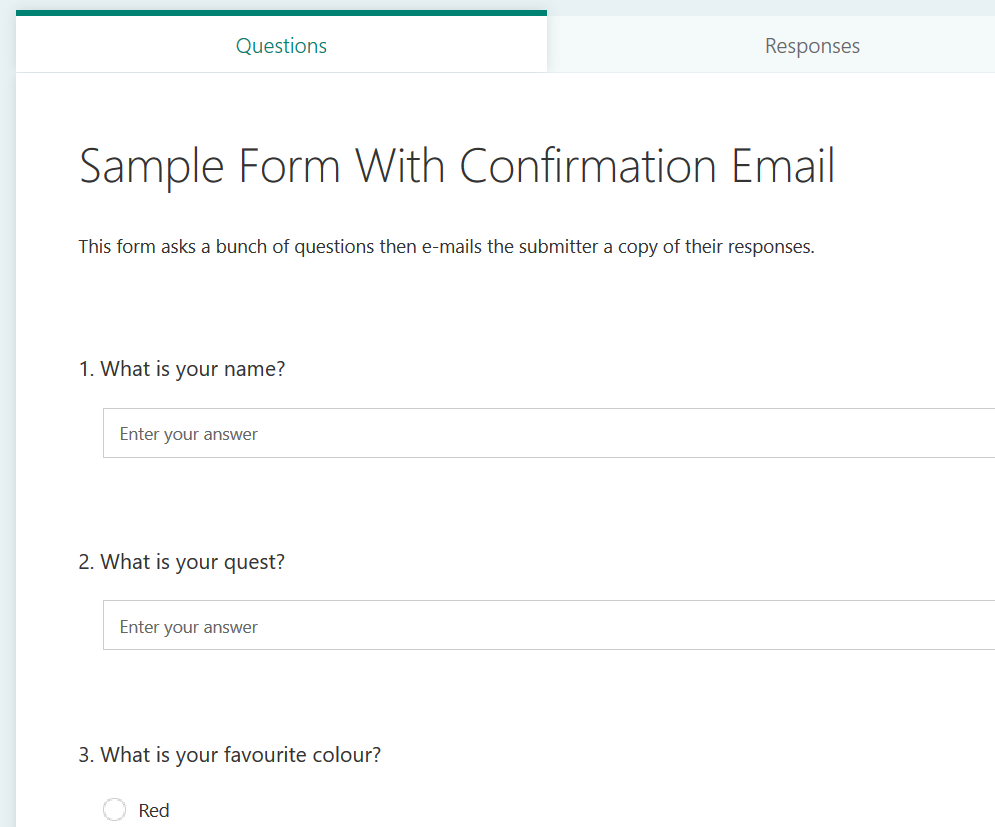
Give your form a name and add some questions

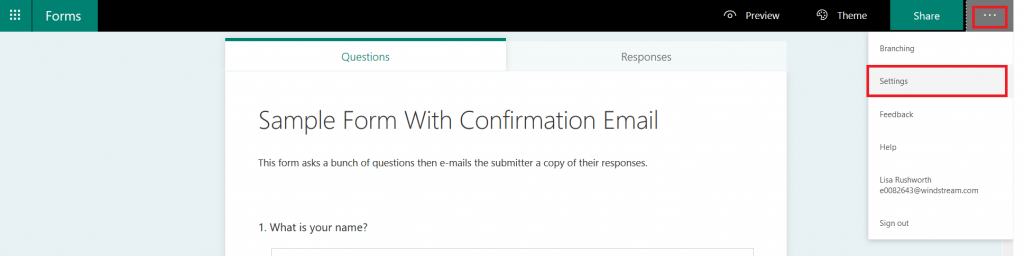
From the hamburger menu in the upper right-hand corner, select “Settings”

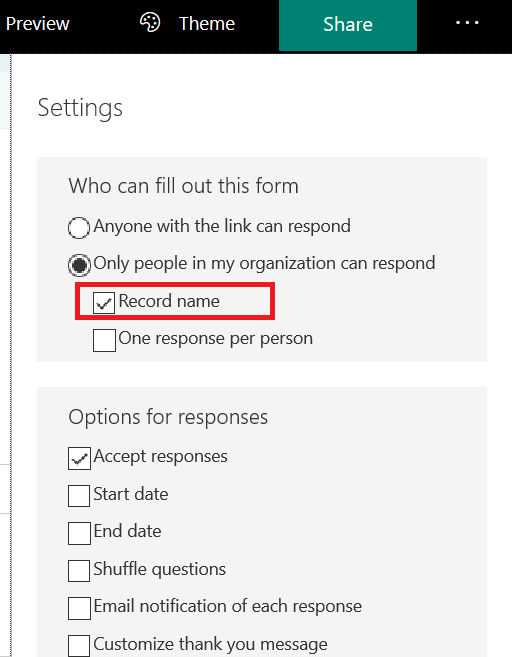
Verify that the form is restricted to “people in my organization” and “Record name” is selected.

** If the form needs to be available to individuals outside of the organization, you would need a form field to request their e-mail address … otherwise we don’t know where to send the receipt.

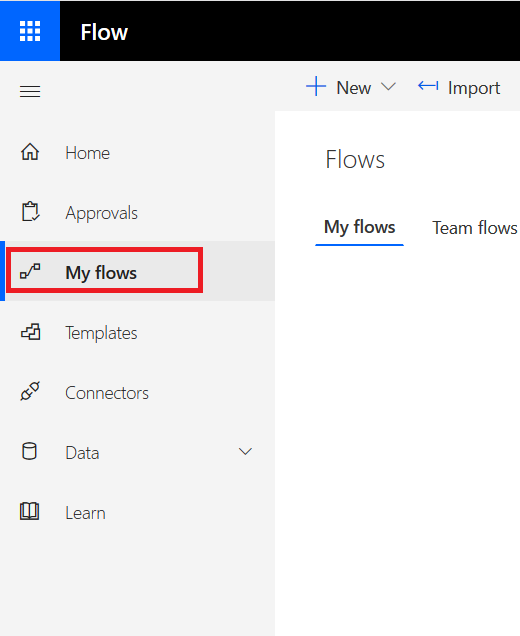
OK, we’ve got a form. Now we need to add a workflow to send the submitter a copy of their responses. Go to https://flow.microsoft.com and select the “My Flows” tile

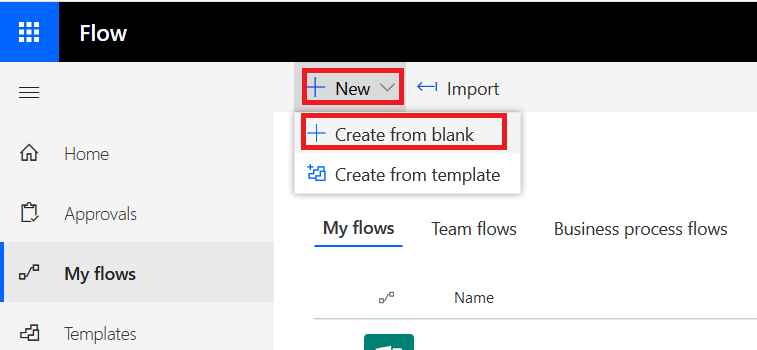
Click on “New” and “Create from blank” to begin creating the workflow.

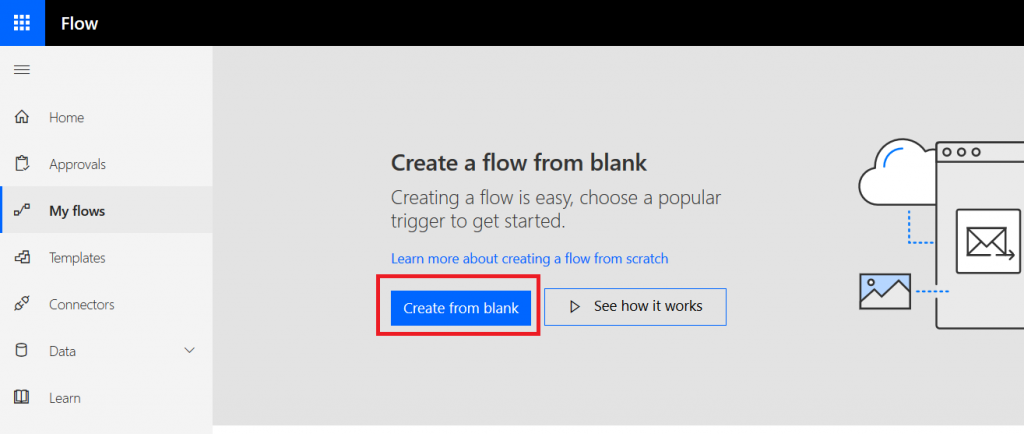
Click “Create from blank” again to confirm you really don’t want one of their templates

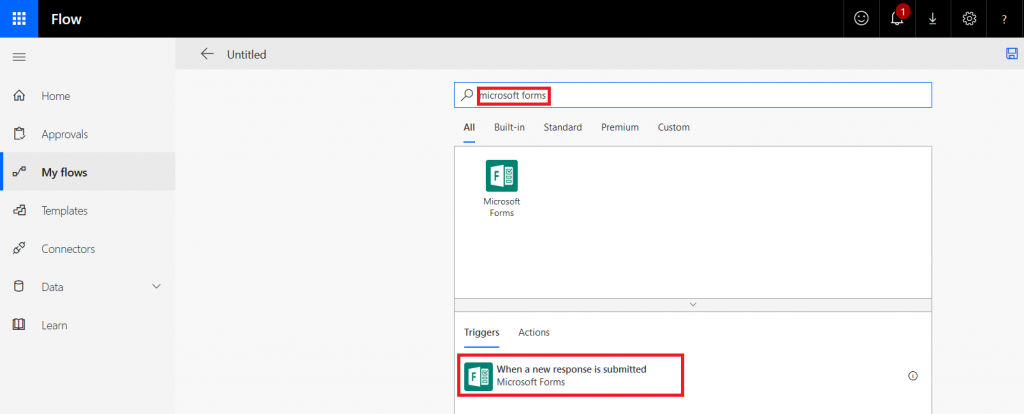
In the search field, type “Microsoft forms” and select the trigger “When a new response is submitted”

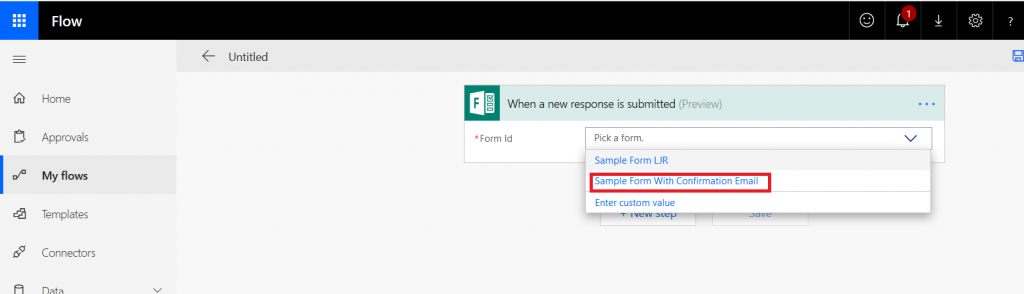
Select the form for which you want to generate a receipt – in my case, the form I just created.

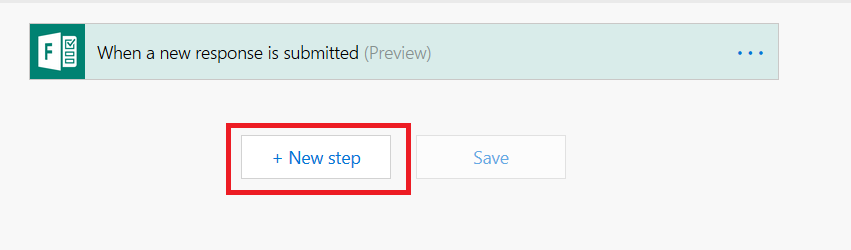
Select “New Step”

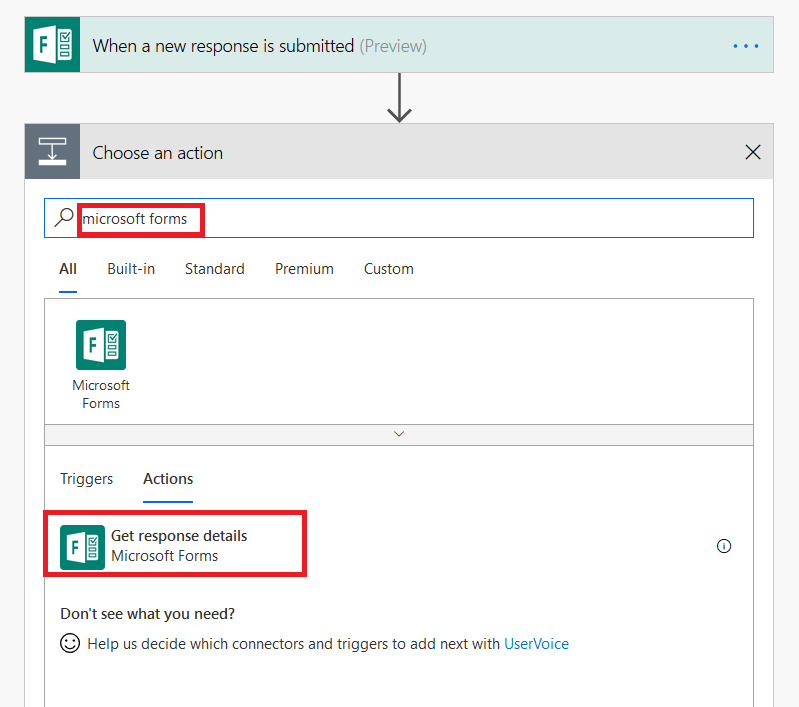
Type “Microsoft forms” in the search dialogue again, and select “Get response details”.

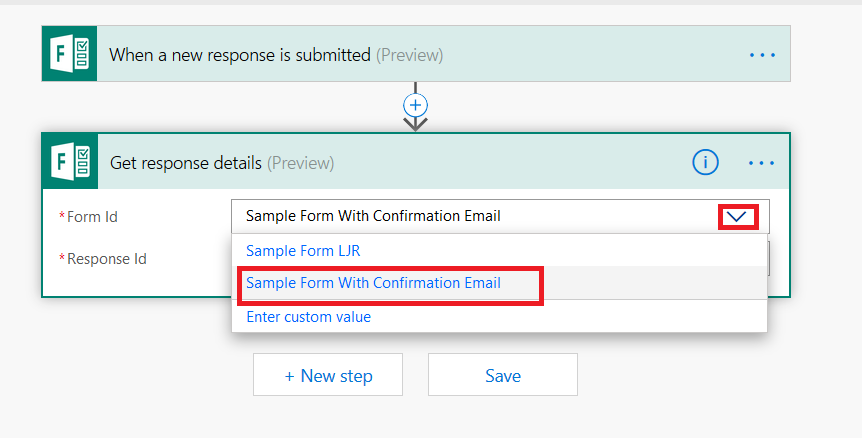
Click the inverted caret for “Form Id” and select your form again.

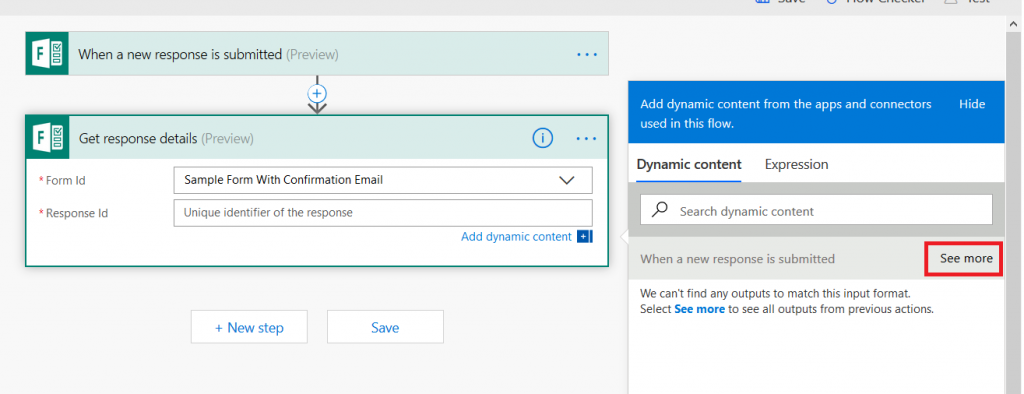
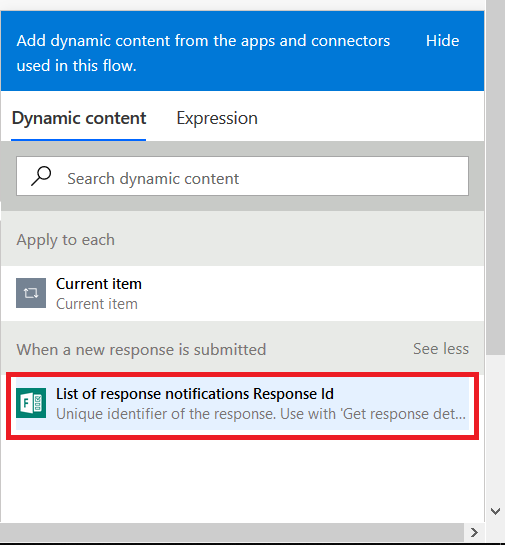
Click in the “Response Id” field – a new pane will appear to the right of your workflow. Click the “See more” button across from “When a new response is submitted”

Select “List of response notification Response Id”

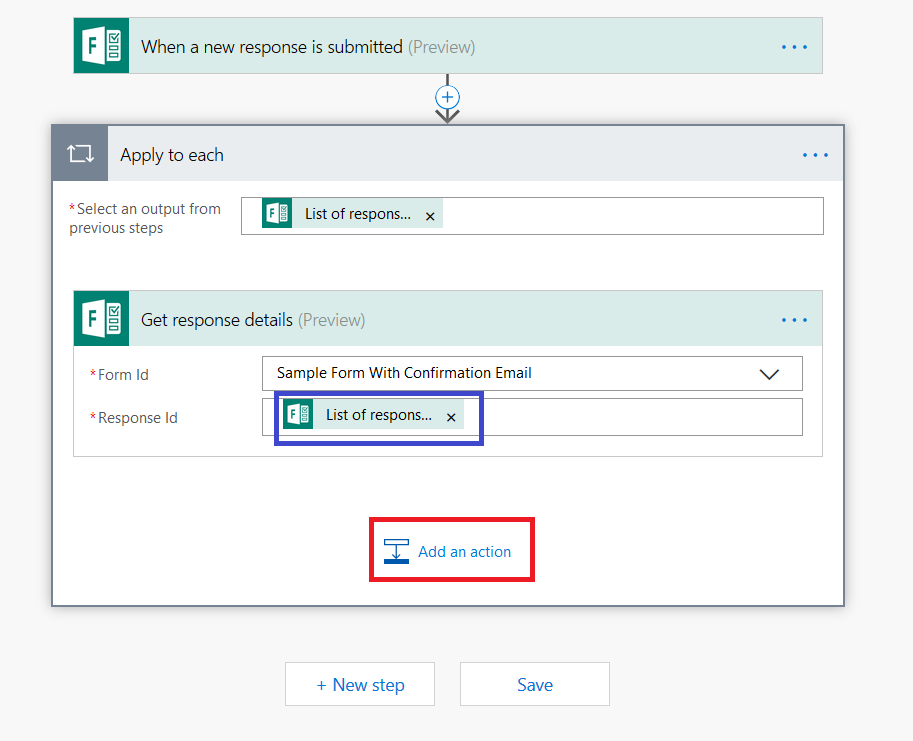
You’ll see the selection populated in the “Response Id” section. Click “Add an action”

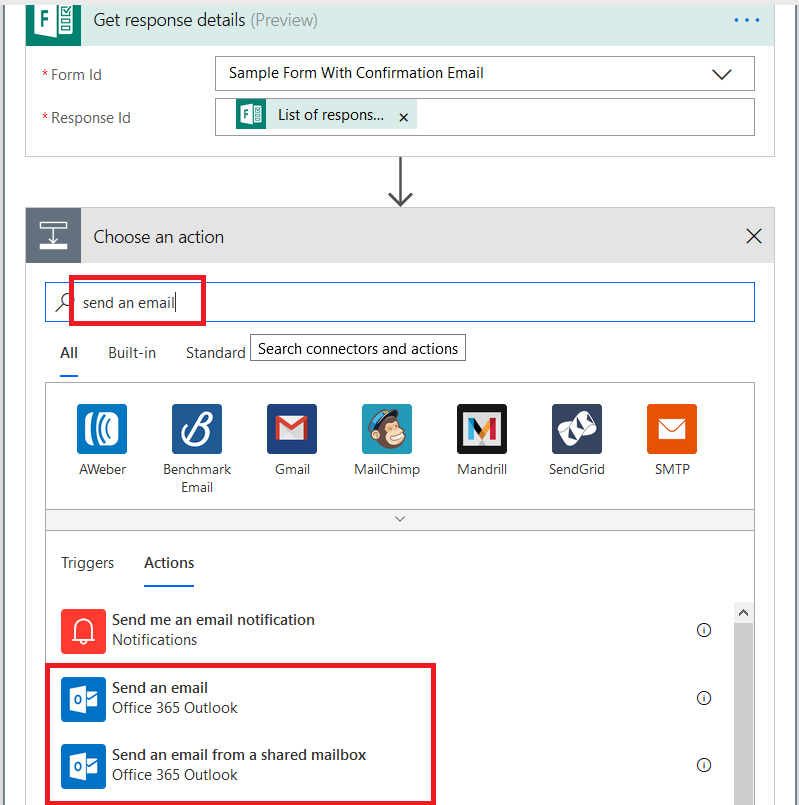
In the search dialog, type “send an email”. To send the receipt from your mailbox, select “Send an email” – to send the receipt from a generic mailbox to which you have send-as access select “Send an email from a shared mailbox”.

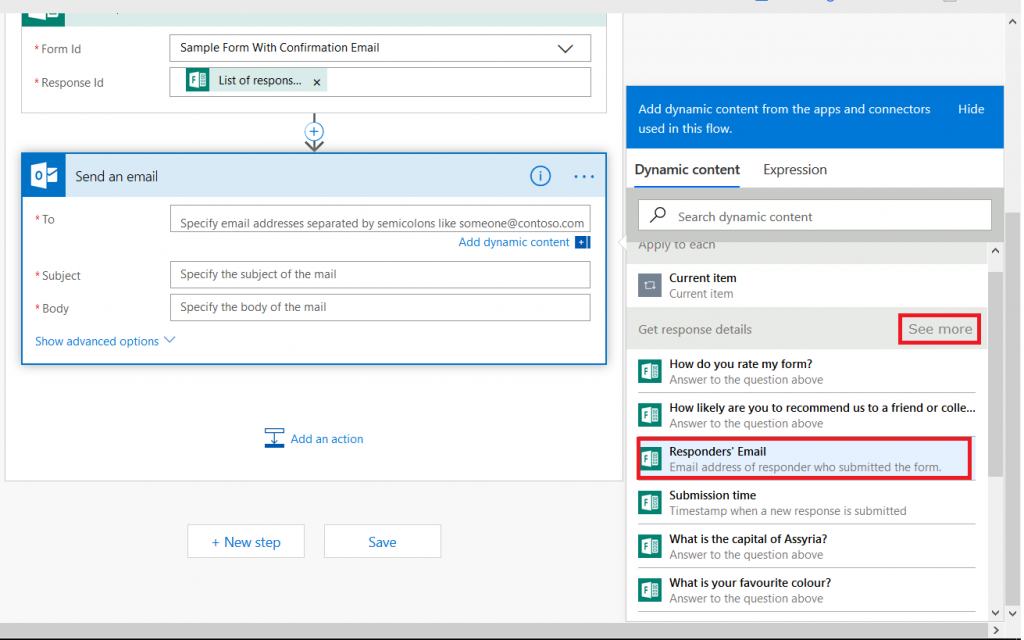
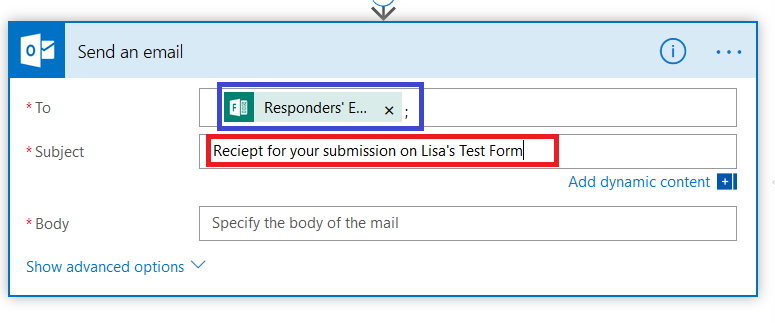
Click in the “To” field – the dynamic content pane will appear on the right again. Click “See more” across from “Get response details”. If this form is locked down to submitters within the organization and the submitter’s name is recorded, you can select “Responders’ email”, otherwise select the form question where you’re quested the submitter’s e-mail address (warning – since there’s nothing verifying the individual actually owns the e-mail address, forms that take freeform e-mail address submissions can be used to “spam” others).

You’ll see “Responders’ E…” populated into the “To” field. Type in a reasonably descriptive subject for your message.

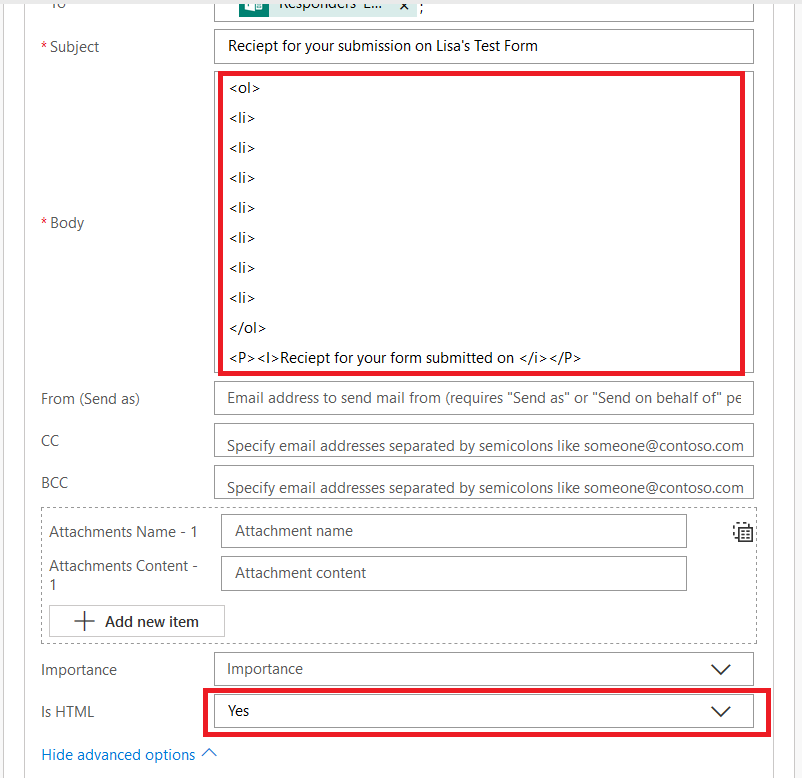
I start by creating my message template – pretty messages will require HTML, so click to “Show advanced options” and set “Is HTML” to yes.

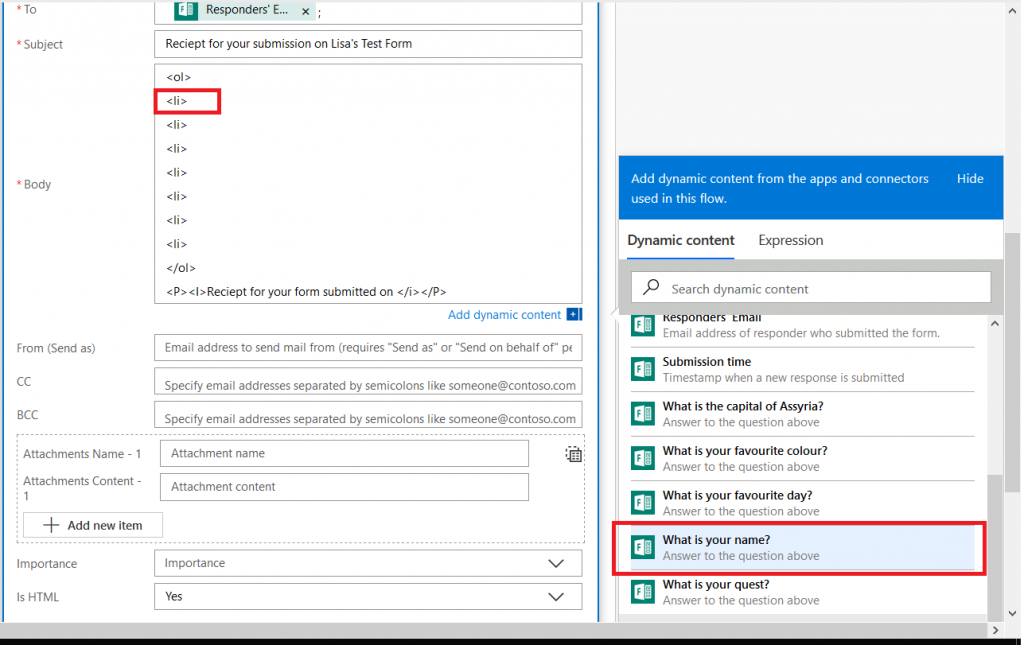
Now’s the part where we include the individual’s response data – click back into the “Body” field and you’ll see the dynamic content pane again. Within the message body, click where you want the response to appear (here, it’s after my first “<LI>” tag. Then select the question whose response you want to insert into that position.

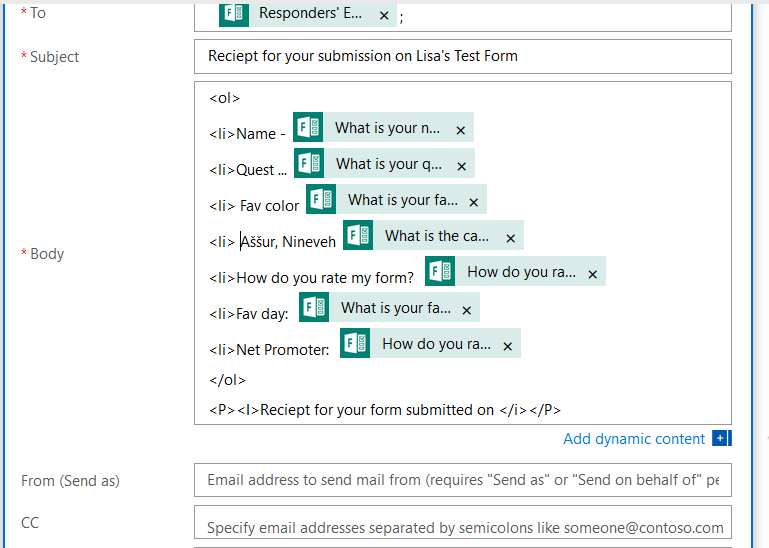
It’s generally helpful to type something before the answer to remind the person what the question was – it’s freeform text, and pretty much anything you can do in HTML is acceptable here.

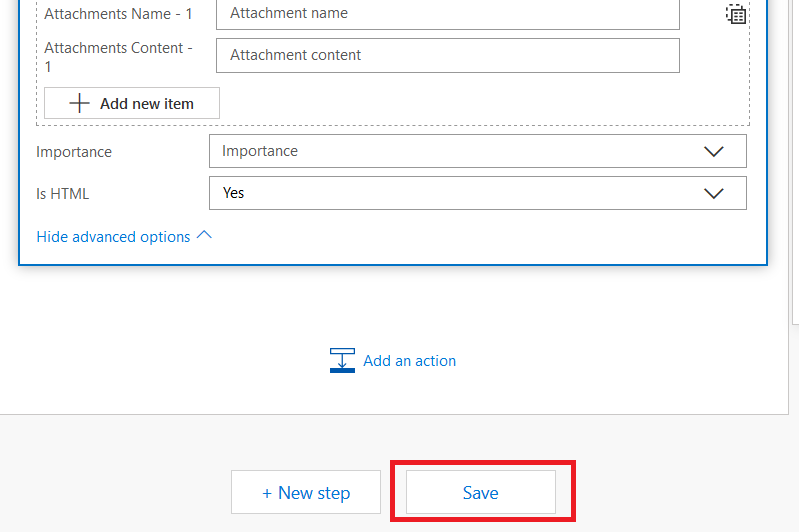
Once you have finished creating your message template, scroll down to the bottom and click “Save”

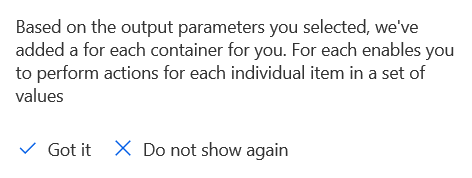
You may get a warning that a “for each” container has been added for you … that’s good, we want to generate a receipt for each submission!

Now that your workflow has been saved, click “Test”

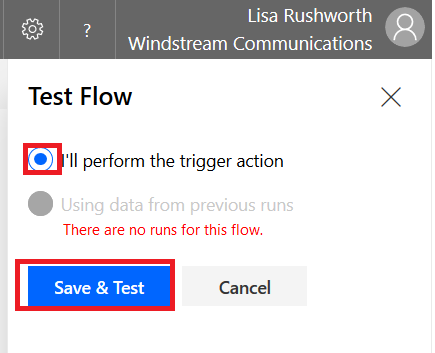
Select “I’ll perform the trigger action” and then click “Save & Test”

Return to your form and click “Preview”. Complete your form and click submit.

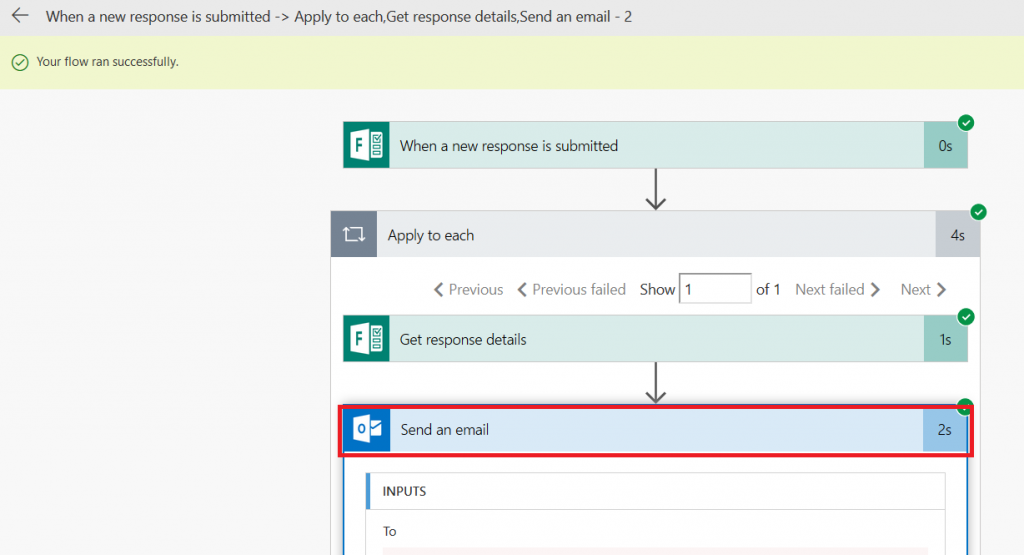
Return to Flow. If you are quick enough, you’ll see a message that your flow is running. Wait. Eventually you’ll see the results. You can click on the “Send an email” section to see detailed results.

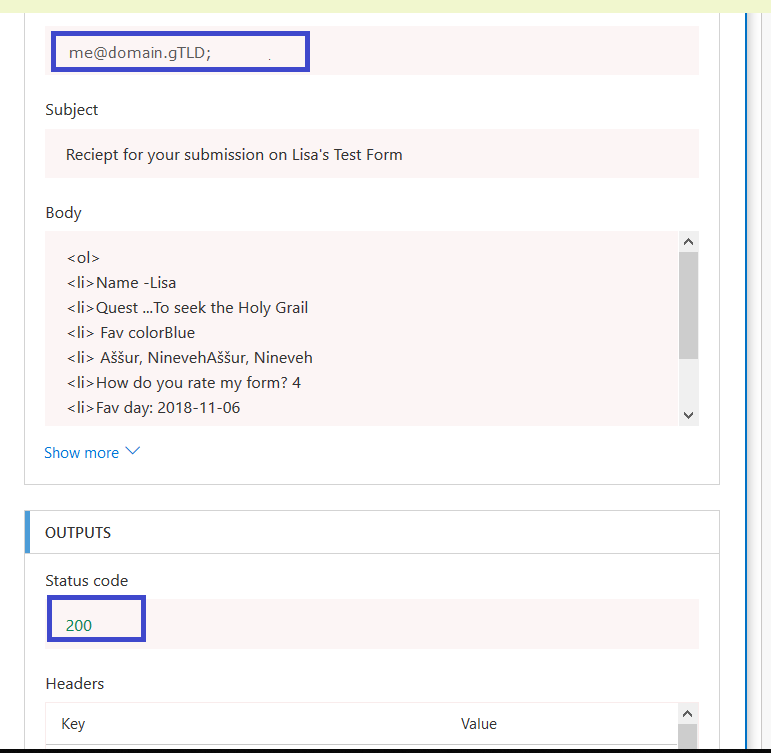
Including the e-mail address to which the receipt was sent and the status code (200 is good).

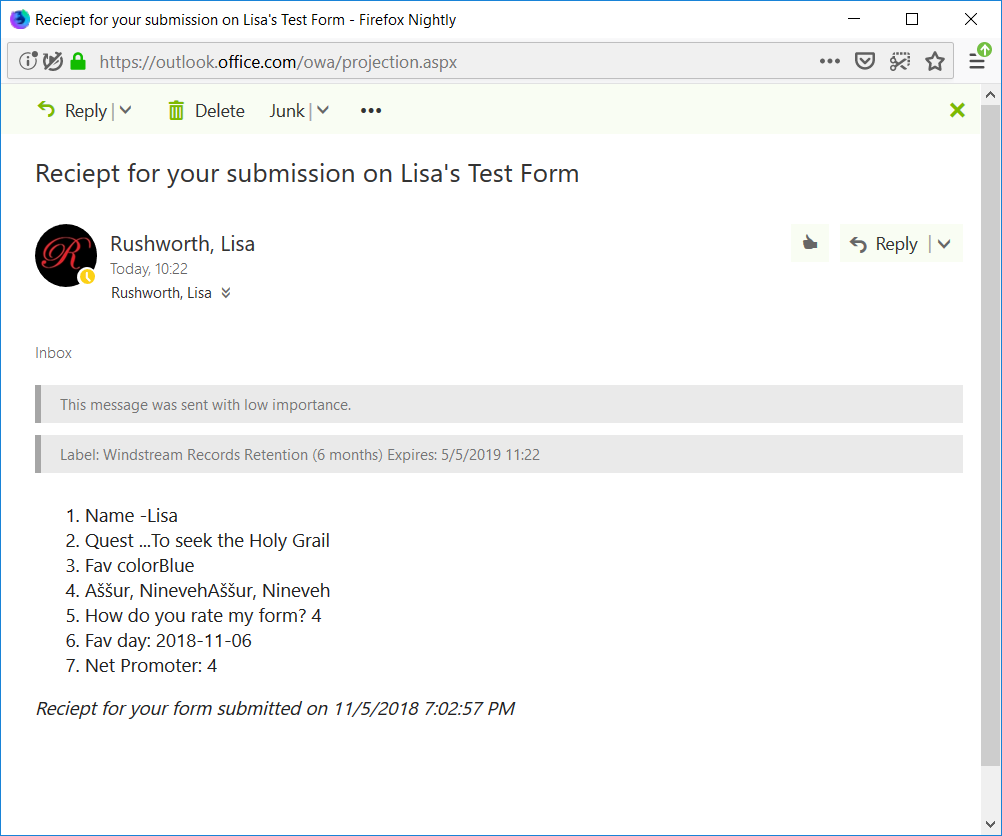
Check your mailbox too – you should have a message: