Preventing Unauthenticated Binds in Active Directory

There is finally a Windows server-side solution to prevent “unauthenticated bind” requests (detailed in LDAP RFC 4513 section 5.1.2 with a note regarding the subsequent security considerations in section 6.3.1) from allowing unauthorized users to successfully authenticate.

It has always been possible to handle in code (i.e. verify that username and password are both non-null prior to communicating with the directory server) and is my personal preference as a developer cannot predict how individual directory services will be configured.

But for the third-party apps that don’t prevent unauthenticated binds, a setting to disallow unauthenticated bind operations to Active Directory was added in Windows 2019 — in your Configuration partition, open the properties of CN=Directory Service, CN=Windows NT, CN=Services, CN=Configuration — find the msDS-Other-Settings attribute, and add a new entry DenyUnauthenticatedBind=1

Bigger Book Bag – Fabric Selection

Anya’s little owl bag is, well, small now that she’s in school school. They’ve got a folder that doesn’t quite fit, there’s no room for her lunch, and she’s a lot bigger than she was two and a half years ago. I’m making a bigger bag for her — using essentially the same pattern, but increasing the size a bit horizontally and a lot vertically.

The first decision — what do we want it to look like? She decided on a cat — a cat pocket, maybe cat charm on the zipper, and paw print fabric. I found a cute cat fabric for the lining, but I couldn’t find any paw print fabric that I liked. So I made my own on SpoonFlower. I had my design printed on their eco canvas — it is a stout fabric and black ink showed up well.


Did you know … you can name ranges in Excel to make formulae clearer?

Formulae in Excel aren’t always easy to decode – even a relatively simple formula, like the volume of a right rectangular pyramid below, can be a little cryptic with the A2 type cell identifiers.

You can name ranges and use range names to make a formula easier to understand. Highlight a data set – in this case, I am highlighting the “length” values – column A. On the “Formulas” ribbon bar, click on “Define Name” (you don’t need to hit the inverted caret on the right of the button – just click the ‘define name’ text).

Supply a name for the range – in this case, I am calling it “Base_Length” (range names need to start with a letter or underscore and cannot contain spaces). Click OK to save the range name. Repeat this operation with all of the other data groups – in my case, I named Column B “Base_Width” and Column C “Height”.

Use the name instead of the cell identifier – as you type your formula, the range names matching your typed text will appear.

It is now a lot clearer what this formula means – base length times base width time height all divided by three. Which is the formula to calculate the volume of a right rectangular pyramid.

The calculated answer is the same either way – but this makes it easier to figure out what exactly you were computing when you open the spreadsheet again in six months 😊 (Or share the spreadsheet with others).

Anya’s 6th Birthday Cake

This year, I made a really cool apple cake for Anya’s birthday. It’s about 80% apple — very thinly sliced.

It’s called Gateau Invisible

Ingredients

  • 1 pound Fuji apples
  • 2 eggs
  • 1/2 cup sugar
  • 1/2 cup milk
  • 1 tablespoons melted butter
  • 3/4 cup flour

Method:

  1. Preheat oven to 350 F
  2. Peel and core apples. Slice into very thin slices. Soak in lemon water.
  3. Wisk eggs until they are frothy and add sugar.
  4. Add milk and melted butter.
  5. Sift the flour into liquid mixture.
  6. Add sliced apples and stir gently to coat apple slices in batter.
  7. Pour the batter into a parchment lined bread loaf pan.
  8. Bake for 40 minutes, cover with foil, then bake for another 10 minutes.
  9. Remove from pan and allow to cool
  10. Pour caramel sauce over cake and serve.

Caramel Sauce

Ingredients:

  • 1/2 cup sugar
  • 1 tbsp butter
  • 1/2 cup heavy cream

Method:

  1. Melt butter in a small pan.
  2. Add sugar and heat until sugar turns a medium brown.
  3. Add heavy cream and wisk to combine.

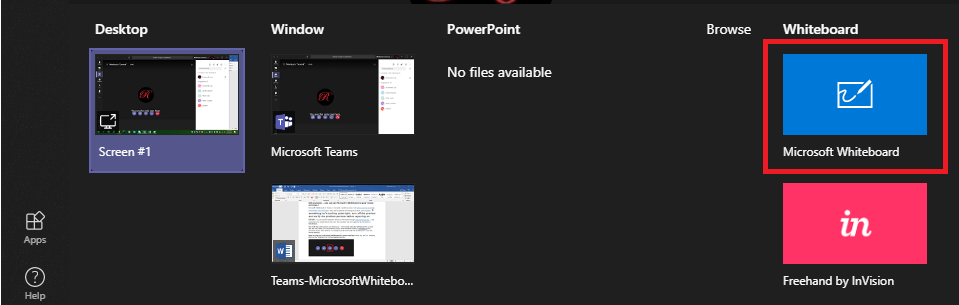
Did you know … you can tell who is speaking during a Teams meeting?

There are times when it is easy to tell who is speaking – there aren’t a lot of women in my group, so “the female voice” is usually me. My friend Richard is generally the only person with a New Zealand accent on any call (although someone who didn’t grow up in a Commonwealth country may have trouble distinguishing him from the guy from Australia). And after you work with someone for a while, you learn the voice and lexical nuances of colleagues. The rest of the time? I end up pausing the conversation to check who it was that volunteered to serve as my tester and clarify who is going to be getting back to me next week. In a Teams meeting, though, you can quickly tell who is speaking – and respond with a much friendlier “thanks, Jim, for offering to help”.

When you join a Teams meeting, you’ll see up to four large tiles with meeting participants. If there are more than five participants (you don’t show up on your own view!), the remaining people will be represented by smaller images in the lower right-hand corner of the screen.

When someone is speaking, their tile will be highlighted in a purply-blue and a brighter highlight circumscribes their image.

The four large tiles represent the most recent speakers, so you will notice who is in these four tiles change throughout the call. And, yeah, it’s possible for more than one person to be talking at a time – you’ll have multiple highlighted tiles.

There is another place to view who is speaking. On the right-hand column, click to enter the participant pane.

The current speaker will be bolded.

Bonus Features: Sometimes I’ll start a large call and have trouble getting everyone’s attention to start the call. In the participant pane, you can click “Mute all” to mute all participants. N.B. Any participant can do this – so don’t test it in the middle of a real discussion!

And just like meetings through the PSTN system or other web-meeting platforms, you’ll get the occasional person typing without hitting mute. Or speaking to someone who popped into their office. Or experiencing feedback on the connection. In Teams, it’s easier to identify who is causing a disruption – they are going to be highlighted as speaking.

Once you’ve identified the source of the noise, click the not-quite-a-hamburger-button next to their name and select “Mute participant”.

On Compasses

Thought I had a horrible sense of direction because I’d get lost any time I had to follow “head north on” type directions. It wasn’t a big deal to me — GPS had been a thing for years by the time I was driving myself around with any frequency (later everyone had a cell phone & navigation). I just contained my hiking to well-marked trails when I’d go out adventuring. Sure, it would have been nice to hike the poorly marked parts of the GRP trails in France. But there are *plenty* of marked and worn trails available. Never felt like I was missing out … it was more of a funny quirk.
I’d offhandedly mentioned my navigational issues to a friend around 2007. He offered to help figure out my error because it wasn’t like “sense of direction” is relevant when following instructions (and, obviously, a compass wouldn’t just “not work right” for me). He wrote up directions from his hunting cabin over to the duck blind, and we both had a compass and the instructions. Walked out onto the porch, took a few steps, and realized we were both going in different directions. He came back over to see how I’d managed to get lost already. Head SE 300 meters … OK, get red pointy direction thing to SE, walk 300 meters. He gave me a funny look and asked if I knew how compasses worked. “Of course, magnetic North attract … oooooooh”.

Did you know … you can save documents directly to Microsoft Teams?

You can create a document in a Teams file space (from “New”, select the document type); but, if you want to use a custom template (or if you just didn’t think of it and started the document on your computer), you can also save an Office 365 document to Microsoft Teams.

For the Teams file space to appear in the save dialogue, you’ll need to be following the SharePoint repository that underpins the file space. From the Files, select “Open in SharePoint”.

In the upper right-hand corner, click “Not following” to follow the site.

The change may not be reflected immediately on your computer – if your Teams space does not show up yet, wait an hour or two. Select “Save as” from the Files ribbon bar.

Click on “Sites – Windstream Communication”. The Teams space you followed will show up in the SharePoint sites list. Click on the team name.

Then select “Documents”

From there, you will see the name of each channel. Select the appropriate one, then navigate to the location you want to store your document. Give the document a name and click “Save”

The document will be saved directly to your Teams space.

Did you know … there are ways to split data in Excel?

Applications can generate data in formats that aren’t quite useful – glomming multiple fields together to make something unusable. And asking people to type information can yield inconsistent results – is my name Lisa Rushworth, Lisa J Rushworth, or just Lisa? Excel has several functions that allow you to produce consistent, usable data (without copy/pasting or deleting things!)

Flash Fill

Flash Fill will try to figure it out for you. Add an empty column (or more) and manually type one or two values. On the “Data” ribbon bar, select “Flash Fill” and Excel will use the data you’ve entered into the row to figure out what should go in the rest of the row.

The guesses aren’t 100% accurate – especially if your information is not consistent – but it’s a lot easier to delete the handful of things that are obviously not zip codes …

Than to work out a formula that extracts the same information

Text to columns

Text to columns uses the fixed-length file and delimited file import wizard on a column of data – essentially treating that column as a file to be imported. In this example, a DateTime value is provided in a way that Excel only sees it as a string. And, frankly, I am not interested on the exact hundredth of a second the event occurred. What I really want to do is group these creation dates by day, so all I need is the date component.

If you want to retain all the data, you’ll need to insert empty columns to the right – otherwise the data being split out can overwrite existing data. In my case, I only want to keep one of the new columns.

Highlight the column that holds your data. On the “Data” ribbon, select “Text to columns”

Select if the column should be split based on a fixed width definition or a delimiter and click ‘Next’

Indicate the proper delimiter – in this case, I need to use ‘Other’ and enter the letter T. A preview of the split data will appear below – make sure it looks reasonable. Click “Next”.

For each new row, you can specify a data type. Or leave the type set to “General” and Excel will try to figure it out.

If you do not need to retain the data, select “Do not import this column (skip)”. Click “Finish” to split your column.

Voilà – I’ve got a usable date value.

Notice, though, I have lost my original data. If you want to retain the original data, create a copy of the column. In this example, I want to know how many e-mail addresses use each domain, but I want to have the e-mail addresses in a recognizable and usable format too.

Text to columns will still replace the values from the selected column. But the copy will contain the original text.

You can even use Text to columns to sort out odd data that doesn’t actually get split into multiple columns. In this example, negative values have the minus sign after the number … which isn’t actually a negative number and isn’t usable in calculations.

Pick a delimiter that doesn’t appear in your data, and you’ll only have one column. When selecting the data format, click “Advanced”

Make sure the “Trailing minus for negative numbers” checkbox is checked and click OK.

And we’ve got negative numbers

Right, Left, Mid, and Search Functions:

You can also use the Search function in conjunction with Right, Left, and Mid to extract components of column data. In this example, we have first and last names. Since there are a few middle initials in there, we cannot just split on the space character.

These formulae aren’t perfect – Mary Ann will have ‘Mary’ as a first name – but

Working out where to start the text extraction and the number of characters to extract can get complex. I’ll usually include the Substitute function to simplify things a little – the zip code, in this case, is whatever is left over after we find the city and state.

Producing columns with the city, state, and zip code from the ‘Location’ column.

Making Laminated Fabric

I got lucky when I got the laminated bird fabric for Anya’s book bag — it wasn’t super expensive, it is really cute, and it has a thick lamination. Since then, I’ve not been able to find much in the way of laminated fabric. I don’t want all of her stuff to have the same fabric. So I’ve been experimenting with the laminate-your-fabric iron-on stuff. I’ve used ThermoWeb’s Heat’n Bond and Pellon 100 Vinyl Fuse. Neither are as thick as the lamination on the Robert Kaufman Slicker line, which is a bummer since that’s really what matters. TL;DR: I like the ThermoWeb better, but not enough that I’d pay extra for it or go out of my way to find it.

I bought these as yardage, so the precut and boxed lengths may be different. The Pellon paper has no print on the back, whereas the ThermoWeb has a grid print. Didn’t think I would care either way, but since *most* of my pattern pieces were integer inch rectangles, I was able to cut the ThermoWeb without trying to clip the fabric to the laminate. Since the point of laminating fabric is to make it waterproof, poking holes in it seems like a bad idea. The melting process seems to have eliminated the pin holes, too.

Both products work the same way — it’s paper backed vinyl. They both claim to be sticky to help with placement on the fabric, but beyond being slightly rough and plastic (hence a higher coefficient of friction than polished plastic) they’re not like sticky adhesive sticky. Cut your shape, peel it off the paper, overlay your fabric, place the paper on top of the vinyl, and apply heat with an iron (no steam!). Voilà, laminated fabric. Since my pattern has two of every piece, I placed one paper backing (smooth side up) on the ironing board. Then the fabric, right side up. Then the laminate, again right side up, and smoothed it out with my hand to minimize wrinkles and bubbles. Topped it all with the other paper backing, smooth side down. Doing this, the laminate could be slightly bigger than the fabric piece without fusing to the ironing board 🙂

When ironing, the Pellon smelled like melty petro-chemicals. Didn’t smell anything with the ThermoWeb, but my sense of smell is really terrible so it’s possible both smell when heated. One other thing I don’t care for with the Pellon vinyl — the laminated fabric curls. Kind of a lot — I’m putting it all under my cutting mat for the night to see if it straightens out. I’m sure it will be fine once I start sewing it, but it’s certainly not stacking nicely on my desk!

Tomorrow, I’ll see how they sew!

Usage tip: when you’ve finished sewing your project and are ready to turn it, take a hair dryer to it. Warm it up a bit, then turn it the right way about. This gives you nicer corners and makes it easier to turn.

Maths: The Wall

I think the wall is a completely stupid idea — based on emotion rather than statistics about the source of immigration violations, not an effective solution even if the problem were people sneaking across the border. But I am seeing a way to get this whole debacle sorted within the Executive branch (which may not be legal, because government budgeting isn’t quite the same as corporate budgeting). When we’ve got projects that are under-budget, the extra money can get moved over to some other purpose. Well, if we can shut down the government for no good reason during budget negotiations … what if the Executive branch shut down all those “non-essential” services for a while to free up money that can be transferred over to DHS? How long would the government need to be shut down?


For a five billion dollar wall (again, HA!) … since the FY2019 budget is like 4.4 trillion dollars, we spend 12 billion a day. Say 90% of that is essential. Five days of shutdown would fund the wall. Which doesn’t make the wall a good idea. Or mean Congress should just approve it to get the whole debacle over with. But it certainly says something about government spending that the wall is half of a day worth of spending. And it certainly says something about our government that it gets shut down over half a day worth of spending.


 $         5,000,000,000.00 The wall
 $ 4,407,000,000,000.00 FY2019 budget
 $       12,073,972,602.74 Daily spending
 $         1,207,397,260.27 10%
4.141139097 shutdown days