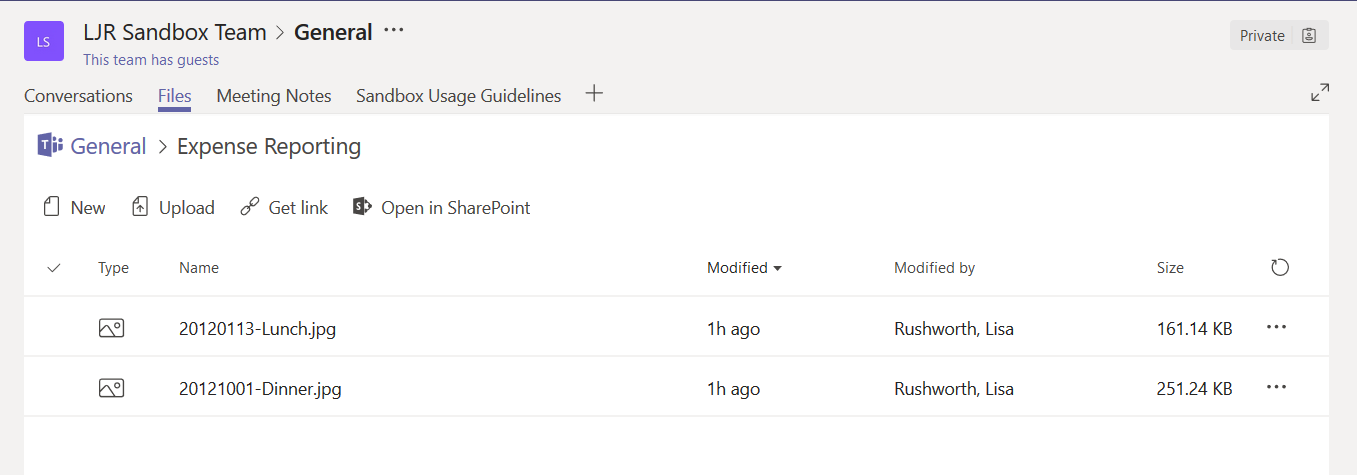
Did you know … e-mails can be sent to a Teams channel?

I’ve mentioned before that we can send e-mails to a Teams channel – forward a message in my mailbox to a channel so we can discuss it. But did you know Teams channels can receive e-mail from outside of our Exchange Online environment too?

That doesn’t mean you’ll be seeing advertisements for low cost (and dodgy) prescription drugs or entreaties from the purported prince of far-far-away show up in your channel conversations. Until someone gets an e-mail address for a channel, it doesn’t have one.

To associate an e-mail address, click the ellipsis next to a channel name and select “Get email address”
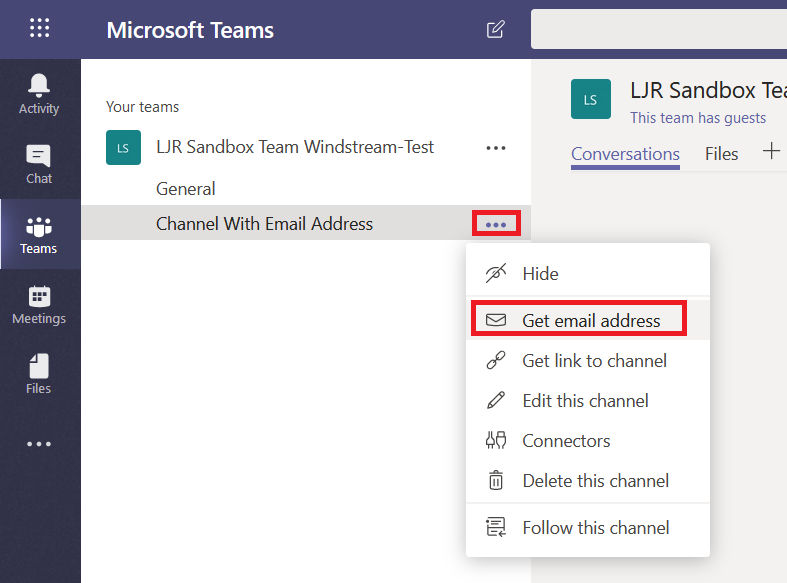
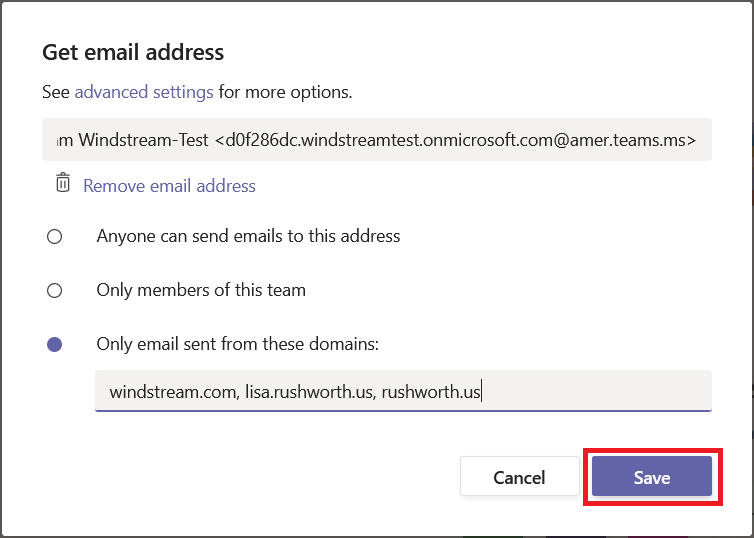
Copy the SMTP address. If you want to control which domains can send e-mails to the channel, click “advanced settings”
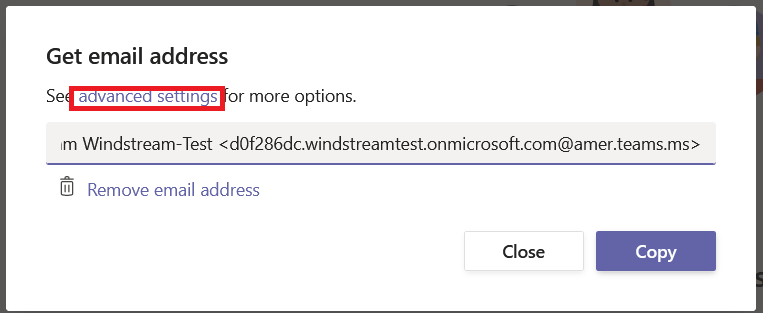
By default, anyone can send e-mails to the address. Simply select the appropriate radio button for the restrictions you want. “Only members of this team” lets members forward messages from their personal mailbox for discussion.
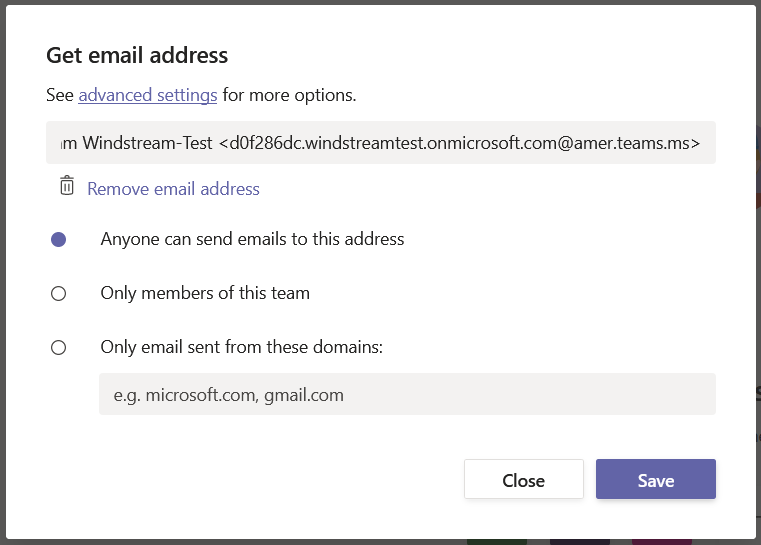
Selecting “Only emails sent from these domains” allows you to enter the list of domains from which you want to receive messages. Click “Save” to save your changes.
Send an e-mail message from an approved domain. Voila – a message from my home domain delivered to the Teams channel.
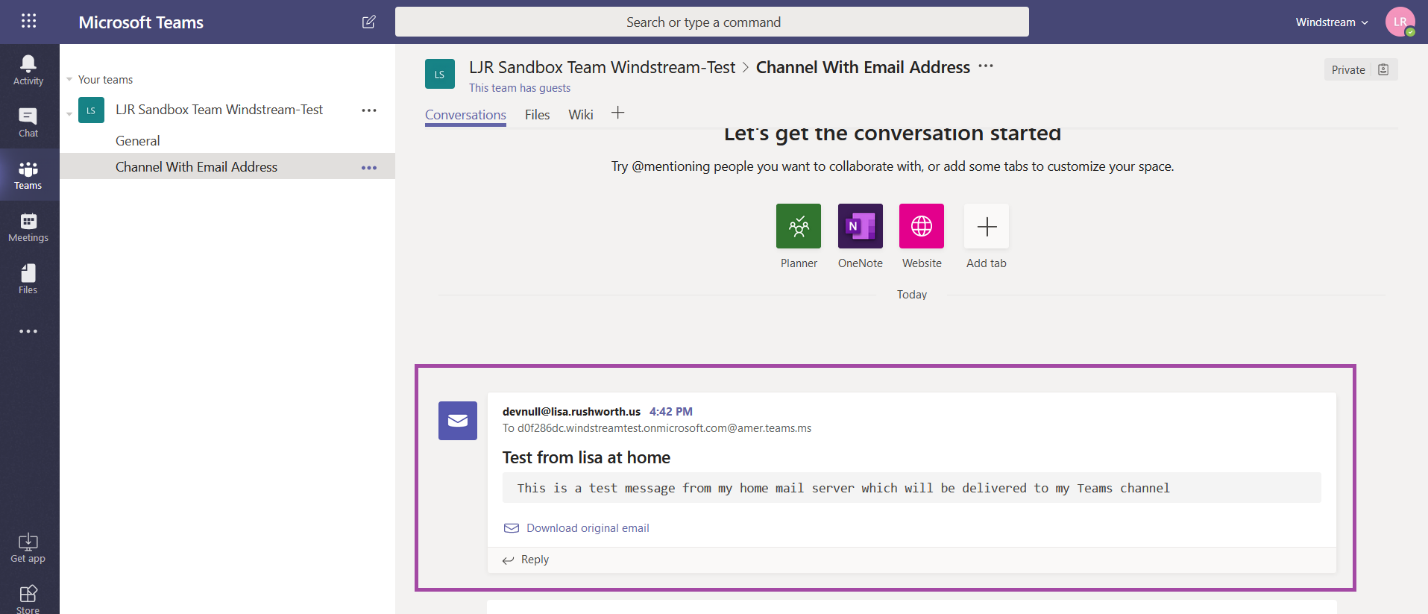
You can have monitoring systems, vendor ticketing systems, all sorts of e-mail sources deliver messages right into your Teams channels.


 

Did you know … you can add Teams channel meetings to your calendar?

Holding a meeting in a Teams channel allows channel members to attend if they have time and are interested in the meeting – it also lets Team members access meeting artifacts easily.

But when you schedule a meeting in a channel, only direct invitees see the meeting in their calendar. This is great for people who aren’t going to attend, but I end up joining the call ten minutes late because I didn’t see the meeting when I check my calendar to see what’s coming up.

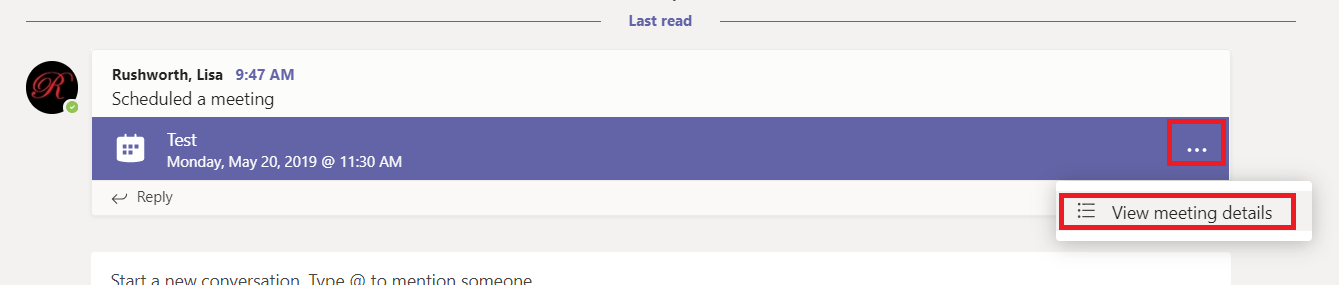
But you can add a channel meeting to your calendar – if you decide to attend the meeting, click the ellipses on the meeting item and select “View meeting details”

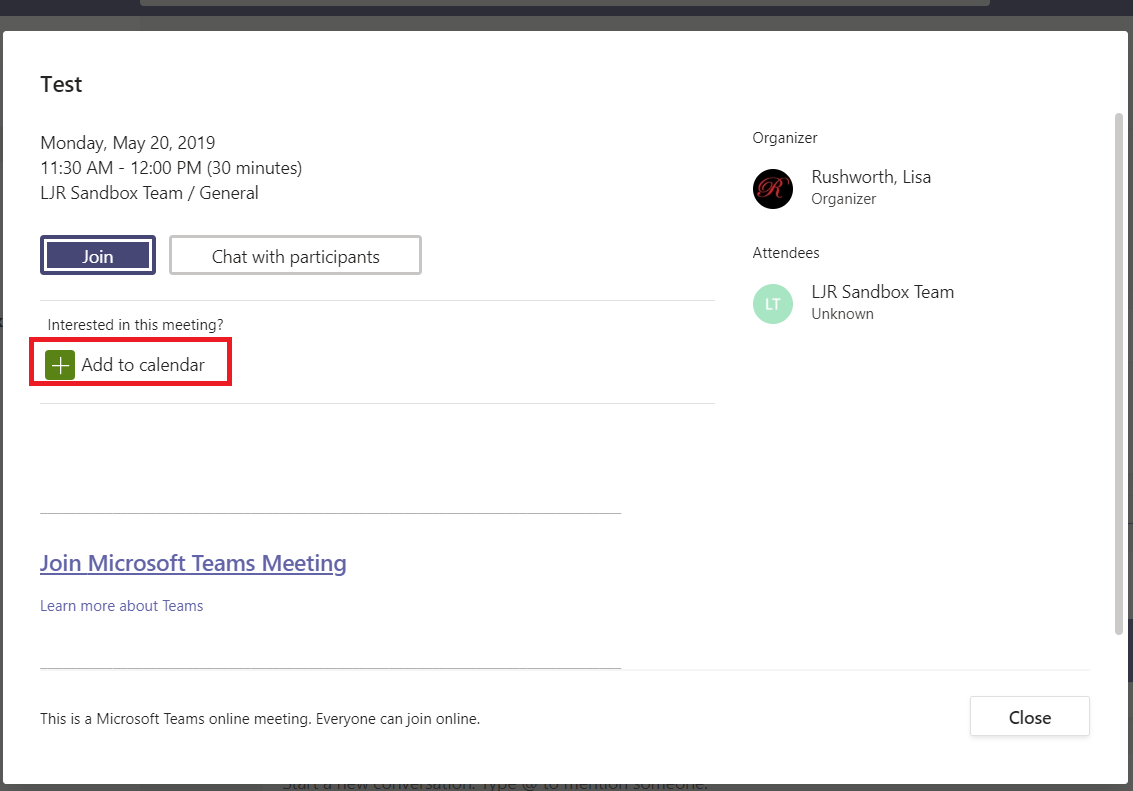
Click “Add to calendar”

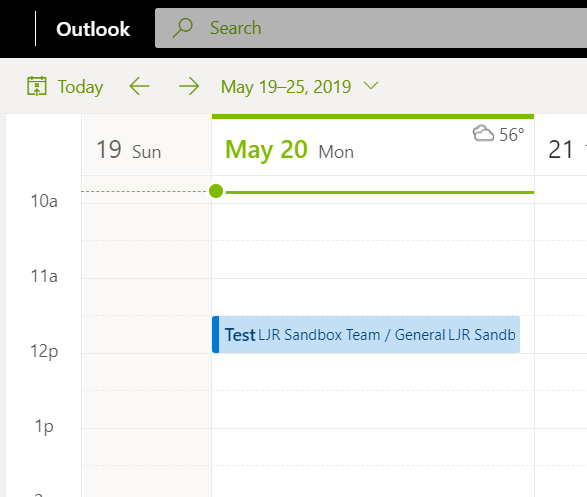
Voilà! Now the meeting appears in your calendar.


Did you know … you can open files in VSCode over SSH!?

The plug-in is a preview and you need to use VS Code Insiders to install it … but you can open files and folders directly from a *n?x server via SSH. This is a great way to circumvent Samba quirks (changing the case of a file name, filemode differences between the Samba share and the local files causing all files to be marked as changed, etc) – and can even eliminate the need to load file sharing servers like Samba in the first place.

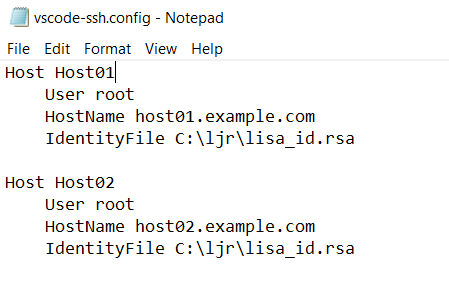
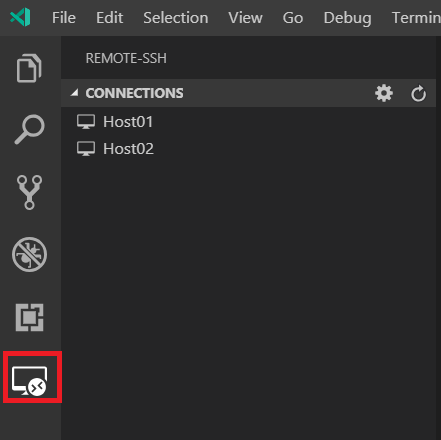
Once the plug-in is installed, a “Remote – SSH” icon appears in the left-hand menu bar. There is a single configuration option for a file containing host definitions. You’ll want to set up key-based authentication and include the path to the authorized private key in your host config.

Right-clicking a host will allow you to open a file or folder within the current VSCode window or launch a new window.

One caveat – you are running git commands from the context of the remote machine … this means you’ll need a user name set up there or your commits show up with the local logged on username and username@hostname address.


The Federal Budget (aka there’s no such thing as a fiscal conservative)

The federal budget numbers for 2019 and 2020 are, of course, estimates … but it perplexes me how persistent the myth of the “tax and spend” Democrat and the “reduce government spending” Republican is. There’s no party shrinking the federal budget. Having a huge increase and then dropping back down to where you started isn’t much of a “decrease”. And outright increasing certainly isn’t a decrease.

If the difference is “tax and spend” and “just spend” … the fiscally conservative position should always be “don’t spend money you don’t have”.

Did you know … you can open Teams files directly from Office 365 Applications?

While you can go into a channel, select the files tab, and open a file from within Teams … that’s a lot of clicking just to open a file in another program. But you can open files stored in Teams (or any other SharePoint document repository) directly from Office 365 programs. How?

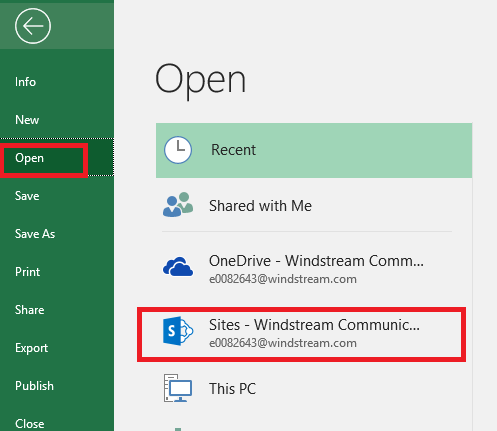
Open an Office 365 program – Word, Excel, PowerPoint, Visio. Click on the “File” ribbon bar and select “Open”. SharePoint Online document repositories, including those used by Teams, are listed under “Sites – Windstream Communic…”.

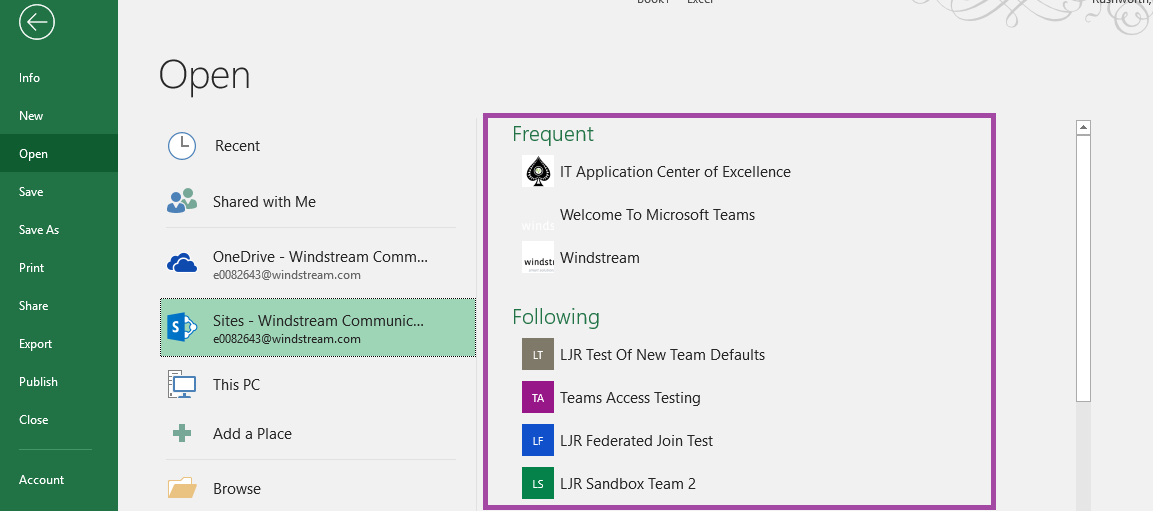
You may already have SharePoint sites listed. To add a new site, you just have to follow it.

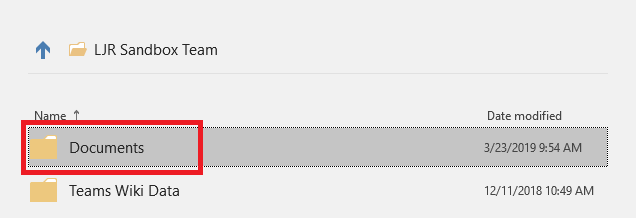
Select the SharePoint site that matches your Team name. Click “Documents”

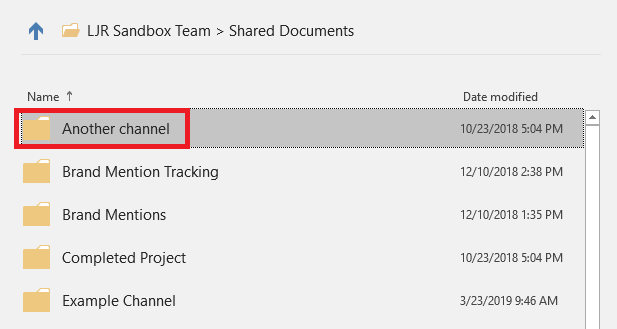
You’ll see a folder for each channel in your Team. Click the channel where the file is saved.

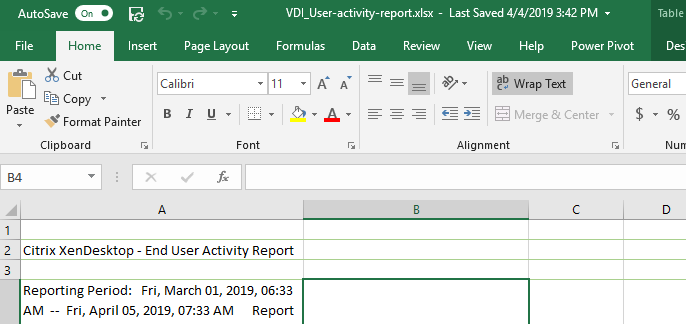
Navigate to the folder where your file is stored, then select the file. It will open directly in the application. When you save the document, the SharePoint document is updated.

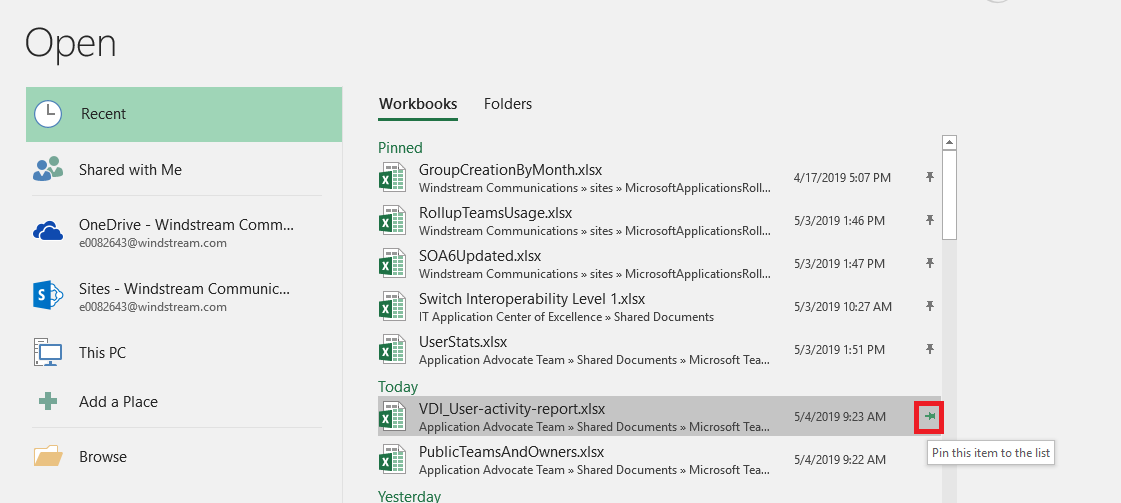
Tip: Frequently used documents can be pinned for quick access. After you have opened the file, it will appear in the most recently used list. Click the little push-pin next to the file and it will be pinned to the top of the recently used file list. The Excel files and Word documents that I use frequently can now be opened without navigating through the file structure to find them.


Information Barriers: Microsoft Teams

Information barriers preclude someone from communicating someone else (additional O365 services are going to implement it eventually, Teams just happens to be on the leading edge). Now there are lines of business where this is an awesome feature — law firm representing both sides of a case, for instance, don’t want people on side A chatting with people from side B. A company with a large front-line workforce may want to preclude the unwashed masses from communicating with Corporate.
If it were free and low effort to set up and maintain, I could come up with use cases for it here. Say, isolating the C11 people so someone unauthorized to talk to C11 people aren’t accidentally disclosing information. En mass blocking people from using federated communication is an interesting option — basically disallow it for everyone & have a specific request to be thrown into the “talks to people outside the company” group.
There’s some initial setup effort in building out the policies and applying them, and there would be effort in getting some mechanism for people to be moved into and out of policies. So it probably passes the ‘low effort’ test. Cost, not so much. It looks like, while anyone with an E3 SKU can use it during this preview, barrier’d accounts need an E5 or an add-on compliance/regulatory license once this goes GA.
Based on cost, I’m thinking we don’t want go dig into it. It’s an additional 8$/month for the compliance add-on license. Something like 15$/month to go from an E3 to an E5. And I don’t particularly care 8$ a user if people in our call center are inviting their friends from the MS call center to lunch over the chat federation.
Anyone else see a use case where it’d be worth the additional money for the technologically enforced barrier?

Shadowing Remote Desktop Sessions – Windows 2016

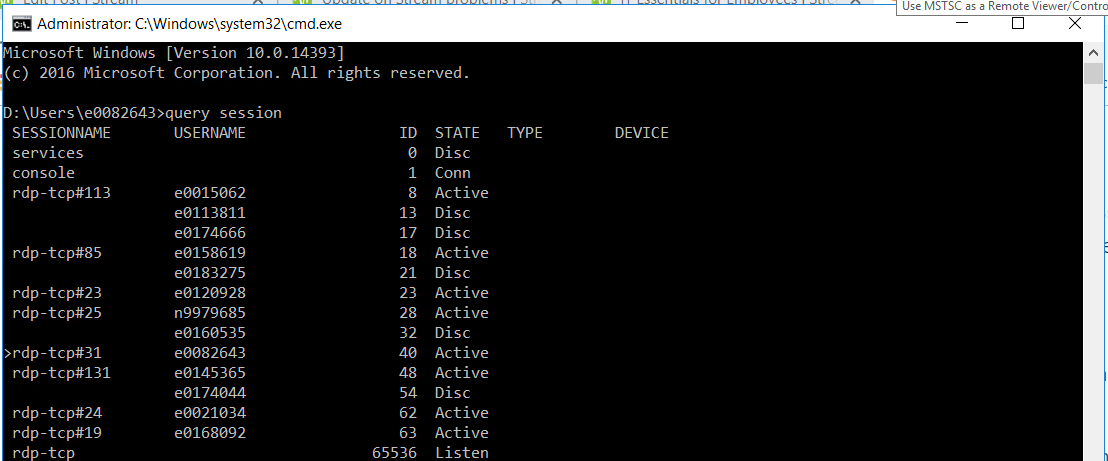
You need the session ID of the console you want to remote control. How do you get this? Log into the server under your ID and run “query session” in a command prompt – the session ID is in the “ID” column. Yes there are a lot of ways to do this. Ask the person you want to remote control to run quser, add the ‘session ID’ column to task manager, etc.

I am e0082643, which makes my session ID 40.

The person who wants to control the session needs to run mstsc with the /shadow option. You need to run mstsc as a user that is an administrator on the target host.

Run: mstsc /v:hostname /shadow:# /control

e.g. mstsc /v:cwwapp1726.windstream.com /shadow:40 /control

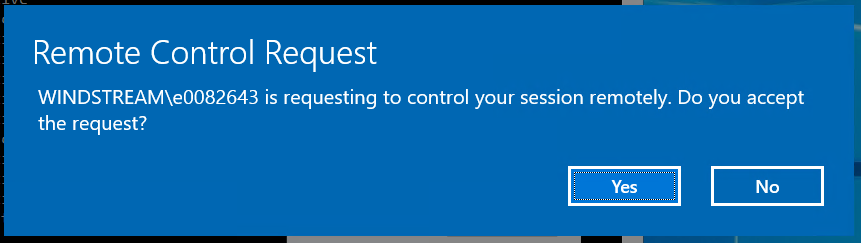
The session being controlled will see a control request – click ‘yes’ and the session will be shadowed. Click ‘no’ and it won’t.


Three New Sewing Projects — Coat and Dresses

I want to try making a coat for Anya — the Polartec fleece jacket turned out incredibly well, even if the thick fabric was incredibly difficult to sew. I intentionally chose a larger size — 8 — so she’d be able to wear the jacket for a few years. For this winter, I thought I’d make a dressy wool coat. Totally basic black wool, but a silky purple lining, purple silk twist for the button holes — still deciding between the darker and lighter purple, and some cool buttons I’ve not yet found.

            Bemberg Ambiance - Irus

And as usually happens when ordering fabric, I can avoid paying ten or fifteen bucks for shipping if I buy for a second project. A few years ago, I found a free pattern for a peasant dress. I love the dress, but the “border” part would have been the entire dress when Anya was younger. I bookmarked the pattern to use when she got a little older. Well … she’s older. And certainly taller! Tall enough that I think a dress with border print fabric will work. Since Anya is loving unicorns right now, I thought I’d make her a unicorn peasant dress.

The pattern reminded me of one of my favorite things I’ve ever bought for Anya — this top that she wore as a dress in 2014/2015, a tunic in 2016/2017, and a shirt in 2018. The arms are small now, or she’d still be wearing it as a shirt.

It’s corduroy, but a really awesome light-weight one. In browsing around checking out fabrics, I realized it is 21 wale corduroy — so I added two different fabrics. I figure I can make a blue dress with a cream stripe and a cream shirt with a blue stripe. And what’s a dress today will be a tunic in a few years and a shirt for another year or two after that.

Did you know … you can copy files from OneDrive to SharePoint Online (thus Microsoft Teams too)?

Sometimes I work on a document privately before putting it out for my group to review, but it takes time to upload a copy of the document to our Teams space! You can move and copy documents from OneDrive directly to SharePoint Online. Since “Files” in Teams spaces are just SharePoint Online document repositories, this means you can move/copy documents to a Teams space too.

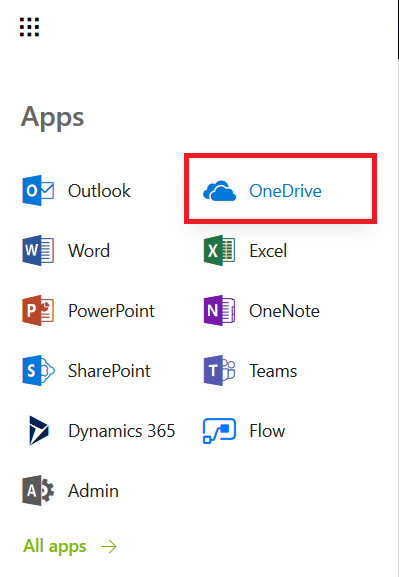
Open “OneDrive” from https://portal.office.com or the side-bar of any web-based Office 365 product.

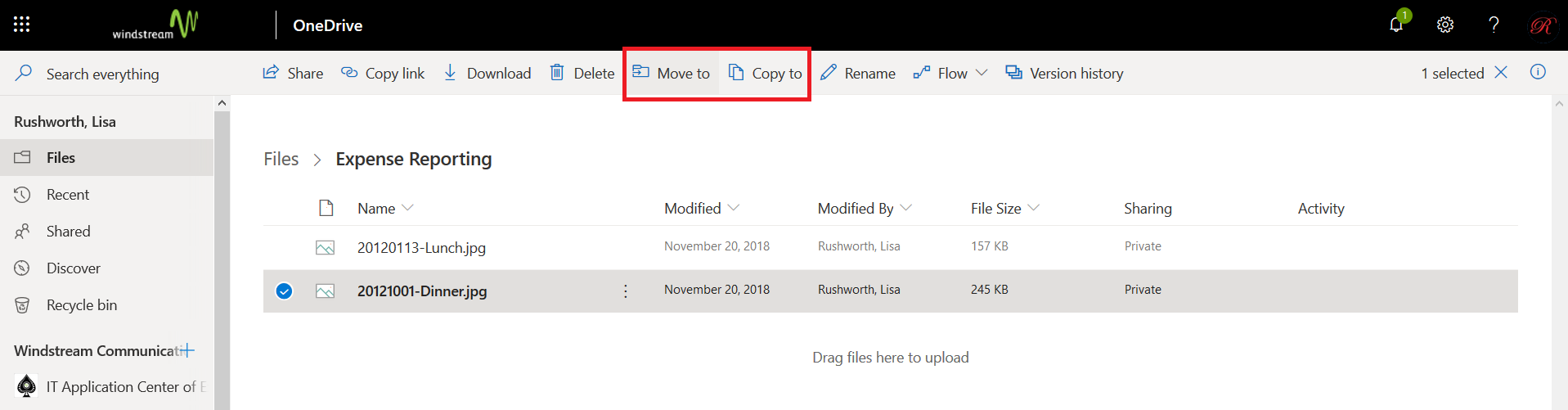
Select the document(s) that you want to move/copy and select either “Move to” or “Copy to” from the menu bar.

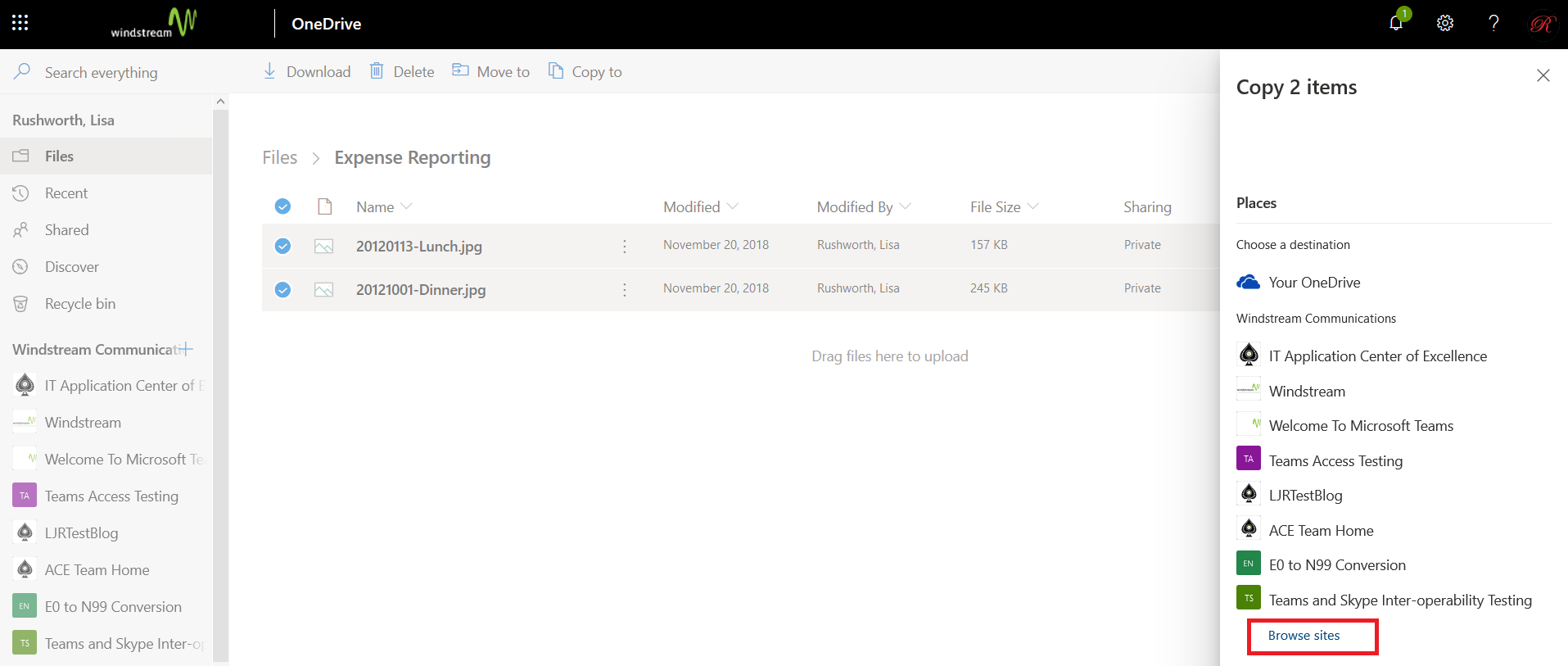
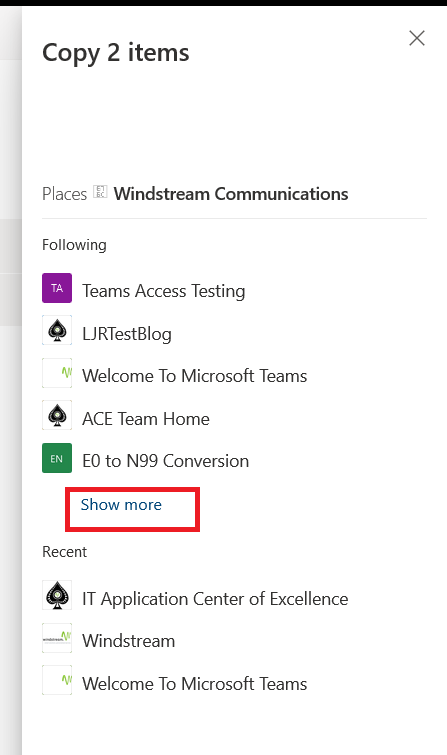
A new pane will fly out from the right-hand side of the browser window. You’ll see some of the SharePoint Online sites and Teams spaces to which you have access listed. If the one you want isn’t listed, click “Browse sites” to see a full list.

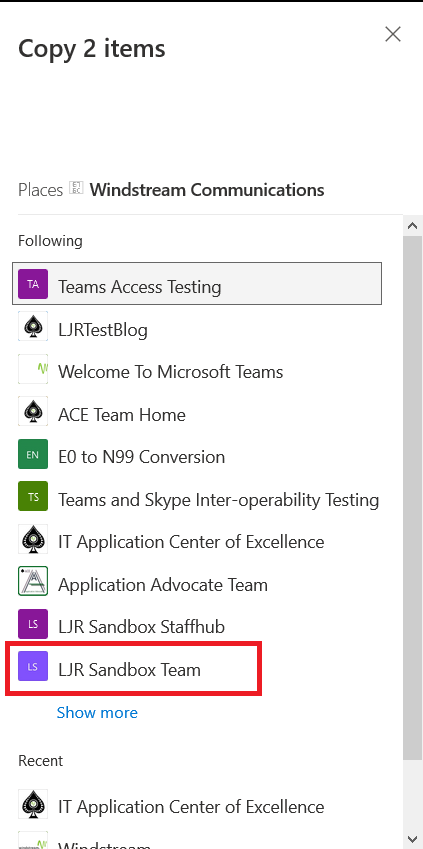
Click “Show more” to browse through the list of sites.

If you are unable to locate the site you want to use, open it in SharePoint online and follow it. Click on the site into which you want to move/copy your documents.

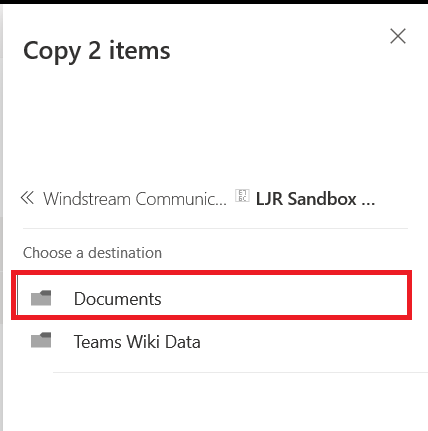
For SharePoint online sites, you’ll see the site contents and can navigate through the hierarchy to the location you want the file stored. For Teams spaces, click “Documents”.

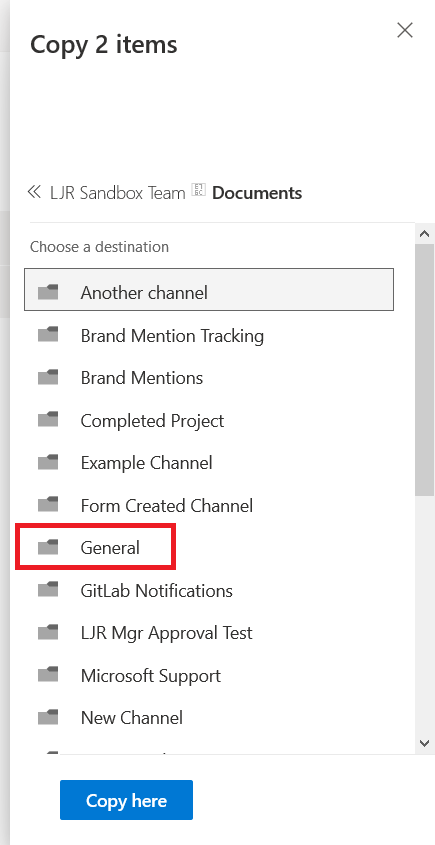
You’ll then see folders for each Channel. Click the channel into which you want to store the documents.

Navigate through the Channel’s file structure to the location you want the document stored. Click the blue button to copy/move the document to that location.

Voila, my documents are moved within Microsoft’s cloud from OneDrive to SharePoint Online.