Tag: microsoft teams

Did you know … You can move documents between Microsoft Teams?

I frequently collaborate on documents with a small group of people – not that I don’t want everyone’s input, but starting a discussion with thirty people and a blank sheet of paper can become a cat-herding endeavor. I start drafting a document with a small group of people and then present the mostly finished information to a larger team for final review. I do not want to keep track of different versions of the document spread across multiple Teams! Fortunately, you can move documents between Teams.

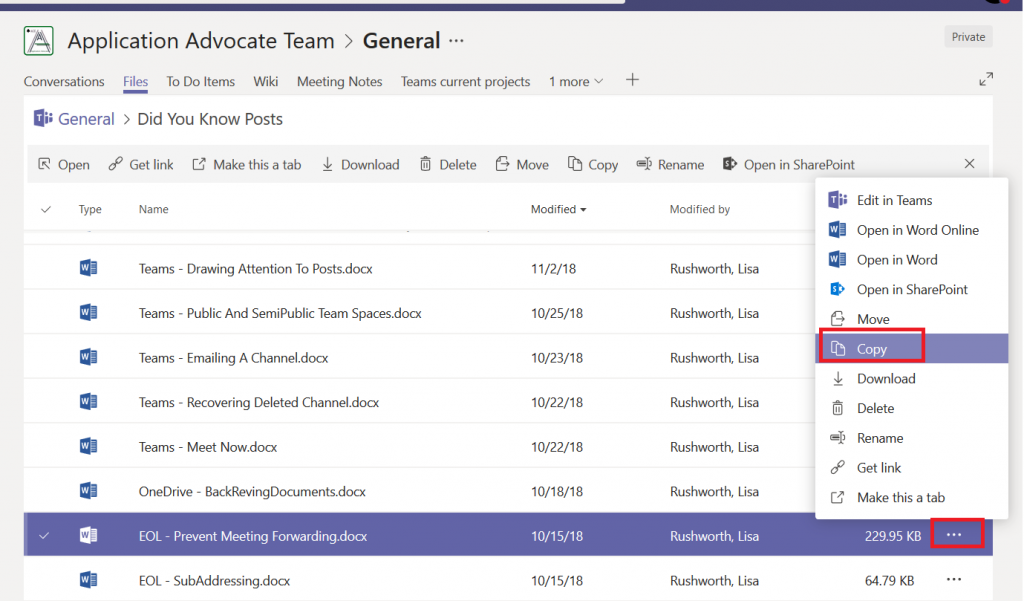
Find the document that you want to move. Click the not-quite-a-hamburger menu to the right of the document listing. Then select either “Move” or “Copy”.

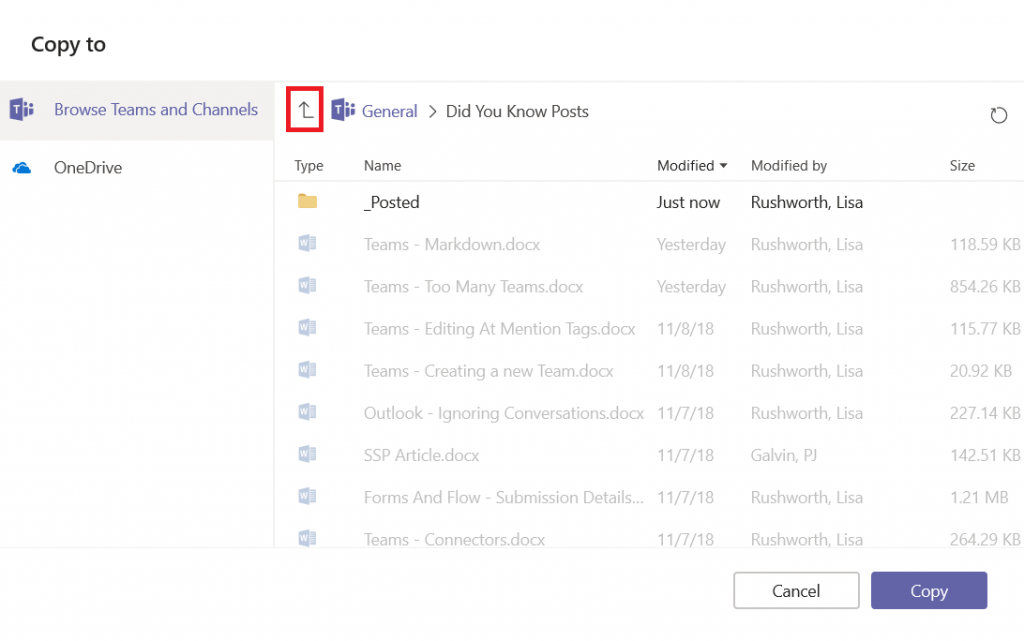
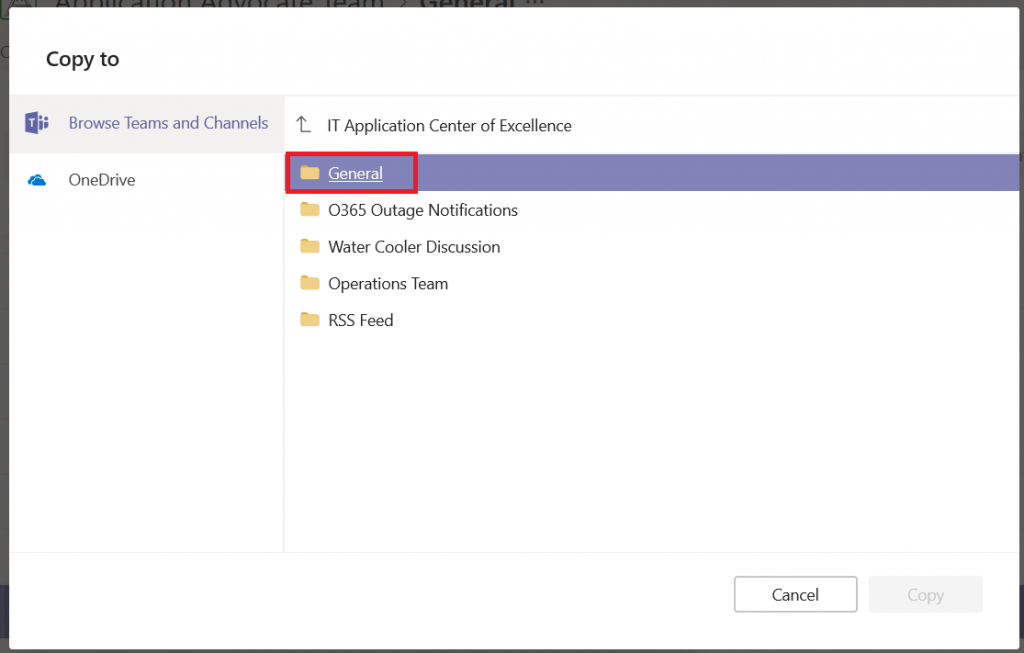
A “Copy/Move To” dialogue will open, allowing you to select where you want to document to appear. You can navigate the folder structure within the channel’s file space or click this arrow to move outside of the channel’s file space.

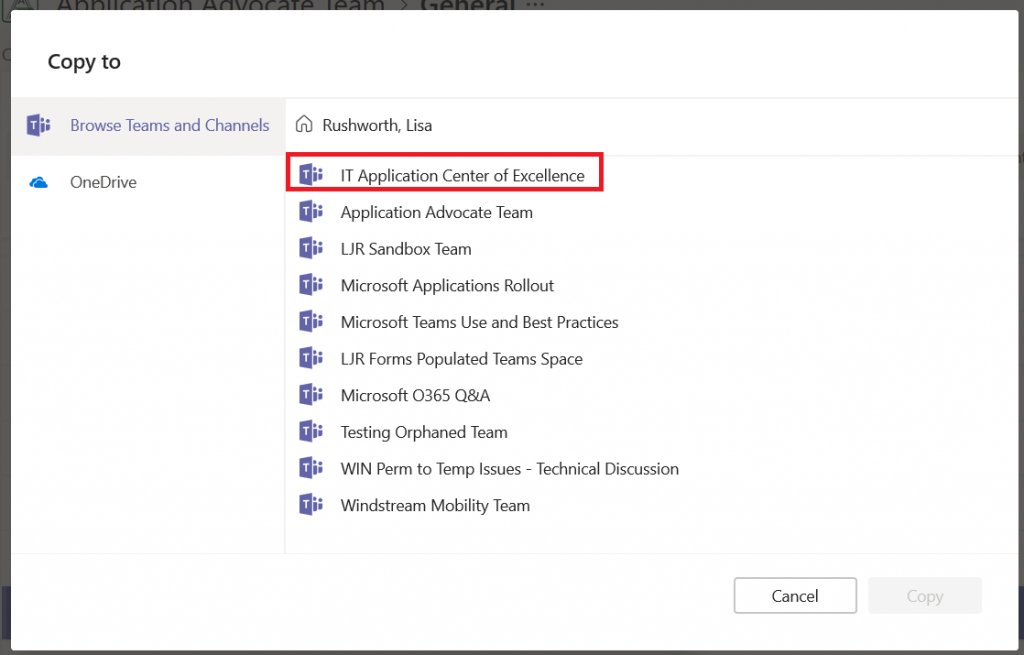
Clicking the arrow once will bring show the channels within the team. Clicking it a second time will display all your Teams. Click on the team into which you want to move the document.

Select the channel in the new team where the document will appear.

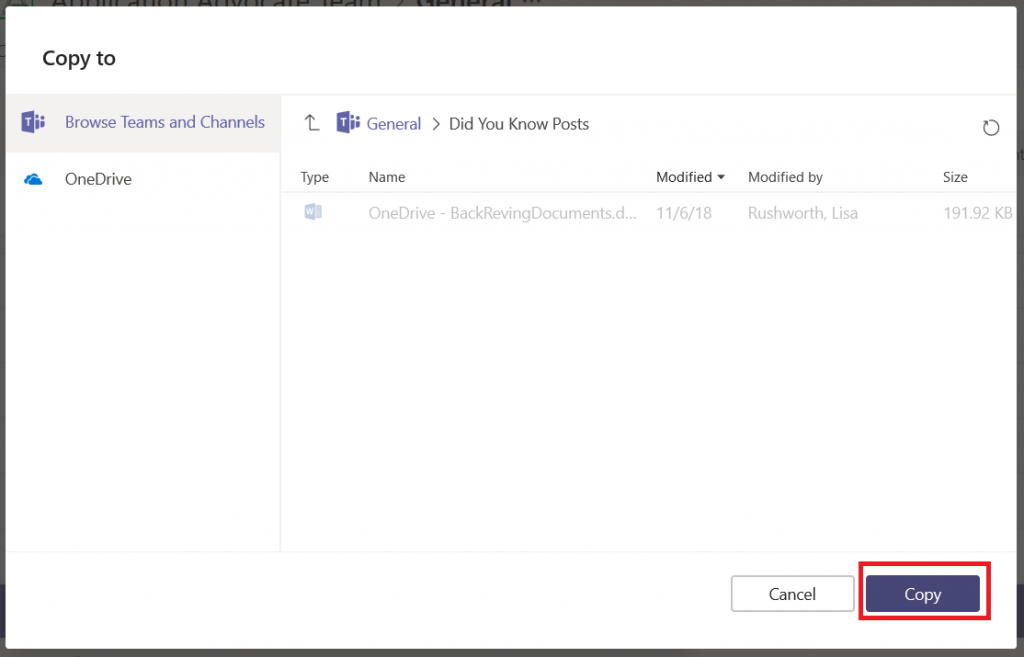
If there is a folder structure within that channel’s file space, select the folder path you want. When you’re in the right place, click “Copy” or “Move”.

Did you know … you can blur the background when joining Microsoft Teams video meetings?

Do you have a two-foot-high stack of papers on the desk behind you? Does your whiteboard contain information that isn’t quite ready to be broadcast? Or maybe you are working from the aeroport and your camera is facing the main terminal hallway – all of those people running past can be distracting. Video meetings humanize participants, but what’s behind you isn’t always something you want to share with others. When you join a scheduled Teams meeting, you can use a video filter to blur all of that stuff.

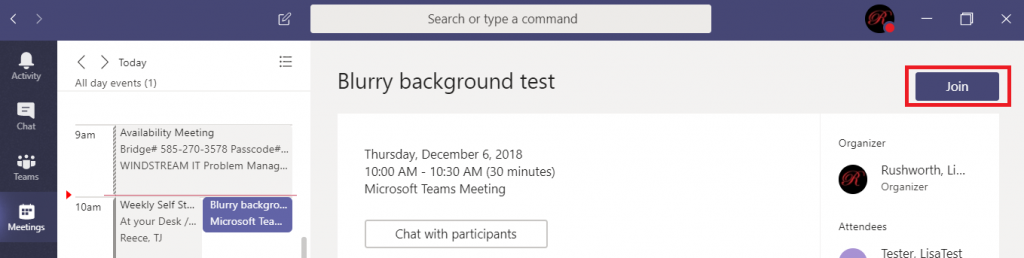
Click to join a meeting.

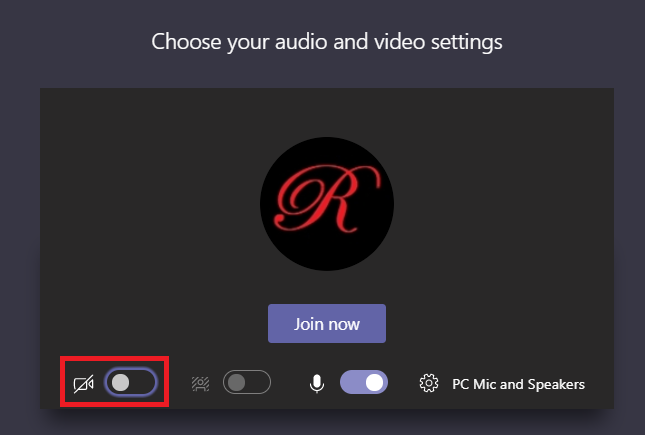
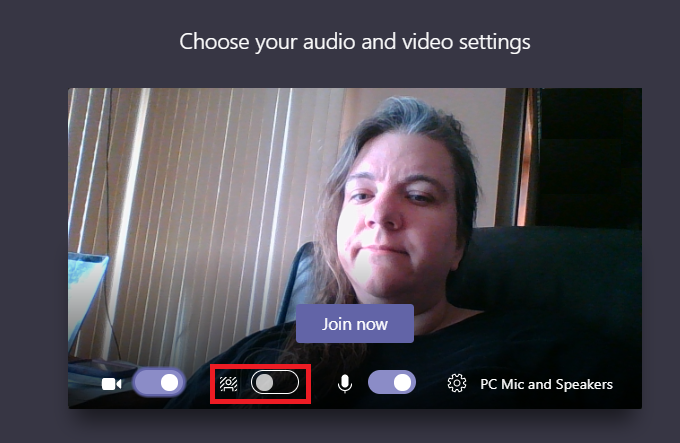
Click the slider next to the video camera to join the meeting with video.

You will see a video preview. Click the middle slider to activate the background blurring filter.

The video preview shows the changes. If the blur sufficiently obfuscates whatever you didn’t want to show, click ‘Join now’ and join the meeting. If your desk still looks a mess … move your stuff 😊 The blur effect is not applied to things the filter considers to be in the “foreground” … so you might be able to achieve more blurring by pushing an object farther from the camera.

You can currently blur the background when joining scheduled Teams meetings. There is an RFE on UserVoice to enable this feature for ‘meet now’ meetings and video calls.

Did you know … Microsoft Teams aggregates all your Planner tasks?

Adding a Planner board to Teams spaces is a great way to manage tasks within a group or for a project, but it can be a little difficult as an individual to keep track of tasks scattered across various Teams. Microsoft Teams also provides a view of your tasks.

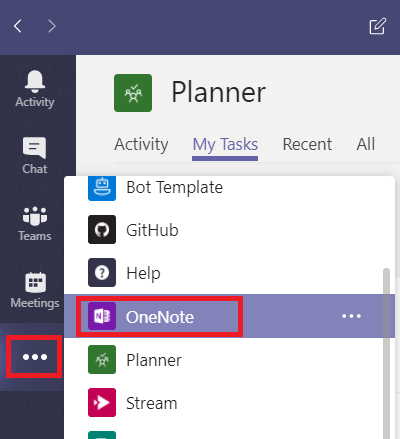
Click on “More apps” on the left-hand toolbar and select “Planner”

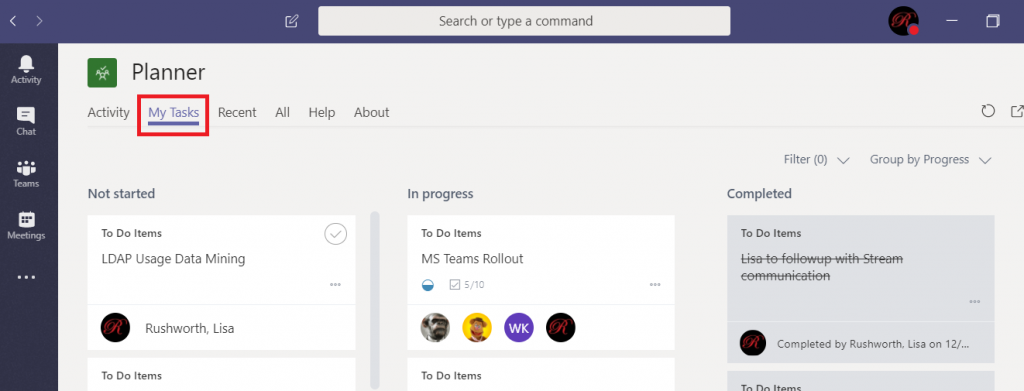
Click on “My Tasks”. You will see tasks in any Planner board that have been assigned to you. You can edit task content, change labels, and change the completion status from within this view.

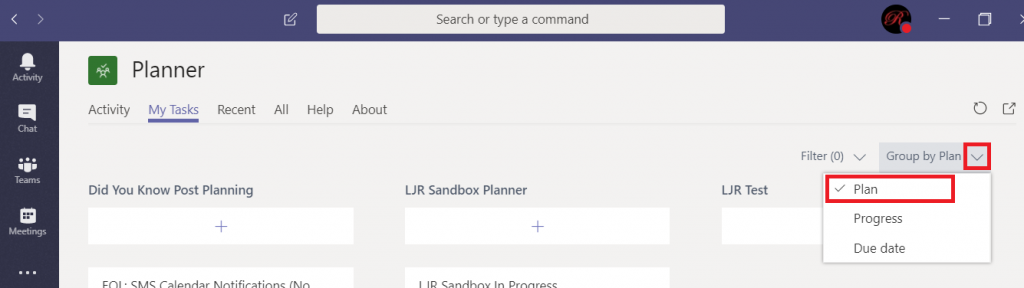
Although you can edit most of the Task details, you cannot drag it between buckets on the Planner board. To do that, you need to open the containing Planner board. Currently, there’s no way to navigate directly to the Planner board from within this view. You can click the inverted caret next to “Group by …” and select “Plan” to see the name of the Planner board that contains your task. You can then find the board on https://tasks.office.com

Did you know … there are keyboard shortcuts in Microsoft Teams?

I know modern software is driven by graphical user interfaces, but as an old-school Unix admin (there were loads of interface choices – Bourne shell, c shell, korn shell, bash shell!) it’s weird to take my hand away from my keyboard just to turn a bit of text bold or move to a new field. And Microsoft has done a decent job of standardizing keyboard shortcuts across their applications – ctrl-b will toggle “bold” pretty much anywhere (even Teams!)

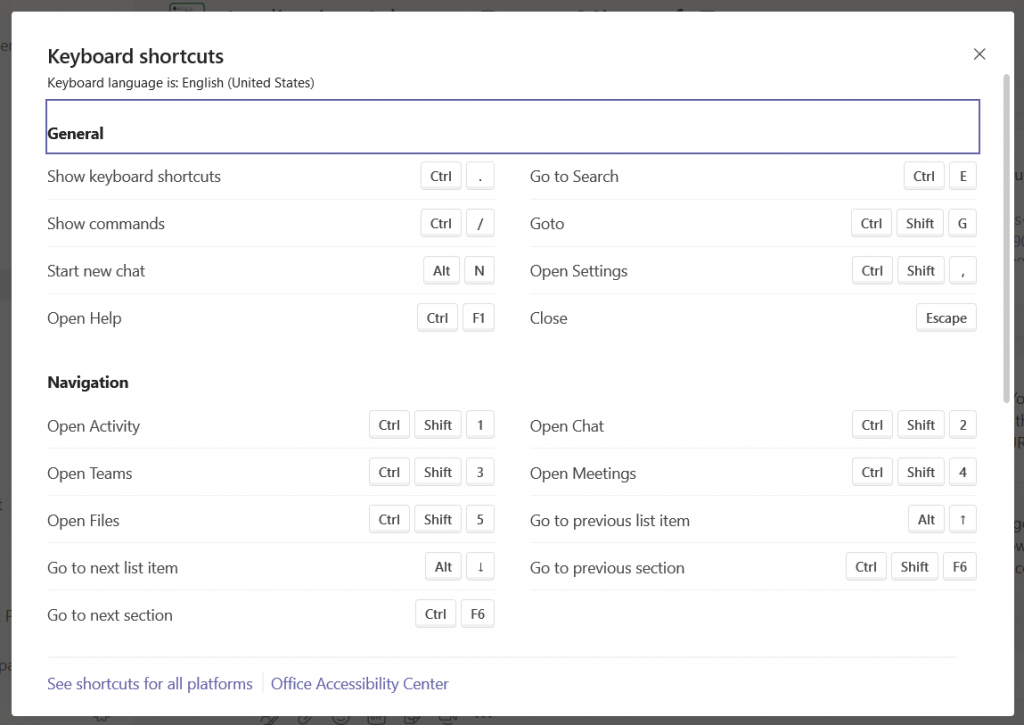
But … within your Teams client (even the web client) hold the “Ctrl” key and type a full stop (.) and look – special keyboard shortcuts!

There’s even a link at the bottom for all of the shortcuts on Windows and Mac. I can hit ctrl-shift-1 to flip over to my Activity feed; ctrl-shift-3 puts me back in the Teams chat section.

Did you know … there’s version history for Microsoft Teams files too?

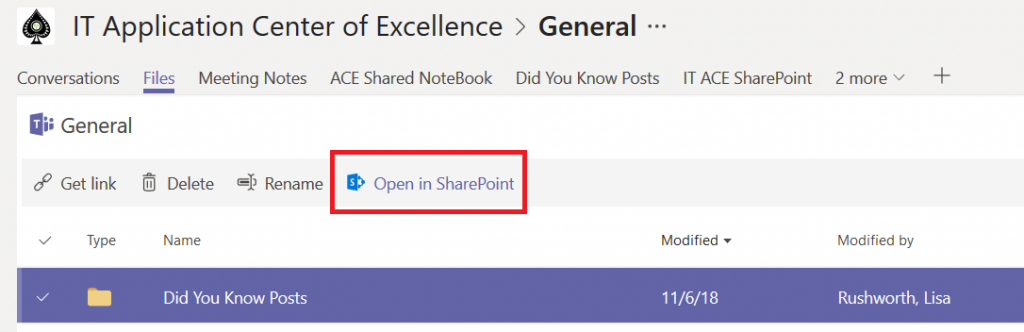
There is — which is obvious once you start thinking about how Teams data is stored. The “Files” tab is a pretty front end for a SharePoint document library, and document libraries store version history. The problem is I didn’t know a good way to walk an end user through accessing that document library. I’d generally do a screen sharing session with the user & navigate them to the right place myself. And then I saw this — on the Files tab, there is an “Open in SharePoint” button. You don’t need to drill down to find the specific file you want to revert – as long as you are on the proper channel, we’ll be able to get to the document.

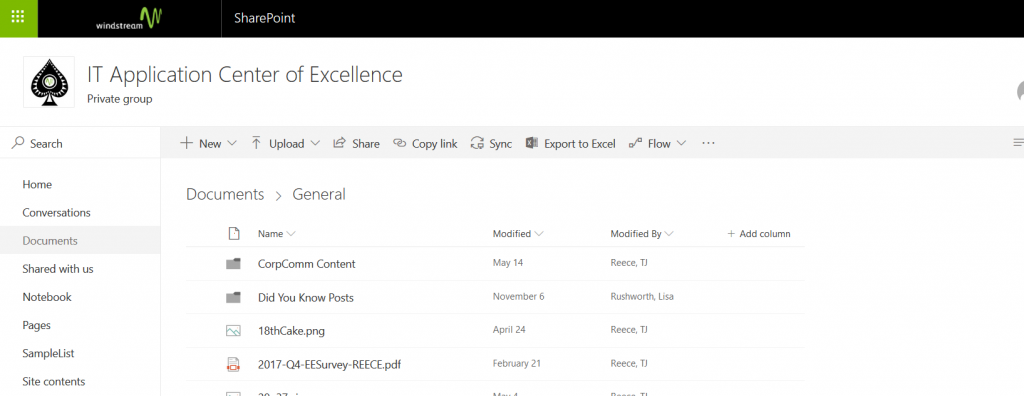
Voila! A new tab opens and shows you the SharePoint document library that underpins the Teams Files tab. Now drill down until you find the file for which you are looking.

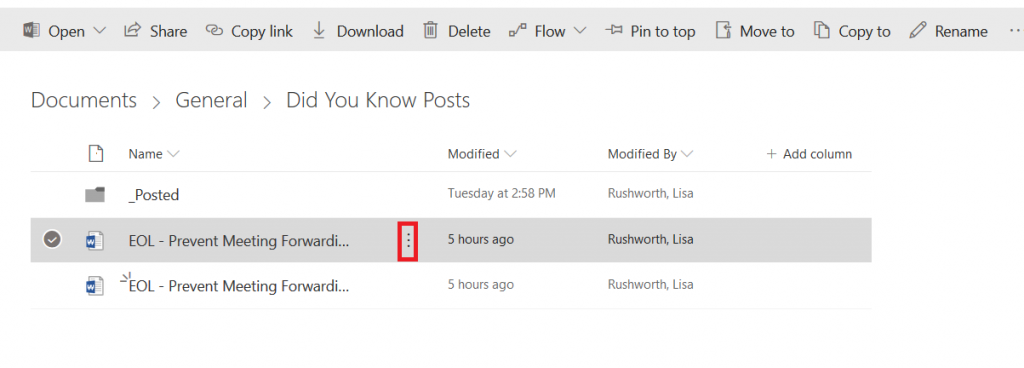
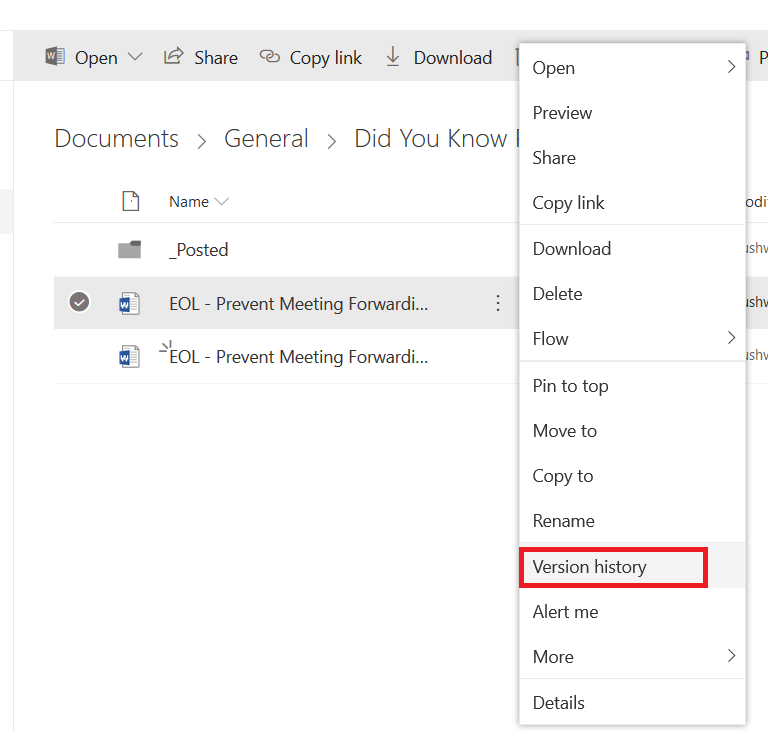
Click on the not-quite-a hamburger menu – the one between the file name and modify time.

Select “Version History”

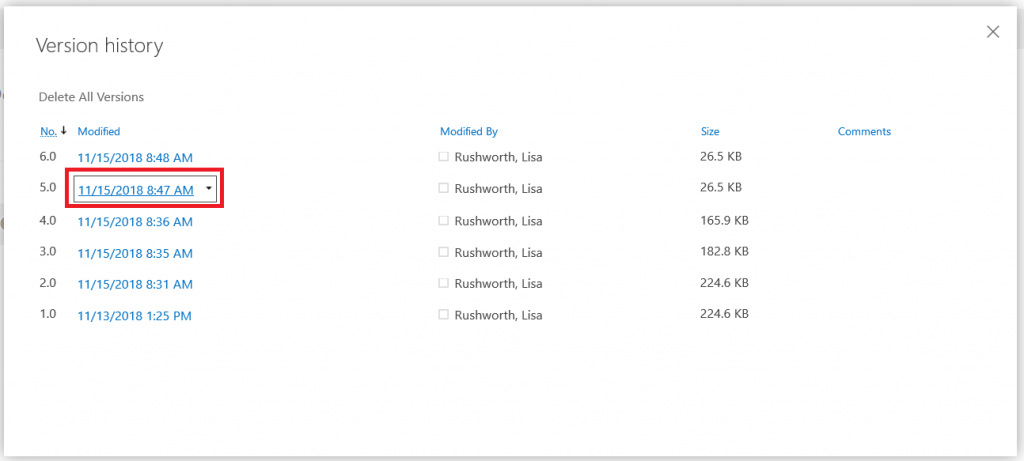
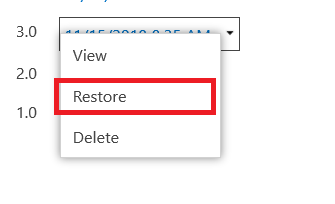
To view the previous version, click on the hyperlinked modify timestamp. To restore the previous version, hover your mouse over the modify timestamp of the iteration you want.

On this menu, “View” will show you some information about the file – not actually view the file. Select restore “Restore” to replace the current version (the one that shows up in Teams) with the selected – you’ll be asked to confirm that you want to overwrite the current version.

Once the document has been restored, you’ll have a new entry on the version history pane – so you can even revert your document reversion if needed.


Did you know … Screen Sharing in Teams Chats Is Rolling Out!

I’ve been tracking an RFE for screen sharing in Teams chat — it’s super-simple in Skype, and while it’s possible in Teams (schedule a meeting), it isn’t a one-click simple process. But today, we’ve got a new button in our chat sessions — start sharing your screen!

I don’t see the option in the web client on Firefox or Chrome, but I hope it is coming there too.

Did you know … you can organize your Microsoft Teams list?

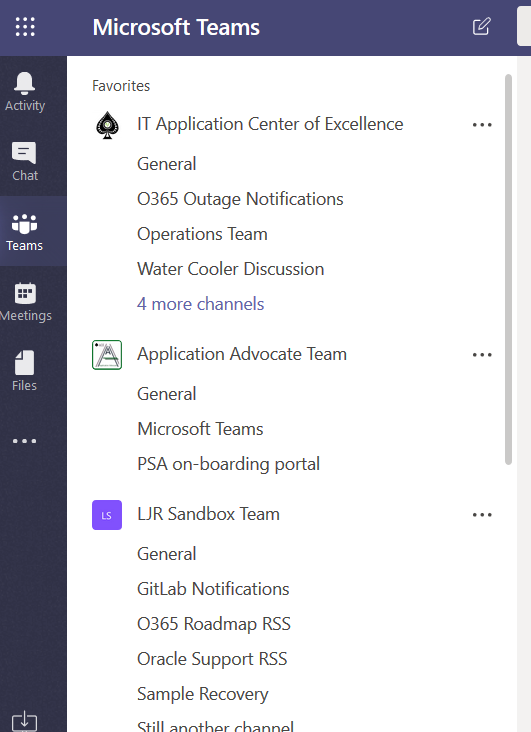
You’ve been using Teams for a while, created a few Teams, been added to even more … and you realize that all of these Teams and channels have created clutter of their own. Teams are listed in the order you joined them. Channels are listed in the order they were created. And those first couple of Teams spaces you played around with? All at the top!

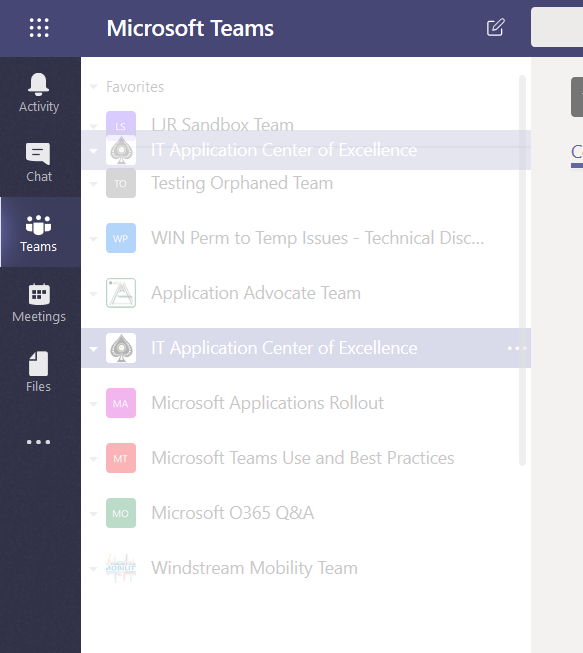
But the Teams interface – both the client and the website – allow you to drag Teams around to reorder them. Simply click and hold over the Teams listing you want to move and drag your mouse – there will be a “ghost” listing that tells you where the Teams listing will appear when you release the mouse button.

OK, that’s a little better – now the Teams spaces for my groups are at the top.

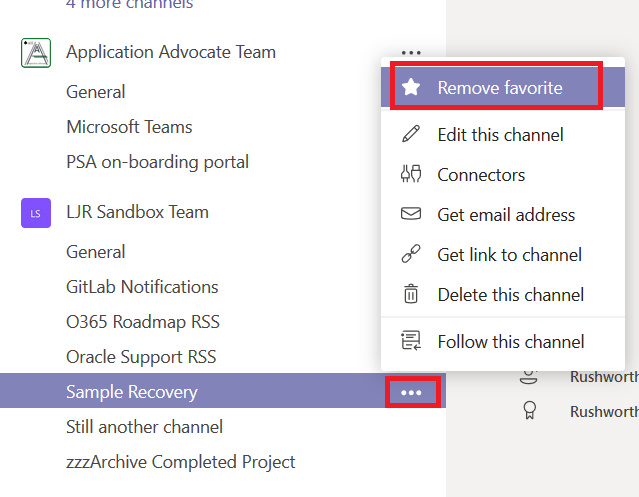
That’s still a lot of channels, though. If you remove ‘favorite’ designation from a channel, it will collapse into an expandable menu. Click the hamburger menu next to the channel, then click “Remove favorite”

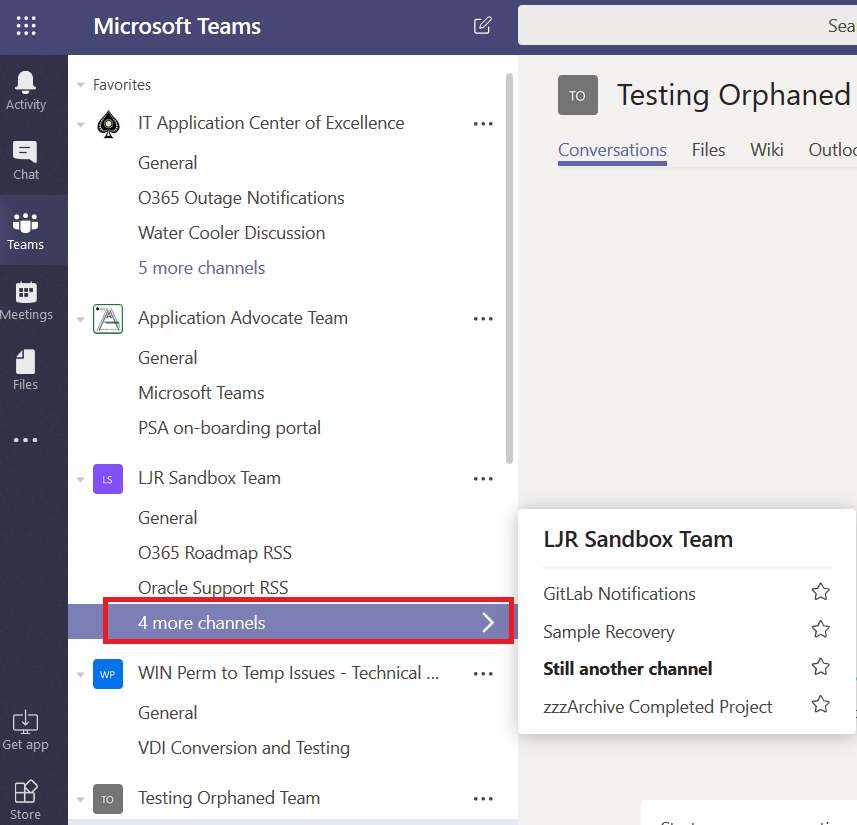
That’s a LOT better – those channels are still available, just click on “# more channels”

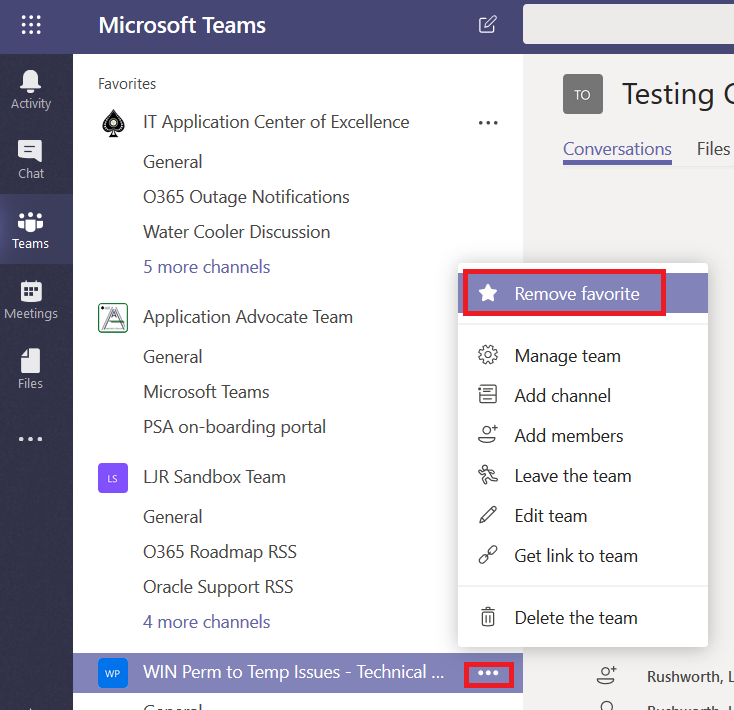
You can remove the favorite designation from a Teams space as well – it will no longer be so prominently displayed in your Teams list. Click on the hamburger menu next to the Teams space listing and click “Remove favorite”

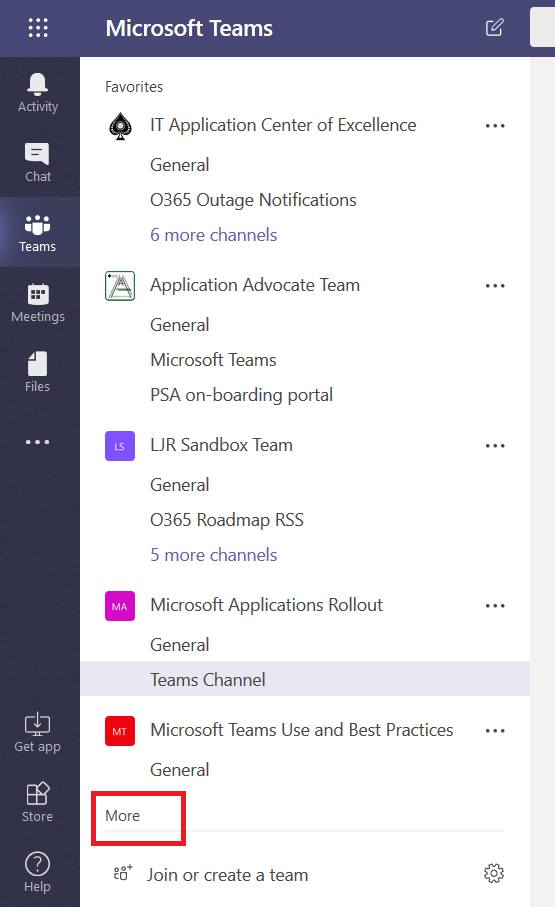
Down to one page! If you want to check one of the hidden Teams, just click “More”

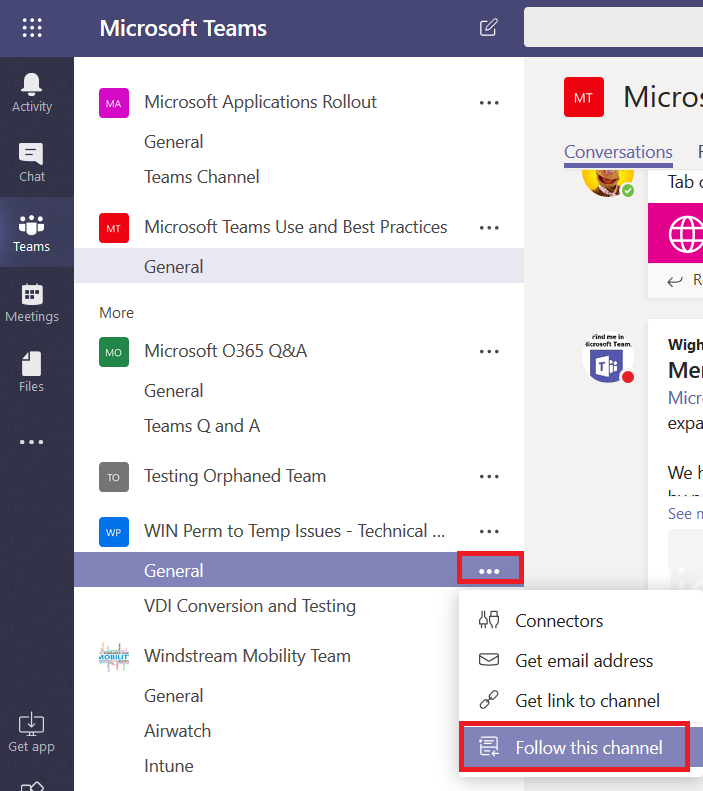
And if you want to get notifications when an important-but-infrequently-used channel has some activity, click the hamburger menu next to the channel and select “Follow this channel”. New posts will be listed in your Activity feed (and e-mailed to you if you’ve set up e-mail notification for followed channels).

Did you know … you can edit the tag for Teams @ mentions?

Well, you can ? Not generally worthwhile if you are only mentioning one or two people, but if you need to flag half a dozen people, the list of names starts getting REALLY long.

Click in the middle of the name – your cursor will be placed within the name element.

Use backspace or delete to remove one of the name components – backspace will remove the surname and comma, delete will remove the given name.

The links are maintained, so the individual gets flagged with the post.

Does it matter if there are three Bob’s on there? In the previous case, no – I’m trying to garner the attention of a bunch of people and direct them all to the same text. But if you have a bunch of people in your Teams group with the same name … it’s probably better to leave their full name in place or delete the given name!

Did you know … you can push GitLab notifications to Microsoft Teams?

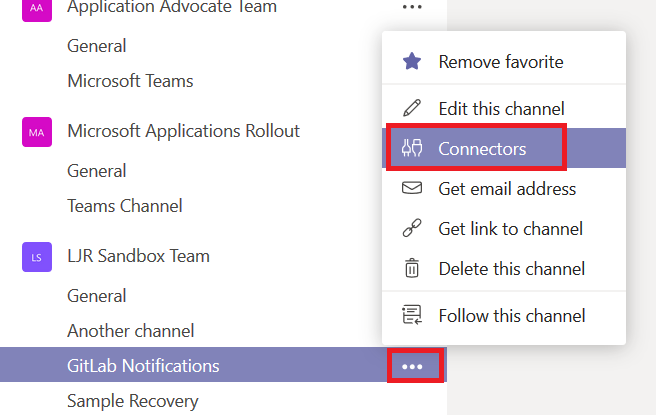
Microsoft Teams offers a lot of connectors which allow you to see external notifications right in a Teams channel, and you can push GitLab notifications to Teams. Determine the channel into which you want the notifications posted – I decided to make a new channel just for GitLab notifications, but you can use an existing channel too. Click the hamburger menu next to the channel name and select “Connectors”

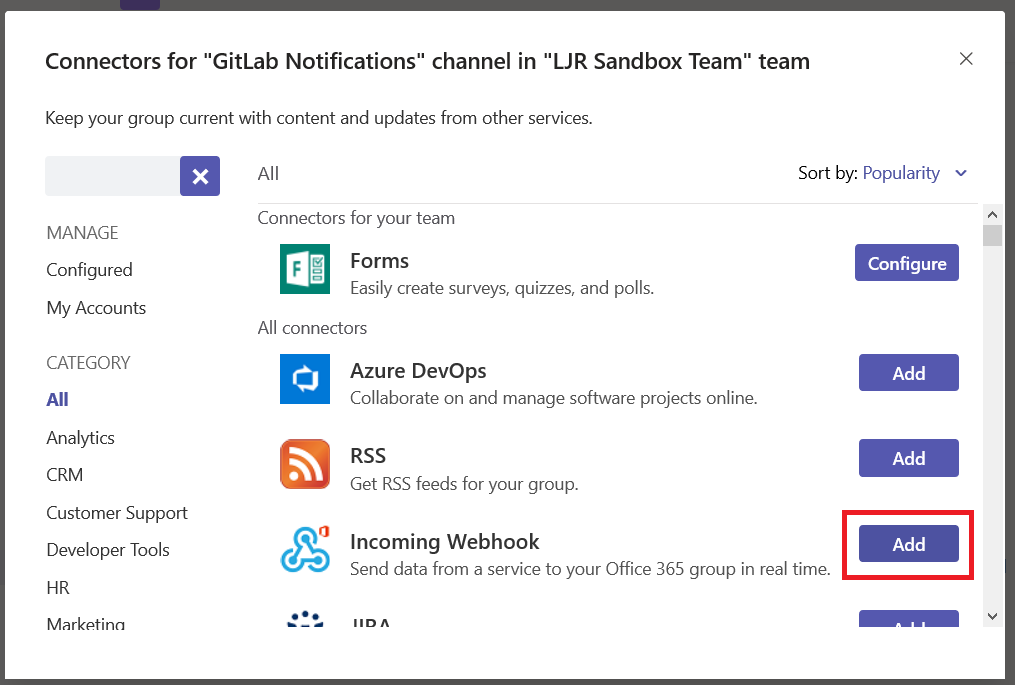
Locate “Incoming Webhook” and click “Add” next to it

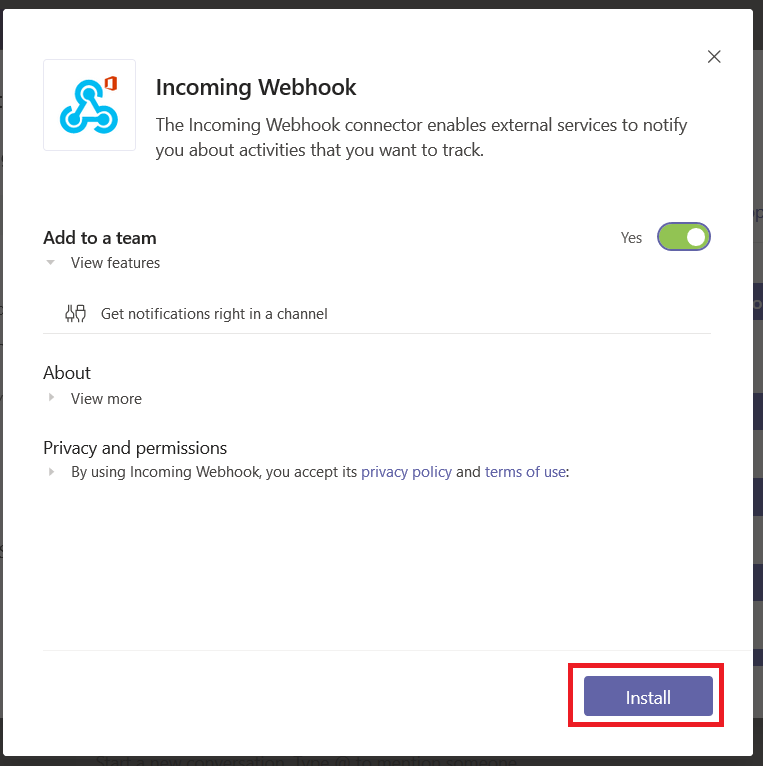
There’s not much to see here – just click “Install”

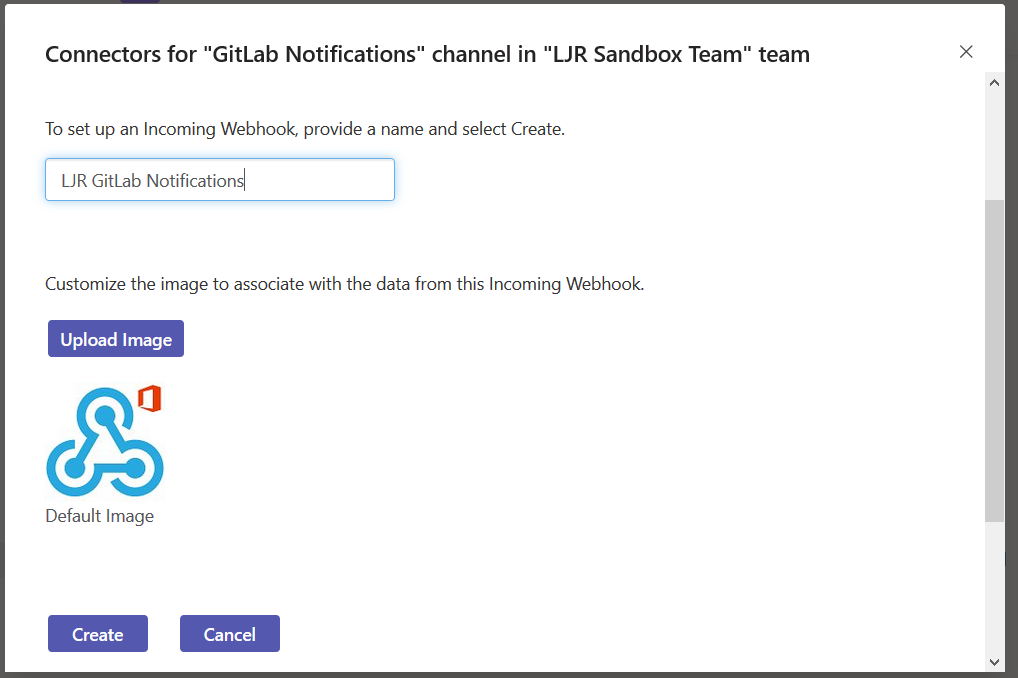
Provide a descriptive name for the webhook and click “Create”

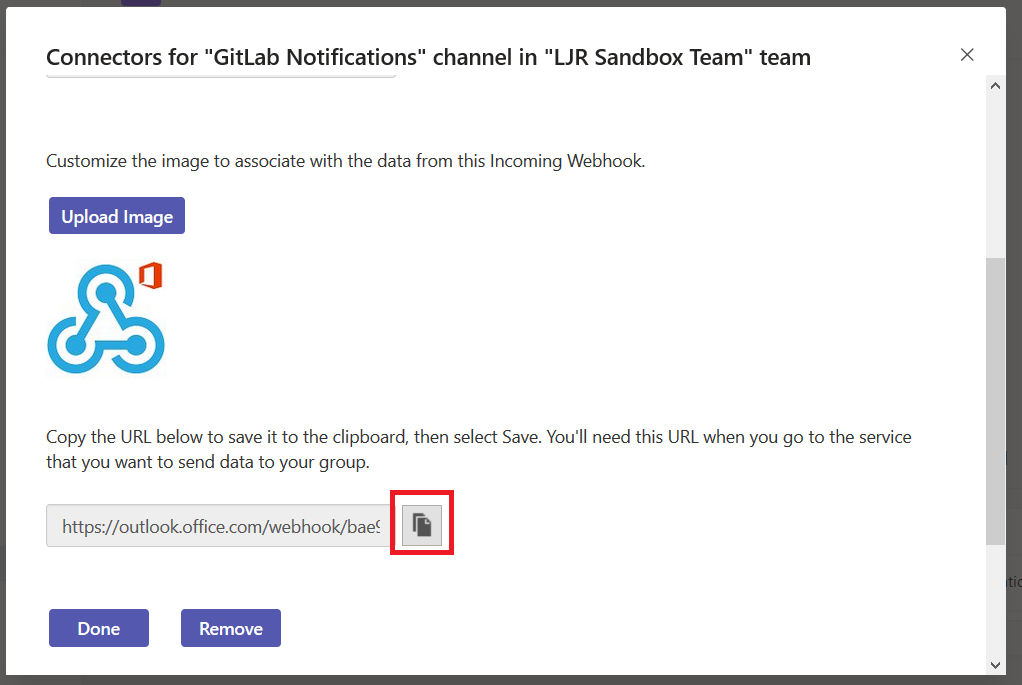
Scroll down and copy the webhook URL

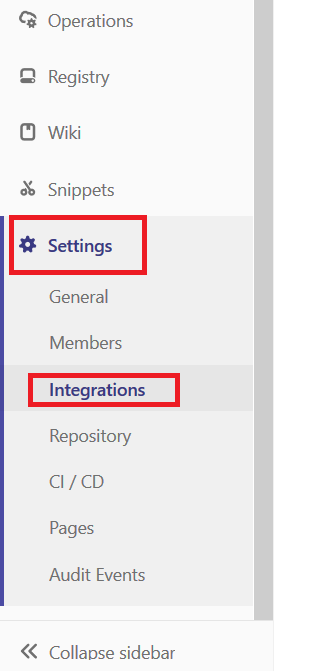
Click “Done”. Now go to your GitLab project. On the sidebar, scroll down to “Settings” and select “Integrations”

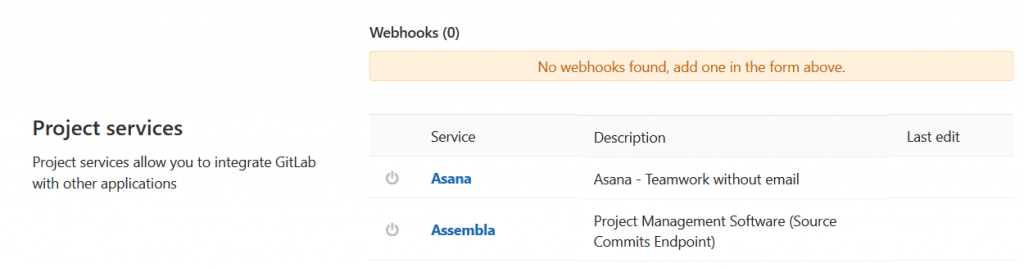
Scroll down to the “Project services” section.

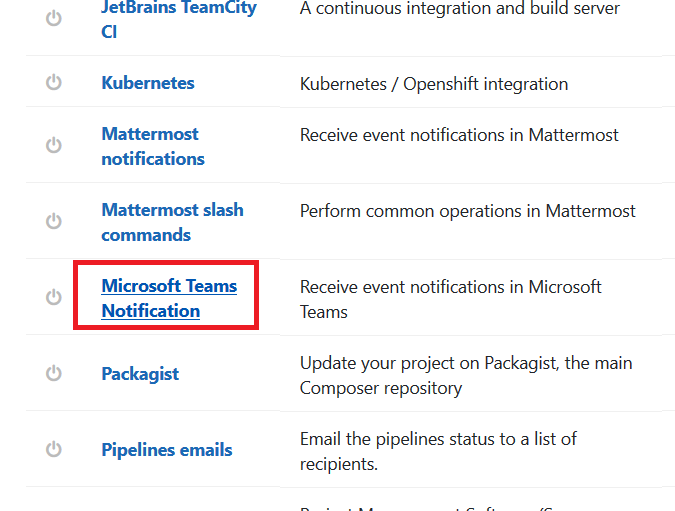
Locate “Microsoft Teams Notification” and click on it

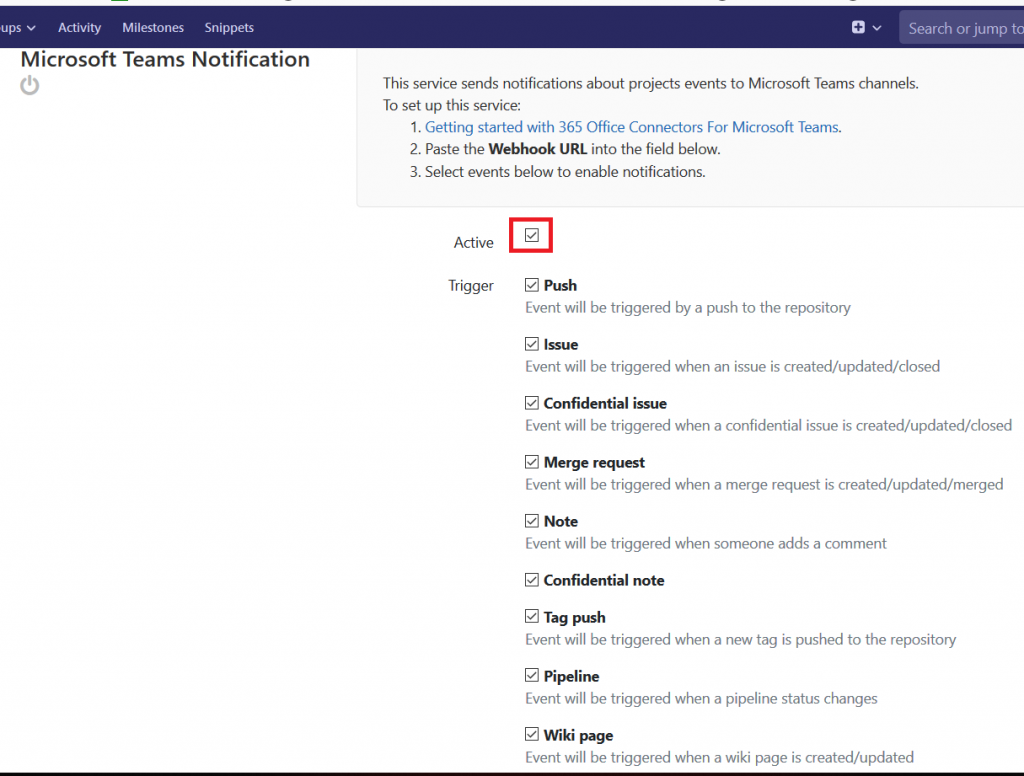
Check the box to activate the integration. Select the events for which you want information pushed to Teams

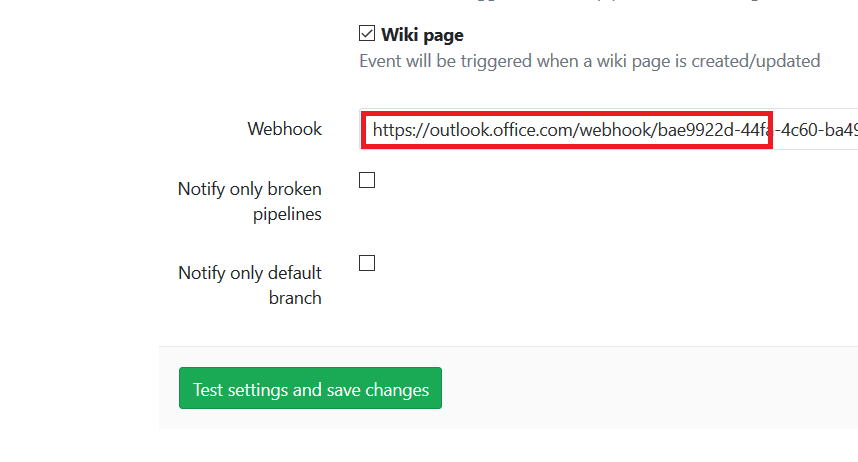
Remember that URL we copied? Well, here’s where you paste it in. You can elect to receive notifications for only the default branch or all branches. You can elect to receive all pipeline notifications or only broken pipeline notifications. Click “Test settings and save changes”

If everything worked, you will see a banner indicating that the Microsoft Teams Notification was activated.

Now do something in your GitLab project – commit a code update, create an issue, add a page to the Wiki … anything that you’ve selected to trigger notifications.

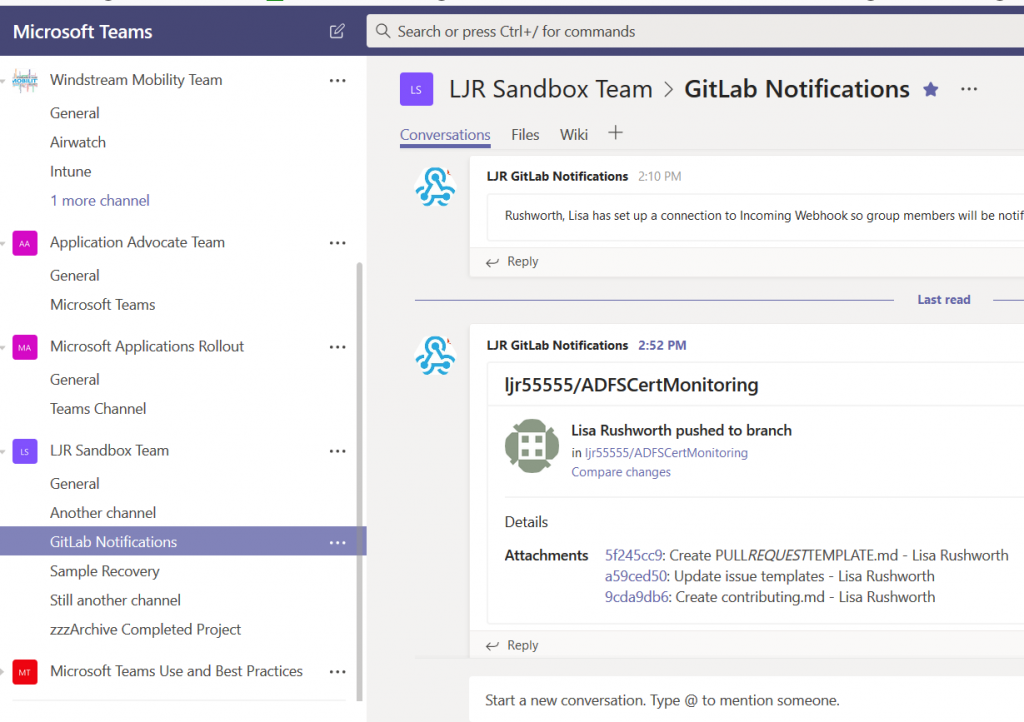
And … check out your Teams channel:

Did you know … Connectors can be used to display external information in Microsoft Teams Channels?

Microsoft Teams is a single workspace that provides access to a vast array of resources. You’ve got links to important web sites, posts from other Team members, discussion surrounding shared documents … but did you know posts can automatically be created from external systems?

Why? Well … doing so allows Teams to simplify finding and distributing information. Instead of having ten people subscribed to a vendor newsletter or five people trying to remember to check a web site for information, the information comes to every Team member directly in their Teams application.

You can turn vendor-provided patch and outage notifications via RSS or Twitter into Teams posts. Google Analytics data for your site can appear in Teams posts. Jenkins has an Office365 connector that reports pipeline information in Teams posts. Browse the available connectors to see what is useful in your group.

“Best practice” recommendation: some of these connectors rely solely on Microsoft’s Internet connection to an Internet-accessible resource – as in the example I present below. These connectors are essentially self-documenting because you can view the Connector configuration to determine the URL with which the connector communicates. Many connectors, however, use web hooks registered within your application or user credentials to access the remote system. In the “Files” or “Wiki” section of the channel in which the Connector is used, create a document detailing any configuration that was done – instructions for creating a web hook in your system, which account was used to access the remote system (don’t write the password in the document!).

For connectors that require user credentials, do not use a personal account. Create a new account for your Teams feed. Twitter, for example, requires a user account to follow other accounts or hashtags. Were I to use my Twitter account in the configuration … if I transfer ownership of the Team space to someone else, they’re inheriting a configuration with my account; but I’m not going just hand my password over to them. Even if ownership of the Team space never changes, we could cease seeing updates next time I change my Twitter password. Or decide to close my account. Or … point being, if you have a non-user account, the Team owners can maintain control of the account and any changes to it.

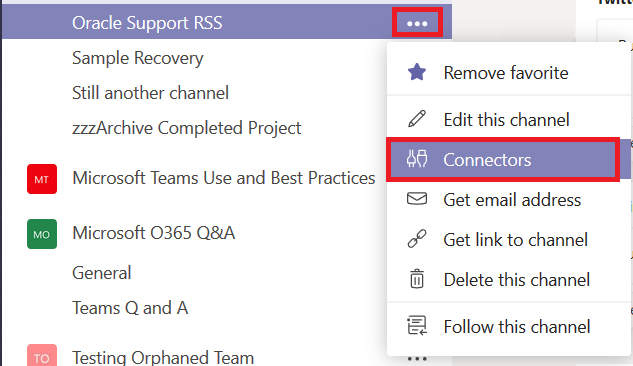
Using Connectors: Decide where you want the data posted – this can be a dedicated channel created just for this connector or it can be an existing one. Click the hamburger menu next to the channel into which you want messages posted. Select “Connectors”.
Browse through the list. Or type in the “Search” box to locate a specific connector. Click “Add” next to the connector you want to use.
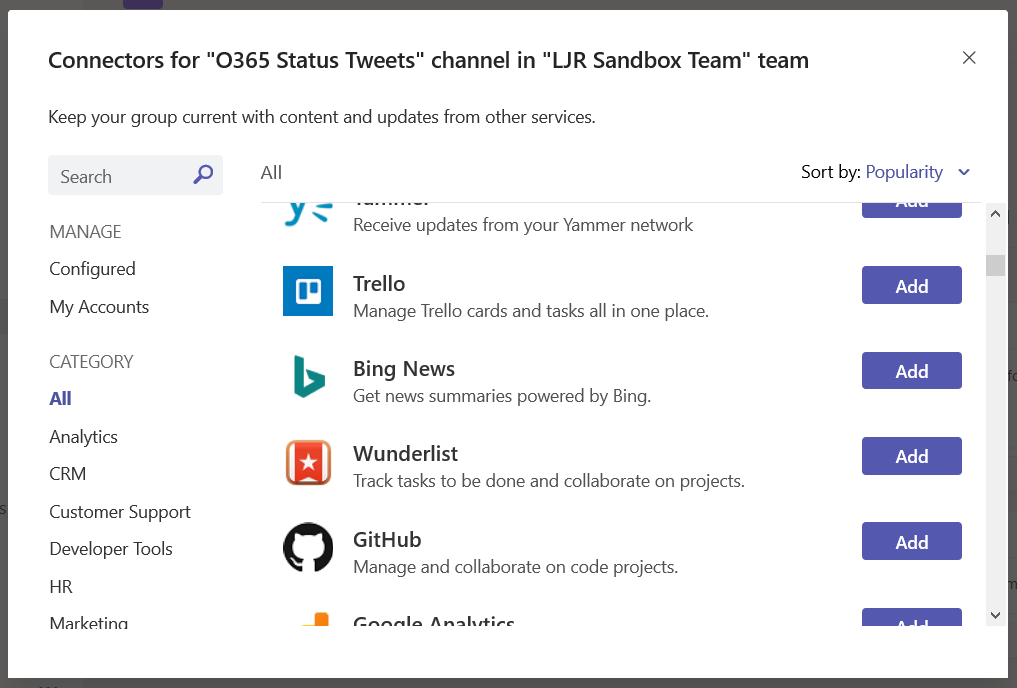
Setup will vary depending on the connector selected – the Jenkins connector provides a URL to paste into your server config, Twitter asks for credentials and individuals or hashtags you want to follow in the channel. In this example, I am adding an RSS data feed.

Type ‘rss’ in the search dialog. If this is the first time you’ve used the connector within this Team space, click “Add”.
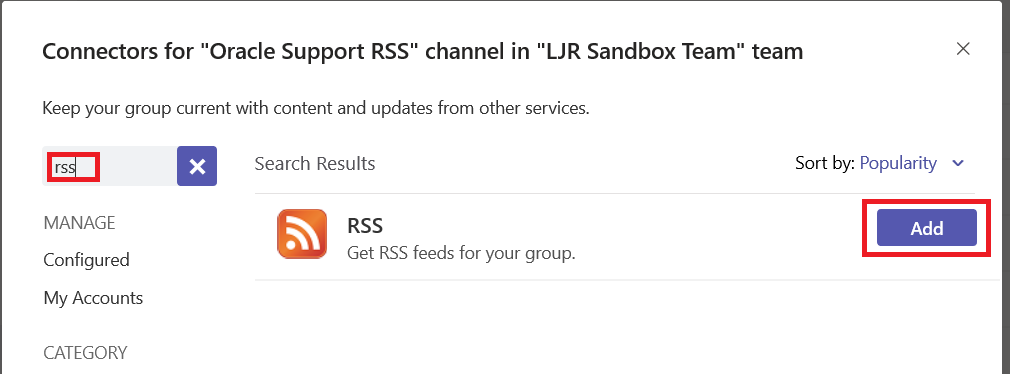
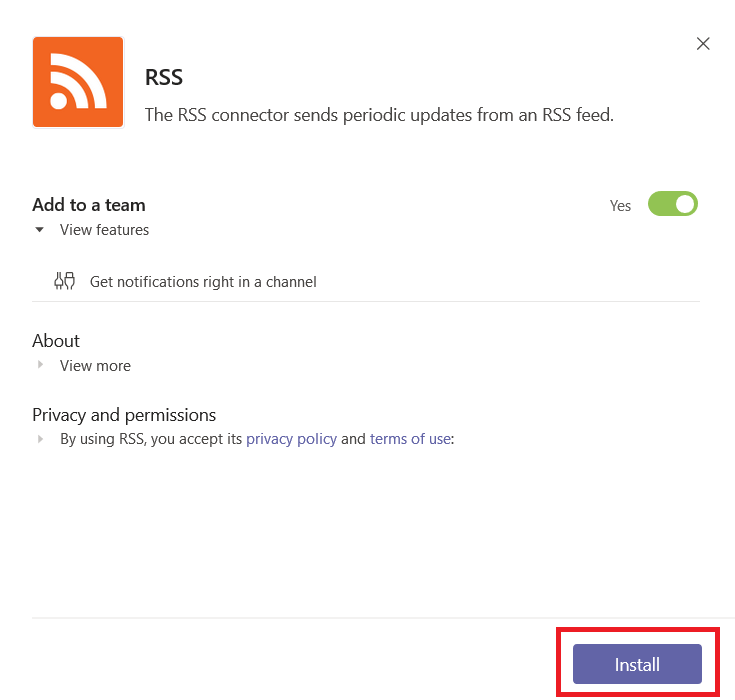
In this case, there’s not much on the next screen – read the privacy and terms of use statements.  Assuming the connector permits your intended use and you agree to all of their terms, click “Install”.
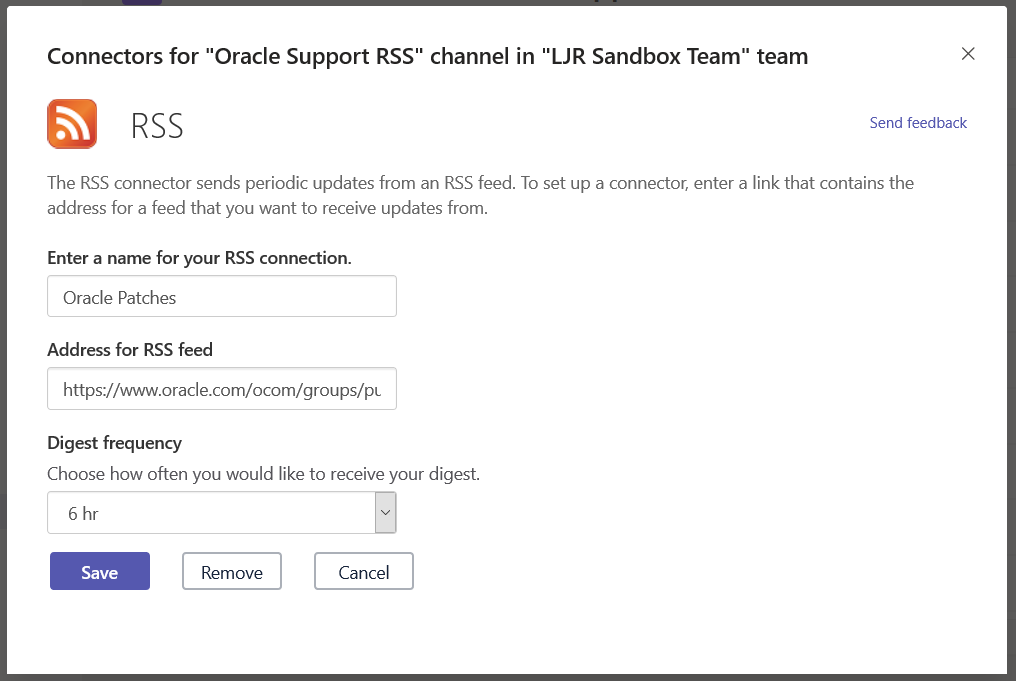
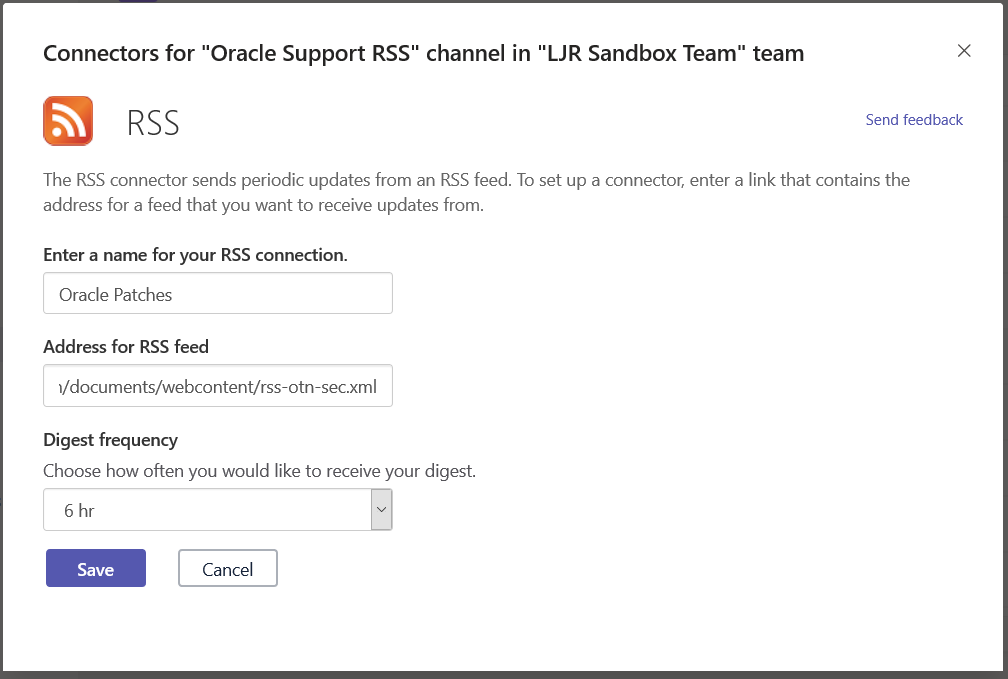
Enter a name for the connector, paste in the RSS feed URL, and select how often you want Teams to check for new data in the feed. Click “Save”
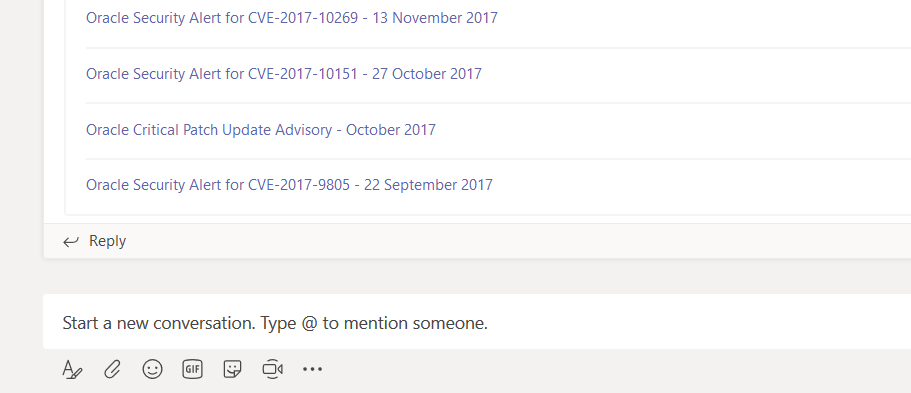
A post will be created in your channel with data from the RSS feed. Some feeds will provide information, some just provide a link. And when new data is posted to the RSS feed, a new post will be created in your Teams space.
If you need to make a change to an existing connector, click the hamburger menu next to the channel on which the connector is configured. Select “Connectors”.

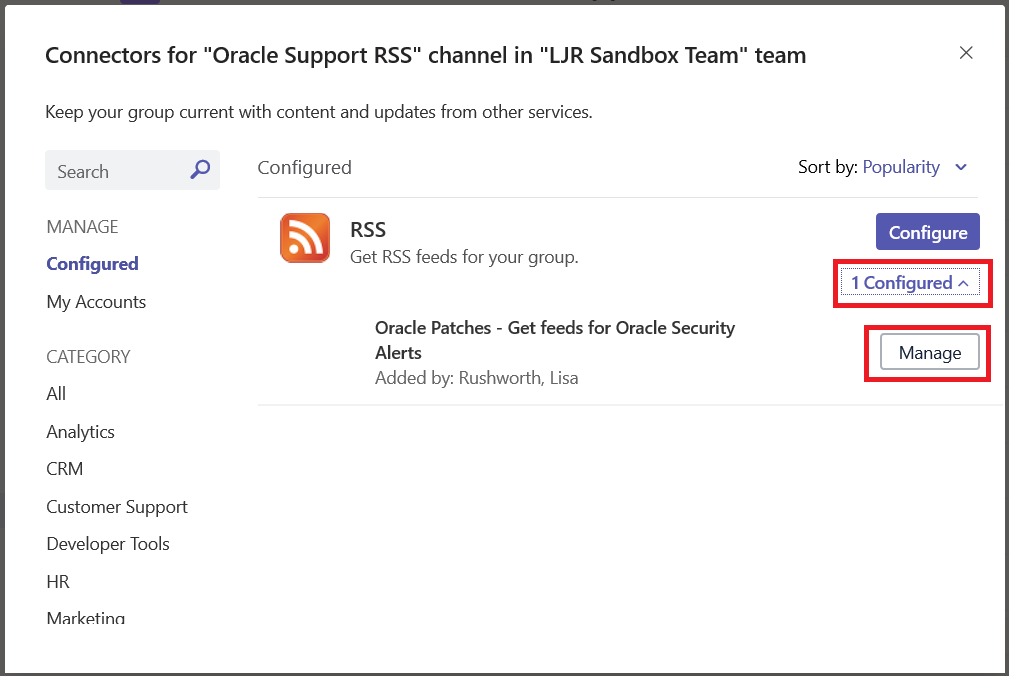
In the left-hand column, select “Configured”
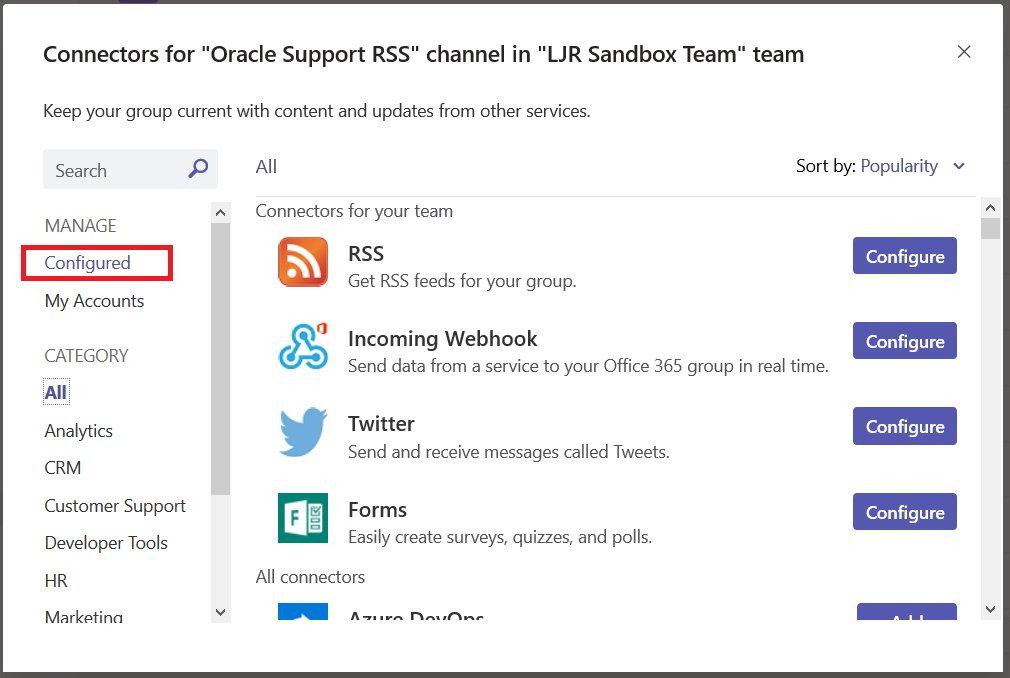
The “Configure” button will set up another connector on the channel. Instead, click the “# Configured” link below the “Configure” button. Then click “Manage” for the connector you want to manage.
Make whatever changes you need to make and click save. Or click “Remove” to remove the connector from the channel.