Tag: teams

Did you know … there are keyboard shortcuts in Microsoft Teams?

I know modern software is driven by graphical user interfaces, but as an old-school Unix admin (there were loads of interface choices – Bourne shell, c shell, korn shell, bash shell!) it’s weird to take my hand away from my keyboard just to turn a bit of text bold or move to a new field. And Microsoft has done a decent job of standardizing keyboard shortcuts across their applications – ctrl-b will toggle “bold” pretty much anywhere (even Teams!)

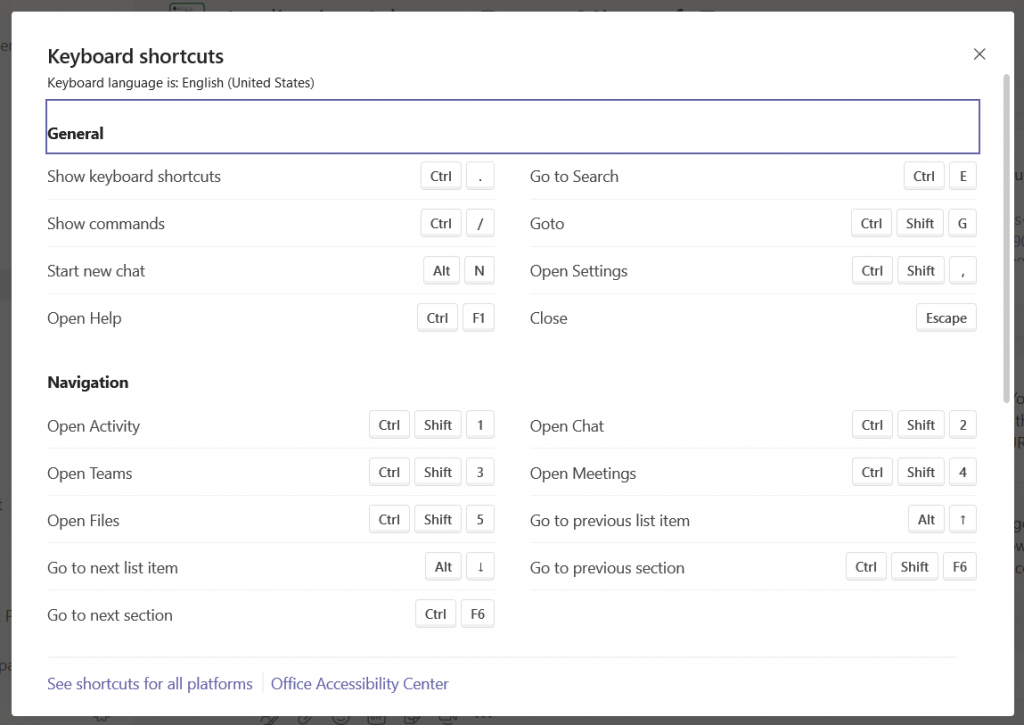
But … within your Teams client (even the web client) hold the “Ctrl” key and type a full stop (.) and look – special keyboard shortcuts!

There’s even a link at the bottom for all of the shortcuts on Windows and Mac. I can hit ctrl-shift-1 to flip over to my Activity feed; ctrl-shift-3 puts me back in the Teams chat section.

Did you know … you can use markdown in Teams messages?

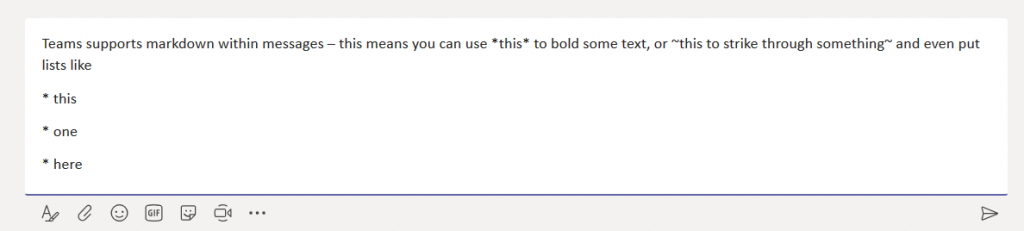
Teams supports markdown within messages – type something like this

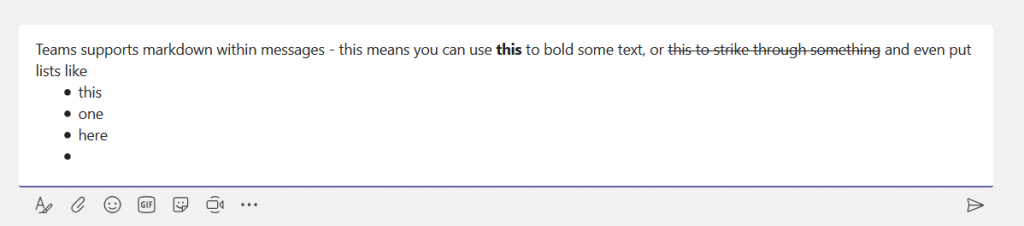
And you actually see this:

You’ll know it’s working because the markdown is converted as you type it (pasting a marked down string into Teams doesn’t work — you’ll have the literal characters and not the implied formatting)

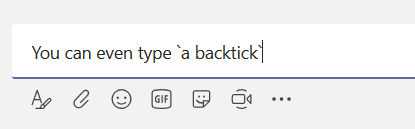
You can even type a backtick (`)

To get an inline code block

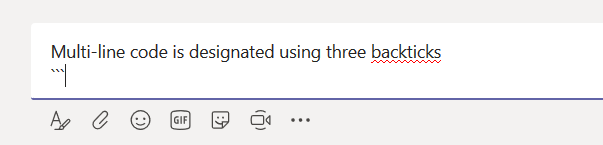
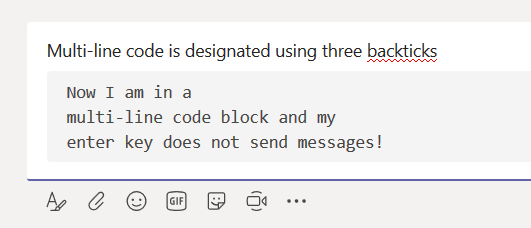
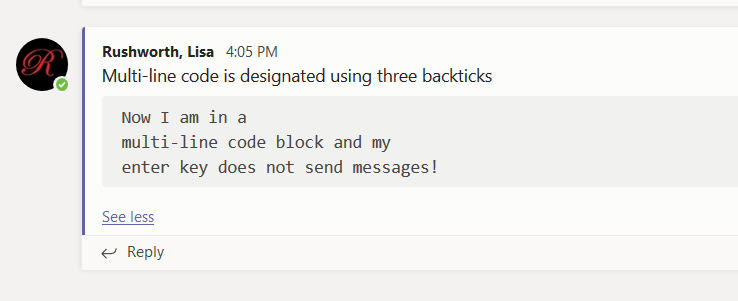
You can insert multi-line code blocks as well. It’s a little trickier to get a code block in a message since you’ve got to use shift-enter to move to a new line then type three back ticks.

After you type the three back ticks, your cursor will be in the code block. Enter will now move to a new line instead of sending the post.

They’ve got a bug where you cannot do anything after the multi-line code block … but you can always reply to your post if you’ve got something to add.

As of this writing, you cannot paste markdown text into the message and have the formatting rendered. You can paste content into the multi-line code block composer, but you cannot paste *things* with ~markdown in them~ and see “`
pretty output

Did you know … you can edit the tag for Teams @ mentions?

Well, you can ? Not generally worthwhile if you are only mentioning one or two people, but if you need to flag half a dozen people, the list of names starts getting REALLY long.

Click in the middle of the name – your cursor will be placed within the name element.

Use backspace or delete to remove one of the name components – backspace will remove the surname and comma, delete will remove the given name.

The links are maintained, so the individual gets flagged with the post.

Does it matter if there are three Bob’s on there? In the previous case, no – I’m trying to garner the attention of a bunch of people and direct them all to the same text. But if you have a bunch of people in your Teams group with the same name … it’s probably better to leave their full name in place or delete the given name!

Did you know … you can push GitLab notifications to Microsoft Teams?

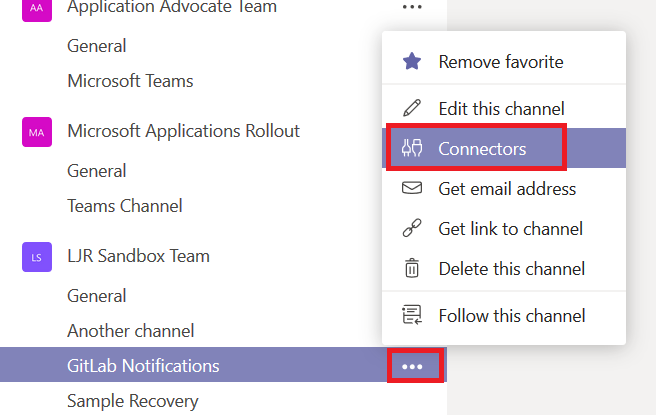
Microsoft Teams offers a lot of connectors which allow you to see external notifications right in a Teams channel, and you can push GitLab notifications to Teams. Determine the channel into which you want the notifications posted – I decided to make a new channel just for GitLab notifications, but you can use an existing channel too. Click the hamburger menu next to the channel name and select “Connectors”

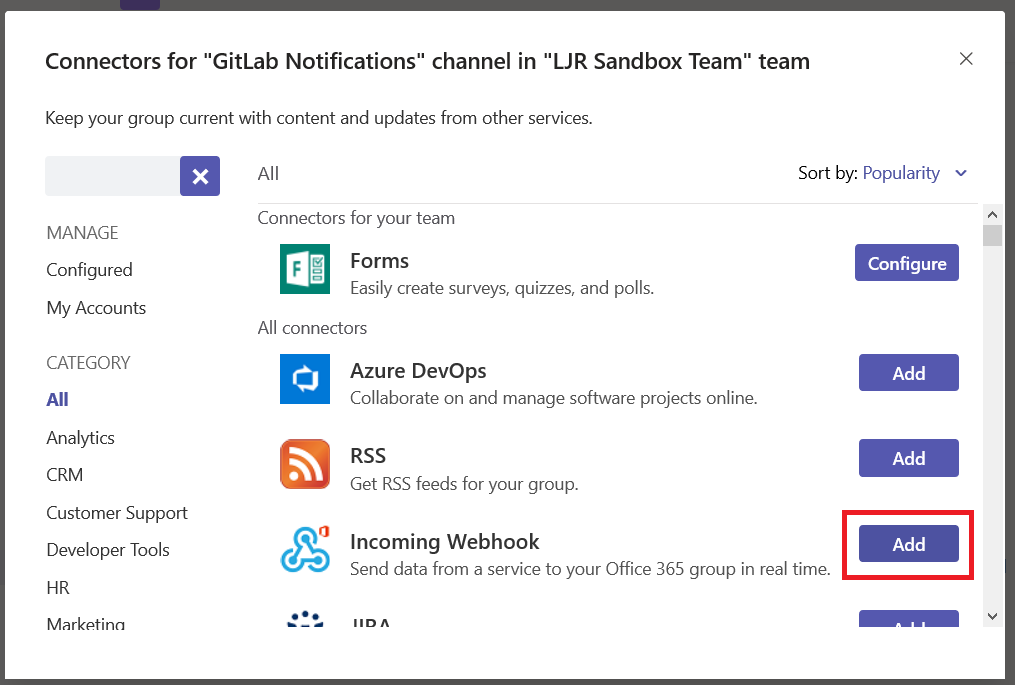
Locate “Incoming Webhook” and click “Add” next to it

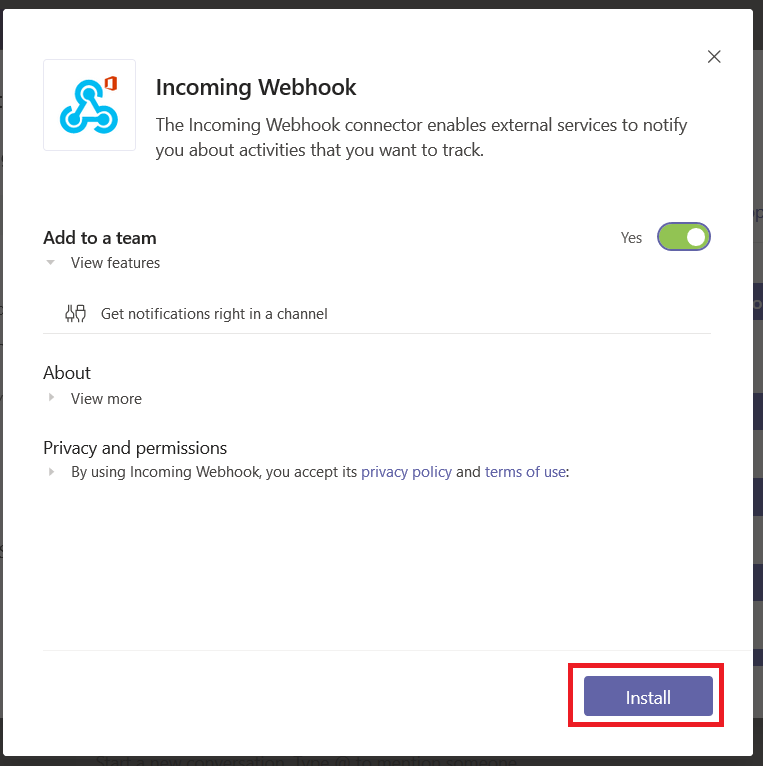
There’s not much to see here – just click “Install”

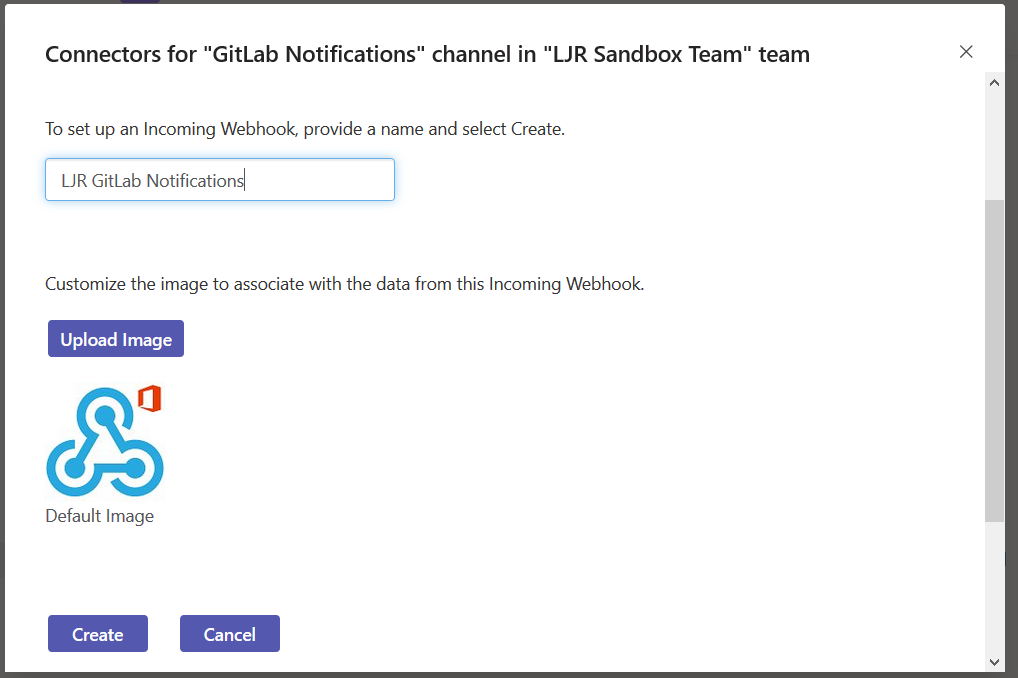
Provide a descriptive name for the webhook and click “Create”

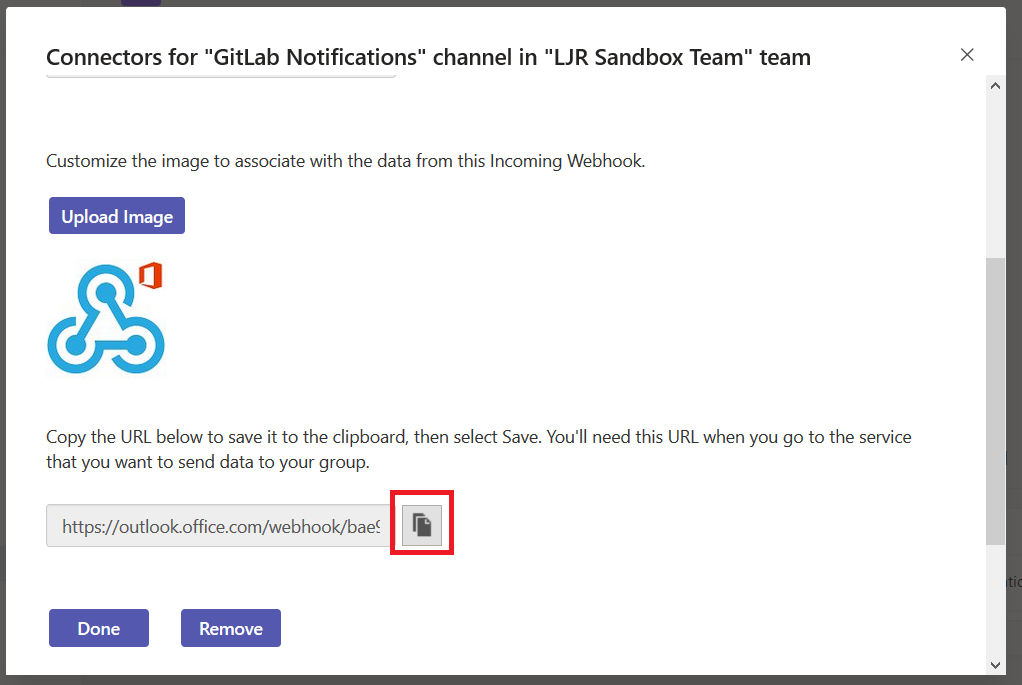
Scroll down and copy the webhook URL

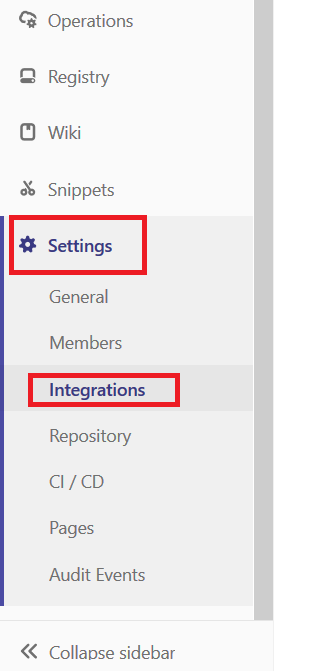
Click “Done”. Now go to your GitLab project. On the sidebar, scroll down to “Settings” and select “Integrations”

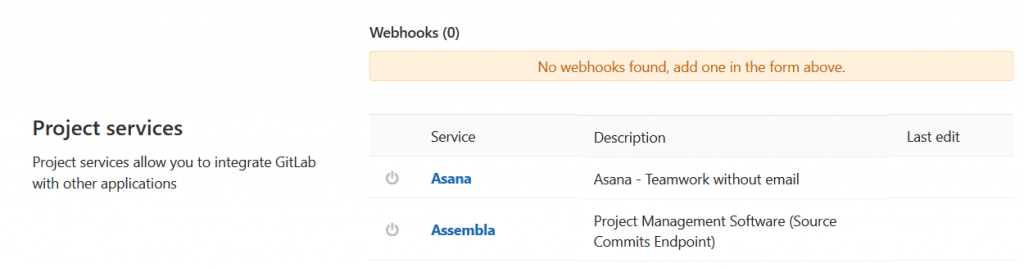
Scroll down to the “Project services” section.

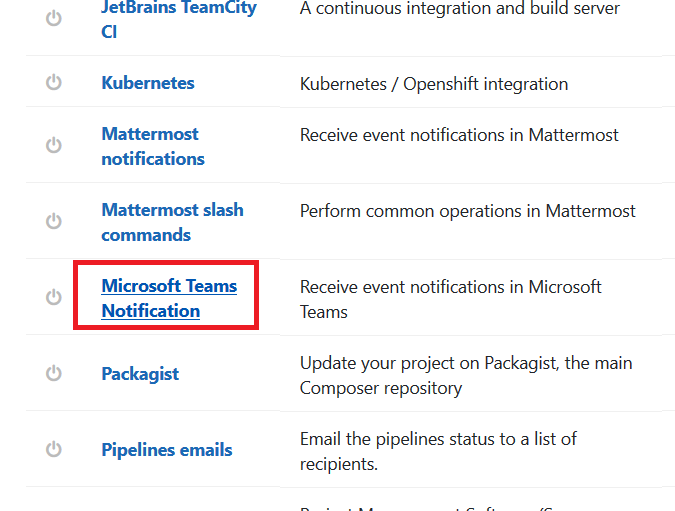
Locate “Microsoft Teams Notification” and click on it

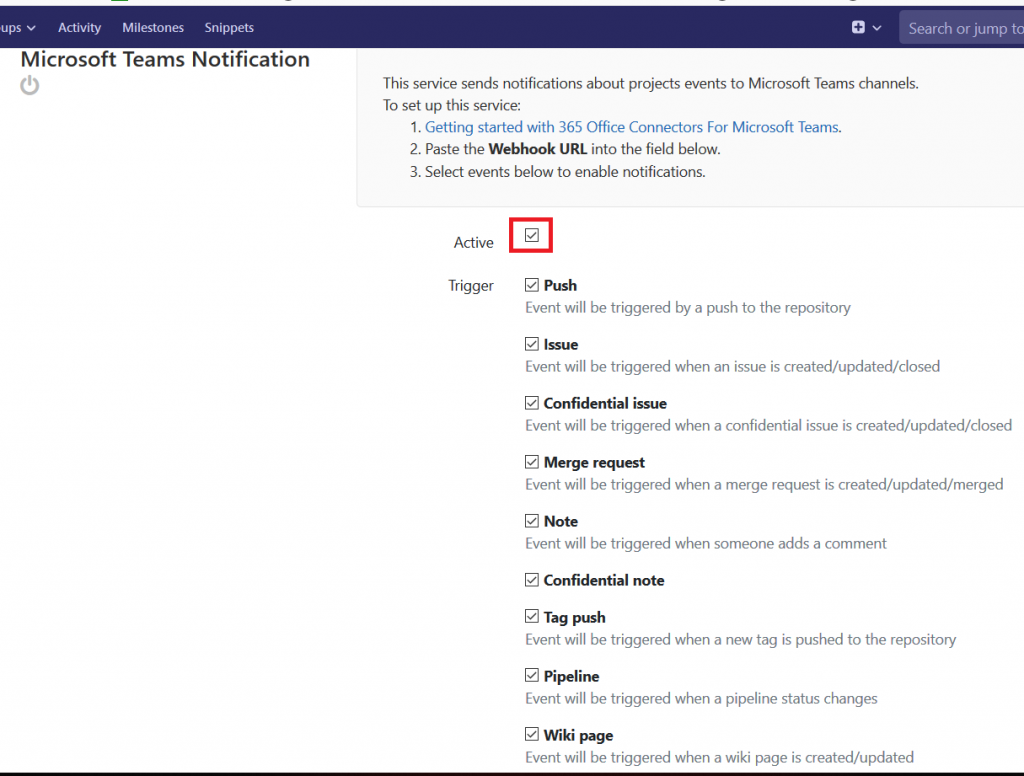
Check the box to activate the integration. Select the events for which you want information pushed to Teams

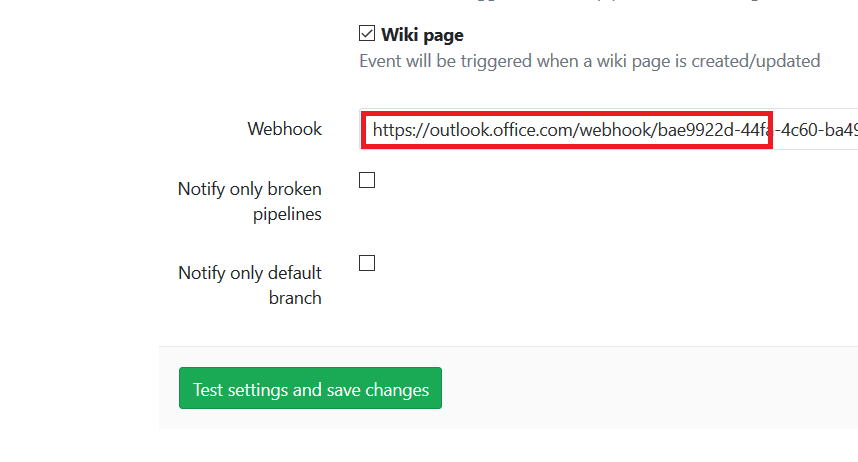
Remember that URL we copied? Well, here’s where you paste it in. You can elect to receive notifications for only the default branch or all branches. You can elect to receive all pipeline notifications or only broken pipeline notifications. Click “Test settings and save changes”

If everything worked, you will see a banner indicating that the Microsoft Teams Notification was activated.

Now do something in your GitLab project – commit a code update, create an issue, add a page to the Wiki … anything that you’ve selected to trigger notifications.

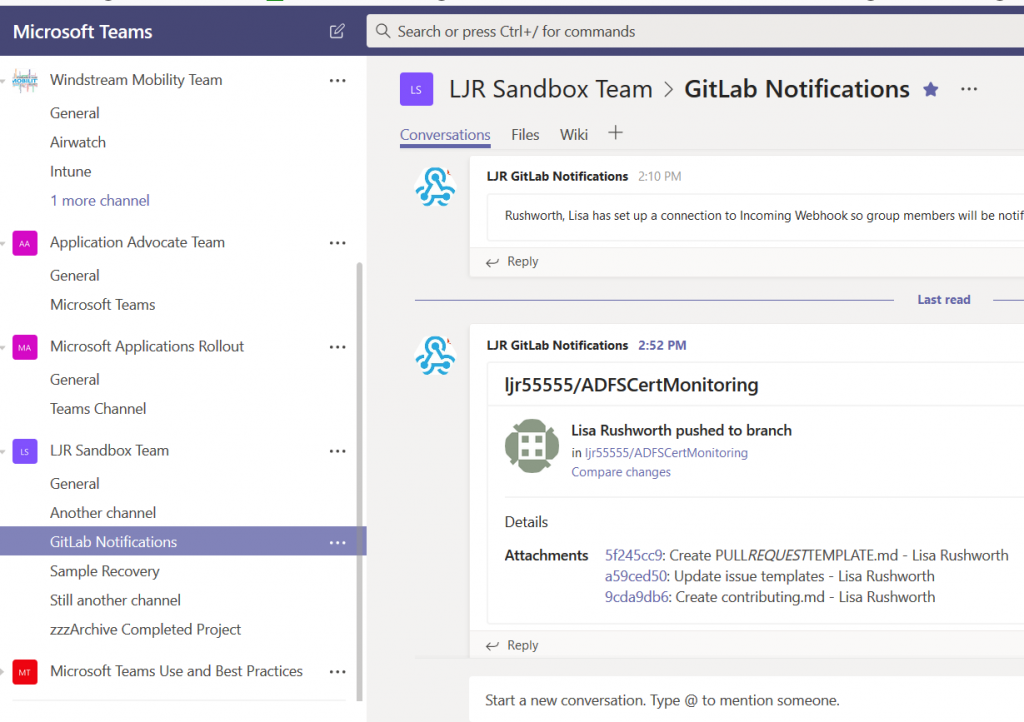
And … check out your Teams channel:

Did you know … you can draw attention to Teams posts?

Before I tell you how – don’t be the person who flags every single message as urgent. Not because it’s annoying (although it is), but because it’s hard to single something out for attention if YOU ALREADY MARK EVERYTHING URGENT AND USE HUGE, BOLD, RED LETTERS AND END WITH !!!!!!!!!! If everything is urgent, you don’t have a classification for super urgent things.

OK, now that I’ve done my quasi-civic duty and at least tried to avoid having big red icons next to 97% of the messages I see …

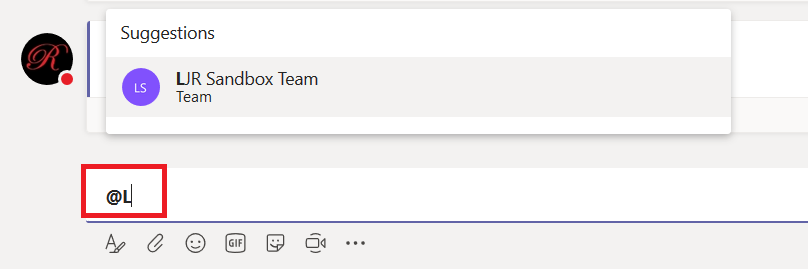
You can use @ mentions to draw individuals’ or groups’ attention to a specific post. In the message, type @ and then begin typing either an individual’s name or the Team’s name. The @ mention can be included anywhere in the message – it doesn’t have to come first.
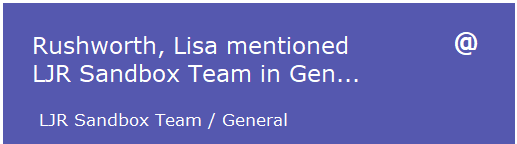
Team members using the desktop or mobile client will get a banner message alerting them that they have been mentioned in a post.
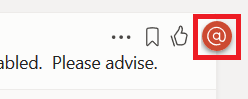
All clients will have a little logo along the right-hand side of the message indicating either a group

Or individual mention.
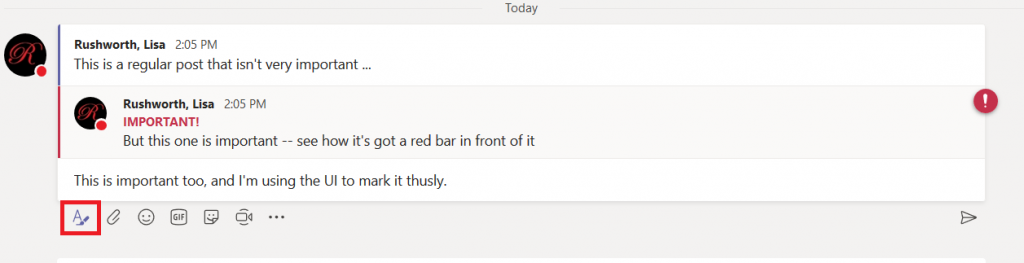
If you want to draw attention to an item without banner messages, you can also mark a post as important. When you are typing your message, click on the “Format” button when typing the message.
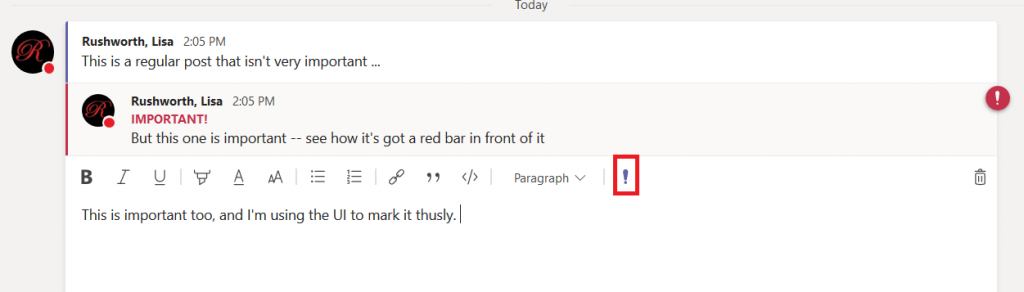
Then click the exclamation point. (For anyone who prefers keyboard shortcuts – use ctrl-shift-i)
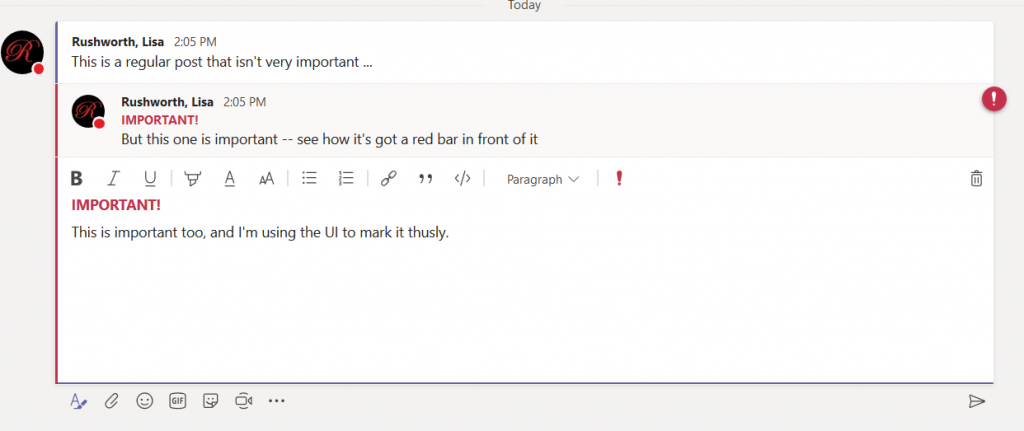
And you’ll see both the red bar along the left and the IMPORTANT! designation atop the message.
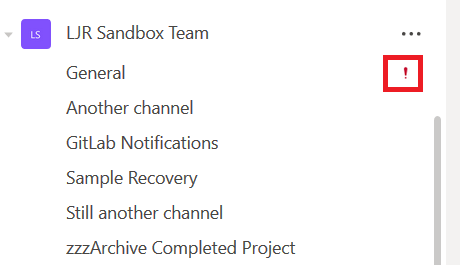
Team members will see an exclamation point marking channels with important messages too.
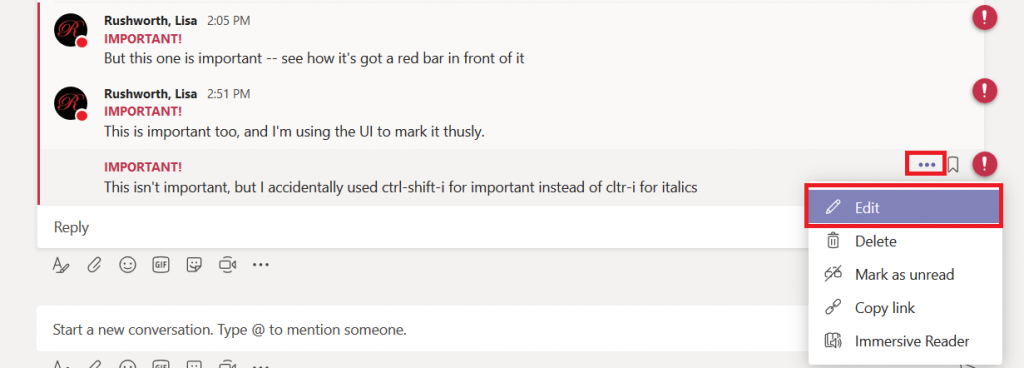
If you accidently mark a message as important (keyboard users who type ctrl-i for italics can get both ctrl and shift occasionally), click the hamburger menu next to your post and select Edit.
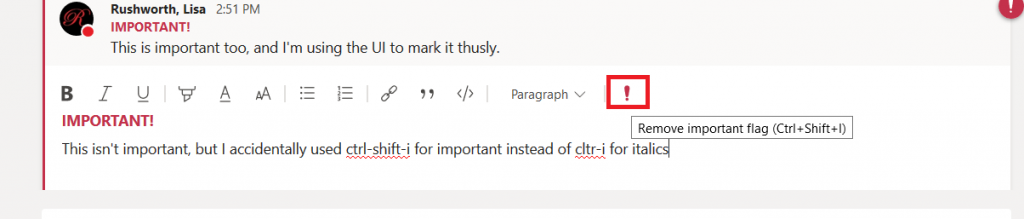
Click the exclamation point again to remove the important designation.
Voila, the message no longer has an over-inflated sense of self-worth. Or my typo.

Did you know … you can quickly start a web meeting from within a Microsoft Teams channel discussion?

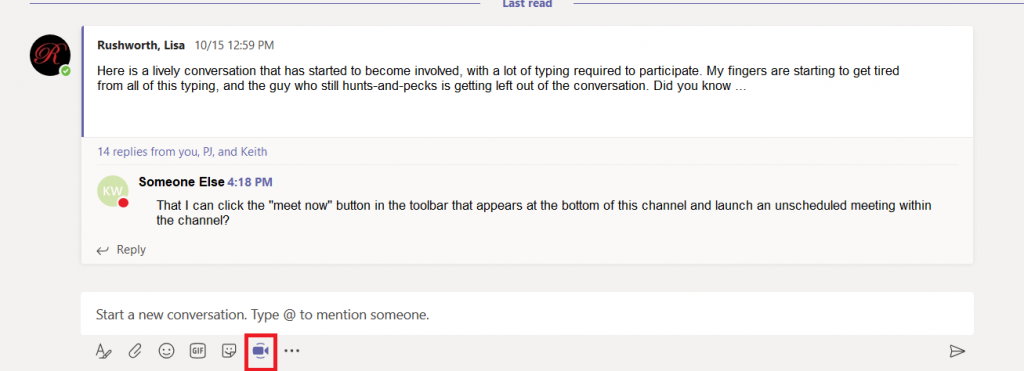
Sometimes text conversations become cumbersome – a topic really takes off, and there’s a lot of typing. A LOT of typing! Sometimes it’s easier to just take a few minutes and talk about the subject instead of typing back and forth. In Microsoft Teams, just click the “Meet now” icon at the bottom of the channel.
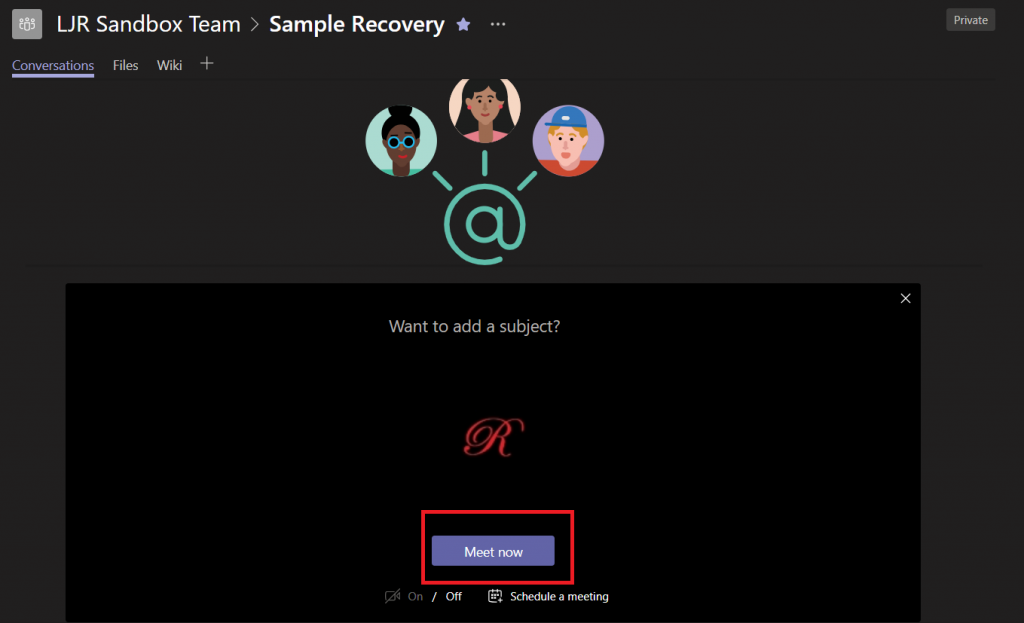
This will bring up a page that lets you start an unscheduled meeting (or schedule a meeting, if people aren’t available right now to discuss the subject). You can add a subject so attendees know which thread you want to discuss. Click “Meet now” and …

Voila – you’ve started a meeting with audio (and video, if participants choose).

Did you know … that you can recover a deleted Teams channel?

Oh no, I didn’t mean to delete THAT!!! Sure, it asked me five times if I was sure that I was sure … and maybe that’s part of the problem – I see so many “are you sure” messages that I click OK a little too easily. Well, they say to err is human. And I must be exceptionally human ? Sometimes recovering my data requires a sheepish call to the Help Desk. But did you know you can recover deleted Teams channels?

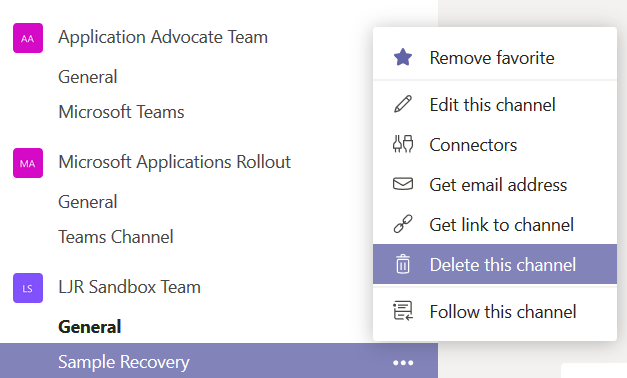
I used the hamburger menu next to a channel to delete it. Oops!

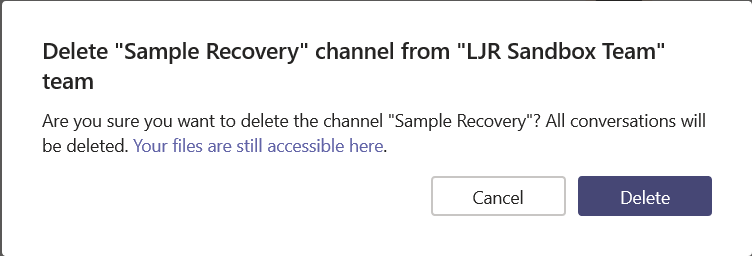
I even read the first few words of the “are you sure” dialogue before clicking the “Delete” button. Except … oops! I didn’t want to delete that channel!

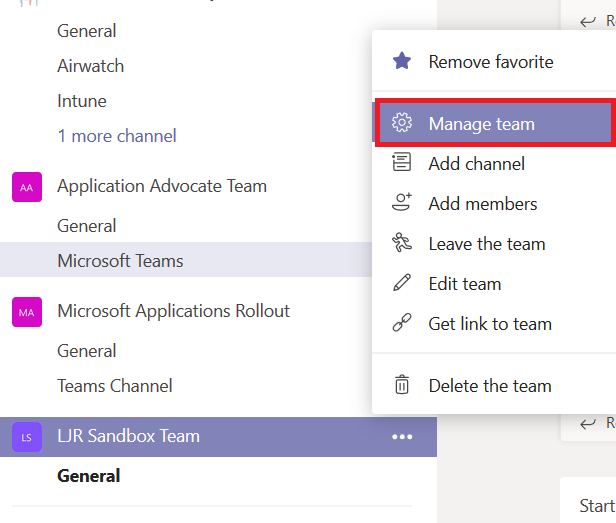
You can recover the channel immediately, all by yourself. Even if you’re not a team owner. From the hamburger menu next to the team, select “Manage team”.

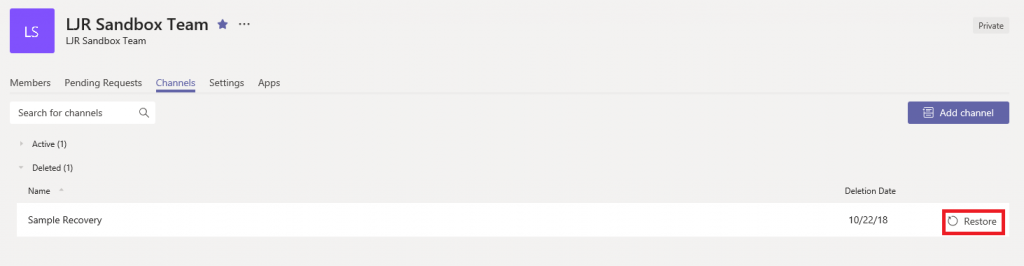
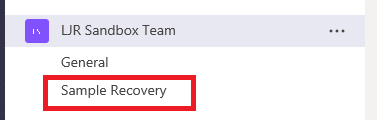
On the Team management page, select “Channels”. You can expand “Deleted” and see the channel you just removed. Click “Restore”

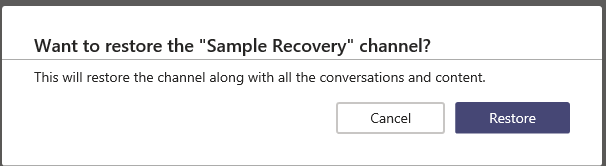
Yet another prompt … click “Restore” again.

Voila, the channel is back. Along with all its content. Whew!

Just because channel recovery is self-service doesn’t mean no one will know that you’ve mis-clicked. The channel deletion event which appears in the “General” channel … well, it’s still there. You can up-vote a request for enhancement on Microsoft’s site … but it’s not like no one will every know about your mistake.  

Do you know … Teams Activity View?


The very first icon on the left-hand navigation menu, “Activity”, isn’t just a listing of all unread Teams activity. This view provides a customized view of important Teams communications, allowing you to focus on the most important communication first. 

This isn’t a list of every thing that has been posted to every one of your Teams spaces. It doesn’t even include chat messages sent to you –new chat messages will show up as a red circle with a message count on the“Chat” view icon.

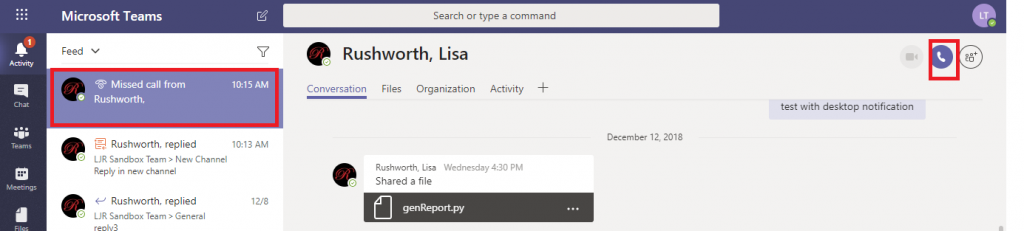
So what shows up in the Activity feed? Missed calls – missed calls are only displayed in your Activity feed. Clicking on the entry will display a chat with the caller; you can reply with a chat message or click the phone icon to return their call.

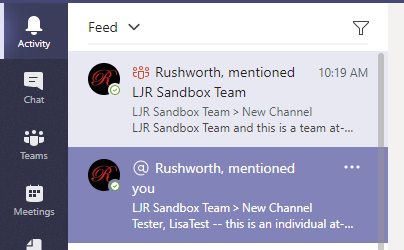
Posts with @mentions – both your individual mentions and mentions for Teams of which you are a member – will appear in the Activity feed.

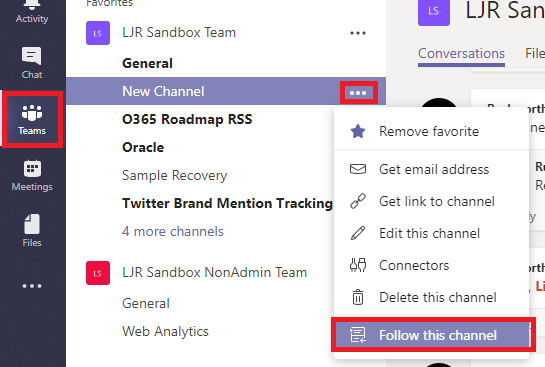
Beyond that, you control what appears in your feed. Posts to channels you follow will appear in your feed. To follow a channel, click the“Teams” icon. Click the not-quite-a hamburger menu next to the channel name and select “Follow channel”.

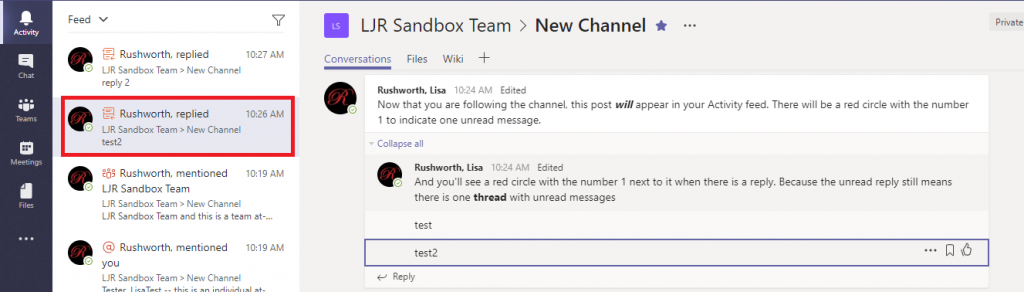
When messages are posted to the channel, you’ll see a red circle with the number 1. This indicates that there is one thread with unread post(s). There may be a bunch of replies in that thread, but the thread is only counted once. This doesn’t mean replies won’t be highlighted – if someone replies to a thread you’ve already read, that thread will again be counted as a thread with unread post(s).

You can click on an entry to display the specific thread. Clicking on a reply will focus on the reply – which helps identify what part of the thread you haven’t seen.

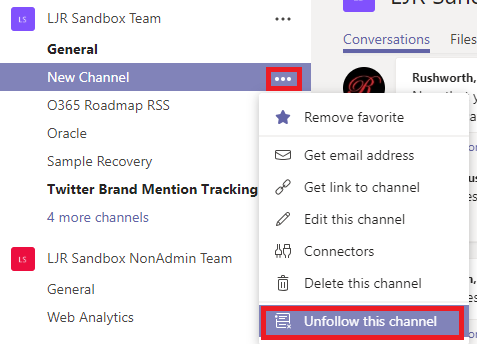
If a channel becomes prolific and irrelevant to you, you can simply stop following the channel. Click the not-quite-a hamburger menu next to the channel name and select “Unfollow this channel”. Anything from the channel in your feed will remain there, but new activity in the channel will cease appearing in your Activity feed.

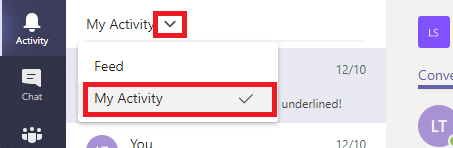
In addition to a feed of activity from other individuals, you can use the activity feed like the “Sent Items” in your mailbox. Click the inverted caret next to “Feed” and select “My Activity”. You’ll see two weeks of your Teams posts.

Did you know … You can control what members of a Microsoft Team group can do within the team?

When you create a new Team, members can create new channels, delete channels, add apps … they can do a lot of things. Did you know much of that is configurable? You can create a Team where individuals receive but cannot respond to posts. You can restrict your Team so only owners can remove channels.

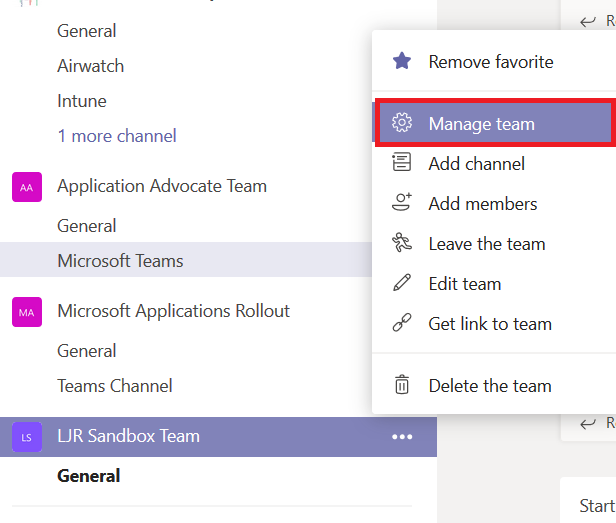
From the hamburger menu next to your Team, select “Manage team”

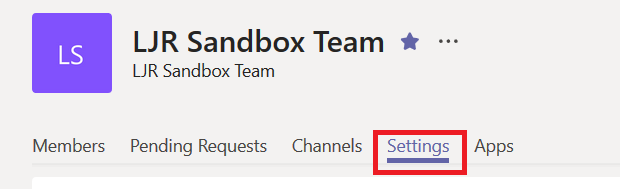
On the Team management page, select the “Settings” tab.

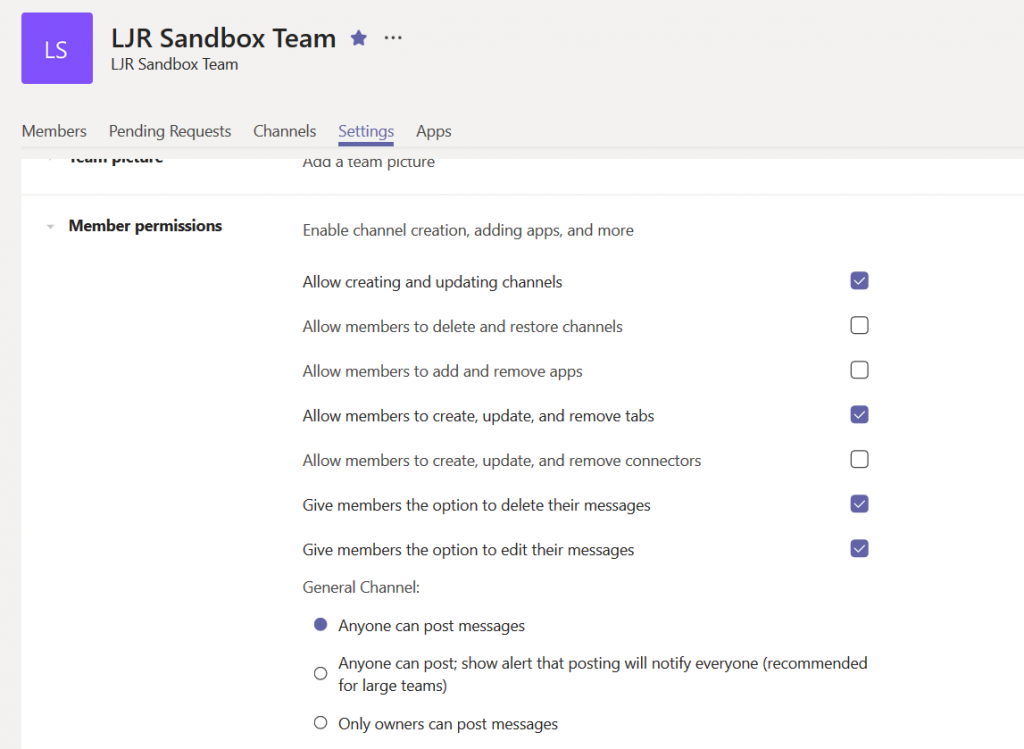
Expand the “Member permissions” section. Now uncheck any permission you want to restrict to Team owners. There’s even a radio button near the bottom of this section so only Team owners can post to the “General” channel (if that’s the only channel, and members are prohibited from creating their own channels, you’ve got a broadcast-only Team space)

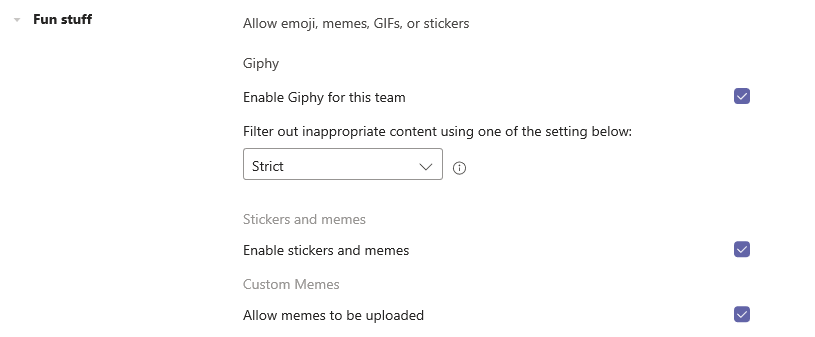
Scroll down and expand “Fun stuff” … you can prevent Gliphy content from being used in the Team (or change the filter used to determine which Gliphy content is appropriate), disable stickers, and disable memes.

Microsoft Teams: E-mail Notifications

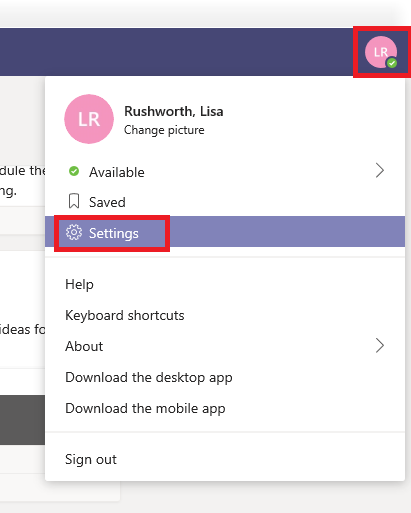
Click on your initials / picture in the upper right-hand corner of the screen and select “Settings”

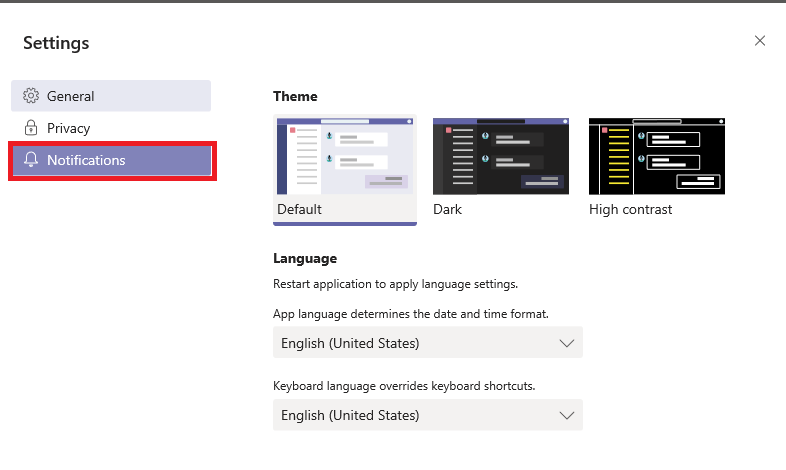
Within the Settings pane, select “Notifications”

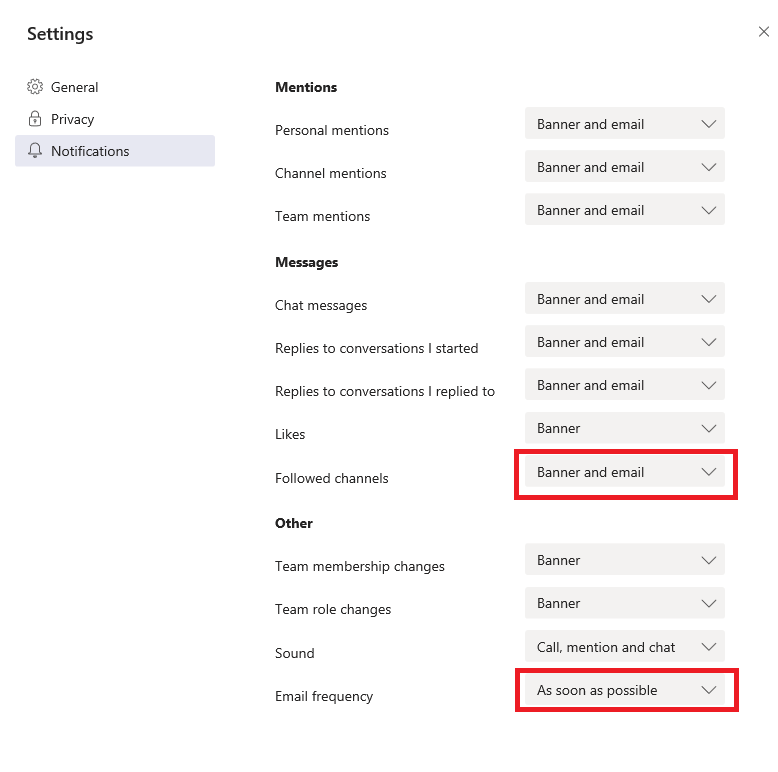
Change the “Followed Channels” notification to “Banner and email”; change the frequency to “As soon as possible”. Changes are saved as you make them. Use the “X” to close the Settings pane.

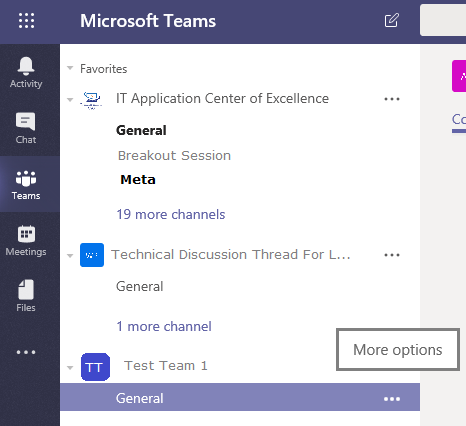
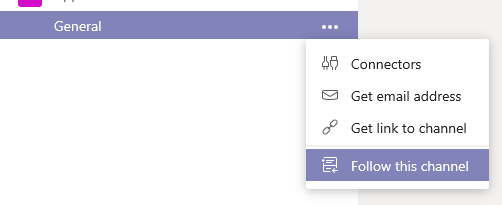
To receive e-mail notifications for a channel, follow it. Click the three dots to the right of the channel name.

And click “Follow this channel”. If you click the three dots again, you can elect to “Unfollow this channel” and cease receiving e-mail notifications for posts to the channel.

You have to do this for each channel – if someone spins up a new channel, you won’t see notifications for those posts. I’ve been posting to the “General” thread whenever I break a discussion out into a new thread. This ensures anyone who wants e-mail notifications for the main thread at least knows there is a new thread that they may wish to follow.

** Microsoft’s algorithm for delivering e-mail notifications is a little … unique. Like most of these types of apps, an attempt is made to not deliver notifications for messages you’ve already seen. At last test, Microsoft used a 90-minute timer (not quite my definition of “ASAP”). If you have Teams open in a minimized web browser, if the notification went to your mobile client, if the notification went to your desktop client, if there were solar flares with peak flux over 10^(-5) W/m^2 … an e-mail notification is not sent. Point being, don’t rely on the e-mail notifications.