Tag: windows

Typing Unicode Characters

Found an interesting way to enter Unicode characters in Windows (beyond finding it in charmap and then copy/pasting the character!). There’s the technique where you hold alt, hit the plus on your numeric keypad, enter the hex code for the character, then release the alt key. Since a lot of laptops don’t have numeric keypads … this approach isn’t always feasible.

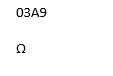
But there’s another way — once you’ve typed the hex code and your cursor is immediately after the code, press Alt-x …

The code magics itself into a Unicode character. You can even put your cursor immediately after a Unicode character, press Alt-x, and the character will turn back into the hex code.

Docker and Windows — Unable to Allocate Port

On the most recent iteration of Windows (20H2 build 19042.1052) and Docker Desktop (20.10.7 built Wed Jun 2 11:54:58 2021), I found myself unable to launch my Oracle container. The error indicated that the binding was forbidden.


C:\WINDOWS\system32>docker start oracleDB
Error response from daemon: Ports are not available: listen tcp 0.0.0.0:1521: bind: An attempt was made to access a socket in a way forbidden by its access permissions.
Error: failed to start containers: oracleDB

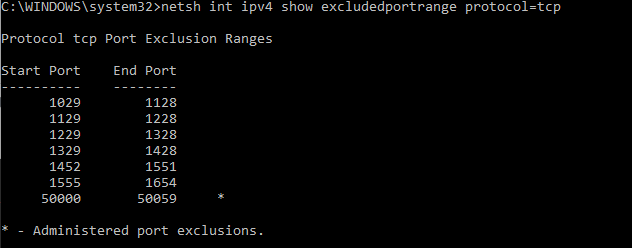
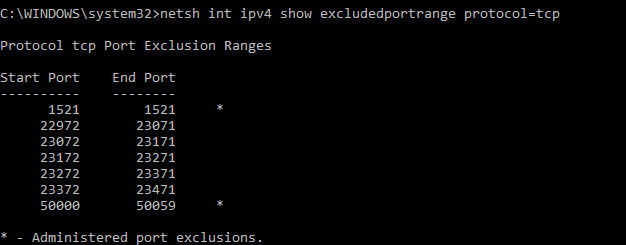
Forbidden by whom?! Windows, it seems. Checking excluded ports using netsh:

netsh int ipv4 show excludedportrange protocol=tcp

Shows that there are all sorts of ports being forbidden — Hyper-V is grabbing a lot of ports when it starts. To avoid that, you’ve got to add a manual excluded port for the one you want to use.

To reserve the port for your own use, disable Hyper-V (reboot), add a port exclusion, and enable Hyper-V (reboot)

REM Disable Hyper-V
dism.exe /Online /Disable-Feature:Microsoft-Hyper-V 
REM REBOOT ... then add an exclusion for the Oracle DB Port
netsh int ipv4 add excludedportrange protocol=tcp startport=1521 numberofports=1 
dism.exe /Online /Enable-Feature:Microsoft-Hyper-V /All
REM REBOOT again

Now 1521 is reserved for Oracle

Microsoft’s 1601 Time Base

Microsoft uses the number of 100-nanosecond intervals since 01 January 1601. Why? No idea. But I’ve had to deal with their funky large integer for a DateTime value as long as I’ve been working with AD. I’ve written functions to turn it int something useful, but that’s a lot of effort when I see a lockoutTime and need to know how recent that is. Enter w32tm which has an “ntte” switch — this allows me to readily tell that the lockout was at 3:01 today and something I need to be investigating.

Docker – List Container Startup Policies

A quick one-line Bash command to output all containers and the startup policy:

docker container ls -aq | xargs docker container inspect --format '{{ .Name }}: {{.HostConfig.RestartPolicy.Name}}'

For Docker on Windows, the following PowerShell command produces similar results:

$jsonData = docker container ls -aq |%{docker container inspect --format "{{json .}}"$_}
[System.Collections.ArrayList]$arrayContainerConfig = @()
foreach($jsonContainerConfig in $jsonData ){
	$psobjContainerConfig = ConvertFrom-JSON $jsonContainerConfig
	$arrayContainerConfig.add(@{Name=$psobjContainerConfig.Name;Hostname=$psobjContainerConfig.Config.Hostname;CurrentlyRunning=$psobjContainerConfig.State.Running;RestartPolicy=$psobjContainerConfig.HostConfig.RestartPolicy.Name})
}

$arrayContainerConfig | ForEach {[PSCustomObject]$_} | Format-Table -AutoSize

Using Process Monitor To Troubleshoot Applications

SysInternals used to produce a suite of tools for working with Microsoft Windows systems — the company appears to have been acquired by Microsoft, and the tools continue to be developed. I used PSKill and PSExec to automate a lot of system administration tasks. ProcessMonitor is like truss/strace for Windows. Unlike the HFS standard, Windows files end up all over the place (plus info is stashed in the registry). Sometimes applications or services fall over for no reason. Process monitor reports out

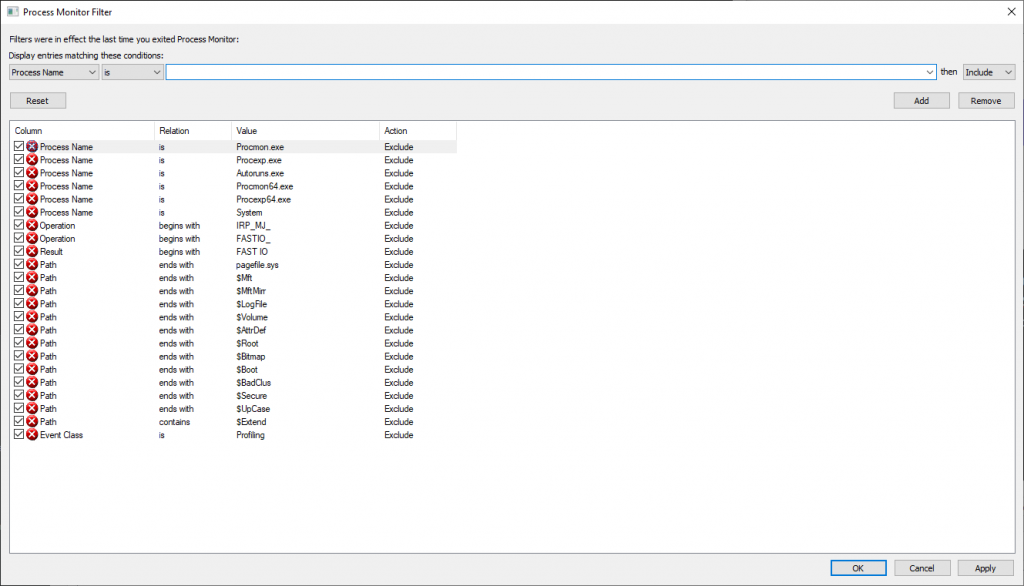
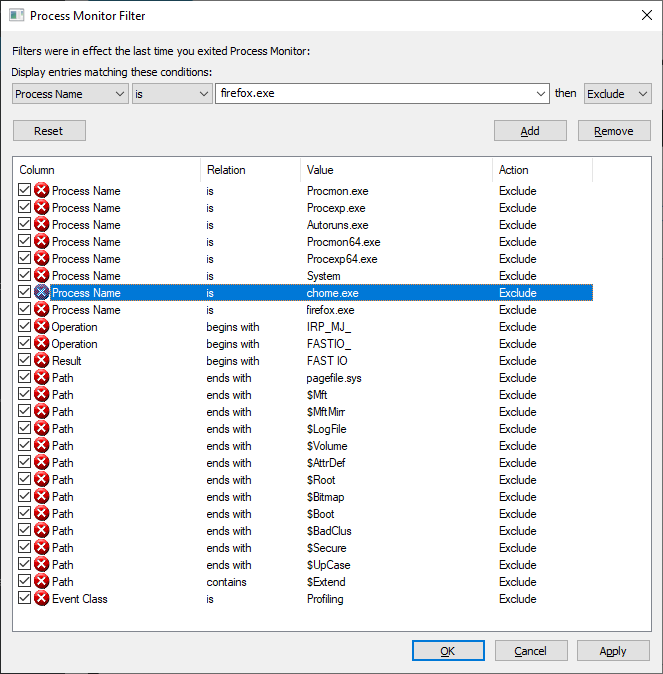
When you open procmon, you can build filters to exclude uninteresting operations — there’s a default set of exclusions (no need to log out what procmon is doing!)

Adding exclusions for specific process names can eliminate a lot of I/O — I was looking to troubleshoot a problem on a Domain Controller that had nothing to do with AD specifically, so excluding activity by lsass.exe significantly reduced the amount of data being logged. If I’m using a browser to troubleshoot the problem, I’ll exclude the firefox.exe or chrome.exe binary too.

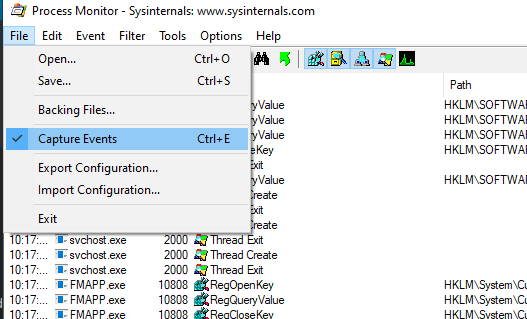
From the filter screen, click “OK” to begin grabbing data. The easiest thing I’ve found to do is stop capturing data when the program opens (use ctrl-a followed by ctrl-x to clear the already logged stuff). Stage whatever you want to log, use ctrl-e to start capturing. Perform the actions you want to log, return to procmon and use ctrl-e to stop again.

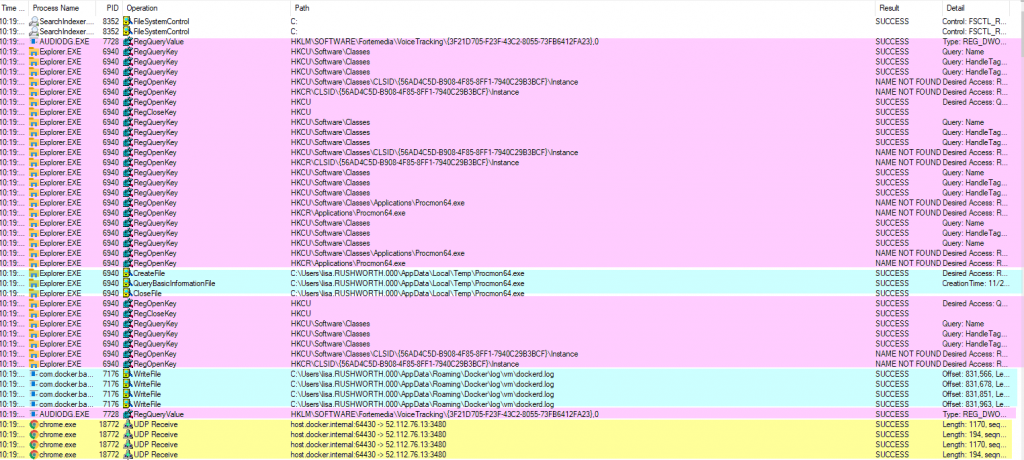
You’ll see reads (and writes) against the registry, including the specific keys. Network operations. File reads and writes. In the “Result” and “Detail” column, you can determine if the operation was successful. There are a lot of expected not found failures — I see these in truss/strace logs too, programs try a bunch of different things and one of them needs to work.

I’ve had programs using a specific, undocumented file for a critical operation — like the service would fail to start because the file didn’t exist. And seeing the path and file open failure allowed me to create that needed file and run my service. I’ve wanted to find out where a program stashes data, and procmon makes that easy to identify.

Strange Windows 10 / MS Paint Bug

My arrow keys were moving my mouse pointer. And, unlike all of the search results which said I had turned on some ease-of-use feature …

It seems like there is an odd bug between Windows 10 build 1903 and MS Paint. I had a pbrush window open and had selected some of the image (something I was pasting into a usage document). Somehow the “arrow keys move this selection around in pbrush” translated into the arrow keys moving my mouse pointer around everywhere else. Simply closing pbrush sorted the problem.

It’s not something I can reproduce at will — opening pbrush, pasting in whatever screen shot I’ve got in my clipboard, selecting and grabbing a section of it … and the arrow keys are not moving the mouse pointer. But some combination of this process has, twice today, caused the arrow keys to move the mouse pointer. At least it’s an easy fix 🙂

GPO Changes Not Reflected On Computer

A year or three ago, we had set up a group policy to display logon information in the Windows welcome screen — last logon time, information about any bad passwords since your last successful logon. It’s nice, but you are unable to log in if the information is unavailable. So we disabled the setting (just clearing a GPO setting doesn’t always remove the config from anywhere it’s already set … you’ve got to change to the desired setting). Aaaaand … one server still shows the logon info. Or, more accurately, fails to display it and prevents the domain account from logging on. Luckily it’s a member computer and we can just log in with local accounts.

I thought about just editing the local computer policy (which would have priority anyway) to disable the logon info, but the computer policy could not be opened. It threw a strange access denied error. I could edit the local user policy. Just not the computer policy.

It seems that the local computer policy got corrupted. After deleting registry.pol from c:\Windows\System32\GroupPolicy\Machine … I am able to modify the local computer security policy. GPO settings from the domain are also applied as expected. WooHoo! I can sign in using domain IDs again!

Linux Mounts Windows Volumes As Read Only

Since I’ve got a larger hard drive installed, I have both Fedora and Windows in a dual boot configuration. I have a shared NTFS partition for data, but it’s mounted as read-only under Fedora. Turns out that Fedora sees the file system as not cleanly shut down when Windows Fast Boot is enabled. I disabled fast boot in power management, and the shared data volume is mounted rw as expected.