Author: Lisa

Inspecting An Element

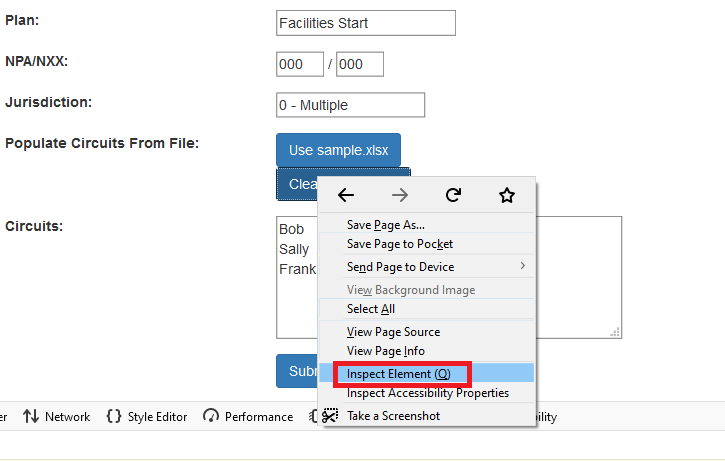
In Firefox’s developer tools — instead of attempting to navigate through the HTML code to find the element, just right-click on it and select “Inspect Element”

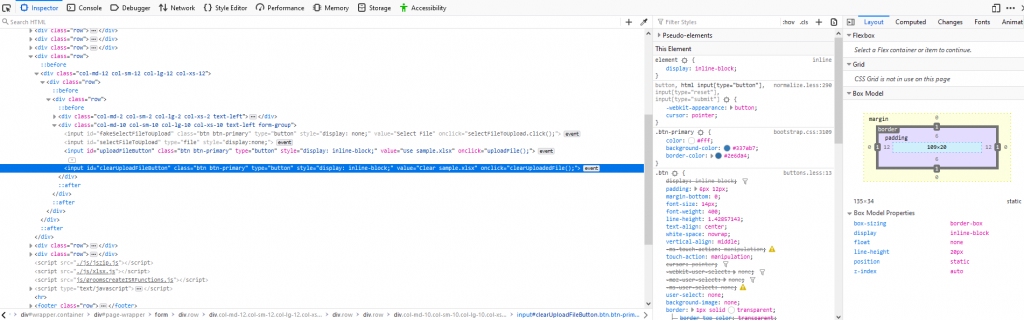
You’ll get dropped into the Inspector tab right where you need to be.

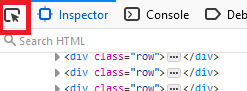
There’s also an element picker tool that you can use instead — click on it & then click on the element within the page. Same result.

Upgrading Oracle SQL Developer

I’ve been using an Oracle database more in my new position … which means I’ve got the Oracle SQL Developer tool installed on my computer. My first upgrade was available yesterday … and it didn’t work. Not like threw an error, but like double click on the executable and nothing happens. It silently exits.

Turns out there’s something in appdata that needs to be cleared. I don’t run multiple versions of SQL Developer, so I could just blow away “%userprofile%\appdata\roaming\SQL Developer” and “%userprofile%\appdata\roaming\sqldeveloper” to clear whatever needs to be cleared. Click the icon and the program finally runs.

Setting up gitlab-runner

CLI on the GitLab server:

# Set up the GitLab Repo
curl -L https://packages.gitlab.com/install/repositories/runner/gitlab-runner/script.rpm.sh

# Install package
yum install gitlab-runner

# verify runner is executable
ll `which gitlab-runner`
# If needed, flag it executable – shouldn’t be a problem with RPM installations, but it’s been a problem for me with manual installs
#chmod ugo+x /usr/local/bin/gitlab-runner

# Register a runner
gitlab-runner register

# use URL & token from http://<GITLABSERVER>/admin/runners
# add tags, if you want to use tags to assign runner
# executor: shell (and docker, if you want to use docker executors. The shell executor is the simplest case, so I am starting there)

# start the runner
gitlab-runner start

On the GitLab Web GUI:

Admin section => Overview => Runners. Click pencil to edit the runner and uncheck “Lock to current projects”, and (unless you want to use tagging) check “Run untagged jobs”

** I was getting an error in every pipeline job saying the git command was not found.
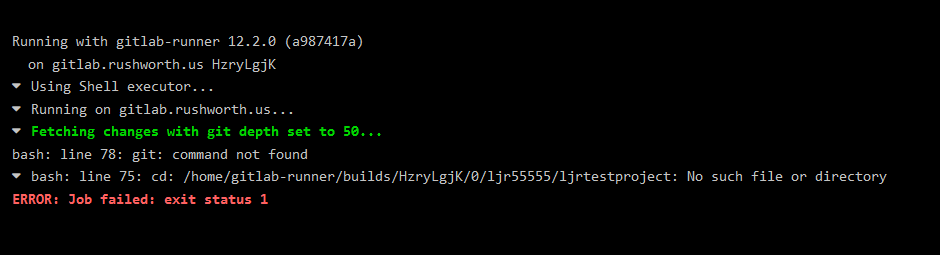
For most other commands, you can append to the path in the before_script section of your .gitlab-ci.yml

before_script:
– export PATH=$PATH:/opt/whatever/odd/path/bin

But that doesn’t work in this case because we’re not getting that far: the bootstrap “stuff” cannot fetch the project to see the before script. Git, on my system, was part of the GitLab package. I just created a symlink into a “normal” binary location:

root@gitlab:~# which git
/opt/gitlab/embedded/bin/git
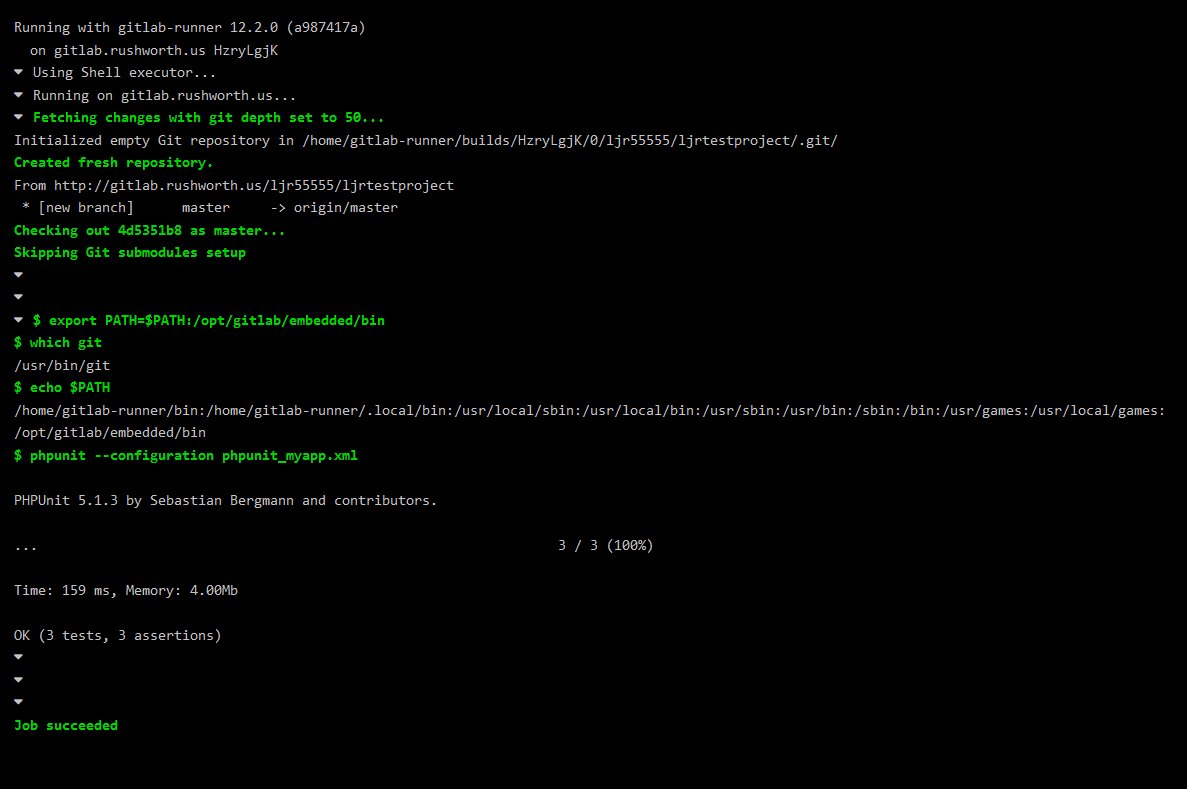
root@gitlab:~# ln -s /opt/gitlab/embedded/bin/git /usr/bin/git

And we’ve got successful test execution:
 

On Greenland

Trump wants to buy Greenland … which, yeah, it’s been suggested before. Way before, like 1946. And it wasn’t well received by the Danes at the time, so not exactly a stellar argument there. But Greenland isn’t a colony in the 1800’s style. A decade ago, the Act on Greenland Self-Government was granted. Which made Greenland’s parliament on par with the Danish parliament. Now, foreign policy and international agreements are still under Danish control, and there have been some power struggles in the intervening decade. But I don’t think anyone could buy Greenland from Denmark.

Software Flow Control and vim

In the early 90’s, one of the things I liked about Microsoft’s ecosystem was that they developed a standard for keyboard shortcuts. In most applications, developed by Microsoft or not, you could hit ctrl-p to print or ctrl-x to exit. Or ctrl-s to save. It’s quite convenient when I’m using Windows applications, but hitting ctrl-s to save without really thinking about it hangs vim. Hangs like “go into another shell and kill vim & that ssh session”. This is because ctrl-s, in Linux, means XOFF — the software flow control command that means “hi, I’m a thing from 1968 and my buffer is getting full. chill out for a bit and let me catch up”. Recovery is simple enough, send XON — “hi, that thing from 1968 again, and I’m all caught up. send me some more stuff”. That’s ctrl-q.

But there aren’t many slow anything‘s involved in computing these days, which means XON/XOFF isn’t the most useful of features for most people (* if you’ve got real serial devices attached … you may not be “most people” here). Instead of remembering ctrl-q gets gets vim back without killing it, just disable START/STOP control. Thing is it’s not really vim that’s using flow control — it’s the terminal emulator — so the “fix” isn’t something you’ll have to do in vim. In your ~/.bashrc or ~/.bash_profile (or globally in something like /etc/profile.d/disableFlowControl.sh)

# Disable XON/XOFF flow control so ctrl-s doesn’t hang vim
stty -ixon

If you can add -ixoff to avoid ctrl-q from meaning XON too … but I don’t bother since “start sending me data” doesn’t seem to hang anything.

Git: Listing Conflicting Files

To list the unmerged files — where you’ve got merge conflicts to resolve:

git diff --name-only --diff-filter=U

Filters are:

  • Added (A)
  • Copied (C)
  • Deleted (D)
  • Modified (M)
  • Renamed (R)
  • Type changed (T)
  • Unmerged (U)
  • Unknown (X)
  • pairing Broken (B)

(use lower case letters to exclude)

Renaming a Branch in Git

I finally had a situation where I needed to rename a branch in git. When I was the only one involved in a development effort (or even looking at it!), it didn’t really matter if I typo’d something. Exchange and Exchagne … I know what I meant. But working under a more formal development process, I started naming my branch after the issue ID. And managed to typo the first one. Sigh!

# Check out the incorrectly named branch

git checkout OSSA166

# Rename it with the correct name

git branch -m OSSA163

# See what you’ve got — the local one is right now, but the remote is still incorrectly named

git branch -a

* OSSA163
master
remotes/origin/HEAD -> origin/master
remotes/origin/OSSA166
remotes/origin/master
remotes/origin/uat

# Push a change to rename the remote one too

git push origin :OSSA166 OSSA163

Total 0 (delta 0), reused 0 (delta 0)

To ssh://git.example.com/path/to/my/repo.git

– [deleted]         OSSA166
* [new branch]      OSSA163 -> OSSA163

# And see what you’ve got again

git branch -a

* OSSA163
master
remotes/origin/HEAD -> origin/master
remotes/origin/OSSA163
remotes/origin/master
remotes/origin/uat


Generating a keytab file without domain admin permissions

Most of the application owners I encountered wanted someone online with them when they had to change their Kerberos service principal password. Not because I really needed to generate the keytab file, but “just in case”. A warm fuzzy feeling, good thoughts being sent their way. Whatever. I was up at dark-o-clock, so I’d generate the keytab the right way and we’d all be asleep in twenty minutes. What’s the wrong way? Well, in a stand-alone AD … that’s really just mapping the UPN to the wrong thing or failing to chose the encryption type wisely. But with AD accounts managed by an identify management platform and a notification package registered on the DCs to update said identity management platform when passwords were changed? I joined a lot of emergency calls either at 7AM following their keytab update or half an hour after the change completed. And 7AM was only because the app didn’t happen to have any 3rd shift users.

Keytab files have a key version number (kvno). Generate keytab and set the account password, you’ve got a file with KVNO version 5. Except IDM picks up the password change, tweaks up the managed accounts, and the actual AD object msDS-KeyVersionNumber is 6. And auth on your site falls over about half an hour after you complete your change (replication time!). So what’s the right way? Don’t make changes to the account. If you’re changing the password, change the password. And then generate a keytab.


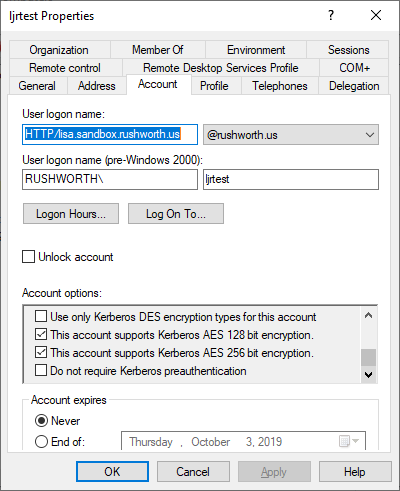
I’ve created a sample account, ljrtest, used setspn to set an SPN value for my lisa.sandbox.rushworth.us site, and configured the account to support AES 128 and 256 bit encryption.

To generate a keytab file without updating the UPN or attempting to set the account password, use:

ktpass /out ljrtest.keytab /princ HTTP/lisa.sandbox.rushworth.us@rushworth.us -SetUPN /mapuser ljrtest /crypto AES256-SHA1 /ptype KRB5_NT_PRINCIPAL /pass DevNull -SetPass /target dc.rushworth.us

KTPASS is part of the RSAT utilities — on Win10 with the Oct 2018 update (or newer), this is now a “Feature on Demand” and can be added  through “Apps & Features” by clicking “optional features” and selecting the ADS RSAT pack.

There are a few other utilities available — ktab from the JDK or ktutil on Linux — if you cannot install the RSAT pack.