RPM and DEB packages appeared on the Teams download site —https://teams.microsoft.com/downloads#allDevicesSection — I haven’t installed it yet, but I’ll probably get it installed this evening to check it out.
Category: Office 365
Did you know you can control who can present during a Teams Meeting?
Did you know you can control who can present during a Teams Meeting? As of Dec 2019, you can!
There were a few cool Teams features that, when used inappropriately, disrupt the meeting. Anyone can mute other attendees — great when I notice someone is taking another call and can mute them; not great if I accidentally mute the presenter. Anyone can share their screen — great when we’re taking turns showing something and don’t need to transfer control; not great when you accidentally share your screen in the middle of someone’s presentation. And this occurs during meetings among respectful, professional business associates. The amount of control individual meeting participants get invite goofing off (while you can tell who just took over presenting, you cannot tell who just muted you for the seventh time).
Microsoft has introduced “roles” for meetings. As the meeting organizer, you can establish who has what role. By default (i.e. when you don’t define any roles), everyone can do everything. But, after you create the meeting, you can edit it and select “Meeting Options”
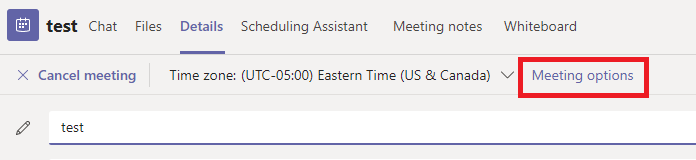
Two options will be presented — you can control who can bypass the lobby (avoid having external parties waiting if you anticipate their attendance) and define who can present. The terminology is a bit odd here, but this is the selection that defines who has what roles within a meeting.
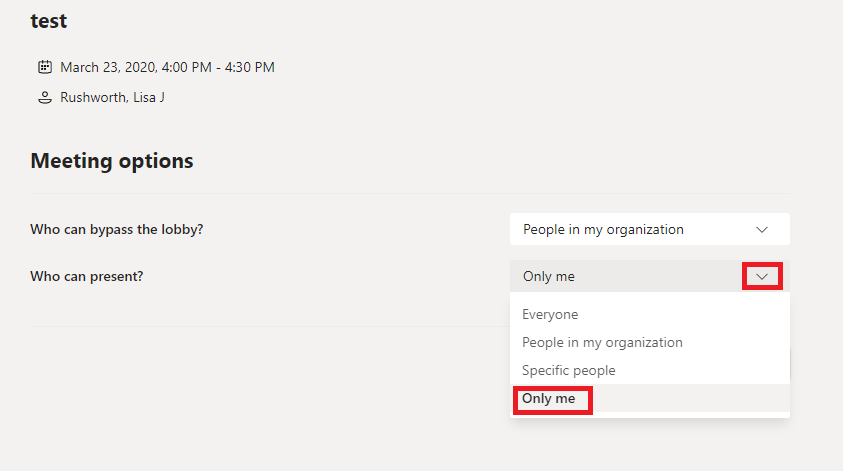
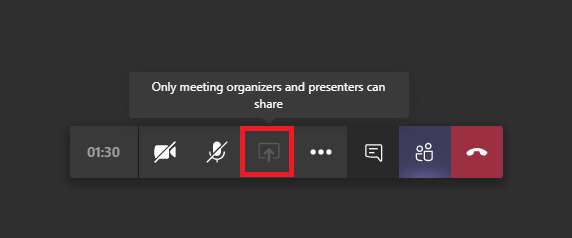
As the person who scheduled the meeting, you are the organizer — you can elect to only allow yourself to present. If you select to allow “Specific people” or “People in my organization” to present, they are assigned the “presenter” role. Everyone else is an “attendee”. What can a presenter or attendee do? Consult the MS documentation for a complete list. The big ones, though … an attendee cannot share their screen. The option is grayed out, and they’ll be advised that only organizers and presenters can share.
Attendees cannot start or stop recording — the option, again, is grayed out.
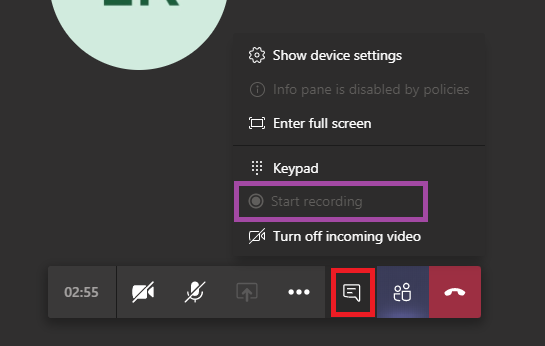
And attendees cannot mute or unmute anyone through the participant listing. This means they cannot mute someone else — the microphone icon will disappear when they put their mouse over it. But it also means they cannot mute or unmute themselves here. They will need to use the meeting control bar to mute or unmute.
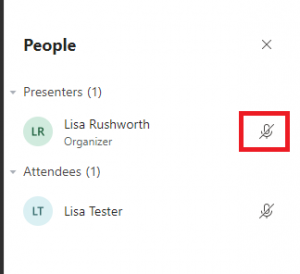
What if you’ve restricted someone as an attendee and need them to share their screen? You can modify their role in the participant listing — mouse over their listing and use the ellipsis to select “More options” and select “Make presenter” (or, if you wish to demote a presenter to attendee status, select “Make attendee”).
Exchange Mail & Calendar In Teams (duct tape approach, not official MS solution)
The Exchange web client renders in the Teams website tab now – Chrome and Chromium-based Edge. I use the nightly build of FireFox and it says ‘Blocked by X-Frame-Options Policy’
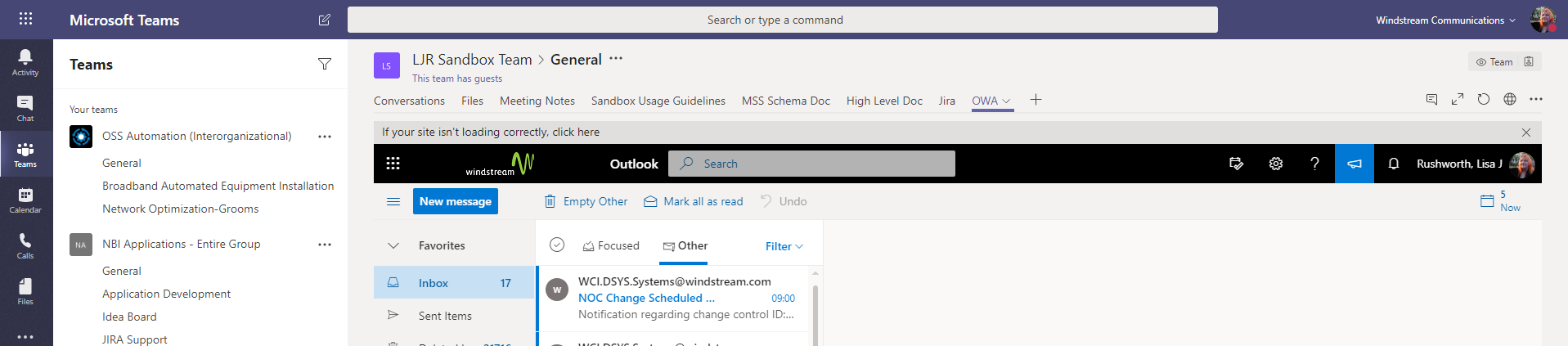
This isn’t a way to get new mail notifications in Teams – you’ve got to click over to the tab. But it does let you send a quick message without leaving Teams.
It’s a little inconvenient, though, to have to navigate over to the right channel to find the website tab. You can also create a custom Teams application to access the Exchange website. That’s a little more complicated, but you basically need a manifest.json with static tabs to the inbox and calendar.
Install and open “App Studio” in Teams. Create a new app. Fill in the details — use the generate button to get an app ID. Since you’re not going to publish the app to the Microsoft app store, the info you use isn’t super important … the privacy and terms of use, specifically, aren’t something anyone is going to read.
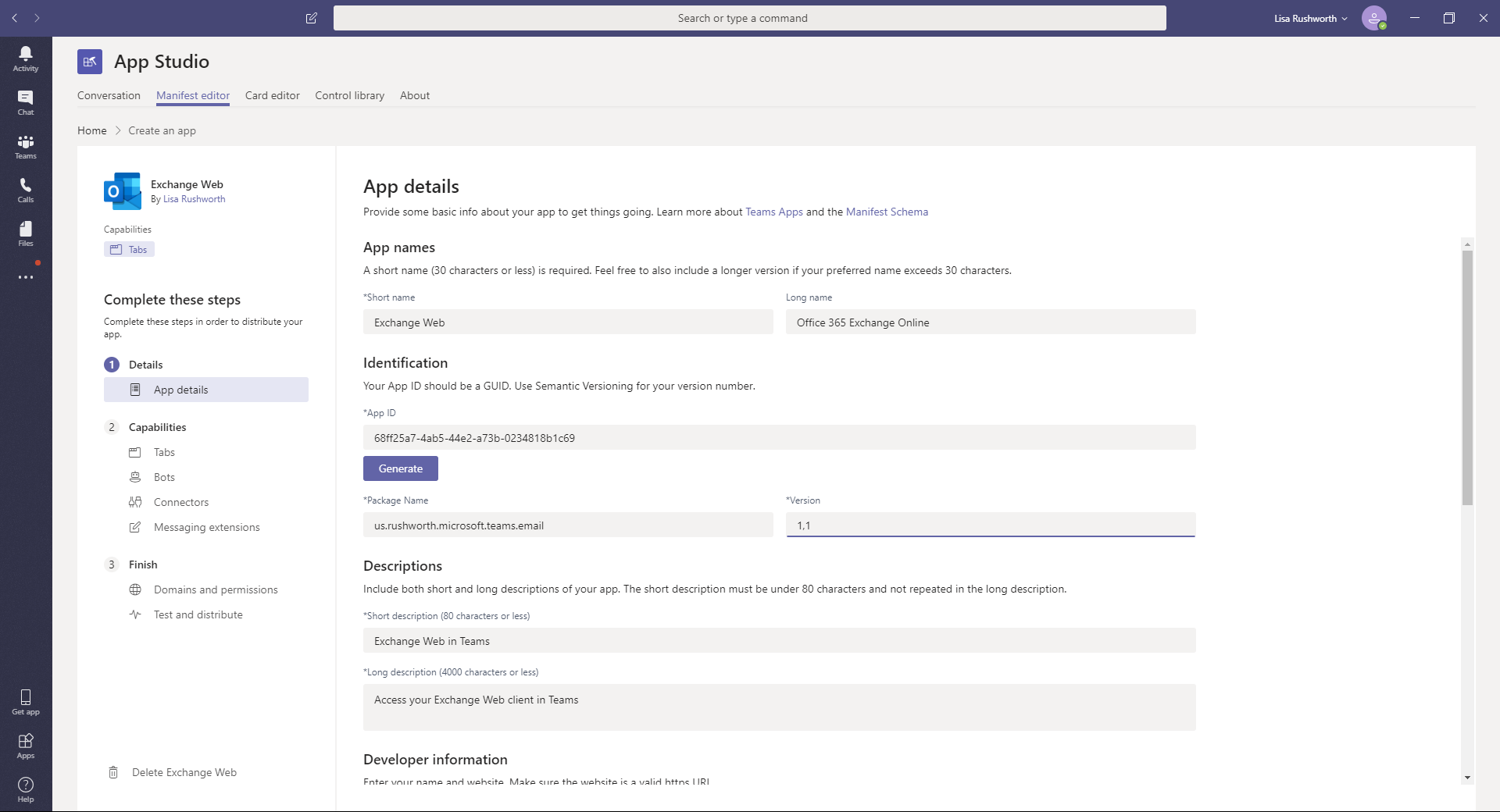
And
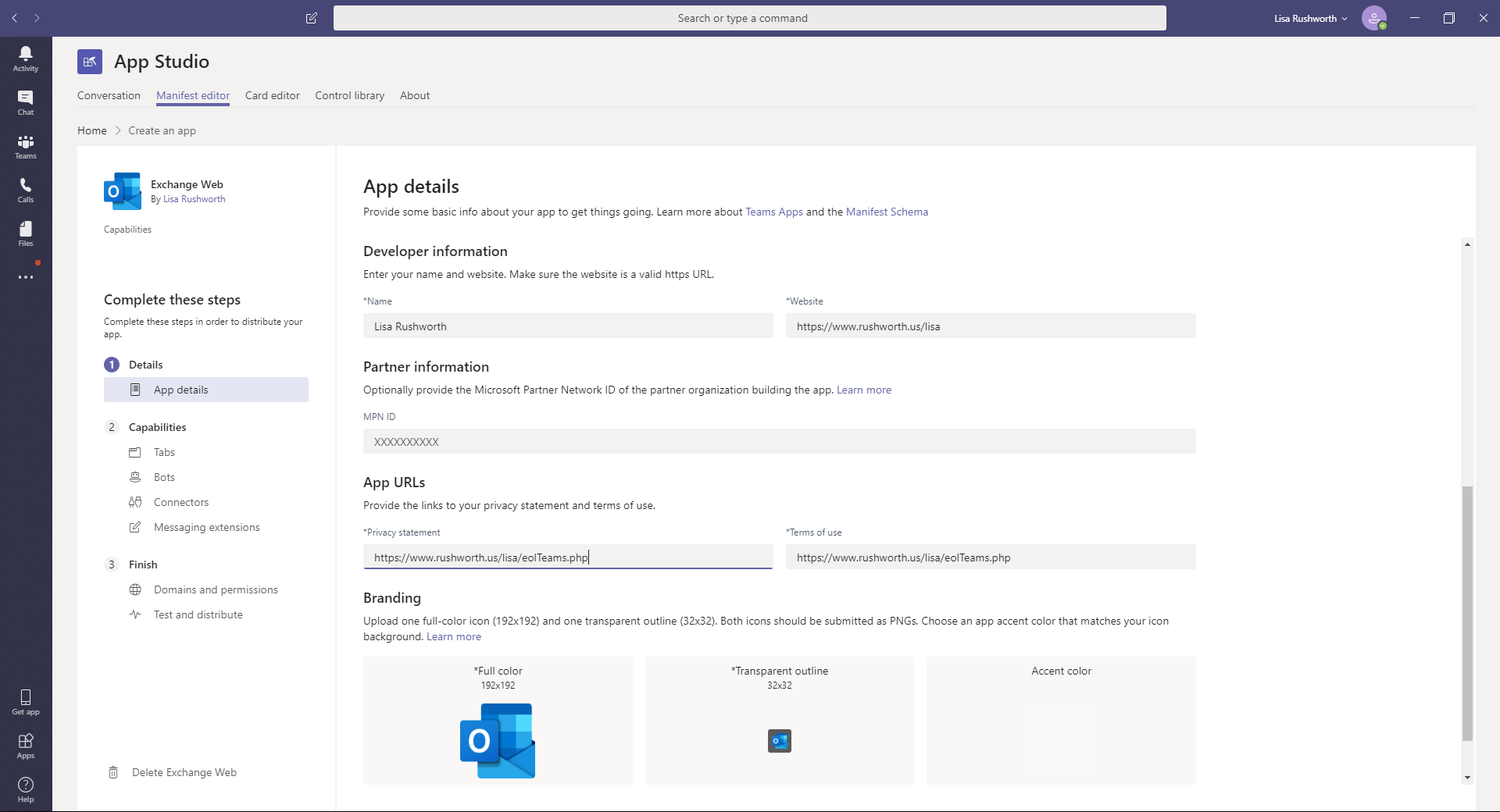
In the “Capabilities” section, add a personal tab
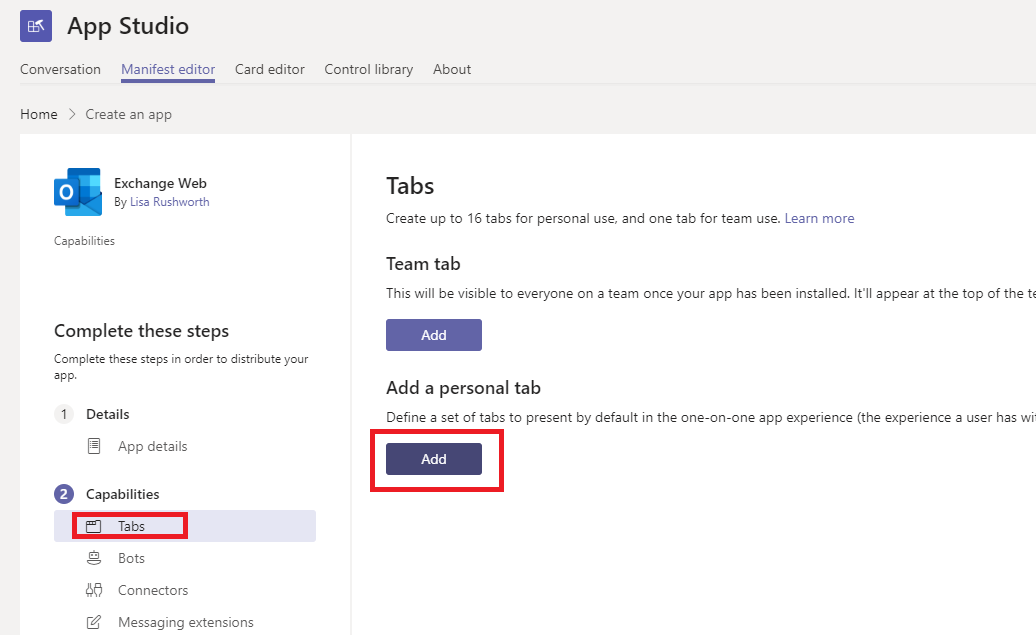
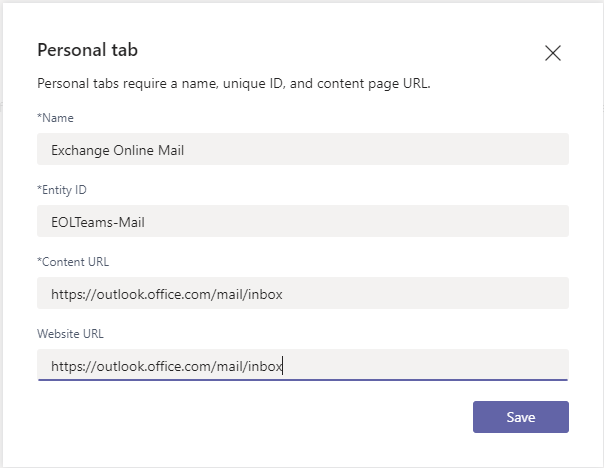
Add a tab for the mailbox:
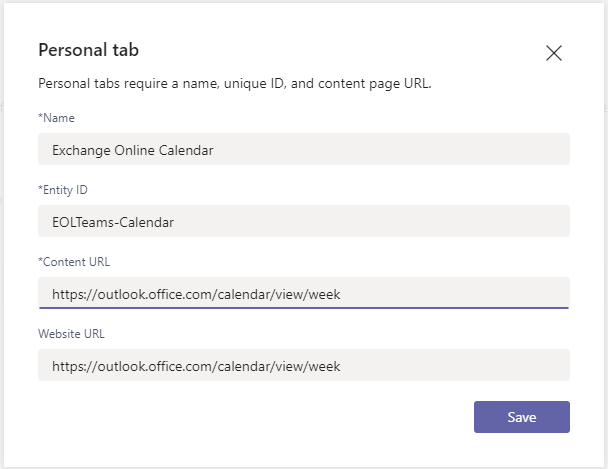
If you wish, add a tab for the calendar – I prefer the weekly view, but you can replace “week” with “workweek”, “day”, or “month”.
In the “Test and Distribute”, click “Download”.
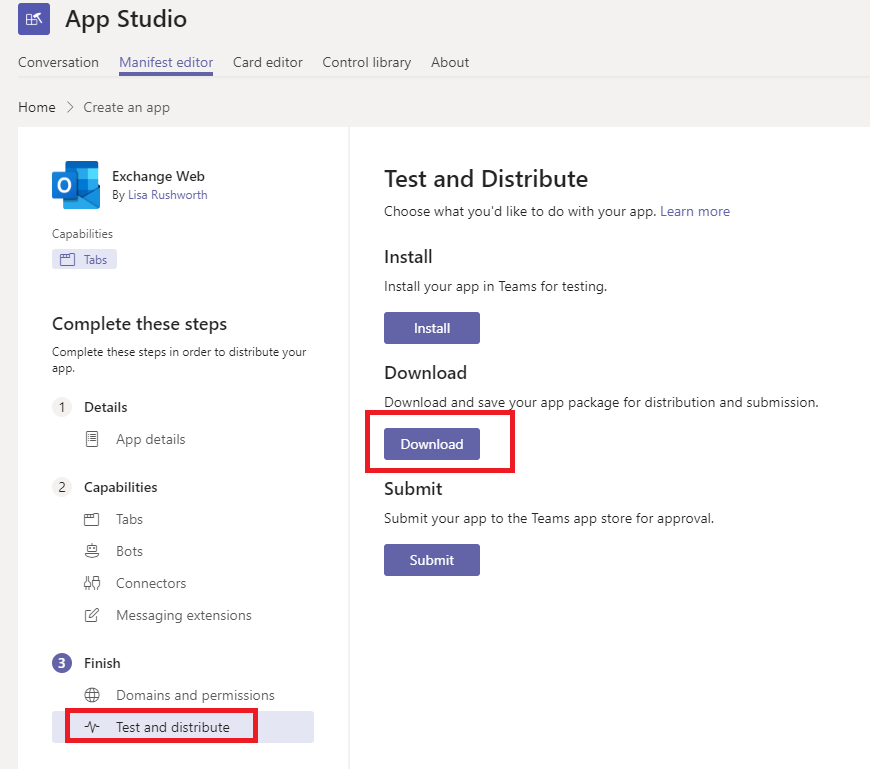
You’ll get a zip file that you can side-load (i.e. it’s not an app published across the company). In “Apps”, select “Upload a custom app”
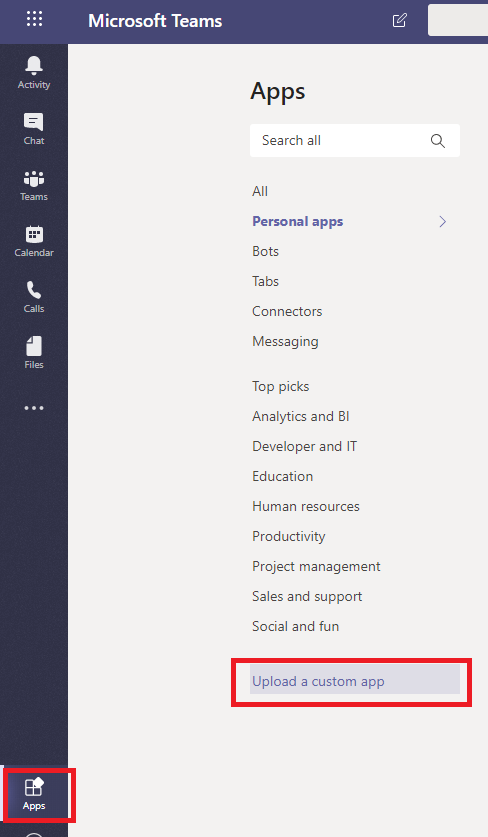
Locate the downloaded ZIP file and open it
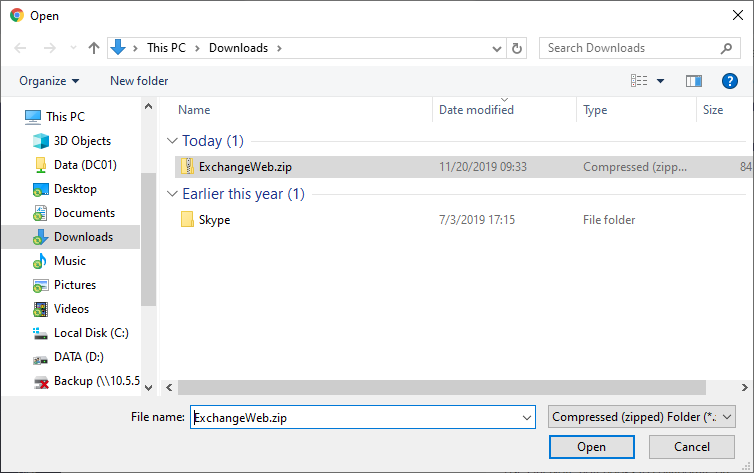
Verify that your app looks right – the permissions are base permissions for all apps (we didn’t add anything special)
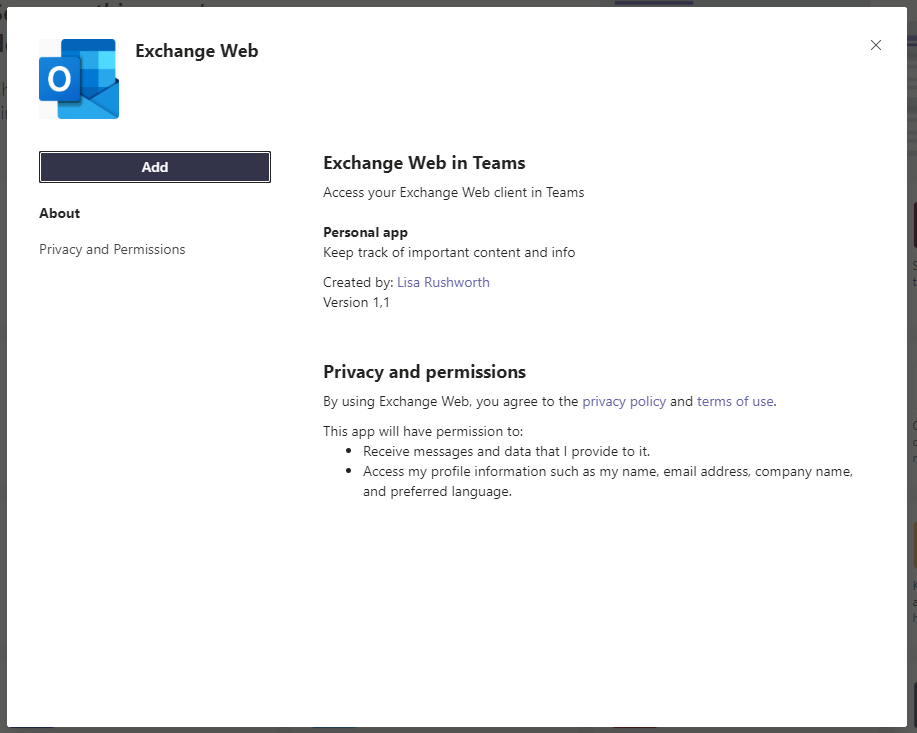
Click “Add” and you’ll be able to select the new app from the ellipses in Teams.
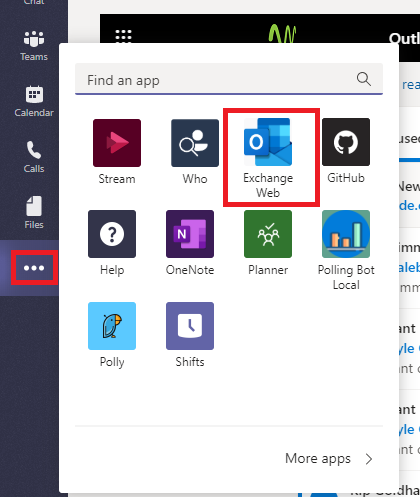
And you’ll have an app that can access your mailbox
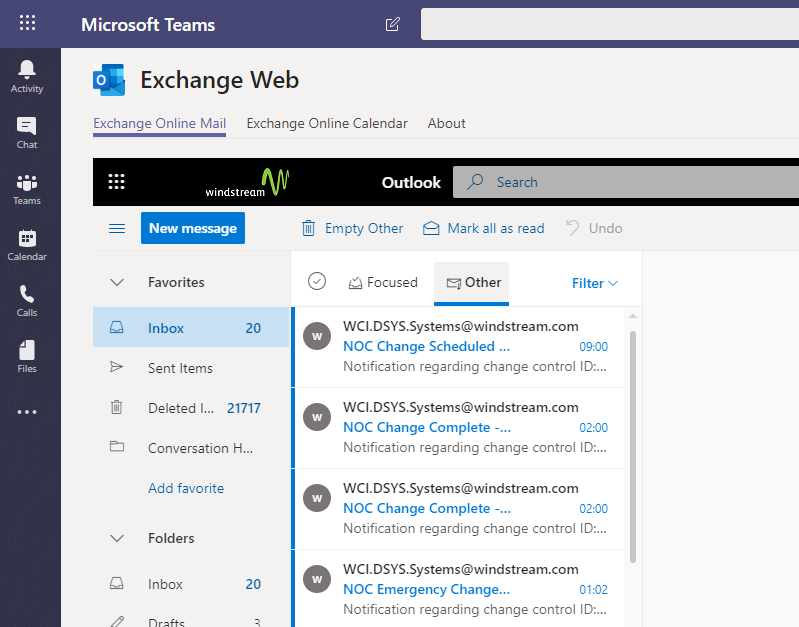
Or a week view of your calendar

Microsoft Teams: Private Channels Arrive
WooHoo! When creating a channel, I have a privacy setting!!
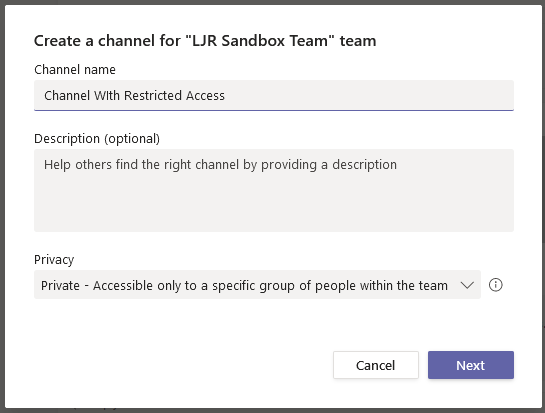
Individuals who do not have access to the channel do not see it in their Teams listing, and posts made to a private channel cannot at-mention the Team or individuals who do not have access. I’m glad Microsoft landed on the side of privacy in their implementation here.
It would be awesome if MS would have added the ability to move channels into other Teams with this rollout so we could consolidate Teams that were set up to restrict access to content. But at least we’ll be able to consolidate general-access and restricted-access content in a single Teams space going forward.
Upcoming Features from Ignite 2019
- Private channels should be coming this week … not my tenant yet, but soon
- Multi-window functionality where chats, calls, and such can pop out into another window
- Live captioning should land later this year — this is an obvious great feature for people with reduced hearing or frequency loss, live “closed captioning” is awesome if you’re working from a noisy location too
- Microsoft Whiteboard moved into general availability — it’s been a preview for quite some time now
- “Attendee” roll will prevent people from inadvertently sharing their screen in the middle of a meeting
- My Staff portal that allows managers to perform password resets (and maybe unlocks) for their employees. This is something I’ve done as custom code in IDM platforms, but it’s nice to see Microsoft incorporating ideas that reduce down-time due to password challenges.
- I’ll be curious to see if the healthcare-specific features move into other verticals — MS rolled out a feature that allows you to designate a contact when you’re in surgery (basically redirect all of my messages to Bob because I’m busy right now) that seemed like it would be quite useful in enterprise or education uses. The “patient coordination” feature they talk about might work as a contact management tool out of the medical realm too.
- URLs in Teams will be protected like the links in other Office 365 programs — if you click on a link and see something about “Advanced Threat Protection” … that’d be why 🙂
Extracting the Transcript from Microsoft Stream Videos
Updated script available at https://www.rushworth.us/lisa/?p=6854
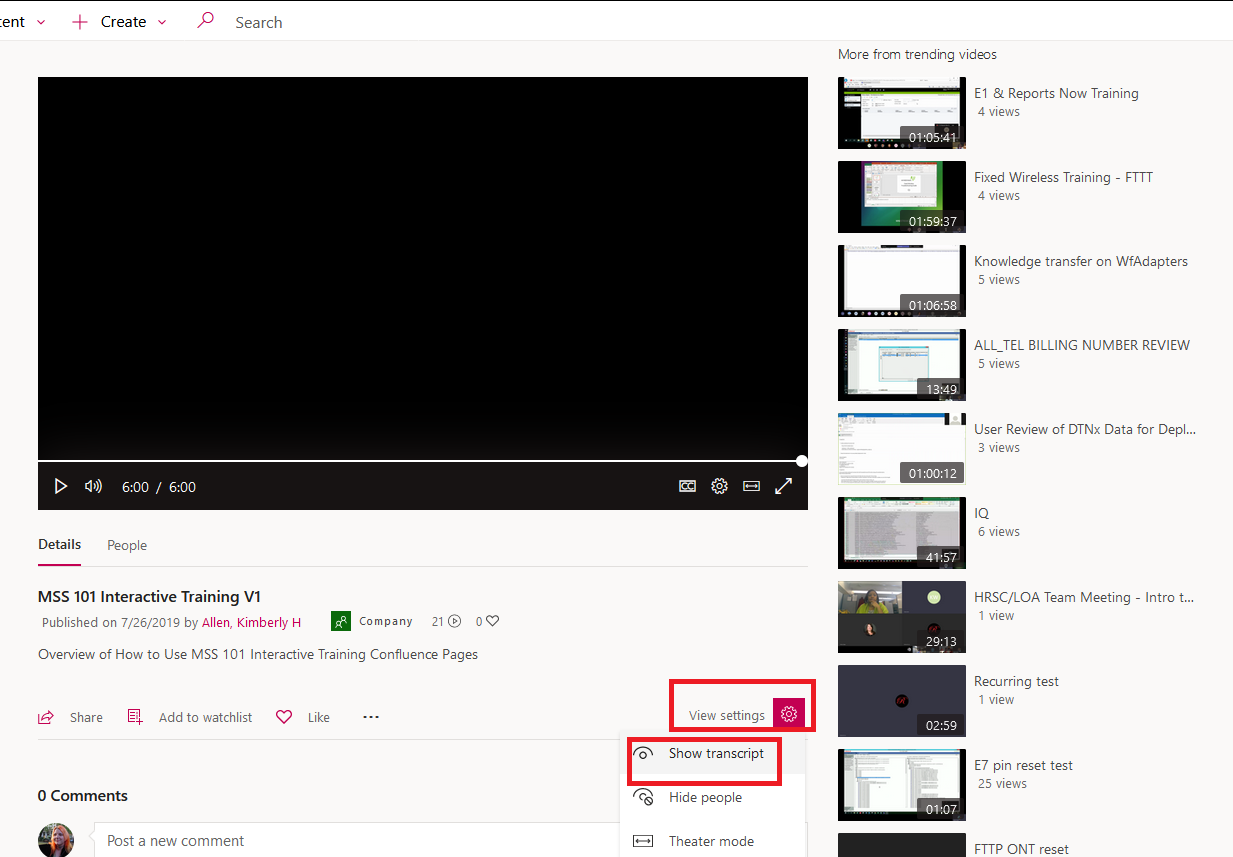
While Microsoft does not provide a way to export the transcript from Stream videos (thus recorded Teams meetings), it is possible to get something a nicer than the select/copy/paste from the transcript box. Click the video settings and select “Show transcript”
Display the browser developer tools – In Firefox, select the “Web Developer” sub-menu from the browser menu and select “Web Console”
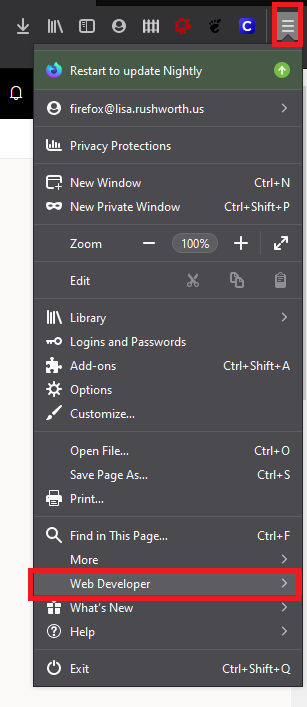
This console is often used for displaying errors in a website, but it can also be used to send commands to the browser. There’s a “>>” prompt – click next to it and you’ll have a flashing cursor.
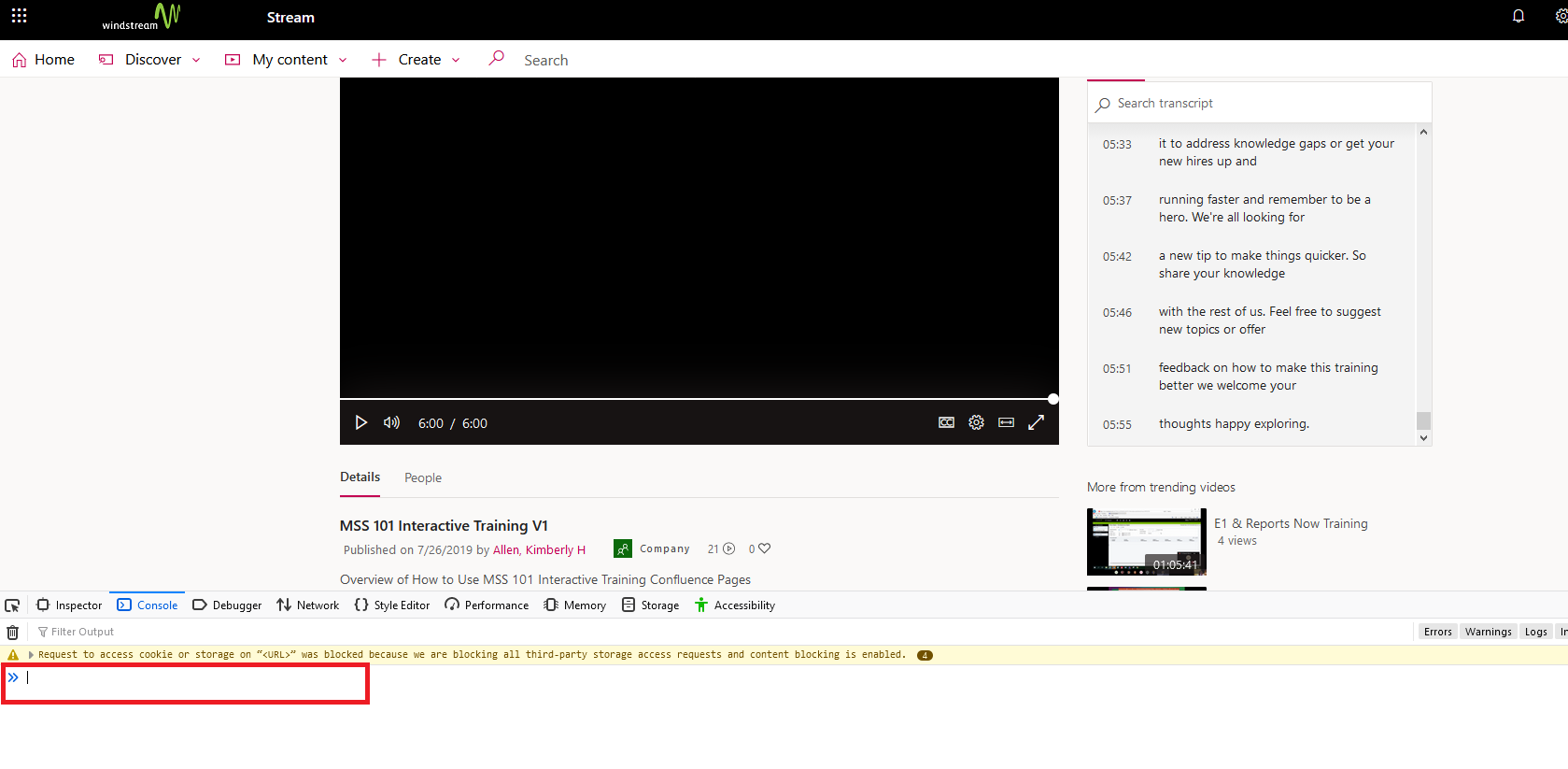
Paste this into the console:
window.angular.element(window.document.querySelectorAll('.transcript-list')).scope().$ctrl.transcriptLines.map((t) => { return t.eventData.text; })
… and hit enter. Another line will appear below what you’ve entered. Right-click on that new entry and select “Copy Object”. Now paste into a text editor or Microsoft Word.
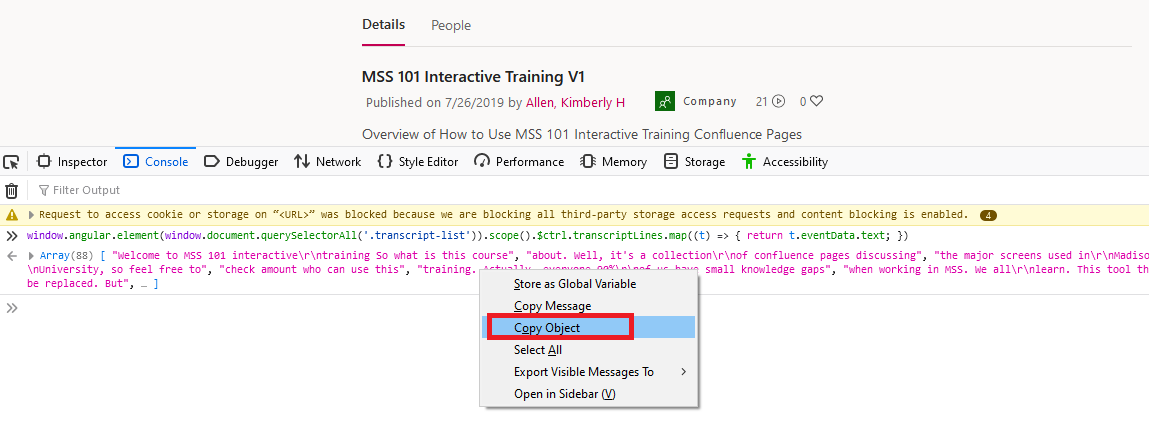
The output could use a little cleanup. You’ll see “\r\n” anywhere there’s a newline. This

Becomes “a new tip to make things quicker. So\r\nshare your knowledge” … you could replace “\r\n” with a space (I find the newlines to be superfluous) or use a regex replacement to replace “\\r\\n” (literal string, the backslash escapes the backslash to retain it) with “\n” (an actual newline)
Each time-stamped bit of the transcript is in a separate set of quotes – I’ve got a quick replacement that takes
",\n "
And replaces it with a newline … so
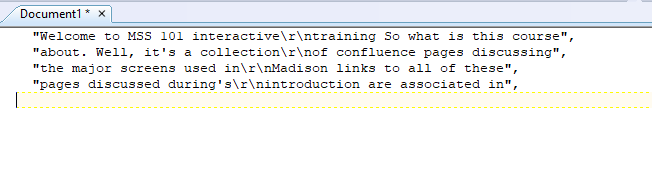
Becomes
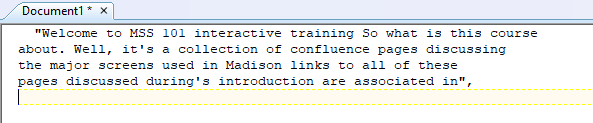
Depending on the target audience … for me, that’s where I stop. To send the transcript to someone else, I manually clean up the spaces and quote before the first line and the quote-comma on the last line.
Microsoft Teams: Cross-posting to multiple channels
Click on “Post in multiple channels”
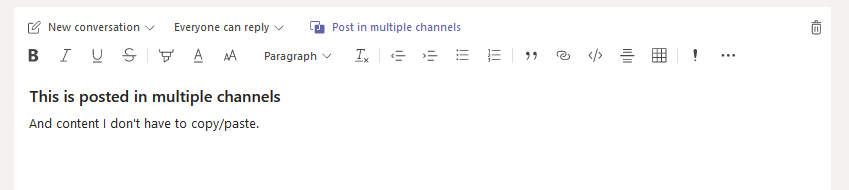
To post in additional channels, click “Select chann…”
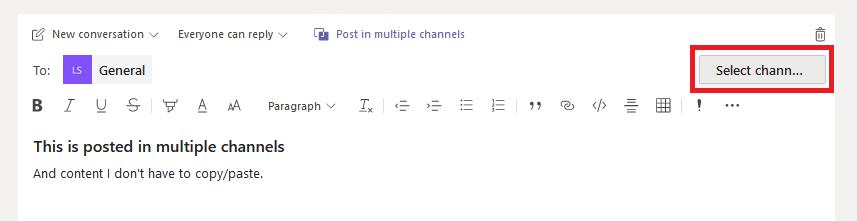
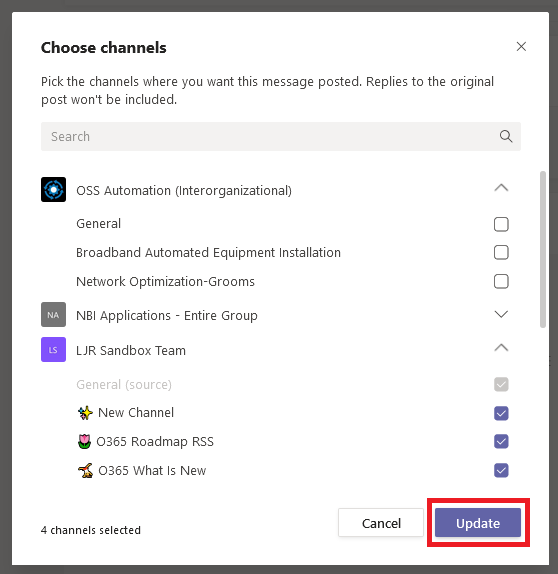
Check off the channels into which you want the post written – this can be a channel in any Teams space where you are able to post messages. Click “Update”.
When your message is posted, an indicator will appear letting everyone know it was posted in multiple channels. No, there doesn’t appear to be a way to see which channels – that’s probably a permission / information leakage nightmare (post something into the “Mass Layoffs” channel that I shouldn’t know exists … I shouldn’t be able to see that channel name). But the glif gives you some confirmation if you think you’ve seen this info elsewhere.

Note – the posts are not linked to each other. If someone replies in one channel, the post in the other channels will not include the reply. So while this is a quick way to disseminate the same information to various teams … you’re starting multiple conversations too.

Also note — there doesn’t appear to be a way to edit cross-posted messages.
Listing Column Widths in Excel
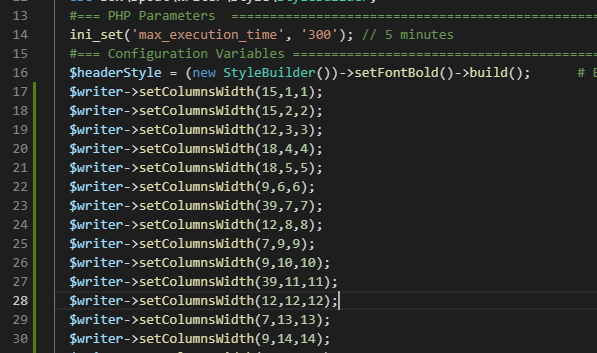
I hacked Box Spout to support column widths formatting, but wanted a quick way of adding appropriate column widths (yes, automatic width determination would be better … but I didn’t want to spend hours sorting that). Instead of wasting time on automatic column widths, I wrote a simple Excel code module to tell me the appropriate column widths. If your data width might vary, you can add some padding to the ReportColumnWidth function. My data, fortunately, is fixed width.
You will need to save your spreadsheet as a macro-enabled workbook (.xlsm). To add a function to Excel, hit Alt and F11. Select “Insert” => “Module” and paste in the following content and save.
Function iCeiling(iInput)
    iCeiling = Int(iInput)
    If iCeiling <> iInput Then
        iCeiling = Int(iInput) + 1
    End If
End Function

Function ReportColumnWidth(CellID As Range) As Double
 Application.Volatile
 ReportColumnWidth = iCeiling(CellID.ColumnWidth)
End Function
In Excel, use the ReportColumnWidth function to print the width of a column into a cell. This is my row #3.

In row #2, I have a counter that provides the row number for use in Box Spout. Row #4 creates the line needed to set the column width in my code using the concat function.
=CONCAT("$writer->setColumnsWidth(",A3,",",A2,",",A2,");")
Replacing the tab characters with newlines, I now have column widths set based on my data.
Microsoft Teams: Thread Moderation
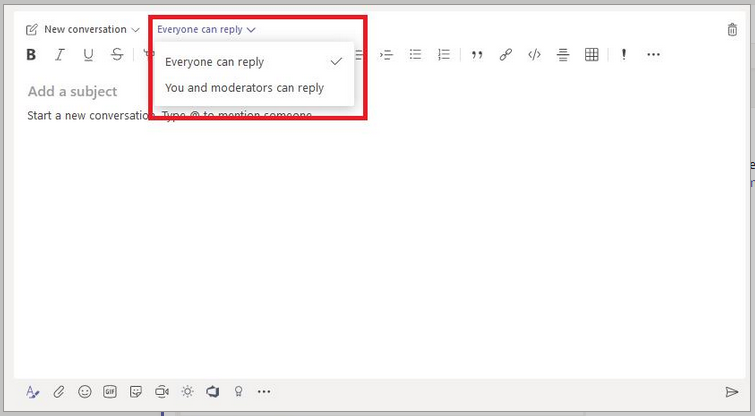
I’m seeing something new in the rich text message editor — you can flag a thread for public comments or only allow comments from yourself and moderators (see https://docs.microsoft.com/en-us/microsoftteams/manage-channel-moderation-in-teams for info on setting up moderators in Teams you manage).
Did you know … you can add a “Share to Teams” button to your web content?
If you can add script tags to the page head, you can add a “Share to Teams” button on your web site. This can be used to allow employees to share internal sites to Teams, but it can also be used on public sites to allow visitors to post links to their Teams organization.
How? There are two steps – add “<script async defer src=”https://teams.microsoft.com/share/launcher.js” ></script>” in HEAD. The post that is made to Teams is *prettier* if you have meta properties for title, description, and image within the linked page.
Then add a div with class “teams-share-button”. The “data-href” value is the URL to be shared. If you don’t want a page preview to render, you can set “data-preview” to false.
Sample page content:
<head>
    <title>Teams Share Test</title>
    <meta property="og:title" content="Lisa Rushworth Home Page">
    <meta property="og:description" content="Lisa Rushworth's Home Page">
    <meta property="og:image" content="https://www.rushworth.us/lisa/RedR.png" />
    <script async defer src="https://teams.microsoft.com/share/launcher.js" ></script>
</head>
<body bgcolor="black" text="white">
    <div class="content">
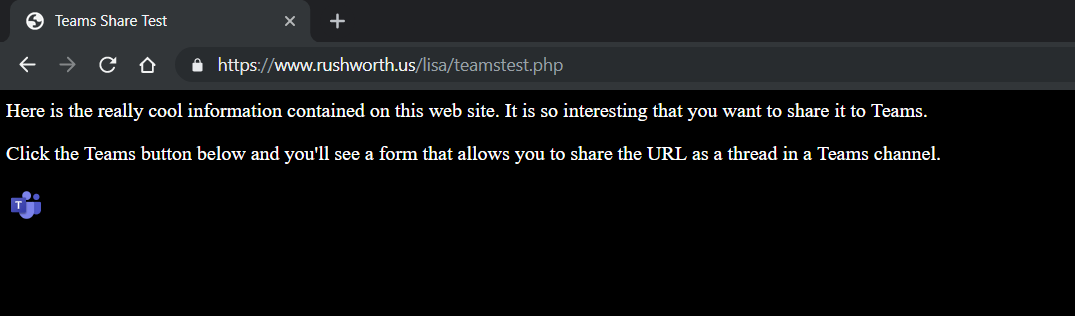
        <P>Here is the really cool information contained on this web site. It is so interesting that you want to share it to Teams.</P>
        <P>Click the Teams button at the bottom and you'll see a form that allows you to share the URL as a thread in a Teams channel.</P>
    </div>
    <div class="teams-share-button" data-href="https://www.rushworth.us/lisa/teamstest.php" data-preview="true">
    </div>
</body>
Visitors will see a small Teams logo in the teams-share-button div. To share the URL in Teams, they just need to click on the Teams logo.
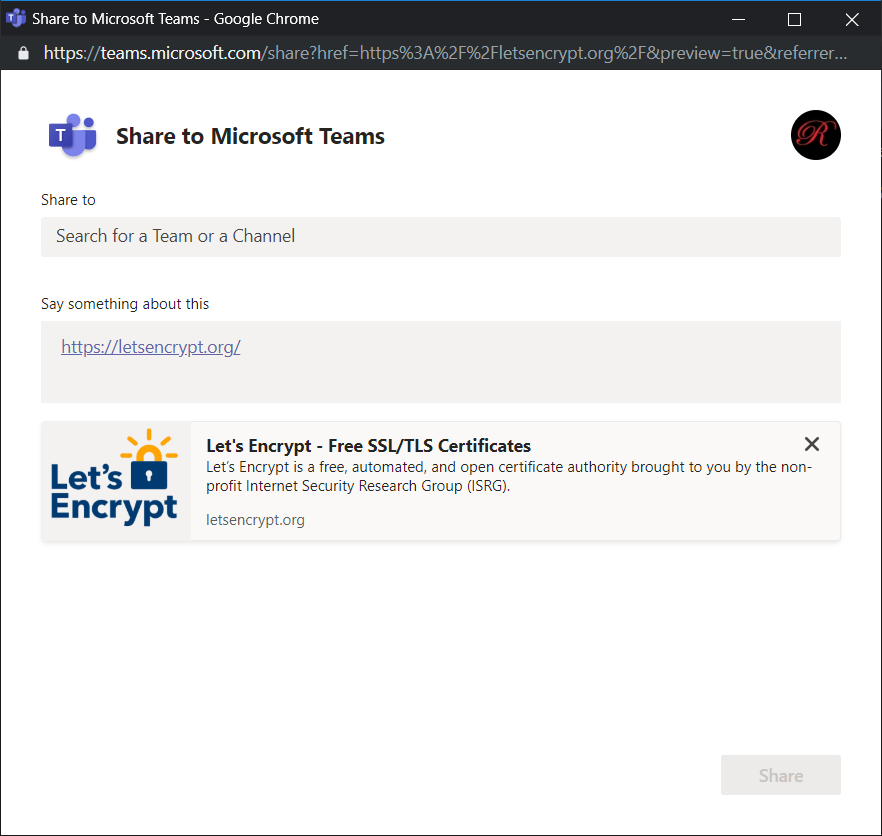
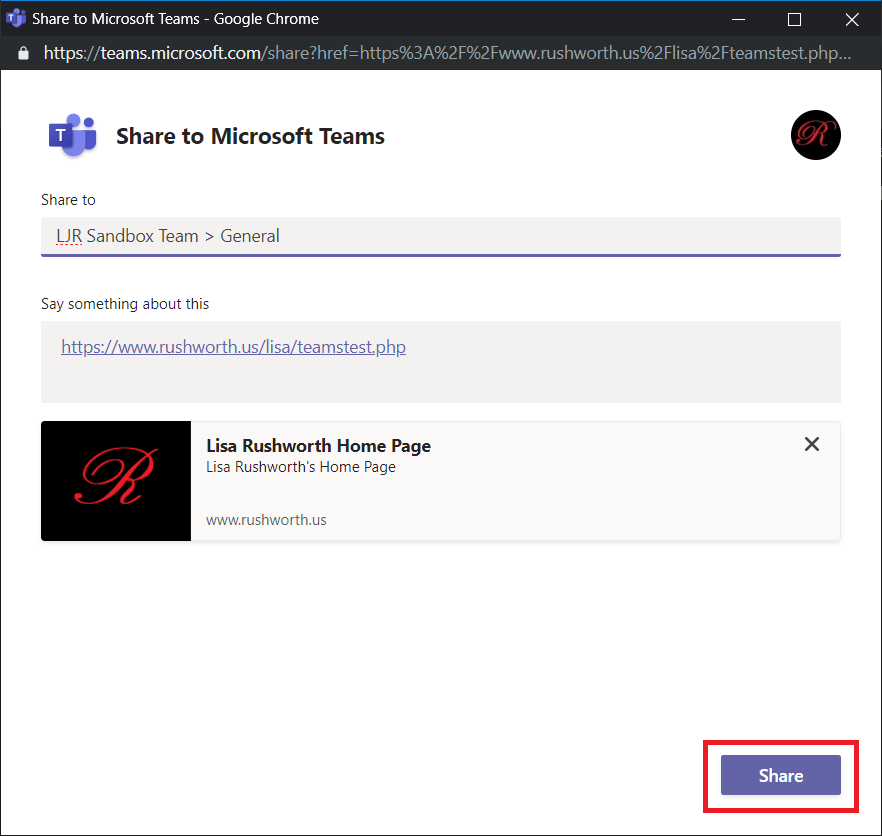
A new window will load. If the user is not logged into the Team web site, they will be prompted to log in. Once logged in, the share dialogue will be displayed. If your site has title, description, and icon meta tags, a preview card will be included at the bottom.
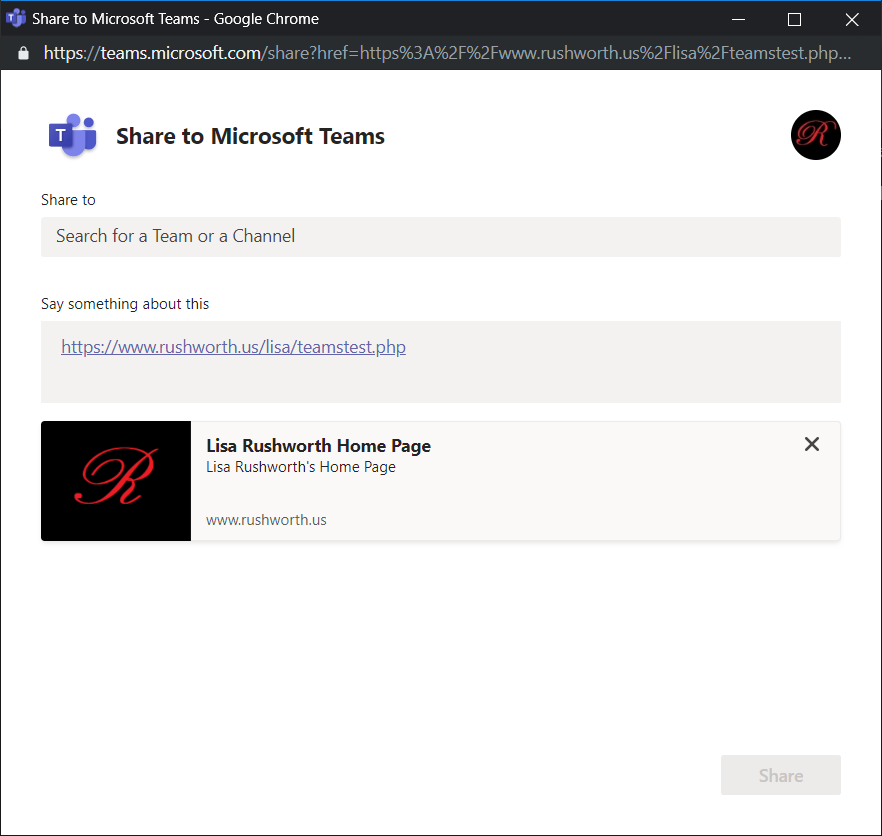
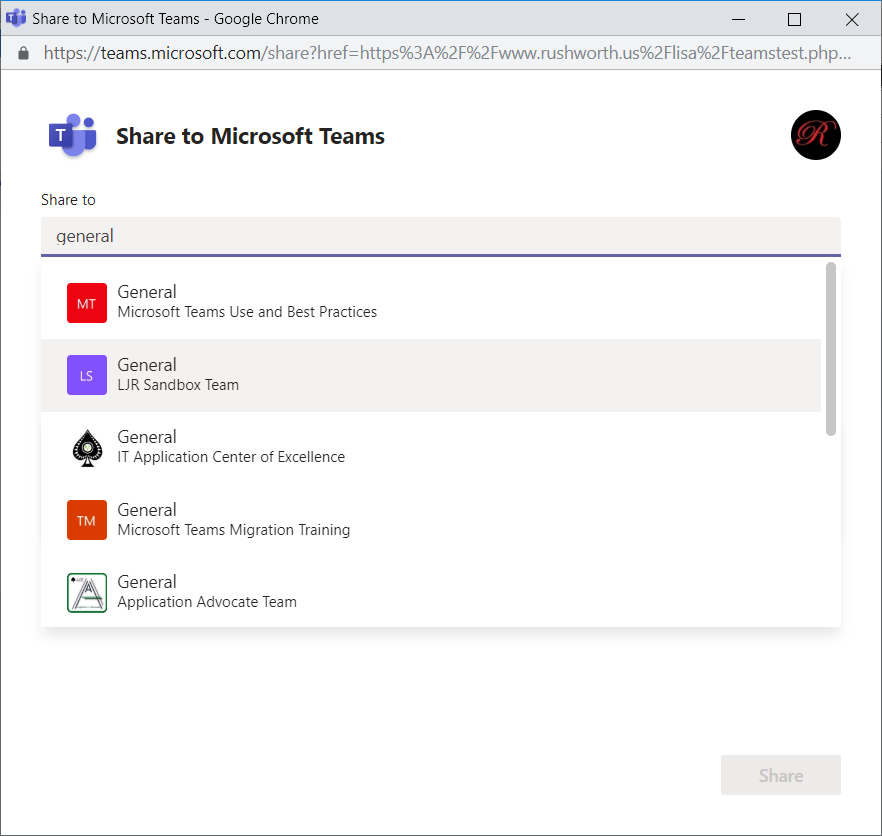
Click in the “Share to” field and type a Team or Channel name – Teams and Channels from the user’s organization will be displayed.
The user can add text to the thread. Click “Share” to share the link to the selected Teams channel.
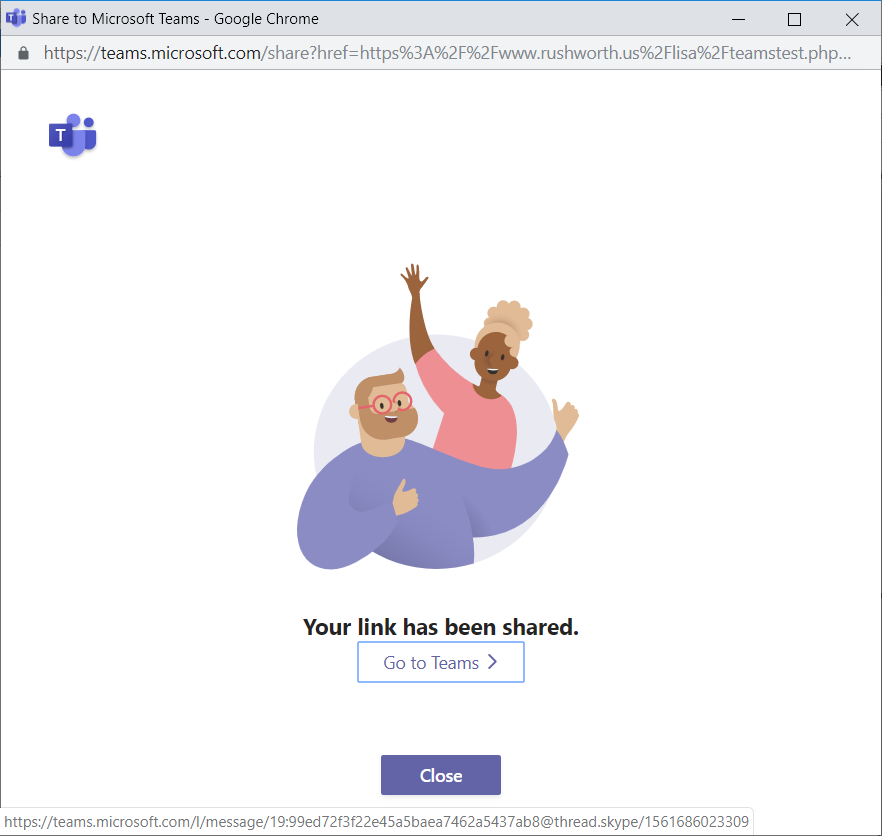
A confirmation page will be displayed.
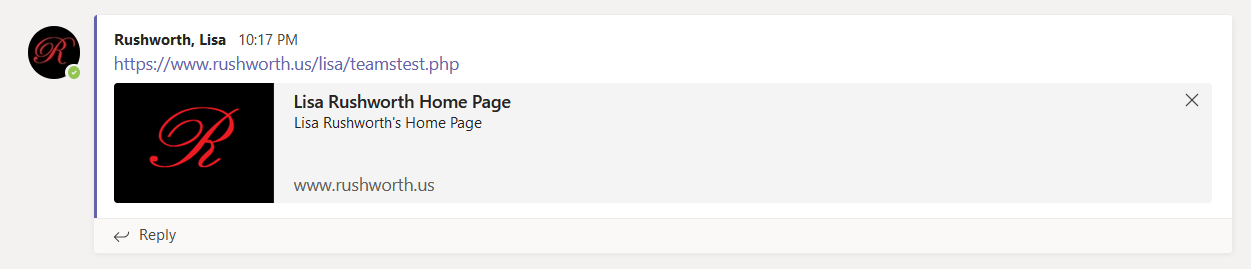
In Teams, a new thread will be created. This is the thread for my shared URL.
The URL used in the teams-share-button DIV doesn’t have to match the page on which it is used — I can add a ‘share to Teams’ button that posts any URL to Teams.