There are times when a question for a specific individual can be asked in the channel conversation by @mentioning the individual. But sometimes the question isn’t for general consumption … and sometimes I a message reminds me of something completely different that I need to tell someone. But switching to ‘Chat’ to send a message and then finding my way back to the channel conversation is time consuming. Did you know you can send a private message from the search bar?
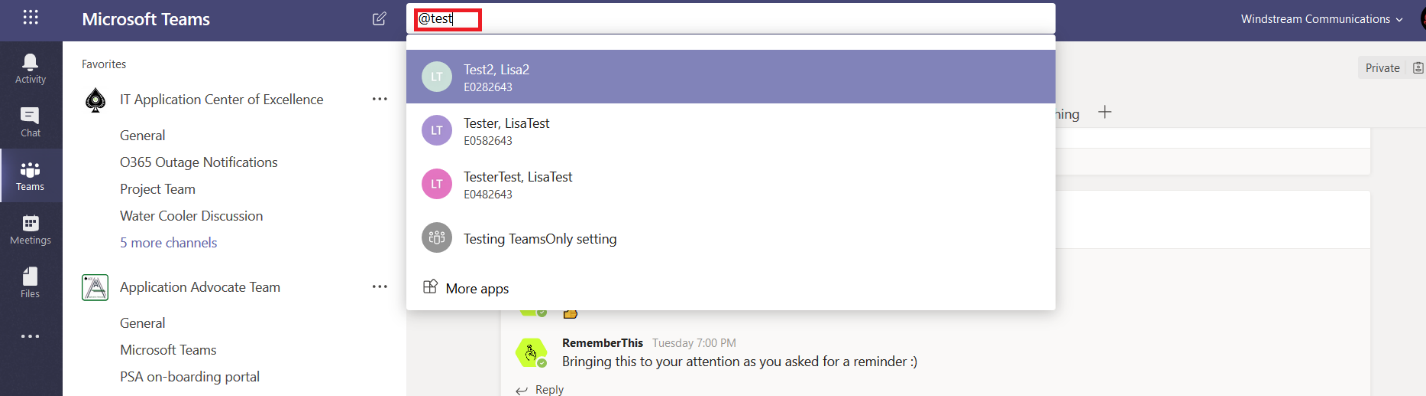
Hit Ctrl+e or click in the search/command box along the top of the Teams window.
Begin typing an @Mention – either select the proper individual or type enough of the name that there’s only one …
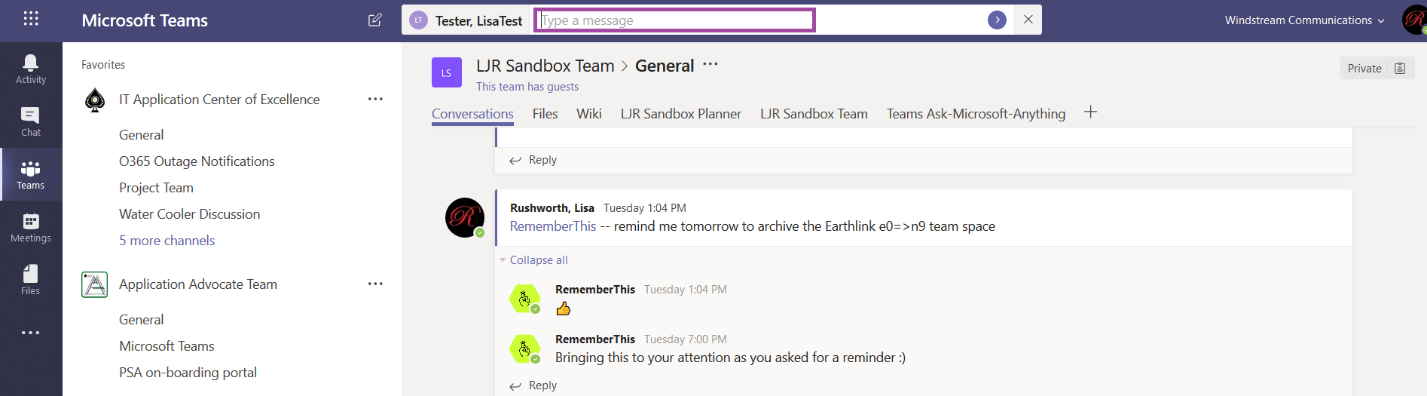
Now you can send a message to the selected person right from the search bar.
Type your message – this is a quick text message, there isn’t typographical emphasis, colors, cute pictures – markdown doesn’t even render. But I can send a quick message without losing my place within the Channel conversation! Hit send (enter or the little purple circle at the end of the dialog box).
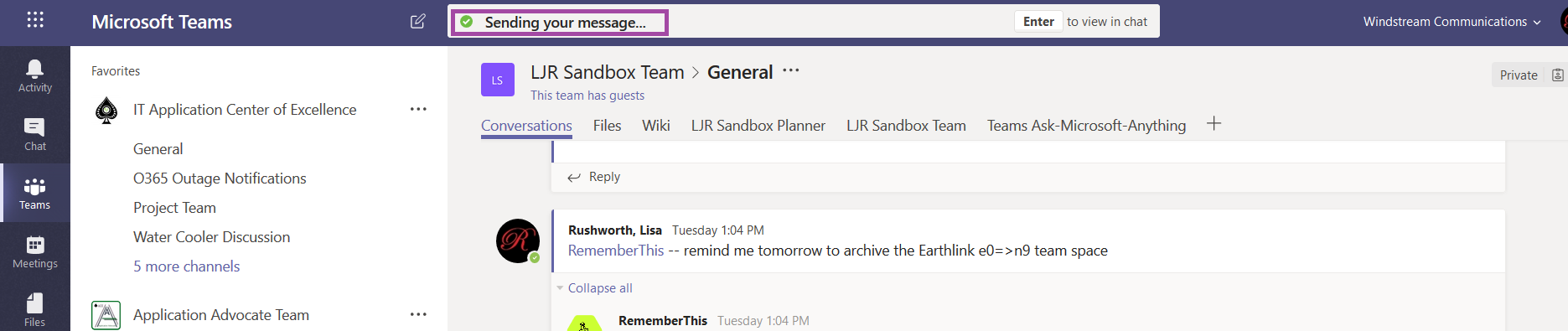
You’ll see a confirmation that your message was sent (and you can view the message in your persistent chats). And you can get right back to what you were doing 😊
Do you know … if you should create a new Team or new Channel?
It’s certainly a good idea to break topics into different locations in Microsoft Teams – cognitive research on how efficiently people multi-task suggests this, it’s easier for non-impacted individuals to ignore information that’s not relevant to them if it’s not interspersed with information they need, and spreading topics out reduces the frequency of posts – ten new conversations don’t appear while you’re reading a thread. But should you create a new channel or a new Team?
There are a few technical limitations that make “Team” generally the right answer. Each channel in a Teams space has the same permissions – if you want to restrict access to confidential information or if you want to involve additional people – people who don’t need access to your other channels, you need to create a new Team.
You can archive a Team, but you cannot archive a channel. If you create a new channel for every project, your Teams space can become cluttered with old projects. The channels get collapsed into a “more channels” fly-out, but I still find myself renaming channels “zzSomething Or Other” to get really done projects sorted to the bottom of the more channels fly-out.
You cannot move a channel into another Team. If the project moves to another group (such transitions are common in IT – there’s a development/implementation phase, then the project moves to production support under a different group) … there’s no way to transition the information in a channel to another group. Even if that’s not standard operating procedure in your organization, reorgs happen. A supported system becomes big enough to warrant its own group or staff is re-aligned –having the historic knowledge of the Teams discussion available to the new organization is beneficial. (Not to mention, if you could move a channel into another team, you could indirectly archive channels by moving them into an archived Teams space!)
There are some scenarios where a new channel makes sense – that daily e-mail chain where people decide where to eat lunch could become a channel. There’s no reason to move the historic restaurant selection to another group – or, for that matter, retain it. If group lunches become ‘not a thing’ – just delete the channel. And anyone not heading to lunch today can ignore the channel. Similarly, “Water Cooler” discussions – a place where the comradery we took for granted when sitting in the same physical space can re-emerge – make sense as channels.
We’ve been using Microsoft Teams for most of this year, and I find it to be an incredibly efficient way to work. That’s not just a personal preference — years ago, I followed research on how human brains multi-task. TL;DR? Rarely well! Performing multiple natural activities, those that don’t put much demand on the prefrontal cortex, did not greatly diminish efficiency (I can walk and chew gum at the same time!). But fMRI scans performed by the Institut National de la Santé et de la Recherche Médicale in Paris showed that the prefrontal cortex has a left and right side which cooperate to focus on a single task but work independently when the subject was given two tasks. And when the subject was given three tasks? The rate at which a task was forgotten increased and errors were three times as likely for the tasks that were performed.
The recommendation was to dedicate chunks of time — 20 or 30 minutes — to a particular subject, then move on to a new subject rather than bounce back and forth between topics. Sounded great in theory, but each morning I’d sit down and start going through e-mail. The epitome of rapid topic shifting — read through something, switch to the next message/topic, maybe do a little work on that topic, go to the next one.
Starting my day in Teams is completely different — any channel that has had activity is bold. I can click on a channel, finish everything related to that topic, then move on to the next channel. Instead of jumping from topic to topic, and wasting time mentally “shifting gears”.
During a busy day, multiple channels light up with activity … but having each topic contained to its own location helps me maintain focus on that topic. Extrapolating — it makes sense to create a new channel or team for different projects instead of having multiple projects discussed within the same channel.
Sometimes a project is done. You’ve used Teams to plan, coordinate, and implement the projected … and there’s a lot of good information in the Teams space … but there’s no need to continue the discussion. Did you know a Team can be read-only? This is called “Archived” – members can search and read content, but no new files or posts can be created.
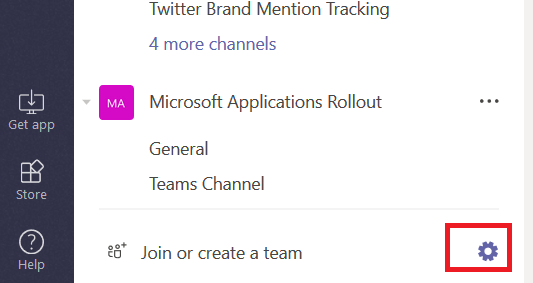
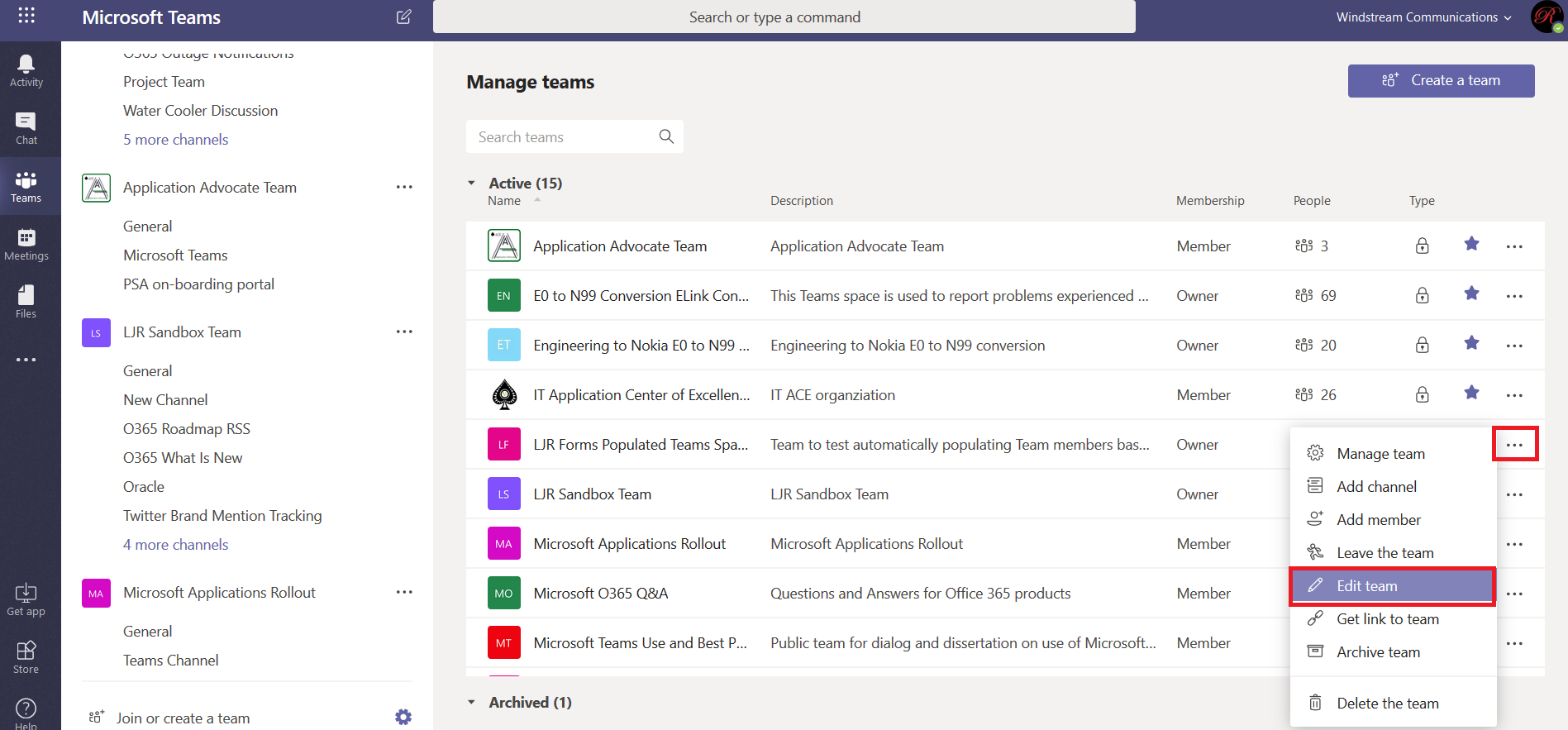
To archive a Team, view your Teams. At the bottom of the Teams list, click the little gear.
I recommend changing the Team description to let others know it is archived – this is especially valuable if your team is Public as people may join intending to participate in an active discussion. To modify the Team description, select the sideways hamburger menu next to the Team name and select “Edit team”.
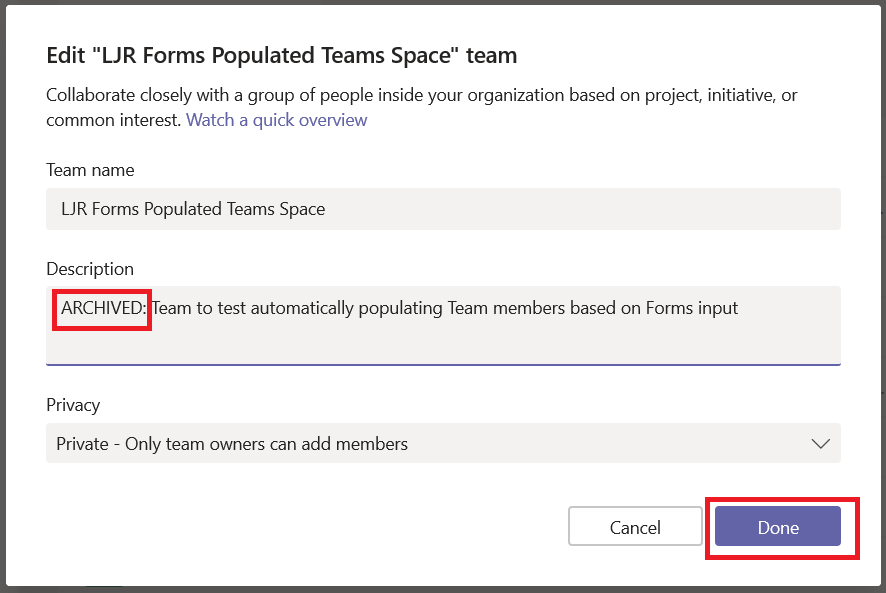
I prefix the description with “ARCHIVED:” … hoping people at least glance at the description. Click ‘Done’ to save your change.
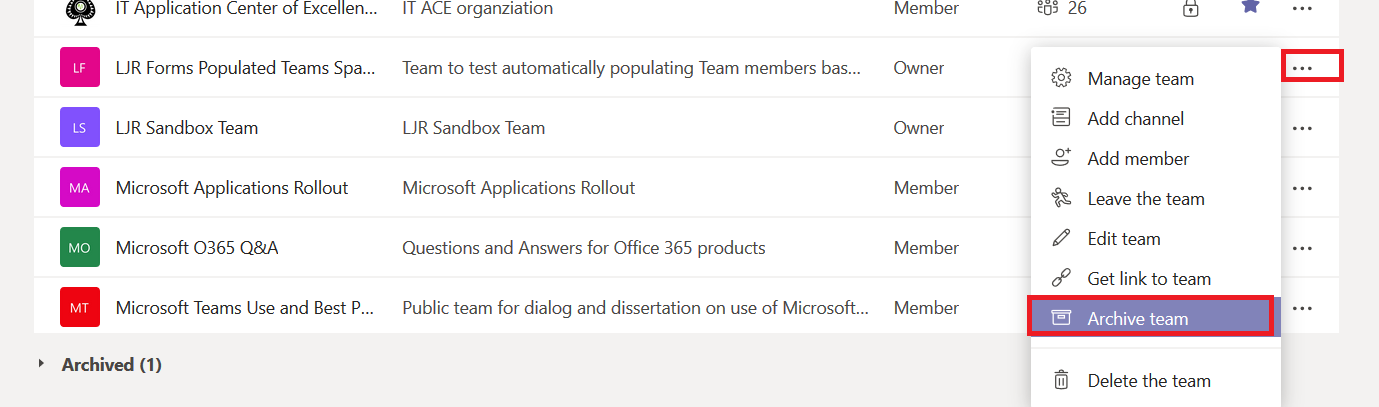
To archive your Team, click the sideways hamburger menu again. Select “Archive team”.
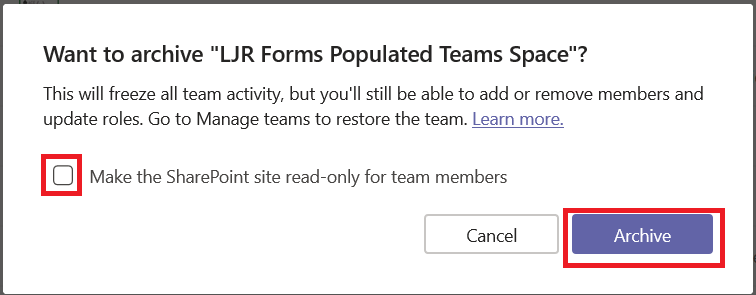
You will be asked if you want to make the SharePoint site for the Teams space read-only as well – the answer is generally yes, but if you’re using the SharePoint site for more than just the Team then you do not want to check this box. Click ‘Archive’ to archive the Team.
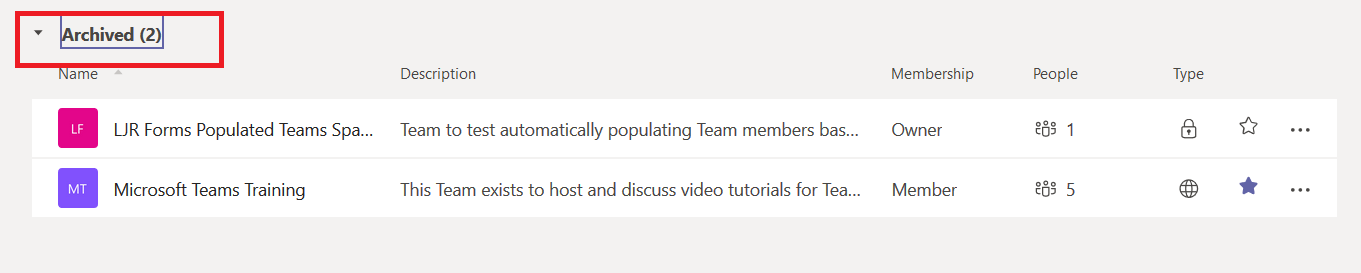
Should you need to begin accepting new content in your Teams space, you can find the archived teams by expanding the “Archived” section.
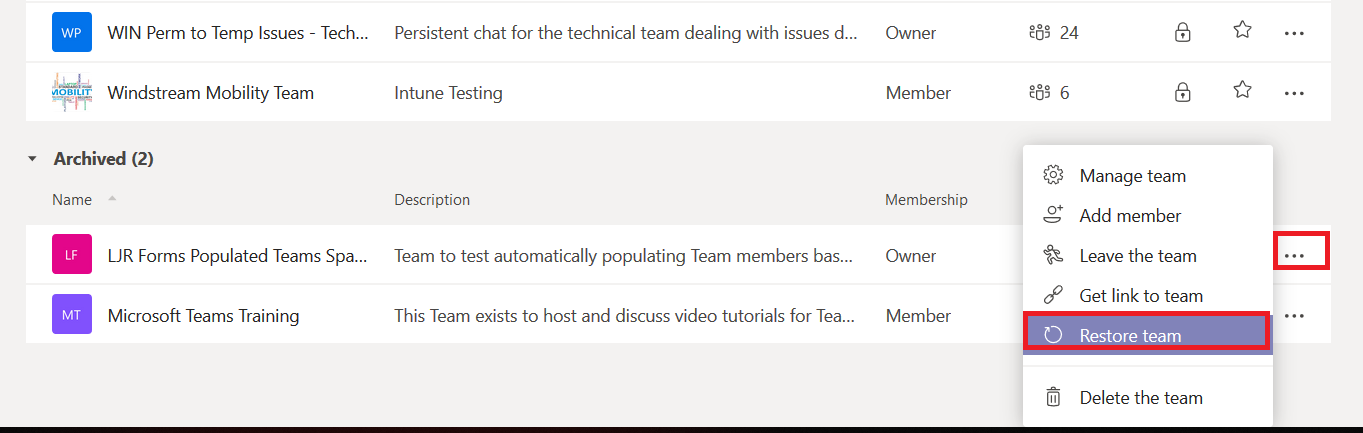
Click the sideways hamburger menu and select ‘Restore Team’. This will move your Team back to the “Active” section and allow members to continue posting content.
Several offices ago I sat across from a L.O.U.D talker. A loud talker who was constantly on a conference call. I’d try to remember to mute my line before joining a bridge but didn’t always remember. Random background noise isn’t so bad when you’re about to talk to two or three close colleagues, but background noise becomes inundating when the twenty-something people in my department all join a bridge.
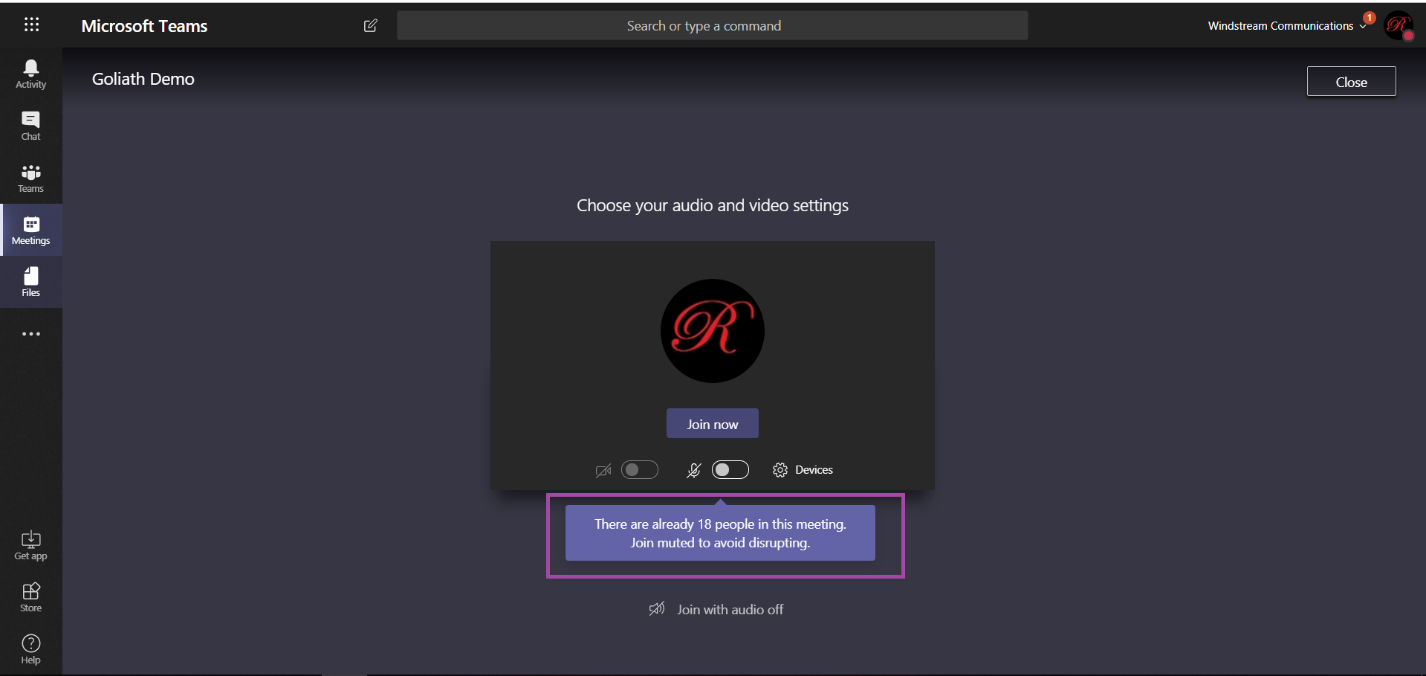
Microsoft Teams helps you avoid a deluge of background noise in your call. When you join a “large” meeting –more than five people already in the meeting – your microphone is muted as you join. A notification is displayed prior to joining the meeting to remind you the microphone will be muted.
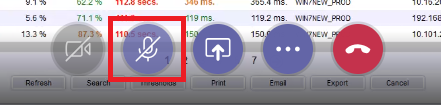
You can click the microphone button in the meeting control bar to un-mute your microphone and begin speaking.
Well, probably not *right this second*. But we’ve all heard — err, not heard — someone else do it. We’ve all done it too. The Teams desktop client helps you avoid saying “Sorry, I was talking on mute”.
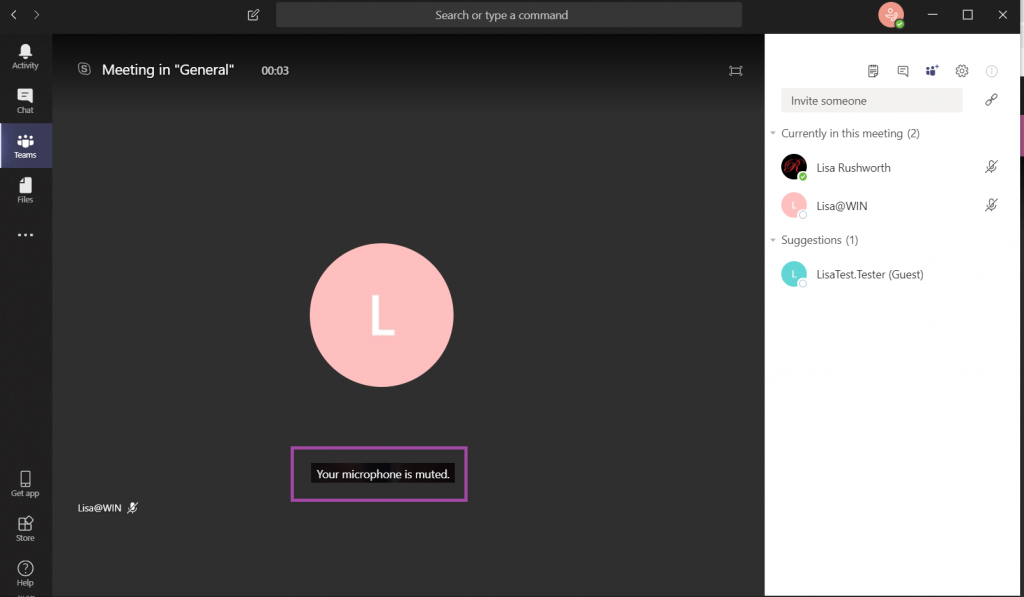
In the Teams desktop client, you will see an alert when your microphone is muted and sound is detected. Maybe you’re talking to someone who stepped into your office — just ignore the warning. If you’re trying to speak to the meeting, this is a great way to avoid having to repeat your entire thought because no one else heard it the first time!
I like keeping my fingers on the keyboard, so I like using markdown in Teams messages (had to learn it for GitHub anyway!). The fact that hitting enter sends my posts in Teams? Generally awesome. I am not, however, the most succinct person; and a long series of thoughts is difficult to read as one continuous paragraph.
And using a new paragraph can serve to highlight a sentence without resorting to big bold text.
You can use shift-enter to move to a new line. Enter will still send your message.
But Teams has a GUI-driven composition mode — just click “Format” — that allows you to easily compose multi-line messages. In this editor, enter doesn’t send the message. It just moves the cursor to the next line.
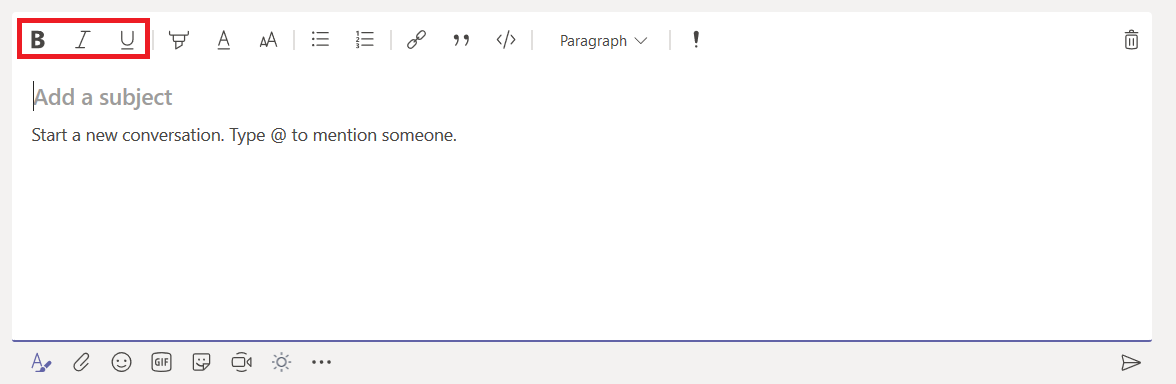
There are a lot of formatting options available too. Basic typographical emphasis can be added to your text, and anything you type into the ‘Subject’ section will automatically be large, bold text.
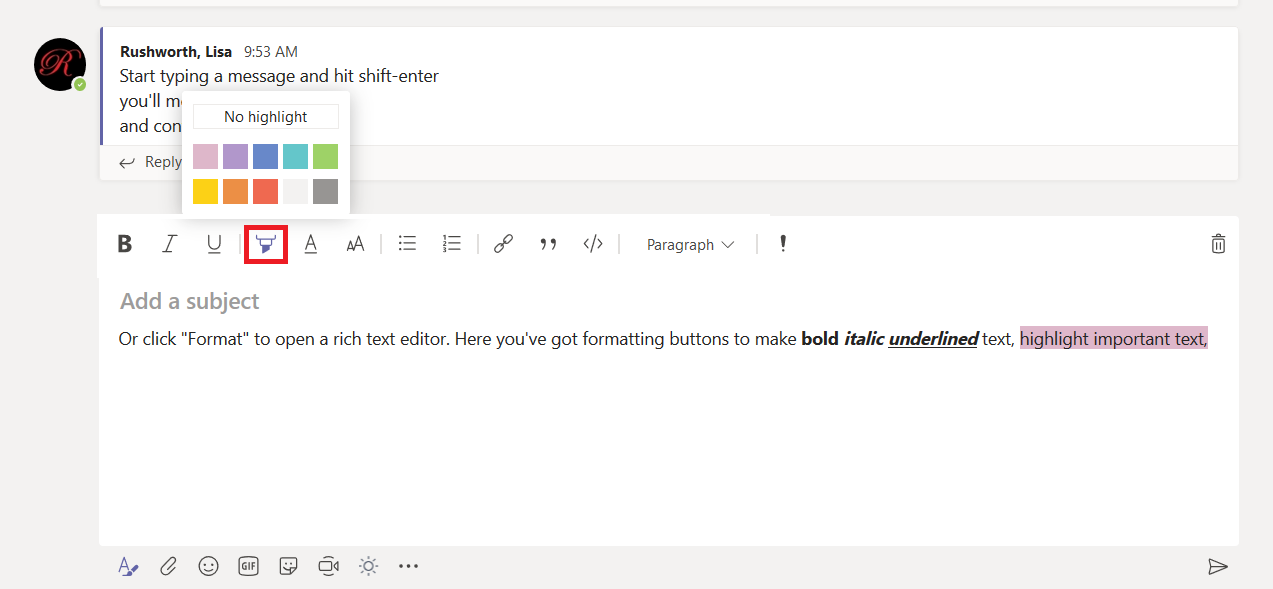
The little highlighter icon will highlight text.
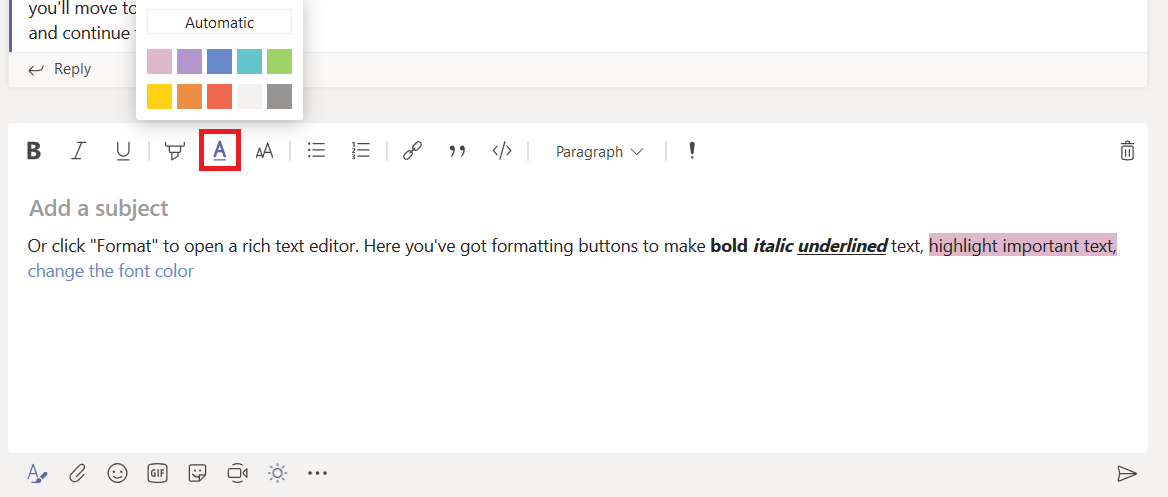
The underlined “A” changes the font color.
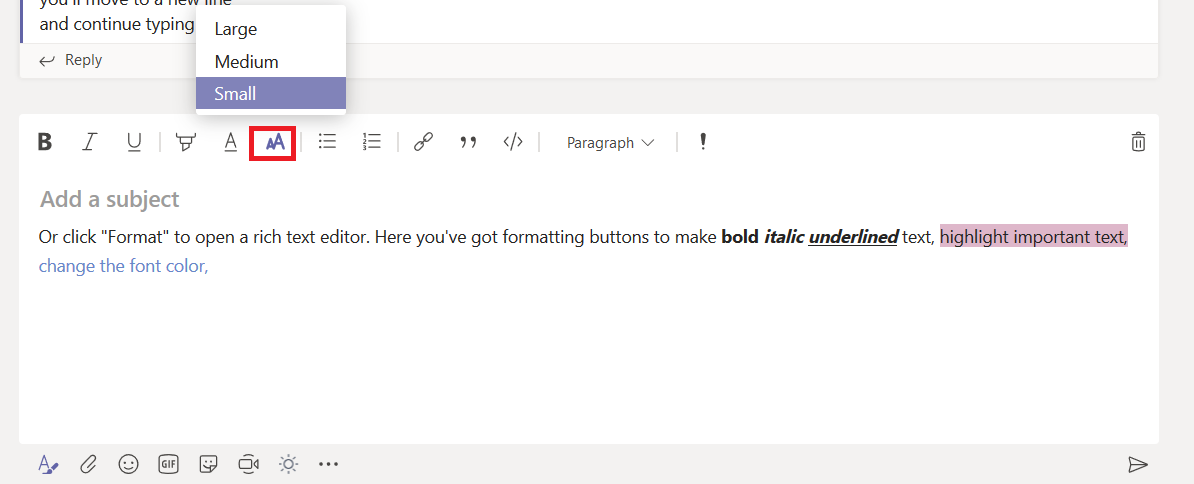
The icon with two A’s controls the text size.
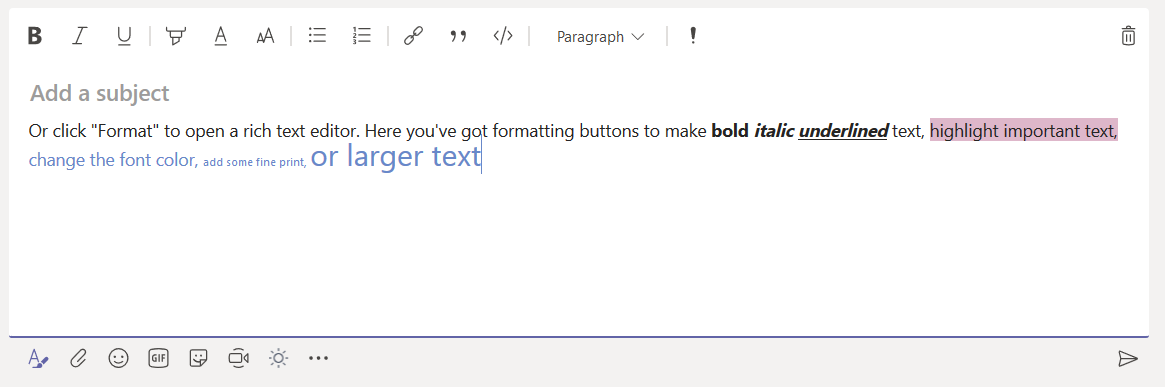
So you can add really tiny or larger text.
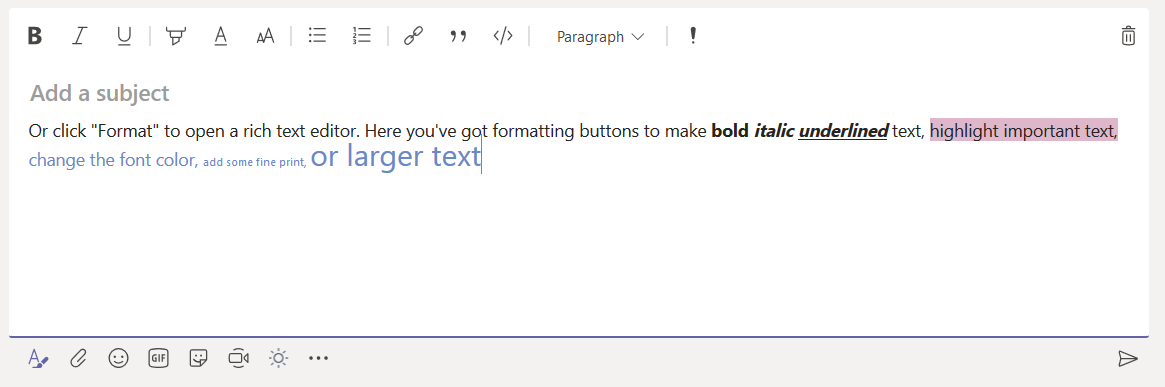
Allowing you to use smaller or larger text.
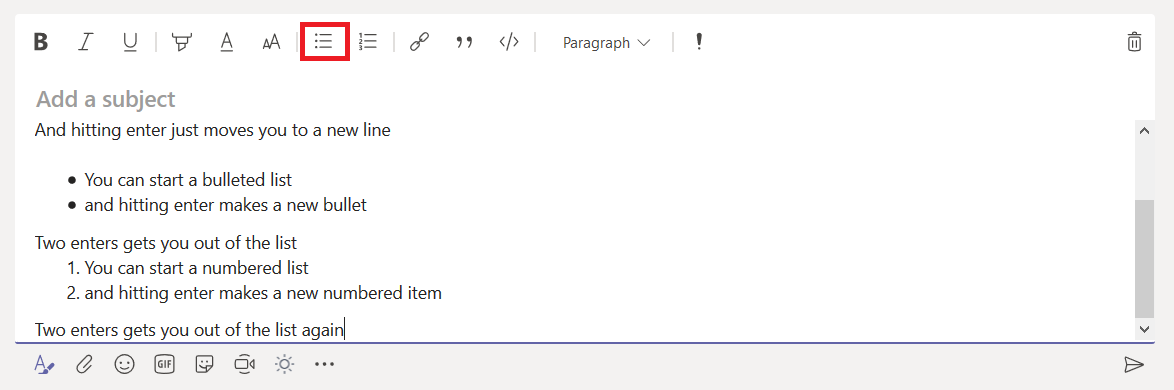
You can create a bulleted list by clicking the icon with bulleted lines (or a numbered list by clicking the one with numbered lines). To end the list, either click the icon again or hit enter twice.
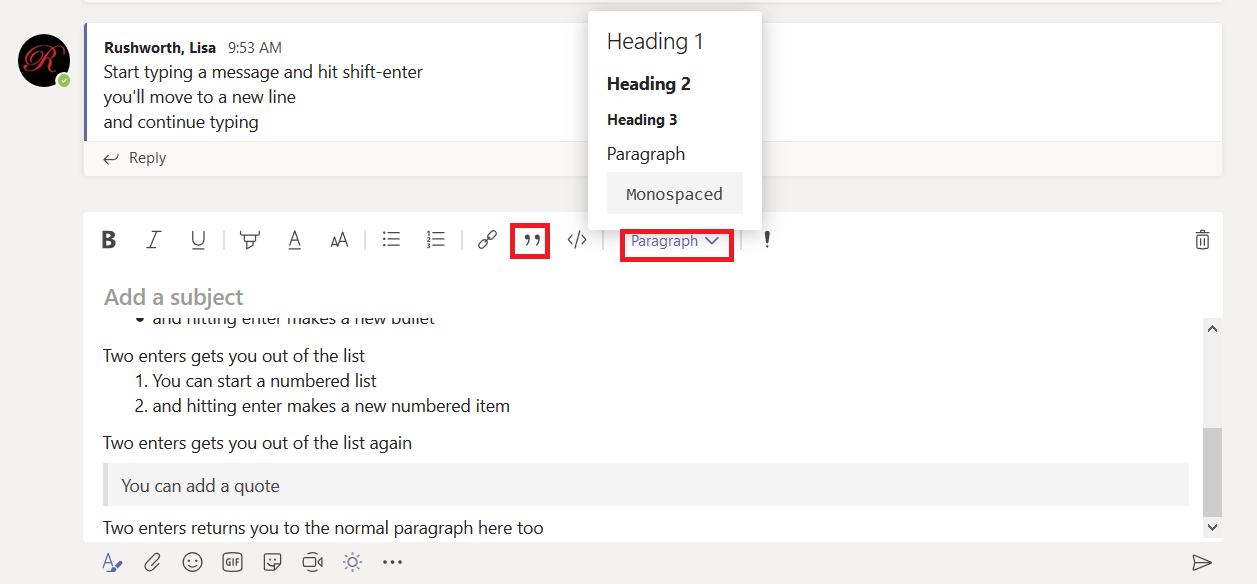
The quotation marks highlights text as a quote (two enters returns you to normal paragraph format here too), and hitting the drop-down next to “Paragraph” provides a list of pre-formatted text options.
A really cool feature for programmer-types – click the ‘code snipped’ icon.
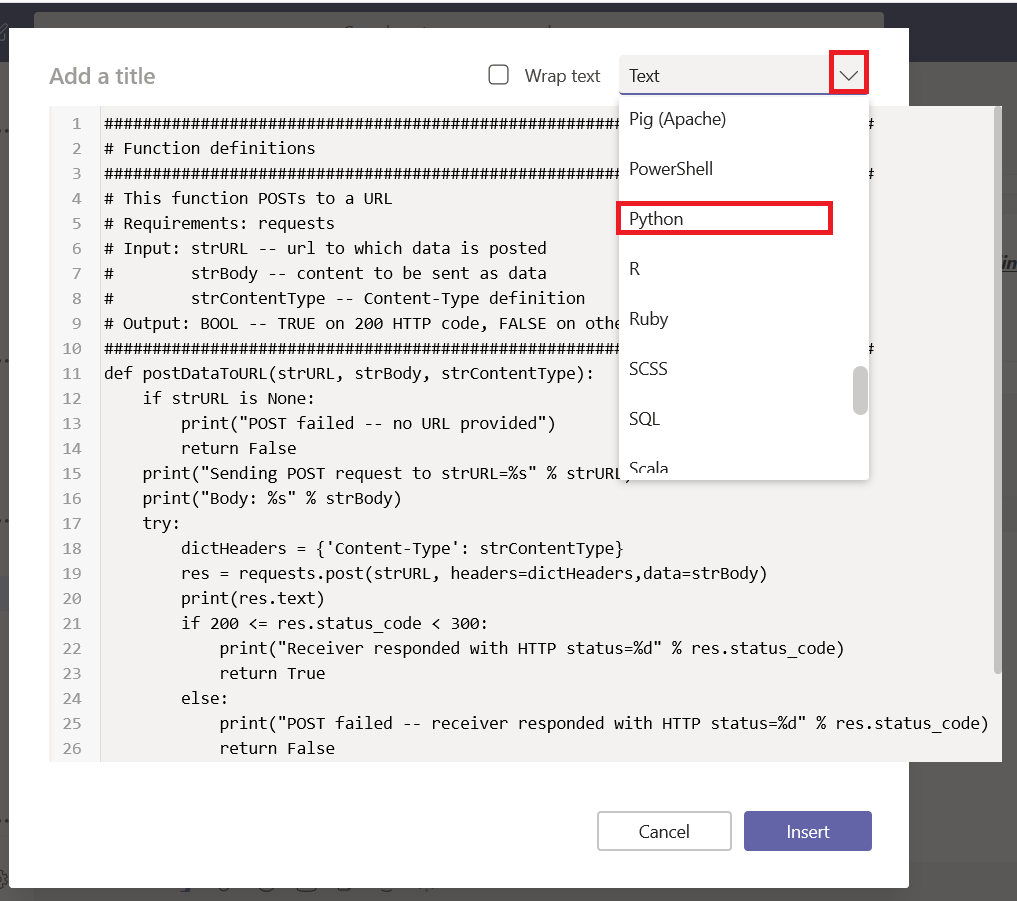
A new composition window will be displayed – click the drop-down text to “Text” and select the programming language.
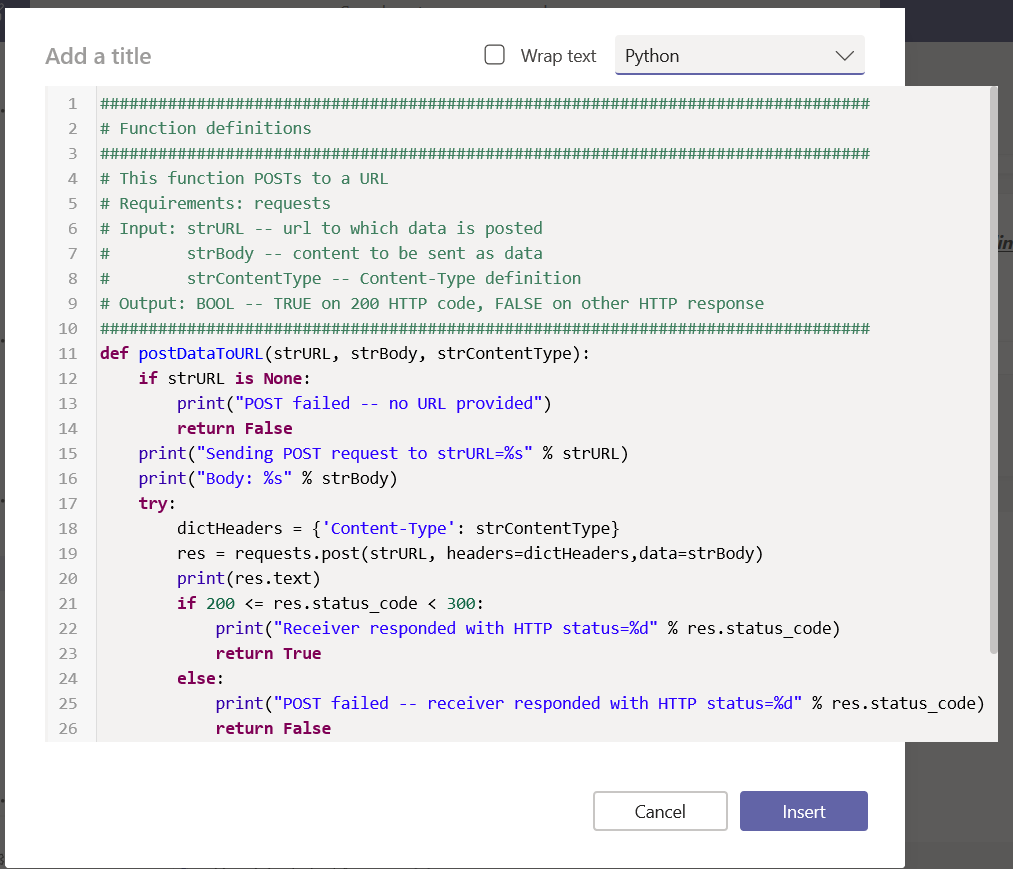
Text formatting will be applied to your code – the code I paste into Teams looks exactly like it does in my IDE.
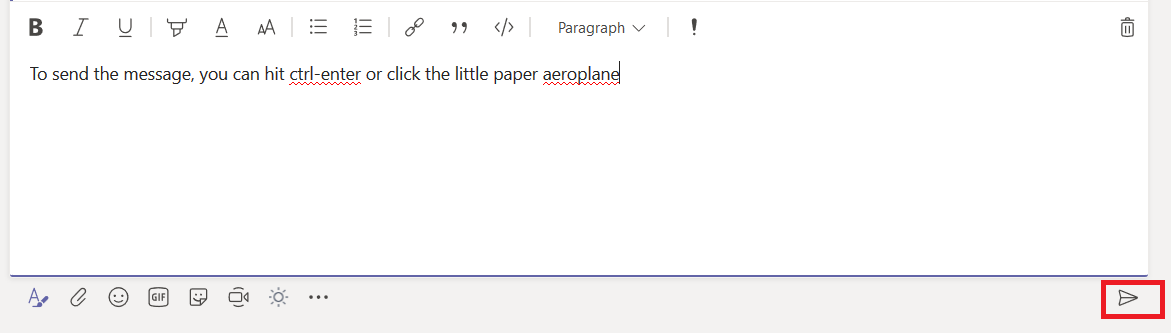
When you have finished composing your message, you can click the little paper aeroplane to send your message. Or, if you prefer keeping your hands on the keyboard, hit ctrl-enter.
There are a lot of tools we use at work that are silly
overkill in your personal life – I don’t want to open a Remedy ticket for every
squeaky hinge! But some of our tools are quite helpful away from work too – making
flyers in Word or using Excel to keep track of the softball league standings. “Is
Teams useful in my personal life” seems like a purely hypothetical question –
it’s not like I can invite the rest of the Parent Teacher Organization to join
us here in Teams (and even if I could, that’s hardly an appropriate use of
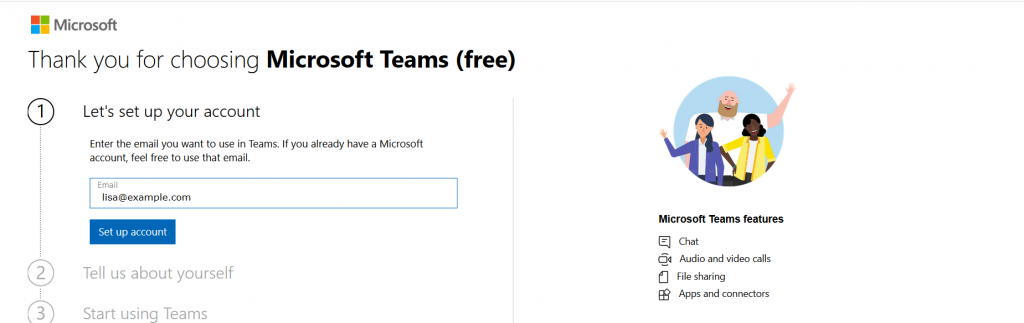
company resources!). But did you know Microsoft offers a free version of Teams?
Signing up for a free account, you don’t get access to all of the Teams features we’ve got here – you cannot schedule meetings, record meetings, there isn’t a Planner board, you don’t have access to the full suite of Office 365 applications. But you do have a Teams space, can use the integrated apps and connectors, have some file storage space, have persistent chats in channels, and can even have group audio/video calls.
Don’t use your company e-mail address to sign up – this will
need to be your personal address.
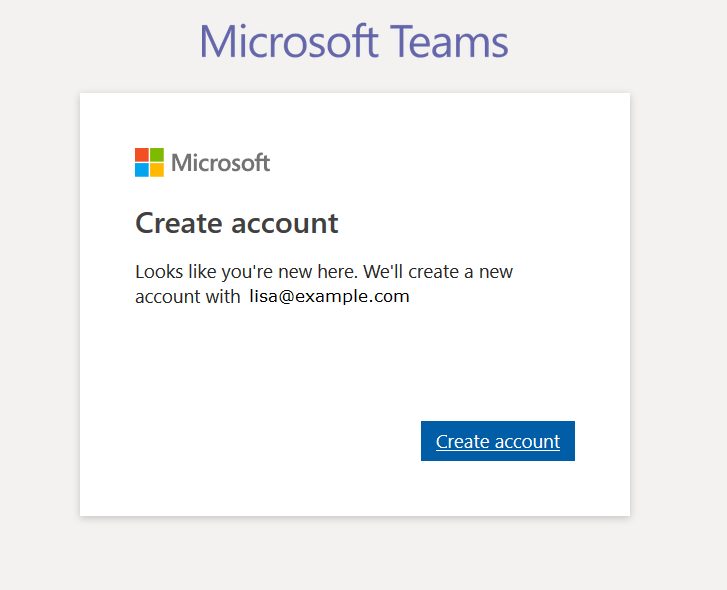
If you don’t already have a Microsoft account associated
with the e-mail address, you’ll be asked to create a new Microsoft account.
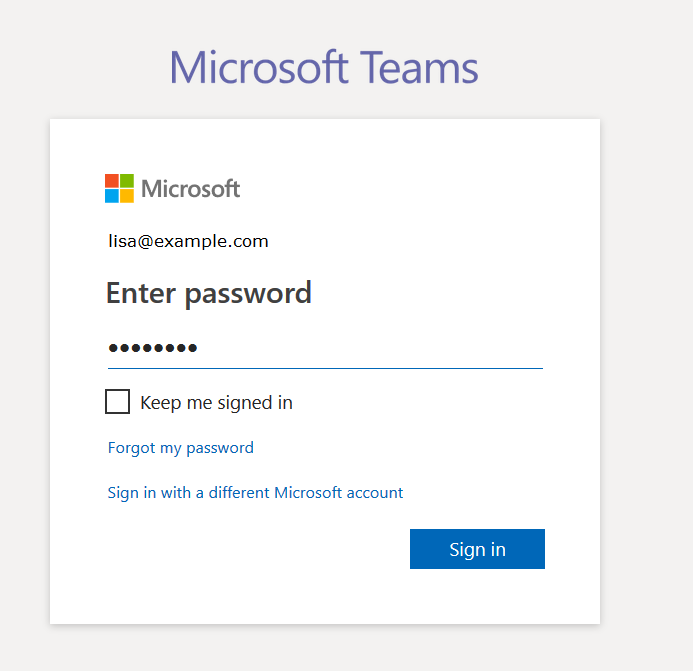
Otherwise you’ll be asked to sign in to your Microsoft
account.
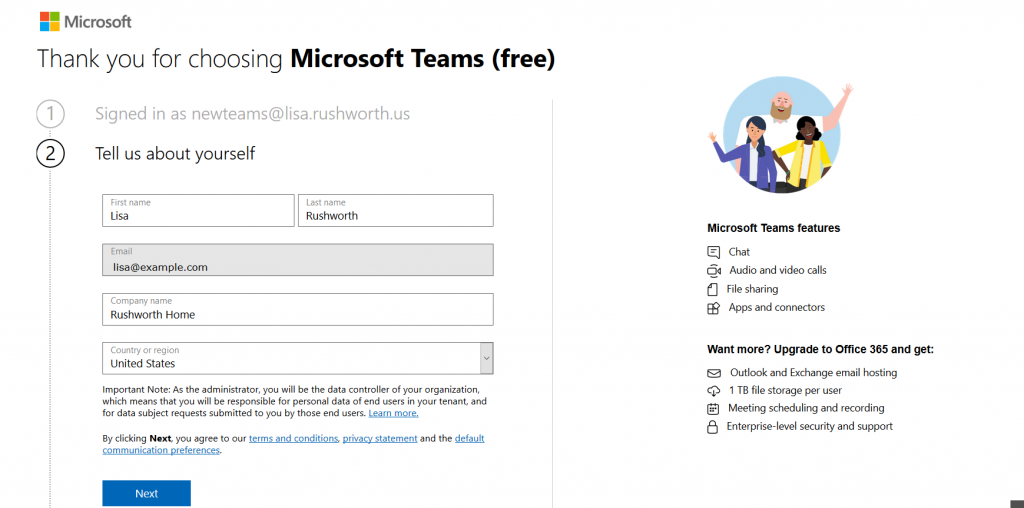
Supply your name, organization name, and country of origin.
Read the terms of use and privacy statement. Assuming your use complies with
the terms of use and the privacy policy is acceptable, click “Next”
It will take a few minutes for everything to be set up. Once
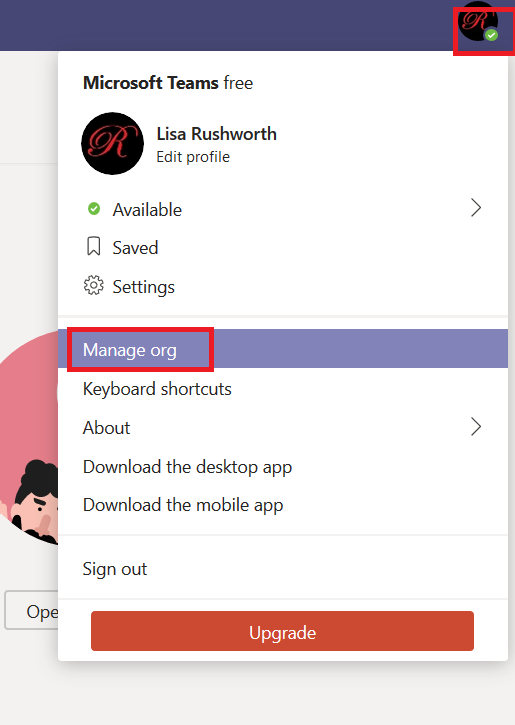
your personal Teams organization is built, you can invite others to join. Click
on your avatar in the upper right-hand corner of the screen and select “Manage
org”
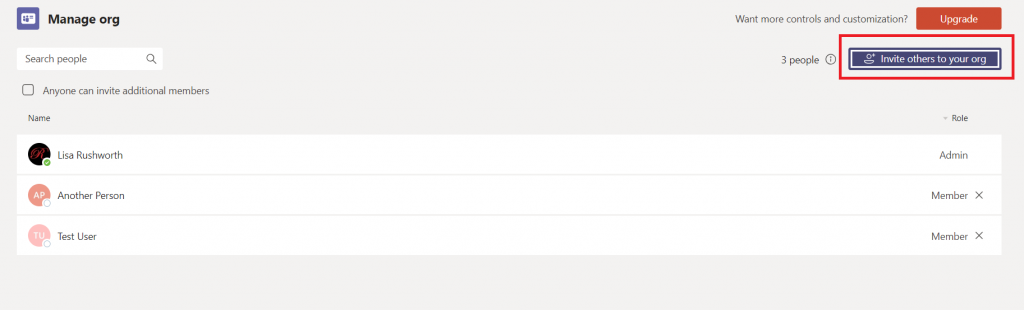
Click “Invite others to your org”
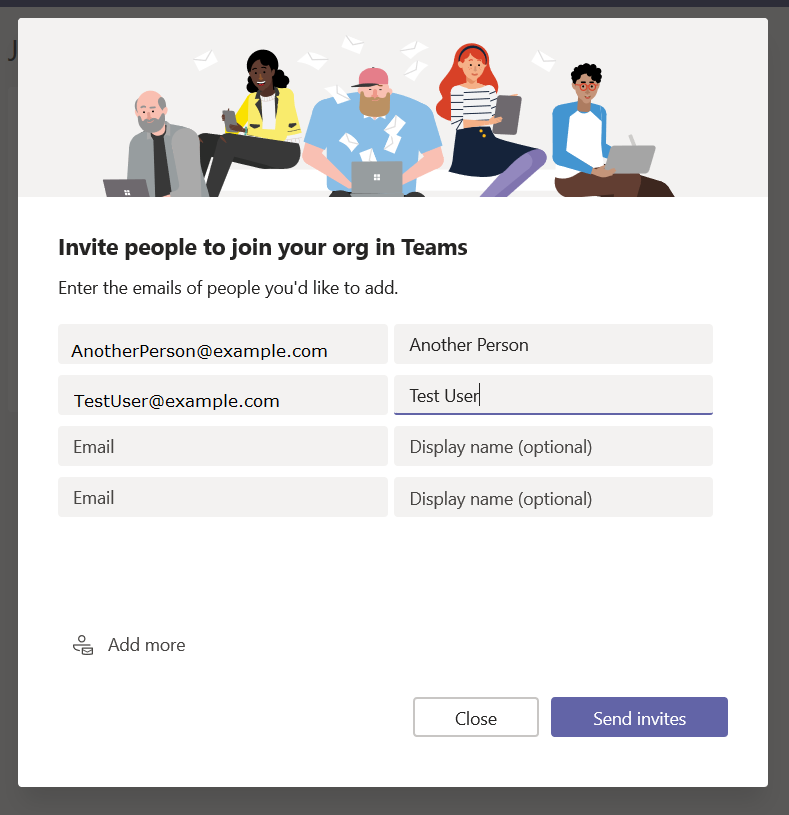
And enter their e-mail addresses
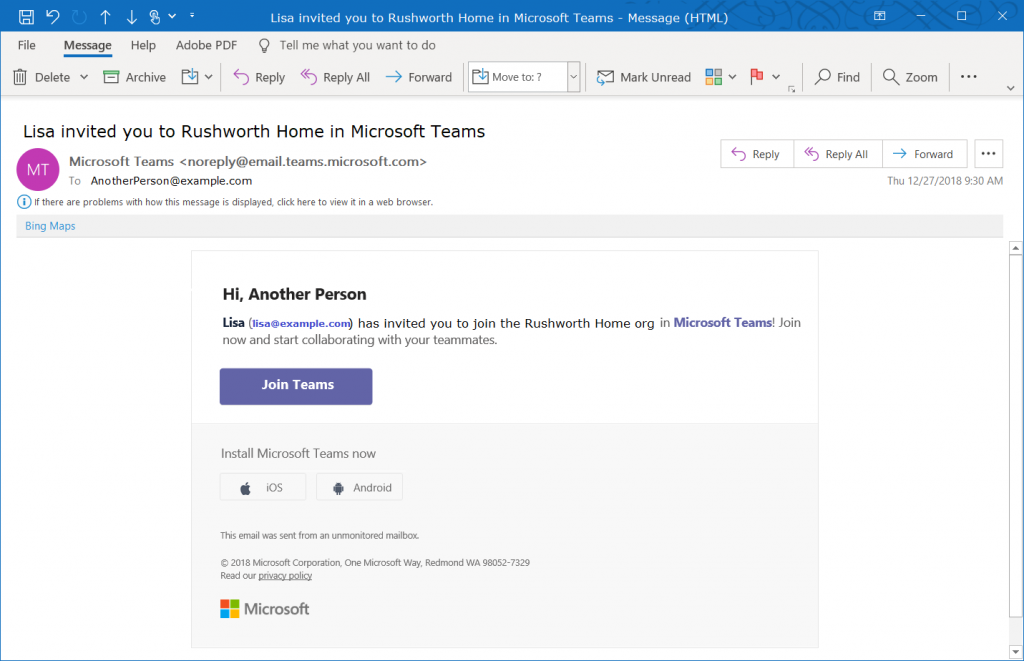
They will get an e-mail message inviting them to join your
Teams org.
You’re ready to start using Teams – add tabs to websites
your group commonly uses, set up connectors, create new channels, chat, video
calls, share files. You can even add new Teams to your organization.
Everyone added to your org is automatically able to access
the default Teams space (the one with the name of your org). Teams spaces you create can be private or public,
just like at work – but you can also select “Org-wide” which automatically
joins any newly-added individuals to the Teams space.
One drawback to retaining all of your chat and team discussion content is that there’s a LOT
of content … which makes it challenging to find a specific discussion or
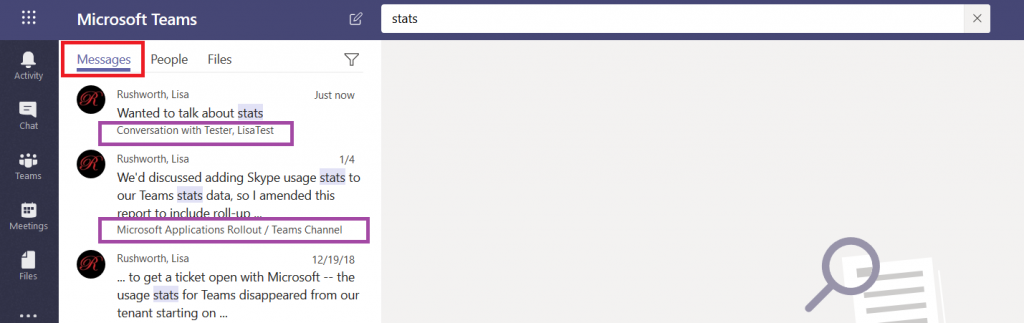
comment. Luckily, Teams data is easily searched. At the top of your Teams
application (or website), there is a long gray bar. Click in it and type a word
or phrase to begin searching. Using multiple words will find conversations
containing both words, to find a phrase place the phrase “in quotes”. Hit enter.
You’ll see messages that contain the words or phrase –
notice this includes both chat messages and channel discussions. Each search
result has a reference letting you know where the discussion is located, and
you can click on the item to switch to the chat or channel discussion.
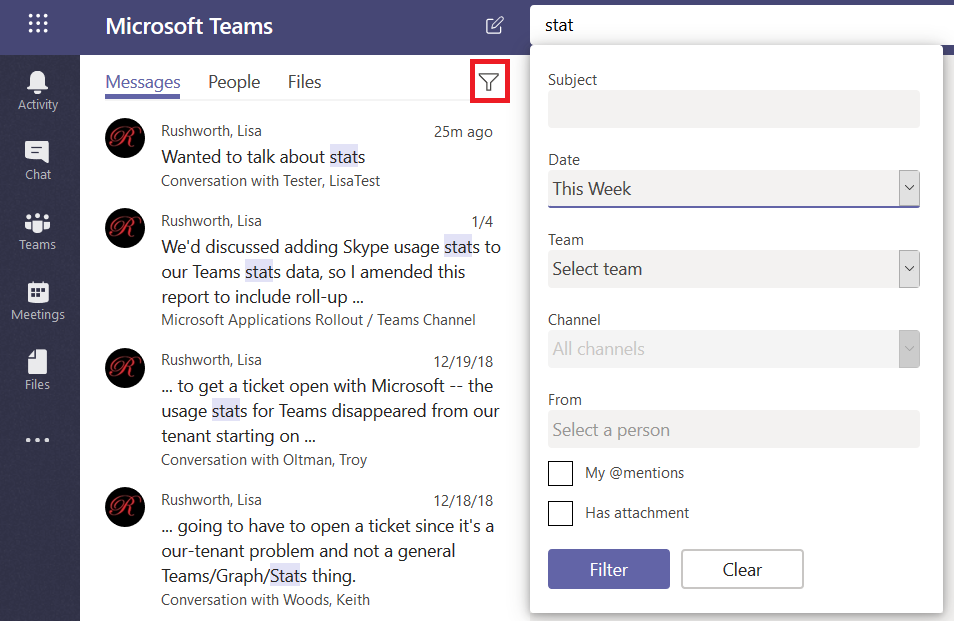
If your search returns too many results, click on the little
funnel – you can refine your search results with a filter – a specific
individual, a time frame.
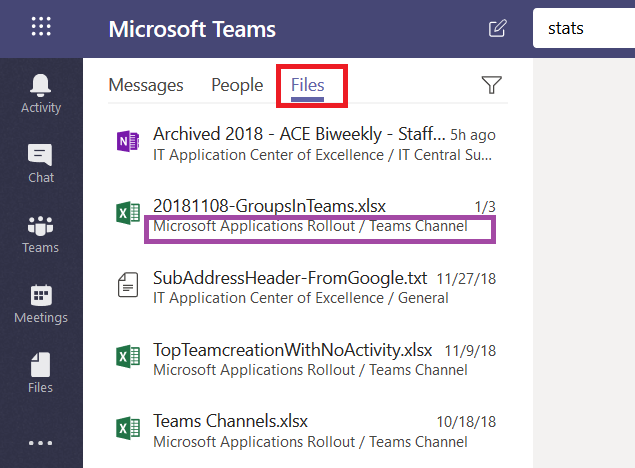
In addition to searching chat messages, you can search files.
Just click on “Files” and you’ll see files with names or content that contain
your search terms. Again, you can see where the file is located, and you can
click on the file to preview the file.
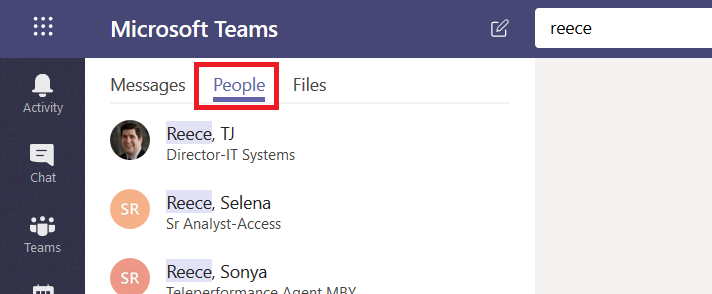
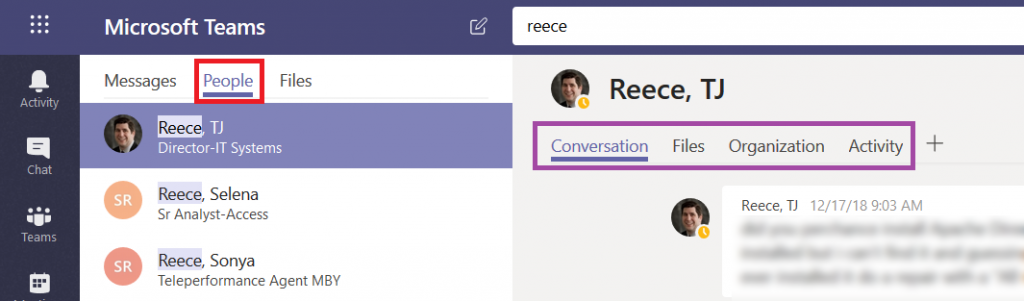
Click on “People” and you’ll find, well, people who work here.
This is a name search – you cannot search for “stats” and see people with whom you’ve
had discussions about statistics. Search for a last name, a first name, or a
name in “last, first” format.
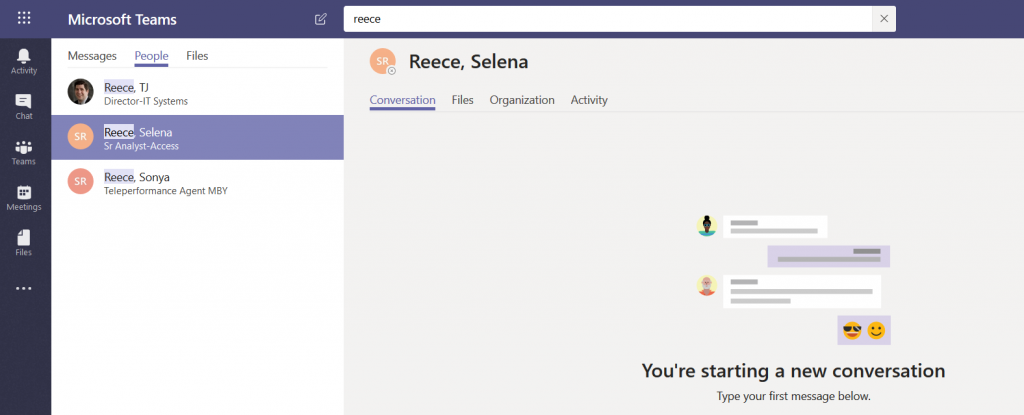
If you click on a person, you’ll see the conversations you
have had with them, as well as any shared files, an org chart for their
position in the company, and their channel posts for the past two weeks (‘Activity’).
If you haven’t chatted with them before, you can start a new
conversation too.
There are times when it is easy to tell who is speaking – there aren’t a lot of women in my group, so “the female voice” is usually me. My friend Richard is generally the only person with a New Zealand accent on any call (although someone who didn’t grow up in a Commonwealth country may have trouble distinguishing him from the guy from Australia). And after you work with someone for a while, you learn the voice and lexical nuances of colleagues. The rest of the time? I end up pausing the conversation to check who it was that volunteered to serve as my tester and clarify who is going to be getting back to me next week. In a Teams meeting, though, you can quickly tell who is speaking – and respond with a much friendlier “thanks, Jim, for offering to help”.
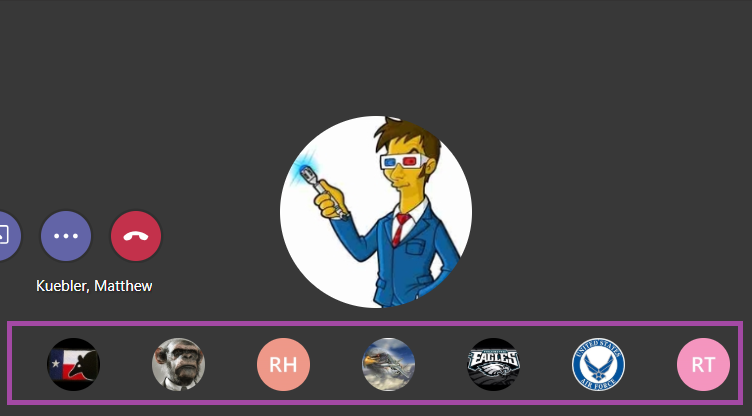
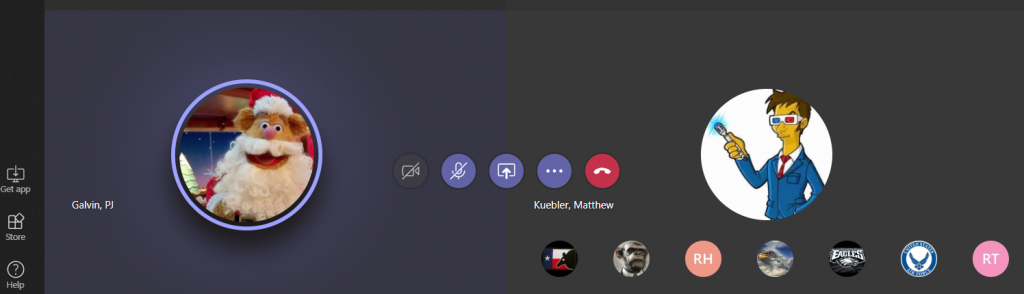
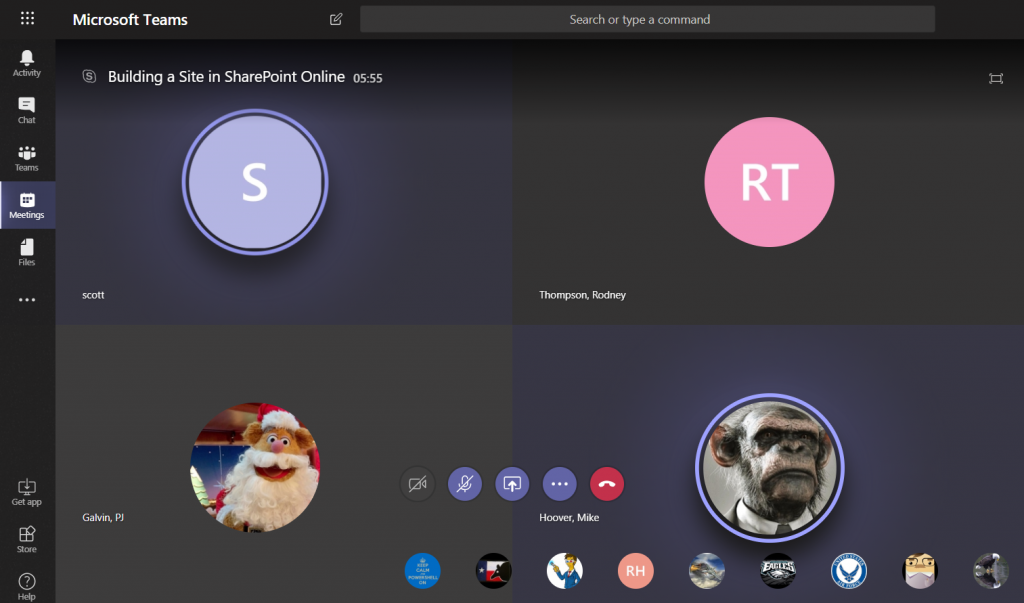
When you join a Teams meeting, you’ll see up to four large tiles
with meeting participants. If there are more than five participants (you don’t show
up on your own view!), the remaining people will be represented by smaller
images in the lower right-hand corner of the screen.
When someone is speaking, their tile will be highlighted in
a purply-blue and a brighter highlight circumscribes their image.
The four large tiles represent the most recent speakers, so
you will notice who is in these four tiles change throughout the call. And, yeah,
it’s possible for more than one person to be talking at a time – you’ll have
multiple highlighted tiles.
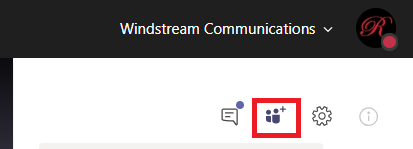
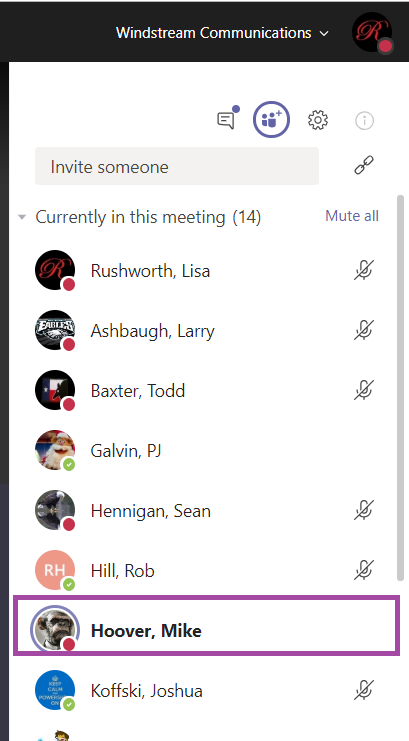
There is another place to view who is speaking. On the right-hand
column, click to enter the participant pane.
The current speaker will be bolded.
Bonus Features: Sometimes
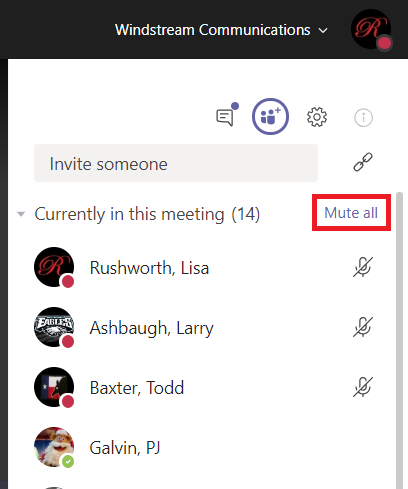
I’ll start a large call and have trouble getting everyone’s attention to start the call. In the participant pane,
you can click “Mute all” to mute all
participants. N.B. Any participant can do this – so don’t test it in the
middle of a real discussion!
And just like meetings through the PSTN system or other web-meeting
platforms, you’ll get the occasional person typing without hitting mute. Or speaking
to someone who popped into their office. Or experiencing feedback on the connection.
In Teams, it’s easier to identify who
is causing a disruption – they are going to be highlighted as speaking.
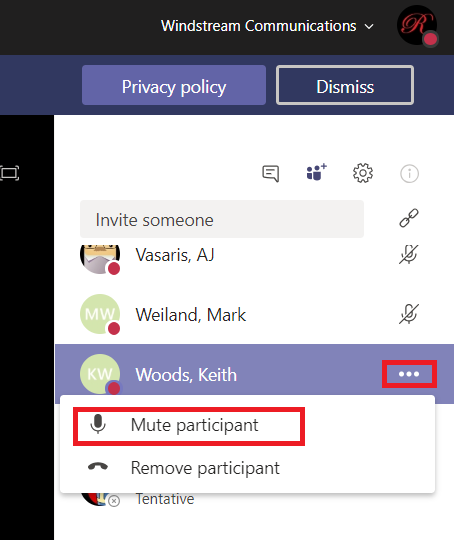
Once you’ve identified the source of the noise, click the
not-quite-a-hamburger-button next to their name and select “Mute participant”.