Spend enough time reading temperature probe data, and you get to where you just know 23 is room temperature, and 82 is going to cook the CPU. And sure you can type “23 C in F” into Google and get the Fahrenheit equivalent, but that’s hardly efficient with a long list of values. You could look up the formula and have Excel perform the computation, too. But did you know Excel can convert between many units of measure without you finding the conversion formula?
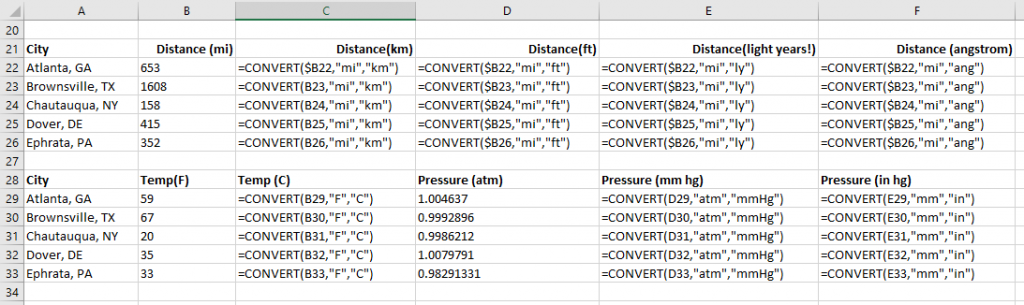
Excel’s CONVERT() function allows you to display values in whatever unit is most familiar to you. Usage is convert(CellToConvert,OriginalUnits,DesiredUnits)
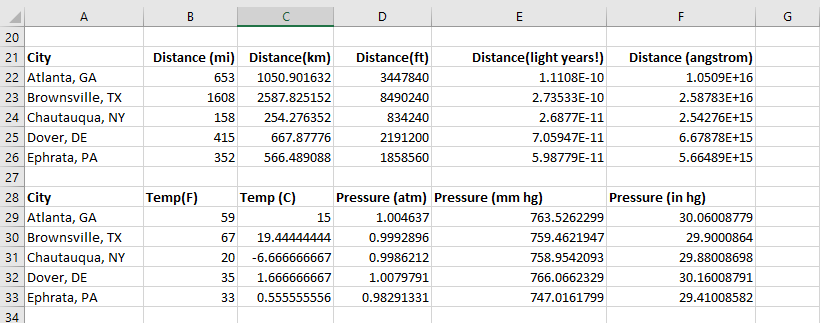
Voila – the values in your chosen unit.
If you use the units of measure in column headers, you can use the header cells as the current and desired unit of measure values — remember to use the $ anchors, otherwise copying your formula will not yield the right answer!
When you wanted to use an image as the background for a document, you often needed an image editor to lighten the picture – the image was too dark for dark text to be legible but too light for white text. Or you’d compose your PowerPoint slide with the image in one frame and the text in another.
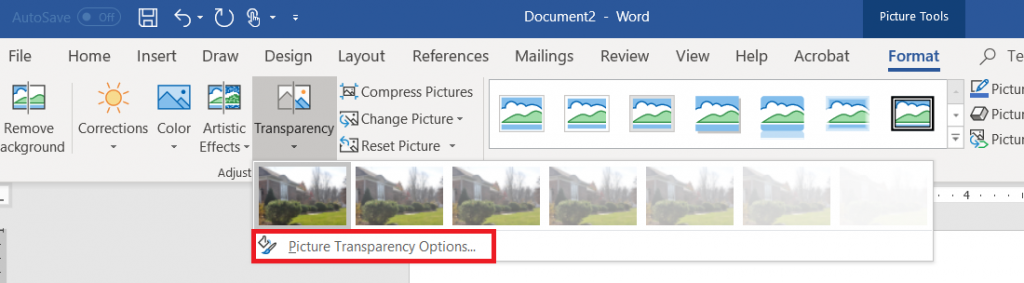
Did you know, in the latest Office 365 Update, Microsoft added a feature that allows you to create faded background images within Word, PowerPoint, Excel, and Outlook? Within one of these programs, insert a picture into your work. Select the image. From the Picture Tools Format ribbon, click on Transparency
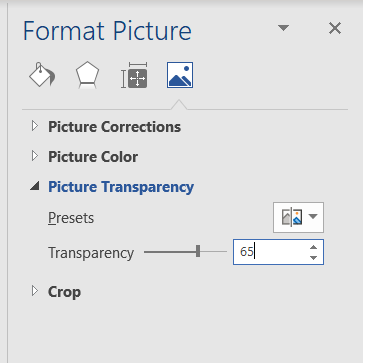
You can select one of the pre-set transparency levels or click on “Picture Transparency Options …” for finer control of the transparency level.
Move the slider (or type a number) to adjust the transparency level – 100% is invisible, 0% is the original image.
Voila – you’ve got a background image and legible text.
There are a lot of other image effects available – the vignette is the “soft edge oval” from the “Picture Styles” section of the ribbon bar. Many of the effects I’ve traditionally used Photoshop or Gimp to apply are also available in the “Adjust” section, so click around and check it out!
Using charts and images, data visualization, clearly and
efficiently communicates data. But when you’re trying to visualize statistics
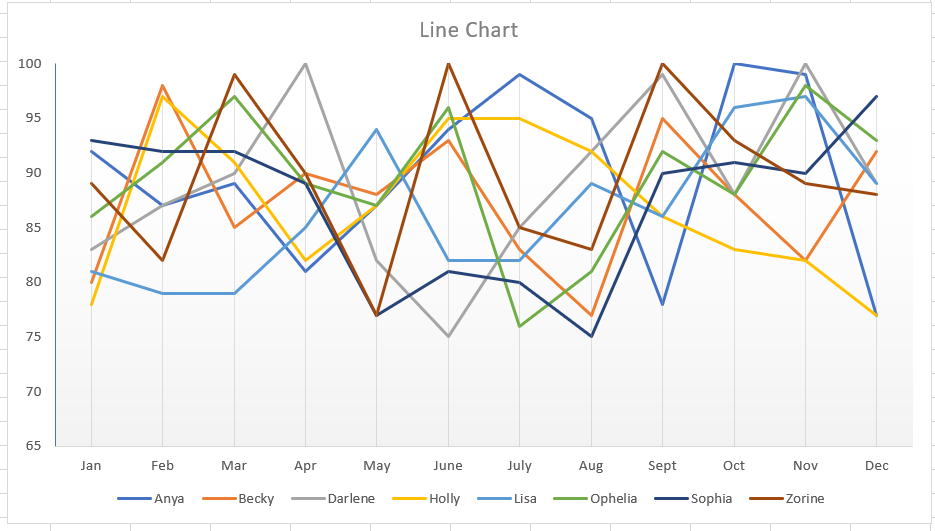
for several items, your chart can be anything but clear and hardly efficient to read. In this example, I’ve
created a line chart depicting the monthly score for eight different people.
While you can pick out obvious high or low performance, there’s not a whole lot
of information being communicated here.
Did you know Excel can create mini-charts, known as “sparklines”
to visualize individual statistics and
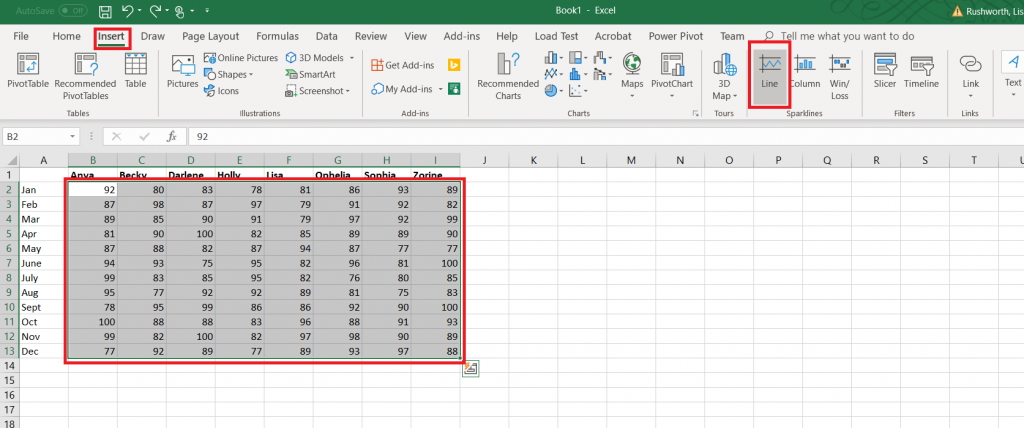
compare statistics across items? Select the data that you want to compare. From
the Insert ribbon bar, look for the “Sparklines” section. I am going to use a “line”
style sparkline.
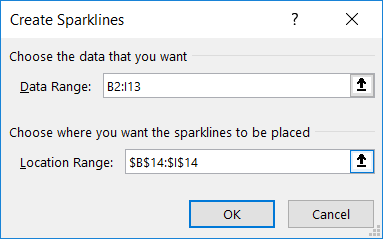
The data range will be selected. Enter the range where you
want the mini-charts to display – this can be the row under your data or the
column next to your data, or it can be some completely different location.
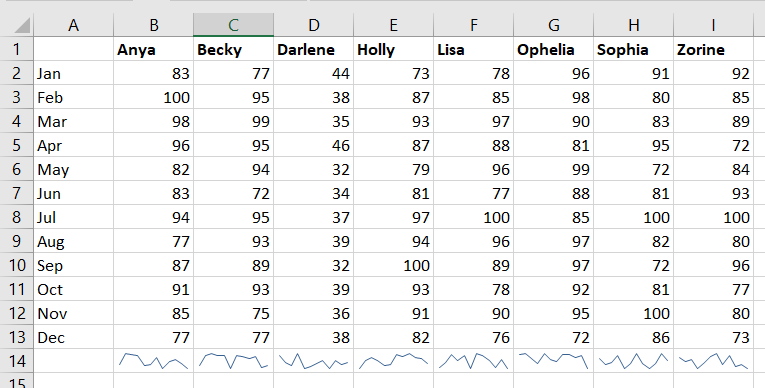
By default, the y-axis range for each mini-chart depends on the values of the data contained in the chart. This makes comparing the charts a little difficult – the scale is different. In the example below, scores in the 30’s don’t look different than scores in the 80’s.
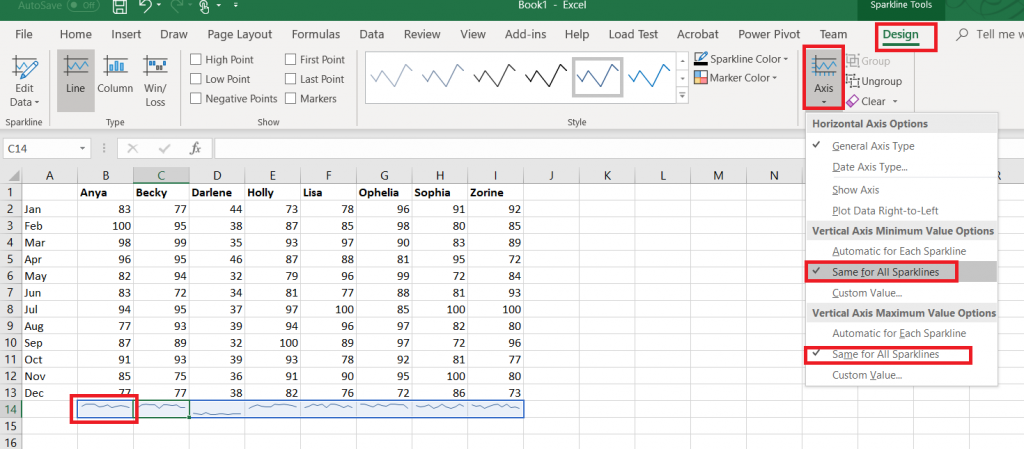
Click on one of the mini-charts, and a “Design” tab will appear on the ribbon bar. Select it. Under “Axis”, change the minimum and maximum values to “Same for All Sparklines”.
Now you can see how individual performance varied as well as
compare individuals.
Blank values will show up as broken lines in the
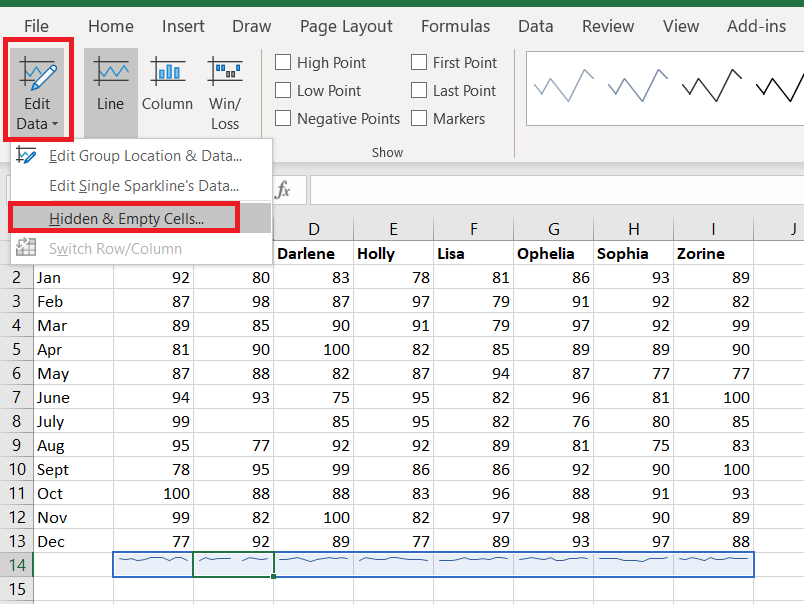
mini-charts. If you do not want to display a gap, return to the “Design” ribbon
bar and select “Edit data”. Select “Hidden & Empty Cells”
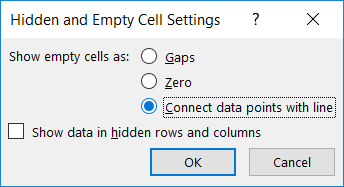
Select what you want instead of gaps – you can treat null
values as zero or have a line drawn between the values on either side of the
missing value.