Category: 3D Printing

Cat Chess – Kitten Queen

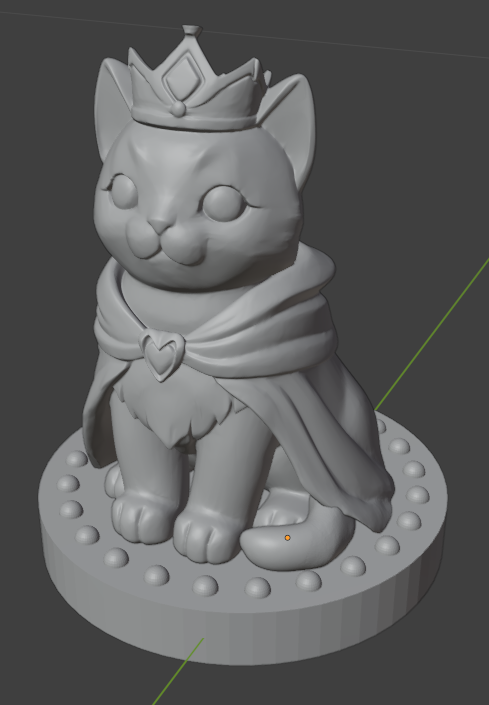
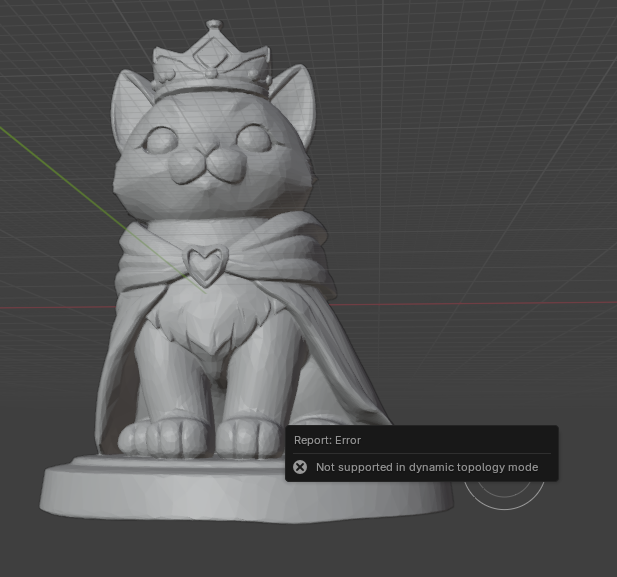
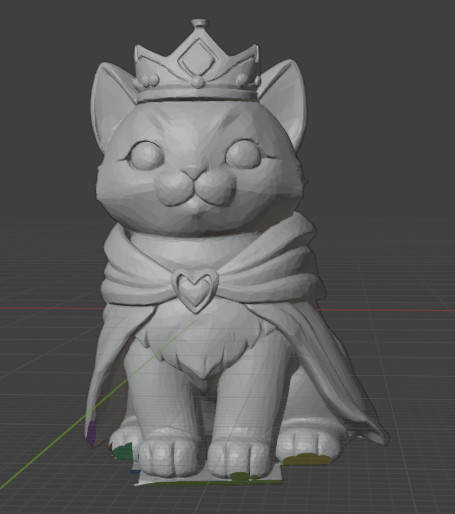
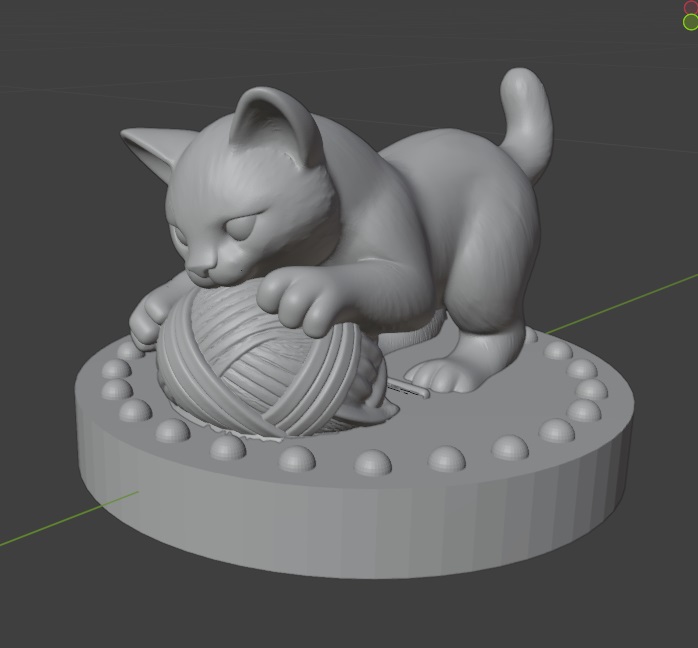
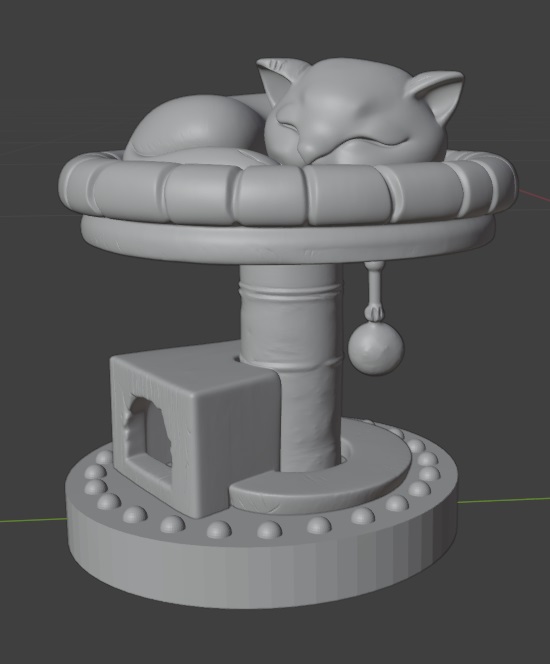
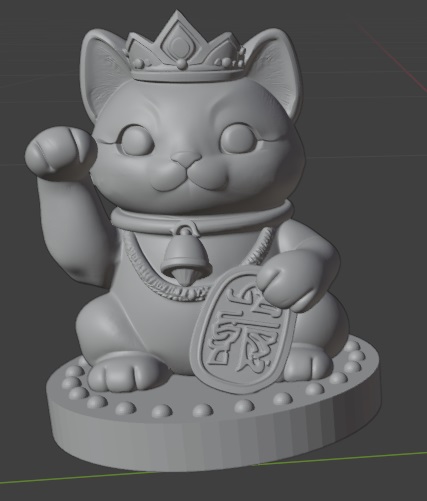
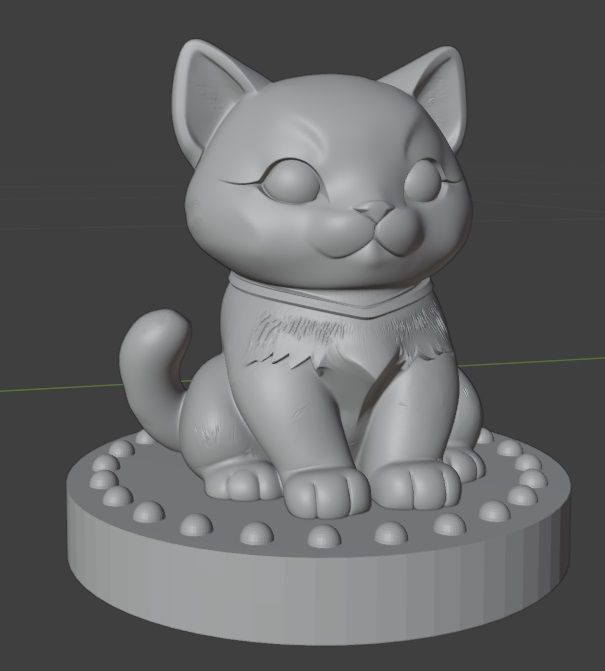
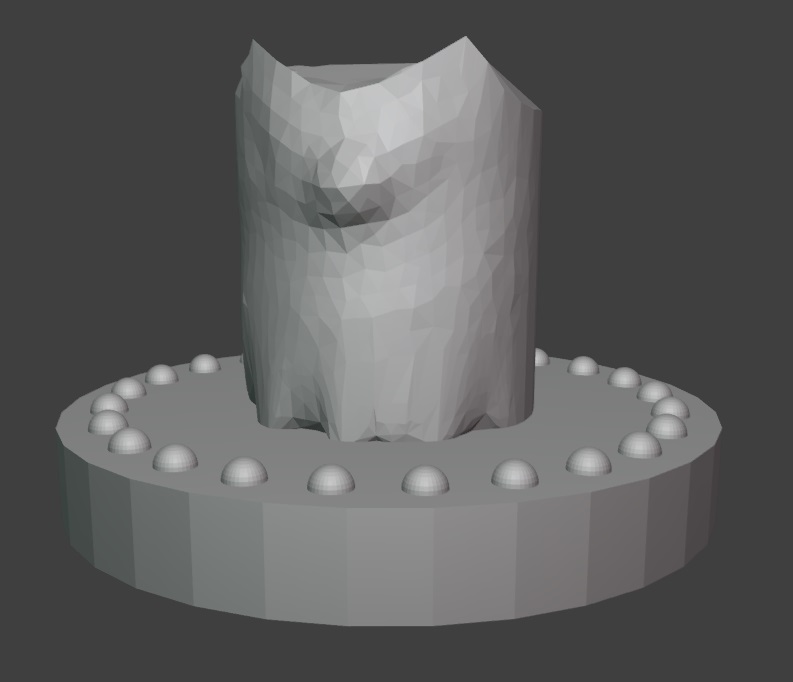
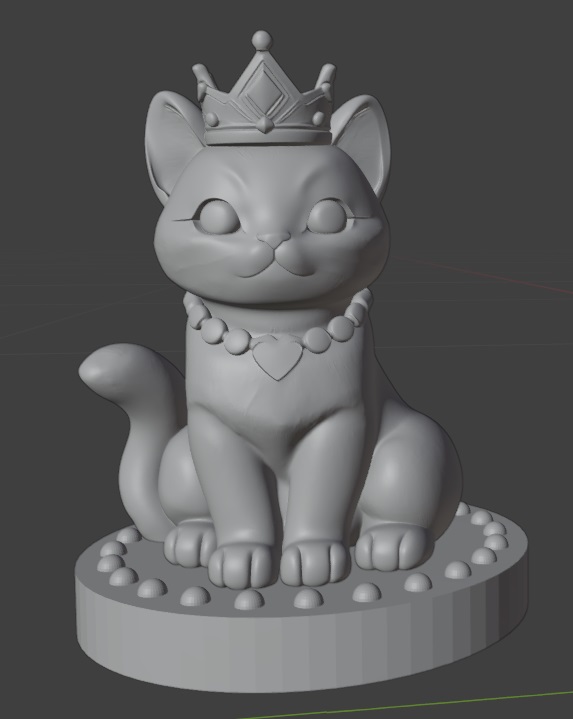
I copied the pawn and grew her a little. Added a crown and necklace … voila, a kitten queen! I’ve been using the smooth brush a lot to even out the surface. I’m curious how these will 3d print because the model is made up of a lot of little triangles.
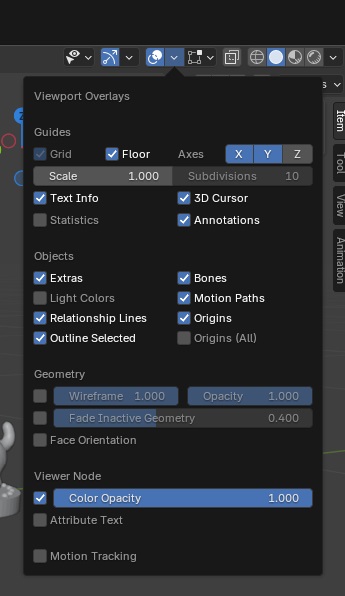
421,132 to be exact. As I’ve discovered, you can configure the viewport to add data in overlays. Statistics is a nice one!
Blender – Python Script to Build Bases for Chess Pieces

Originally, I wanted to sculpt the entire thing in python, but it appears that the programmatic interface only works in defined shapes. I guess I could construct millions of tiny triangles? polygons? to create cats … but I suspect that using the actual sculpting tools is going to be the easier approach.

However, the base of each piece seems perfect for a script. This will ensure consistency in my chess pieces (and let me play around with the Python approach since I think it is really cool that Blender takes Python code!). I am making decorated cylinders onto which my figures will sit.

import bpy
import bmesh
import math

INCH = 0.0254  # meters per inch

params = {
    # Cylinder base size
    "base_diameter_in": 1.75,
    "base_height_in": 0.25,

    # Wreath hemispheres
    "hemi_count": 24,
    "hemi_radius_in": 0.05,
    "hemi_offset_in": 0.125,  # inward from base outer edge

    # Collection
    "collection_name": "Chess_Base",
}

def inch(v): 
    return v * INCH

def ensure_collection(name):
    if name in bpy.data.collections:
        return bpy.data.collections[name]
    col = bpy.data.collections.new(name)
    bpy.context.scene.collection.children.link(col)
    return col

COL = ensure_collection(params["collection_name"])

def build_base():
    base_r = inch(params["base_diameter_in"]) / 2.0
    base_h = inch(params["base_height_in"])
    # Place the base so its top is at Z = base_h (sitting on Z=0 plane)
    bpy.ops.mesh.primitive_cylinder_add(radius=base_r, depth=base_h, location=(0, 0, base_h / 2.0))
    base = bpy.context.active_object
    base.name = "Chess_Base_Cylinder"
    # Link explicitly to target collection (in case active collection differs)
    if base.name not in COL.objects:
        COL.objects.link(base)
    return base

def make_hemisphere_mesh(radius_m, segments=32, rings=16):
    bpy.ops.mesh.primitive_uv_sphere_add(radius=radius_m, segments=segments, ring_count=rings, location=(0, 0, 0))
    sph = bpy.context.active_object
    bm = bmesh.new()
    bm.from_mesh(sph.data)
    # Keep the top hemisphere: delete vertices with z < 0 (tolerance to avoid floating error)
    to_delete = [v for v in bm.verts if v.co.z < -1e-7]
    if to_delete:
        bmesh.ops.delete(bm, geom=to_delete, context='VERTS')
    bm.to_mesh(sph.data)
    bm.free()
    hemi_mesh = sph.data
    hemi_mesh.name = "Hemisphere_Mesh"
    # Remove the temporary object but keep the mesh datablock
    bpy.data.objects.remove(sph, do_unlink=True)
    return hemi_mesh

def build_wreath_hemispheres(hemi_mesh):
    base_r = inch(params["base_diameter_in"]) / 2.0
    base_h = inch(params["base_height_in"])
    ring_r = base_r - inch(params["hemi_offset_in"])
    count = params["hemi_count"]

    hemis = []
    for i in range(count):
        theta = (i / count) * 2.0 * math.pi
        cx = ring_r * math.cos(theta)
        cy = ring_r * math.sin(theta)
        obj = bpy.data.objects.new(f"Hemi_{i:02d}", hemi_mesh)
        # Flat face of hemisphere (its equator at local Z=0) sits on base top (Z=base_h)
        obj.location = (cx, cy, base_h)
        COL.objects.link(obj)
        hemis.append(obj)

    # Join hemispheres into a single object
    bpy.ops.object.select_all(action='DESELECT')
    for o in hemis:
        o.select_set(True)
    bpy.context.view_layer.objects.active = hemis[0]
    bpy.ops.object.join()
    wreath = bpy.context.active_object
    wreath.name = "Wreath_Hemispheres"
    return wreath

def build_all():
    base = build_base()
    hemi_mesh = make_hemisphere_mesh(inch(params["hemi_radius_in"]))
    wreath = build_wreath_hemispheres(hemi_mesh)
    print("Built:", base.name, wreath.name)

build_all()

Family Blender Challenge – Chess Set

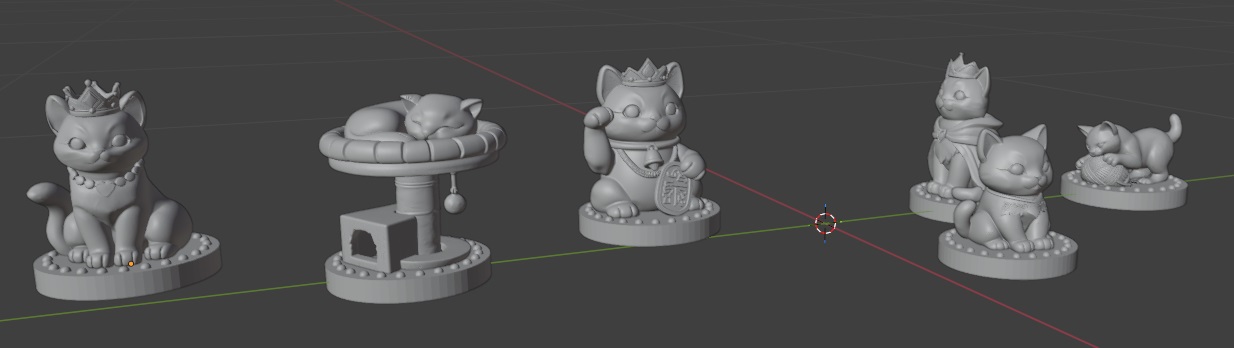
Scott and I were learning enough Blender to modify a mount for the Ranger, and Anya had randomly borrowed a “Blender for Dummies” book from the library. As we’ve been learning more about Blender, I came across a video series showing how to create chess pieces as a way of learning the program. Which has sparked the family blender challenge — everyone is creating their own chess set. Anya spent some of her holiday break translating one of her wood carvings into a model to use as the pawns … now Scott and I are behind! I think I’ll make a cat themed set … I just need to learn how to sculpt in Blender since the python API interface only seems to create basic shapes.

Blender – Applying The Scale

We were playing with Blender this evening to modify a 3d model to mount the mirror on our Ranger — it reminds me a lot of learning vim where there’s just a lot of hidden “type this character and it does magic stuff“. Which, ironically, I love vim because of this … however I’ve also been using vi and vim since 1994. So I know the random character to type. Blender … not so much yet.

Oddity of the day — after scaling an object, you need take an additional step otherwise it’s not really scaled and measurements show up with unexpected values. To reset the scale:

Hit Ctrl + A
Select Scale in Object Mode to apply the current dimensions as the new scale of 1


They call this applying the scale. Which … I expected it did when I entered the scale factor and stuff changed size on the screen. But now I know!

Ender 6

We finally have the Ender 6 printing – you need to keep the fan on any time the hot end is heating (or it clogs up), low retraction (2mm), and adjust the z offset as it prints the skirt (or brim, we’ve switched to using a brim to ensure adhesion)

We’re 3D Printing!

There are things that are evidently too self-evident to bear mentioning — I’m certain I do it too. A friend of mine who taught computer programming used the example of telling a student how to get to the Bursar’s office v/s writing computer code to do it. You don’t have to tell the person to leave the room, go down the hall, down the stairs, and outside. There’s a lot of instruction humans will infer. A computer, on the other hand, will be completely stymied if you omit a few steps.

Well, 3D printing seems to be loaded with so-obvious-I-won’t-mention-it stuff. A lot of getting started guides and troubleshooting guides are out there in Internet-land — level the bed at the temp you’ll be printing, temperature guides for different materials, how to identify leveling or flow problems in prints. But to get started … there are a few vital pieces of info that seem to fall into the “so obvious it isn’t worth mentioning” category.

Loading the WanHao Duplicator i3 Plus / Monoprice Maker Select IIIp v2, you have to depress the little lever to load filament. Also — even though you’ve got a brand new 3D printer, they’ve run a test print on it. Nice way to confirm everything works … but it also means that brand new device you just pulled out of the box … has a clogged nozzle and needs to be cleaned.

Filament doesn’t start flowing perfectly immediately — add a couple lines of ‘skirt’ to your print. It does nothing to prevent warping or increase bed adhesion, but it makes a small loop that you don’t subsequently need to detach from your printout. If there are a couple of blobs before the extruder really gets going on that little loop? No big.

With three leveling screws, you are never going to get it perfect. Each little tweak throws all the others out of whack (three points define a plane, four over-define it). Get the bed level to the point you’re making little teeny tiny adjustments and you’re good.

And in Cura – all of the good settings you need to tweak up to get adhesion (primarily temperatures, speed, and initial layer height) are hidden. The “Print Setup” section defaults to “Recommended”. Click “Custom” and you’ll see settings for all of the stuff people recommend to sort poor adhesion, poor print quality, etc.


And some gcode to wipe off the extruder tip before printing because I want to be able to find it again:

M107 ;turn off fan
G28 X0 Y0 Z0 ; home X, Y and Z axis end-stops
G29 ; initiate z-probing
G0 X0 Y0 F9000 ; Go to front
G0 Z0.15 ; Drop to bed
G92 E0 ; zero the extruded length
G1 X40 E25 F500 ; Extrude 25mm of filament in a 4cm line
G92 E0 ; zero the extruded length
G1 E-1 F500 ; Retract a little
G1 X80 F4000 ; Quickly wipe away from the filament line
G1 Z0.3 ; Raise and begin printing.