Well, probably not *right this second*. But we’ve all heard — err, not heard — someone else do it. We’ve all done it too. The Teams desktop client helps you avoid saying “Sorry, I was talking on mute”.
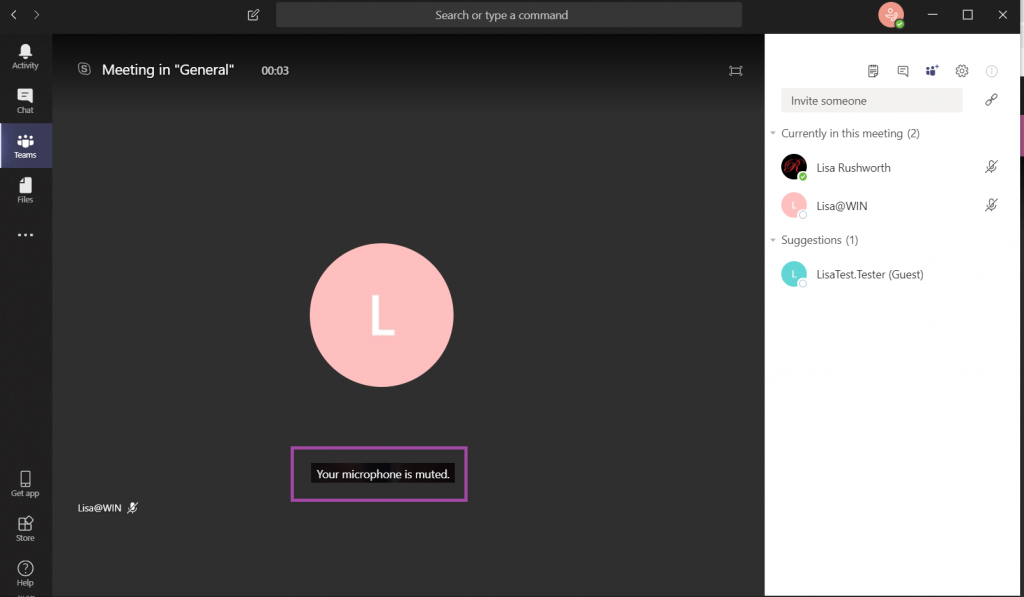
In the Teams desktop client, you will see an alert when your microphone is muted and sound is detected. Maybe you’re talking to someone who stepped into your office — just ignore the warning. If you’re trying to speak to the meeting, this is a great way to avoid having to repeat your entire thought because no one else heard it the first time!
While hosting a bot on the Azure network allows you to use pre-built solutions or develop a bot without purchasing dedicated hardware, the bots we’ve deployed thus far do not have access to internally-housed data. And program execution can be slow (expensive, or a combination of the two) depending on the chosen pricing plan. But you can build an Azure bot that is essentially a proxy to a self-hosted bot.
This means you can host the bot on your private network (it needs to be accessible from the Azure subnets) and access internal resources from your bot code. Obviously, there are security implications to making private data available via an Azure bot – you might want to implement user authentication to verify the bot user’s identity, and I wouldn’t send someone their current credit card information over a bot even with authentication.
How to Communicate with a Self-hosted Bot from Azure:
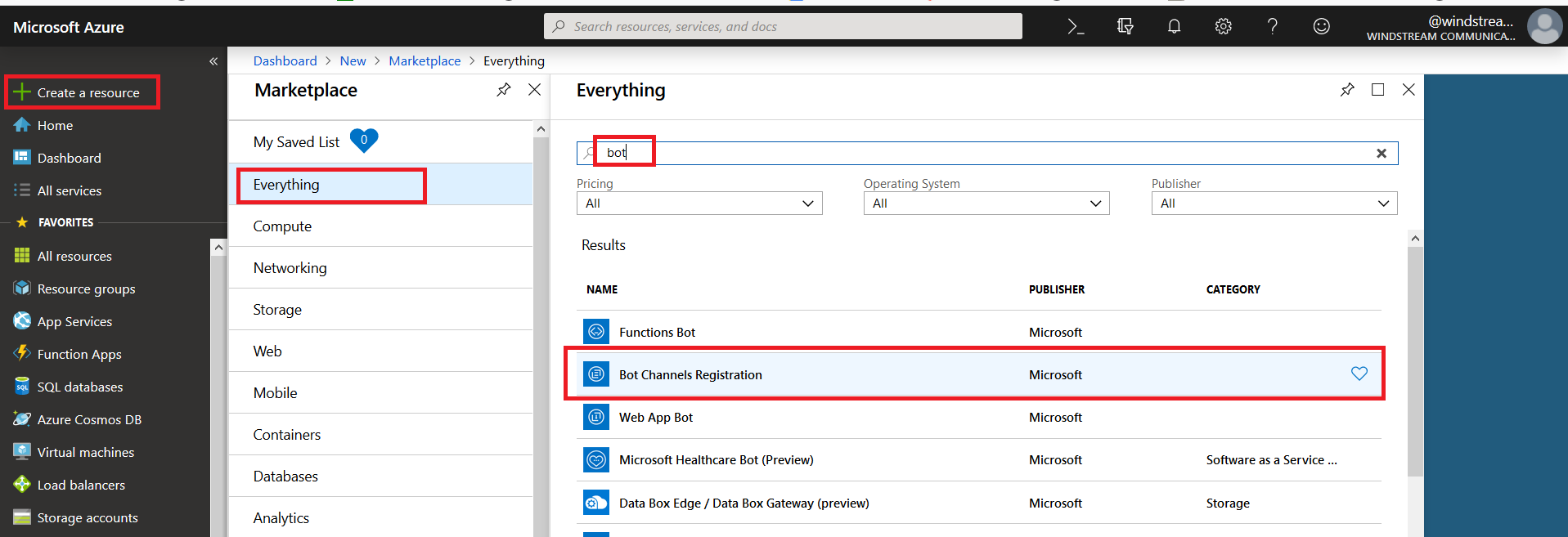
Register an Azure bot. From https://portal.azure.com, select “Create a resource”. Search for “bot” and select “Bot Channels Registration”.
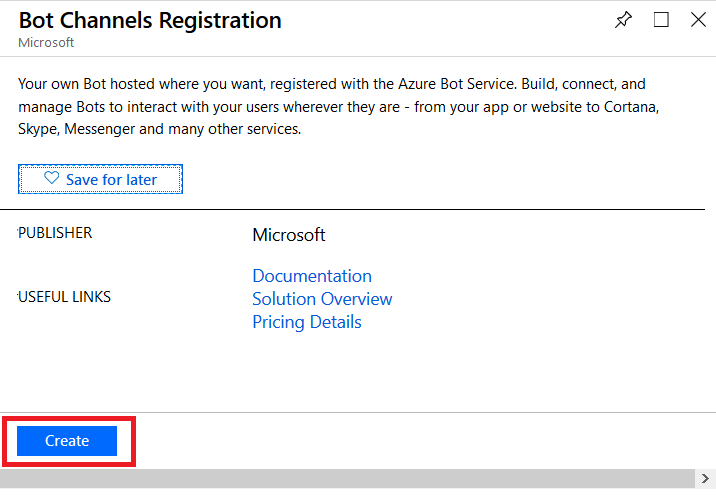
On the pane which flies out to the right, click “Create” (if you will be deploying multiple self-hosted bots to Azure, click the little heart so you can find this item on “My Saved List” when creating a new resource).
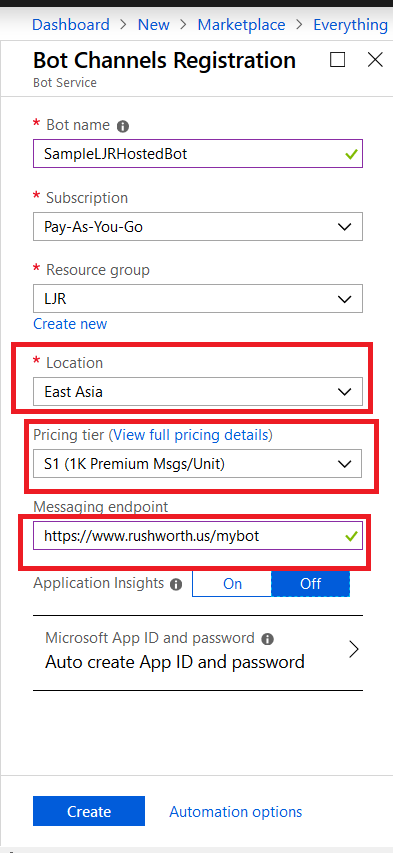
Provide a unique name for your Azure bot. If you have not yet created a resource group, you will need to create one. Make sure the hosting location is reasonable for your user base – East Asia doesn’t make sense for something used on the East coast of the US!
Select the pricing tier you want – I use F0 (free) which allows unlimited messages in standard channels (Teams, Skype, Cortana) and 10,000 messages sent/received in premium channels (direct user interaction … which I specifically don’t want in this case). Then provide the endpoint URL to interact with your locally hosted bot.
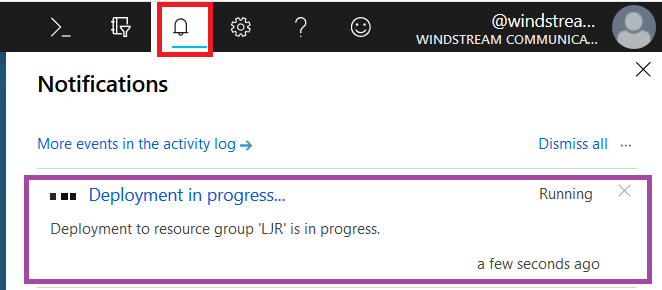
Click “Create” and Azure will begin deploying your new resource. You can click the “Notifications” bell icon in the upper right-hand portion of the page to view deployment progress.
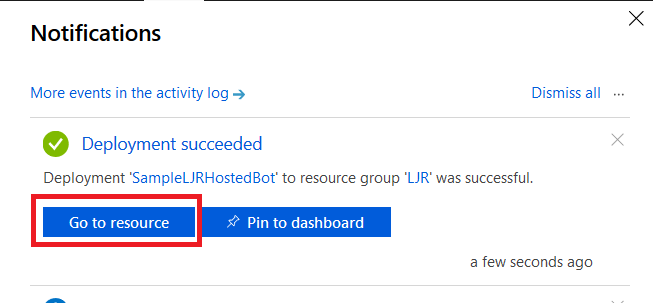
When deployment completes, click “Go to resource” to finish configuring your Azure bot.
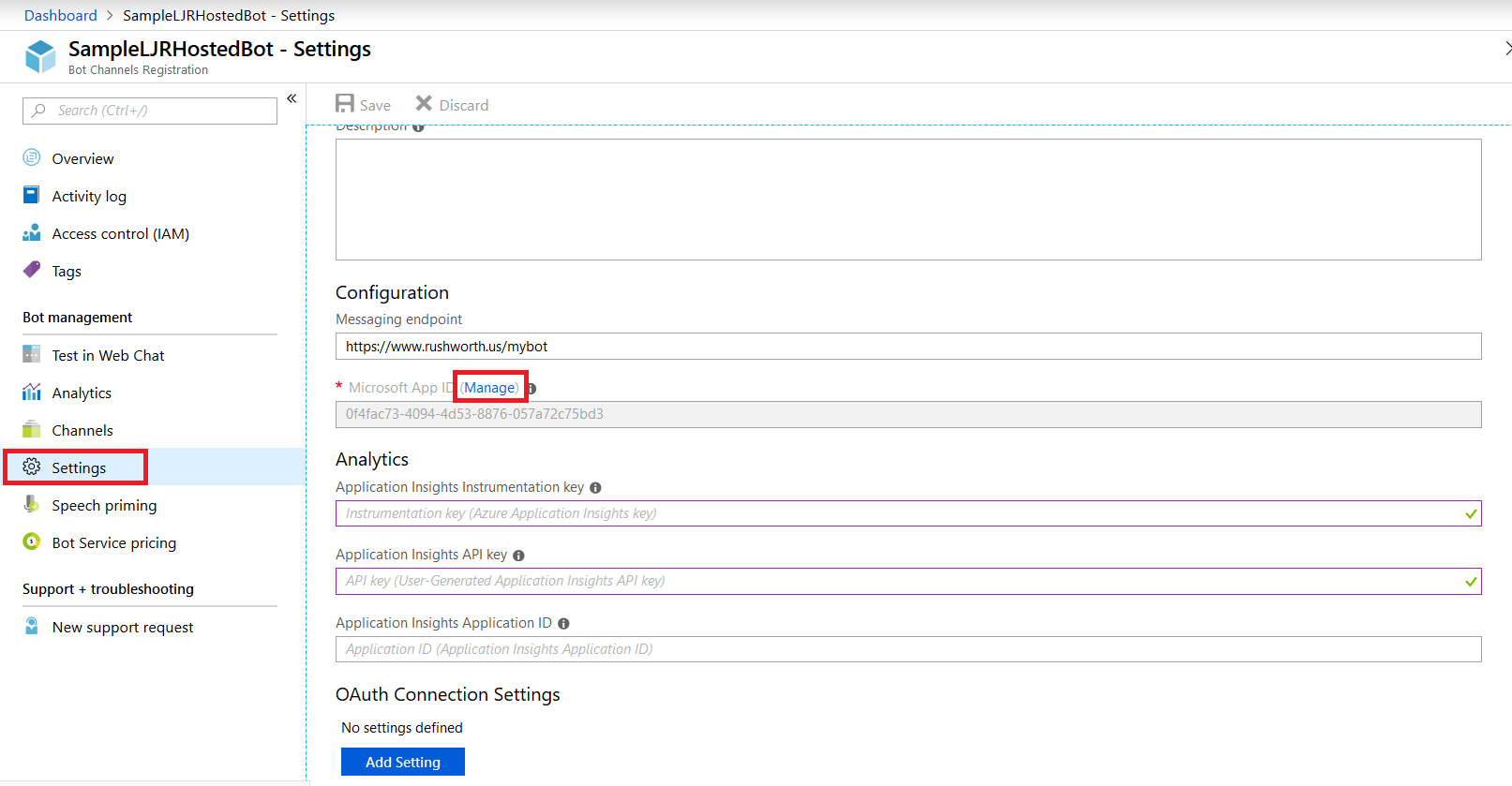
Select “Settings” from the left-hand navigation menu, then find the application ID. Click “Manage”.
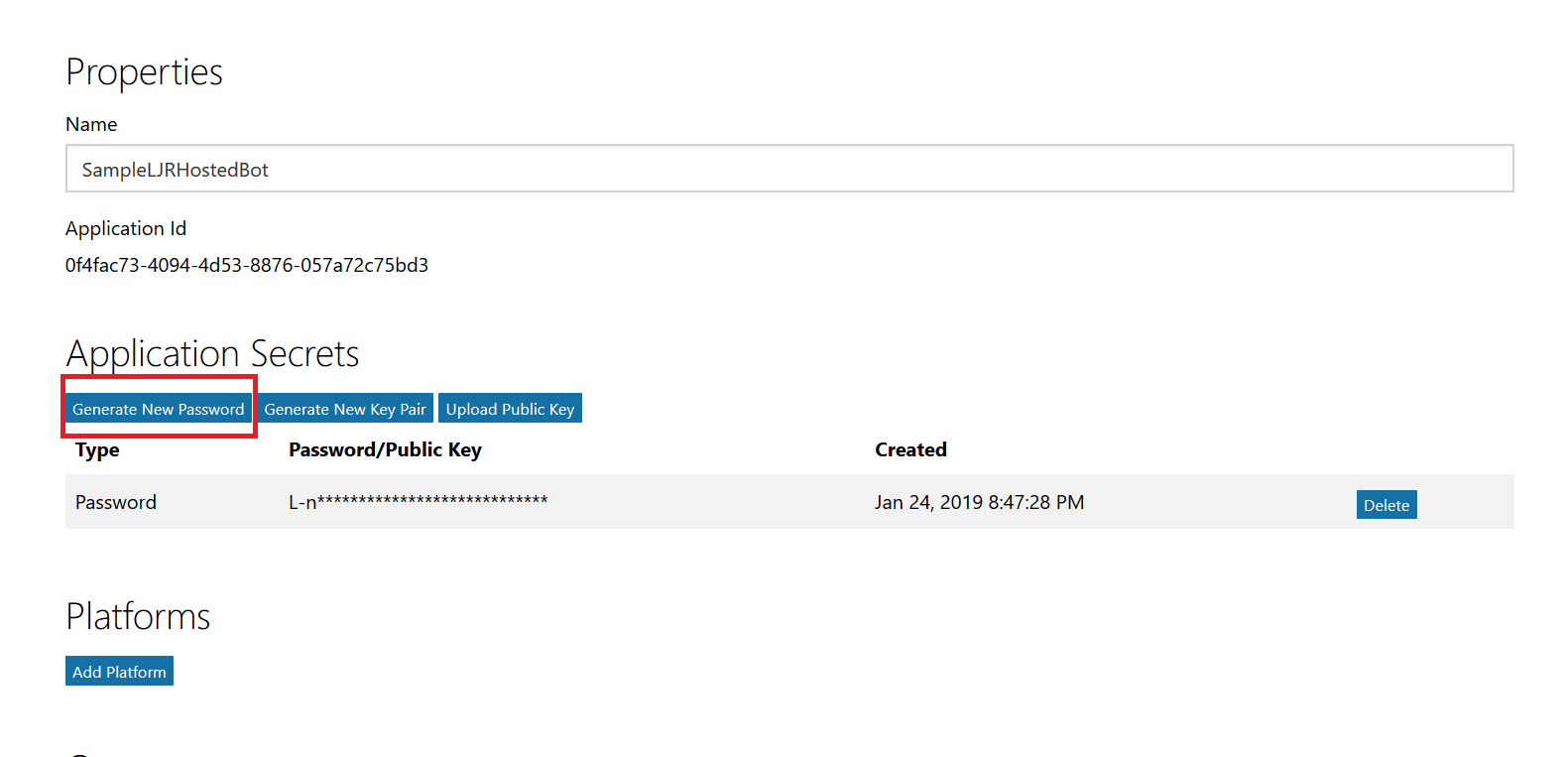
This will open a new portal – you may be asked to sign in again. You are now looking at the application registration in Microsoft’s developer application registration portal. There’s already an application secret created but beyond the first few letters … what is it? No idea! I’m a cautious person, and I don’t know if MS has embedded this secret somewhere within the bot resource. Since an application can have two secrets simultaneously, I do not delete the automatically-created secret and click “Generate New Password”.
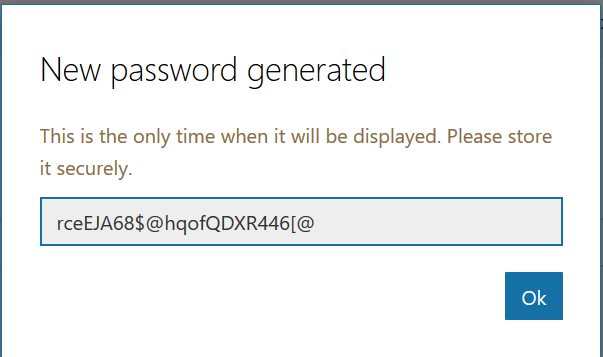
A new pane will appear with your new secret – no, the one in the picture isn’t real. Copy that and store it somewhere – you’ll need to add it to your bot code later.
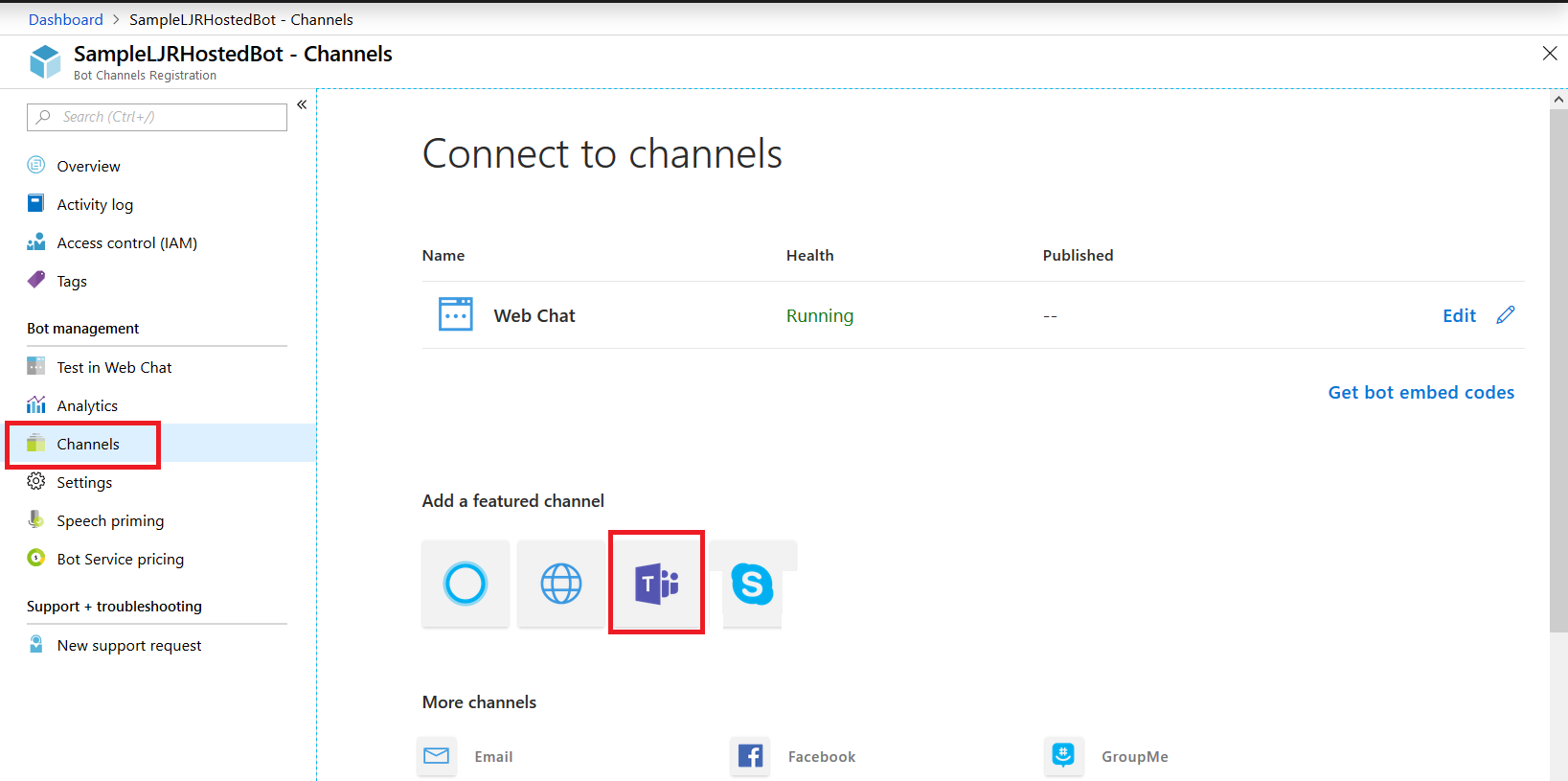
Close the application registration tab and return to the Azure portal tab. Click on “Channels” in your bot and add channels for any interactions you want to support. In this case, I want to publish my bot to Teams. There aren’t really settings* for teams – just click to create the channel.
* You can publish a bot to the Microsoft App Source … but is your bot something that should be available to the Internet at large? It depends! If you’re writing a bot to provide enterprise customers another support avenue, having the bot available through App Source makes sense. If you’re creating a bot to answer employee-specific questions, then you probably want to keep the bot out of App Source
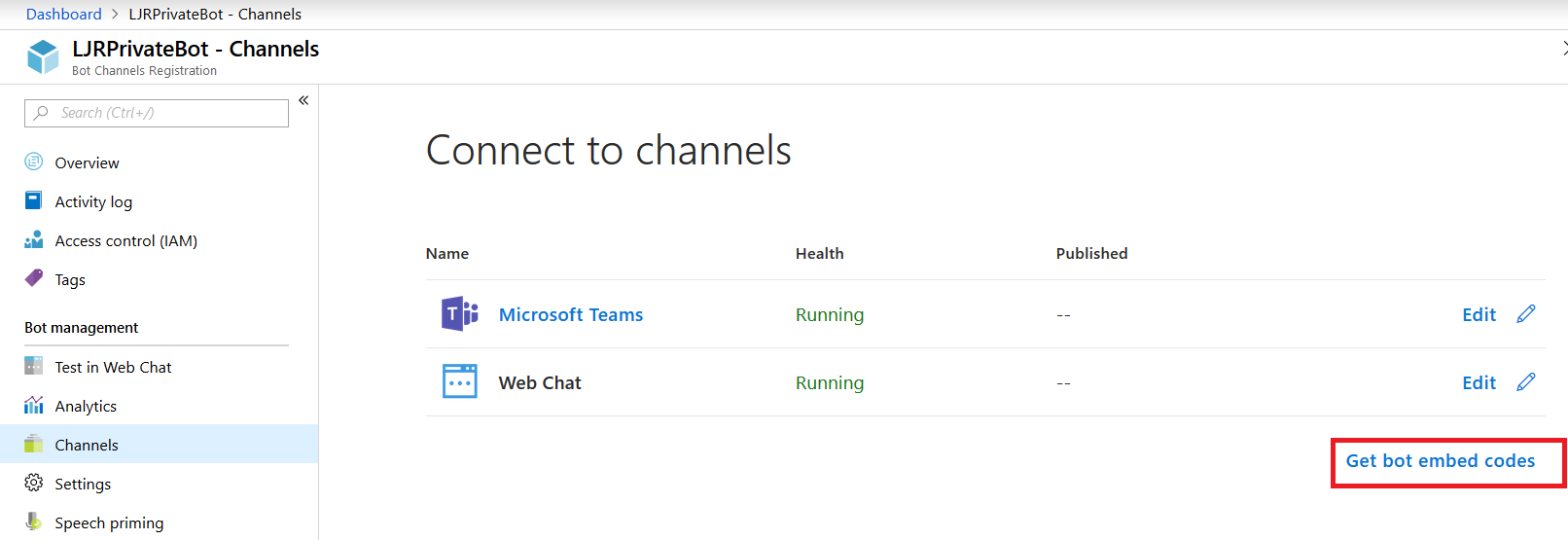
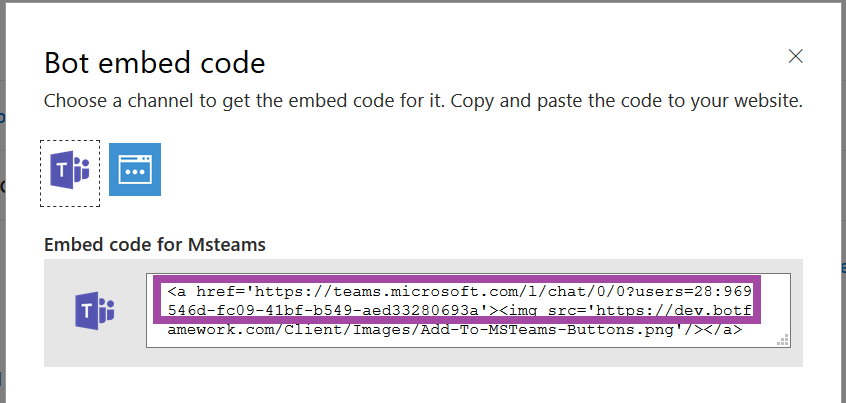
Once the channel has been created, click on the “Get bot embed codes” hyperlink to obtain the bot URL.
Individuals can use the hyperlink provided to add your bot to their Teams chat.
In this example, I am using a sample Python bot. For convenience, I am handling SSL on my reverse proxy instead of using an ssl wrapper in my Python service. Grab the BotBuilder package from git (https://github.com/Microsoft/botbuilder-python.git)
In the ./samples/ folder, you’ll find a few beginner bots. Rich-Cards-Bot requires msrest that has some async functionality and the branch in requirements.txt doesn’t exist. Tried a few others and never got anything that worked properly. Same problem with EchoBot-with-State. I am using Echo-Connector-Bot because it doesn’t have this msrest problem, and I can add my own state support later.
Edit main.py and add your Azure bot application id & secret to APP_ID and APP_PASSWORD
I stash my personal information in a config.py file and added an import to main.py:
from config import strDBHostname, strDBUserName, strDBPassword, strDBDatabaseName, strDBTableName, APP_ID, APP_PASSWORD
Tweak the code however you want – add natural language processing, make database connections to internal resources to determine responses, make calls to internal web APIs. I also added console output so I could debug bot operations.
When you’ve completed your changes, launch your bot by running “python main.py”
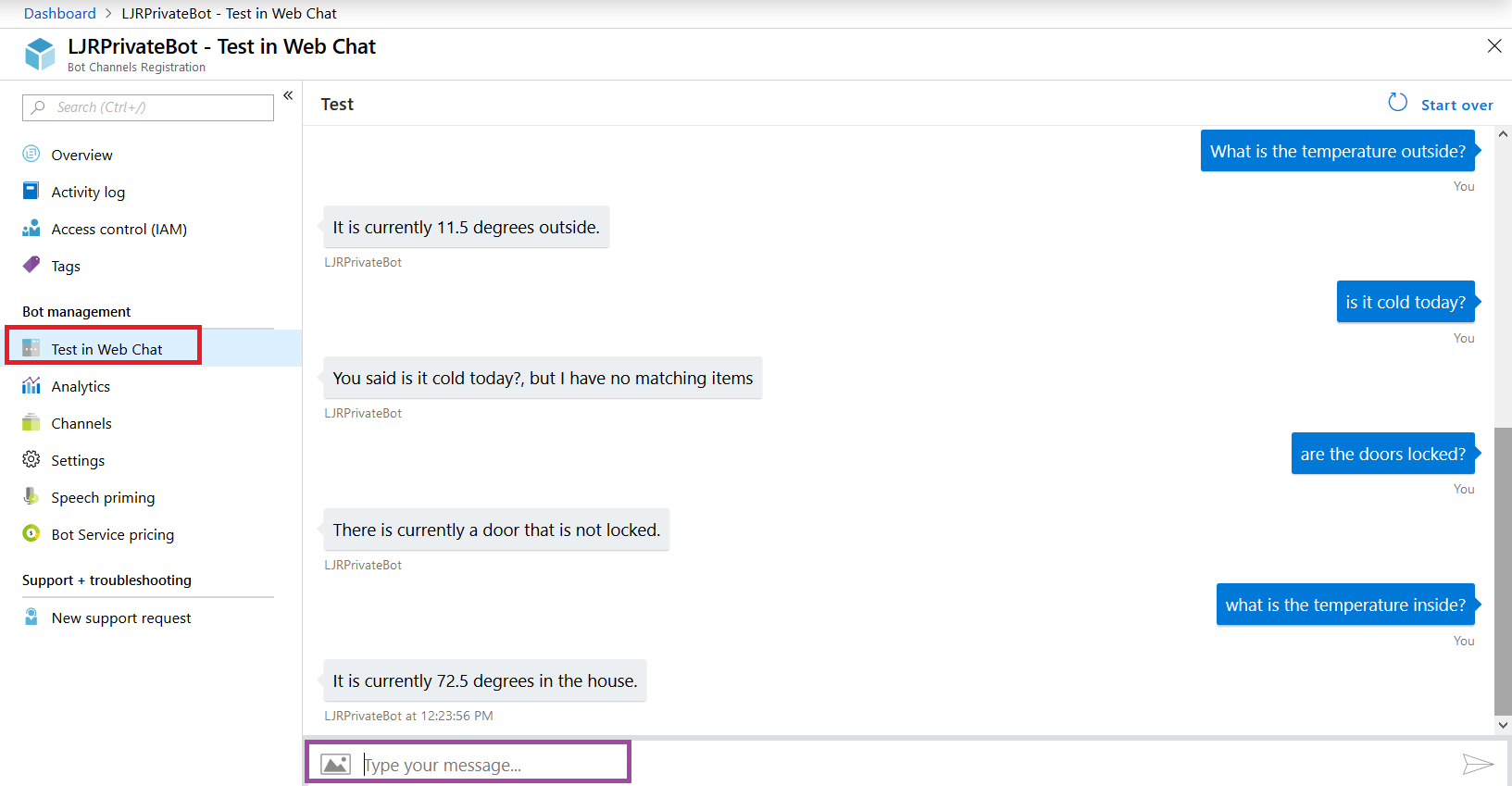
Now return to the Azure portal and select “Test in Web Chat” – this will allow you to test interactions with your bot. Ask questions – you should see your answers returned.
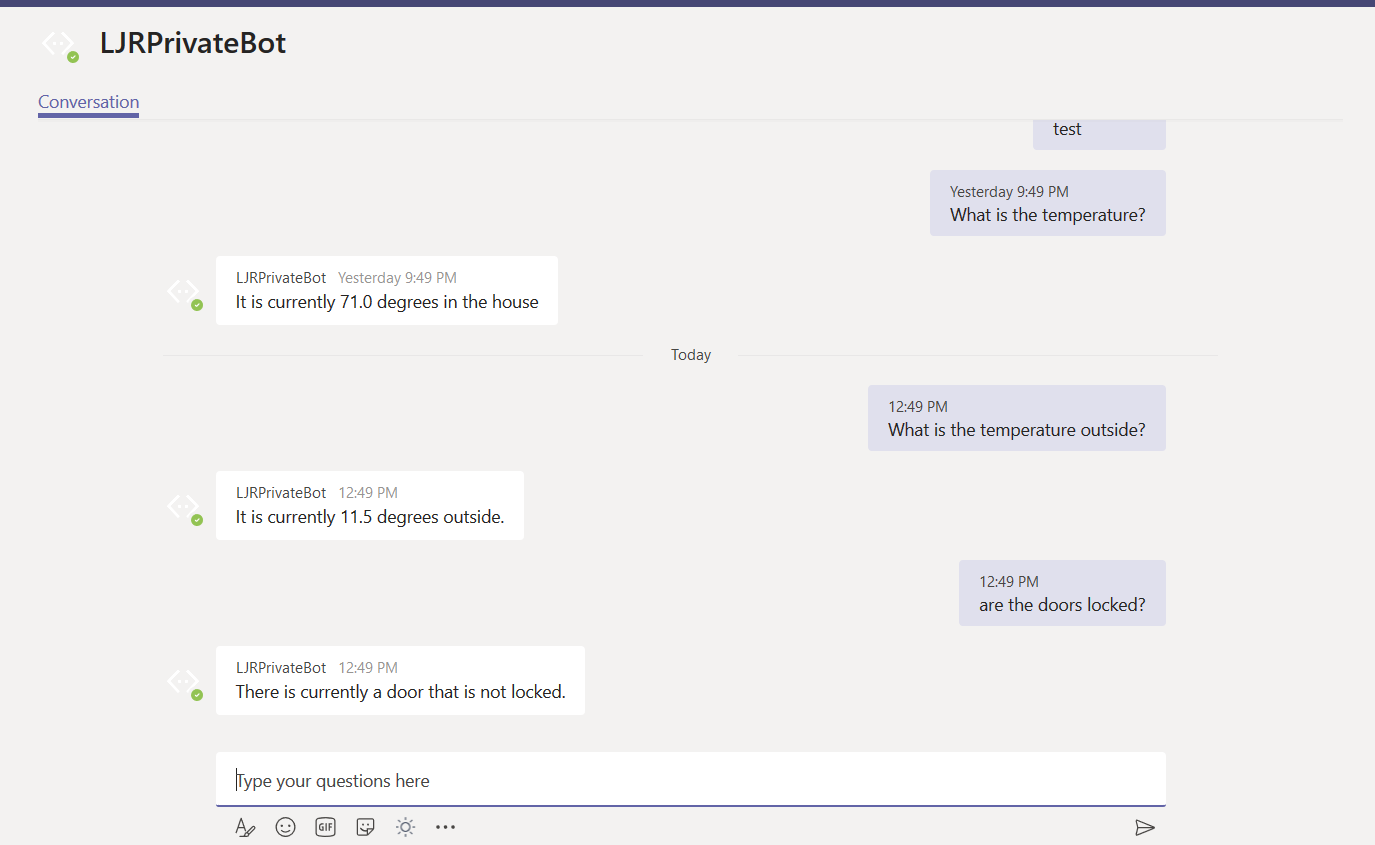
Once you confirm the bot is functioning properly, use the URL from the Teams channel to interact with your bot within Teams —
The answer is served out of our home automation database – data that is only accessible on our private network.
Security – as I said earlier, you’ll probably want to take some measures to ensure access to your locally hosted bot is coming from legit sources. The app ID and secret provide one level of protection. If a connection does not supply the proper app ID & secret (or if you’ve mis-entered those values in your code!), you’ll get a 401 error.
But I don’t want the entire Internet DDoS’ing by bot either, and there is no reason for anyone outside of Microsoft Azure subnets should be accessing my locally hosted bot. My bot is hosted in a private container. The reverse proxy allows Internet-sourced traffic in to the private bot resource. Since communication from Azure will be sourced from a known set of networks, you can add a source IP restriction that prevents the general public from accessing your bot directly. See https://azurerange.azurewebsites.net/ for a convenient-to-use list of addresses.
I like keeping my fingers on the keyboard, so I like using markdown in Teams messages (had to learn it for GitHub anyway!). The fact that hitting enter sends my posts in Teams? Generally awesome. I am not, however, the most succinct person; and a long series of thoughts is difficult to read as one continuous paragraph.
And using a new paragraph can serve to highlight a sentence without resorting to big bold text.
You can use shift-enter to move to a new line. Enter will still send your message.
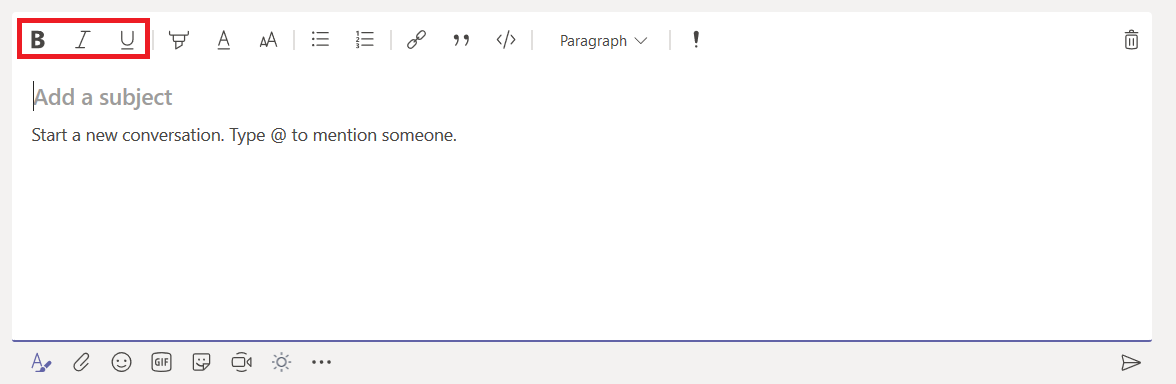
But Teams has a GUI-driven composition mode — just click “Format” — that allows you to easily compose multi-line messages. In this editor, enter doesn’t send the message. It just moves the cursor to the next line.
There are a lot of formatting options available too. Basic typographical emphasis can be added to your text, and anything you type into the ‘Subject’ section will automatically be large, bold text.
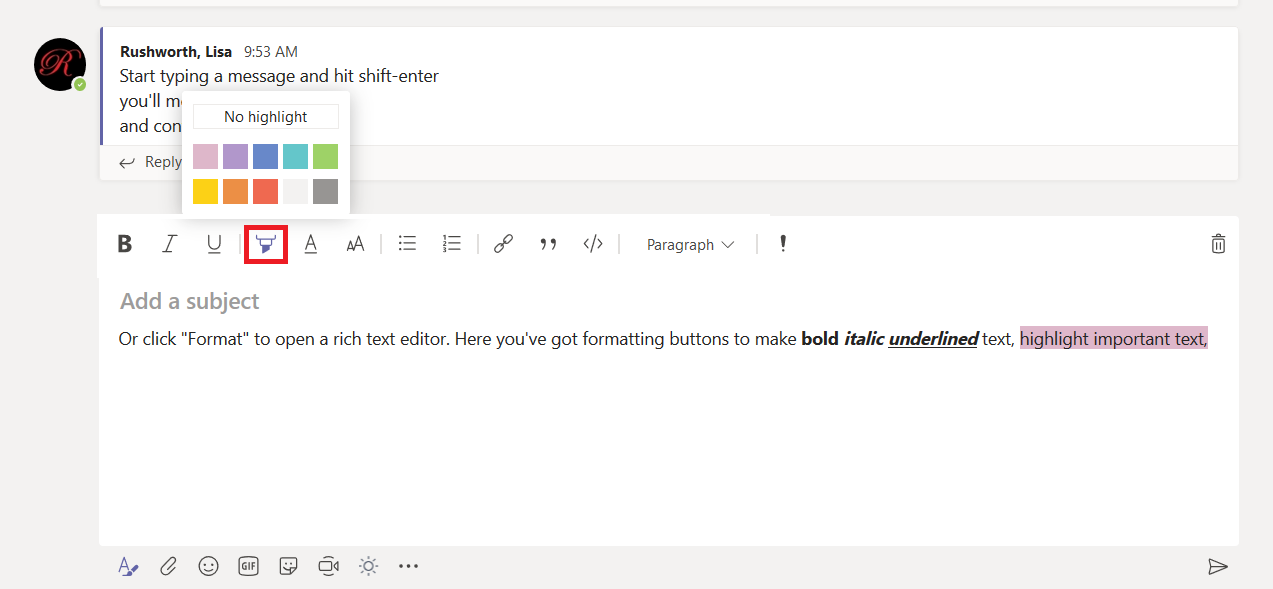
The little highlighter icon will highlight text.
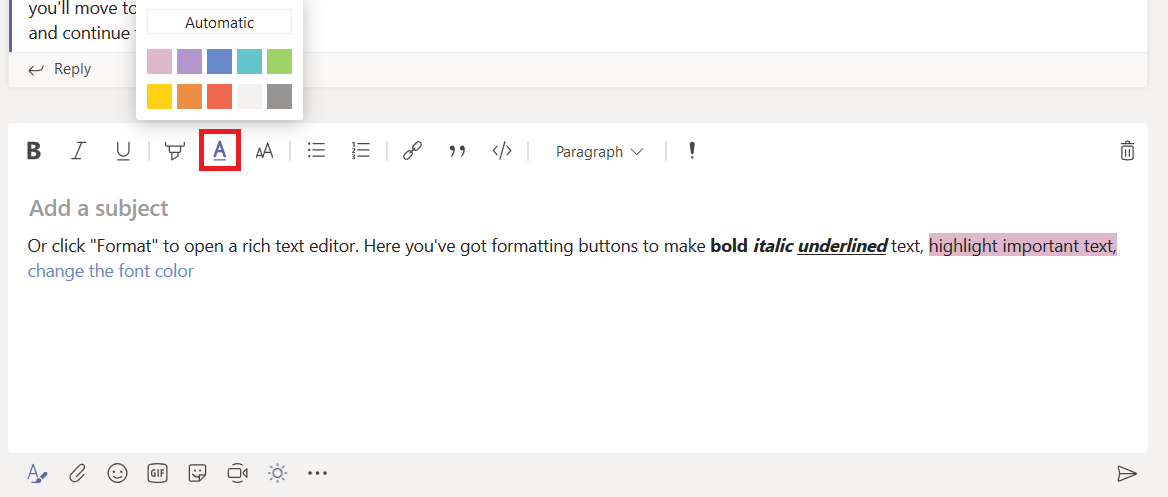
The underlined “A” changes the font color.
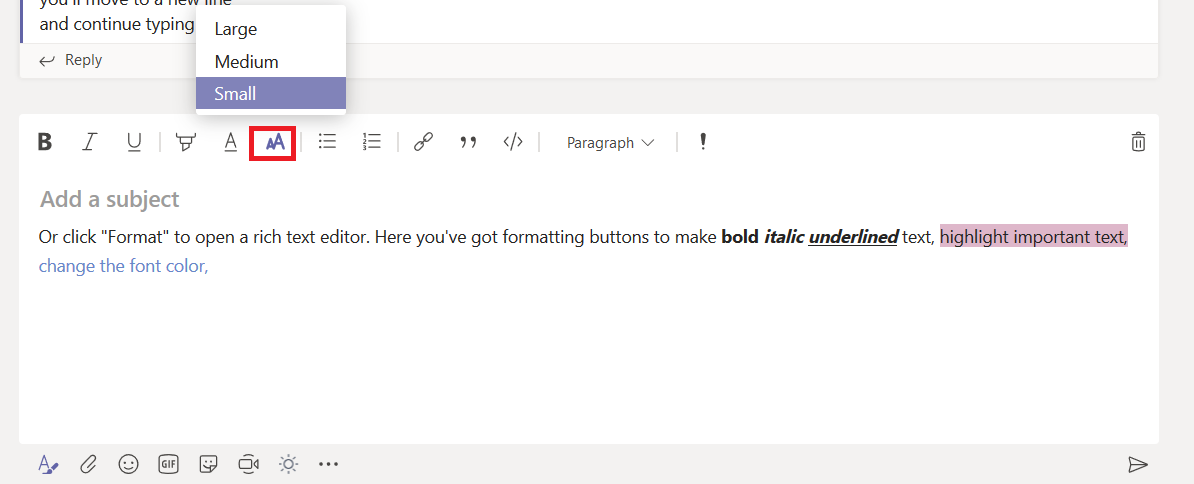
The icon with two A’s controls the text size.
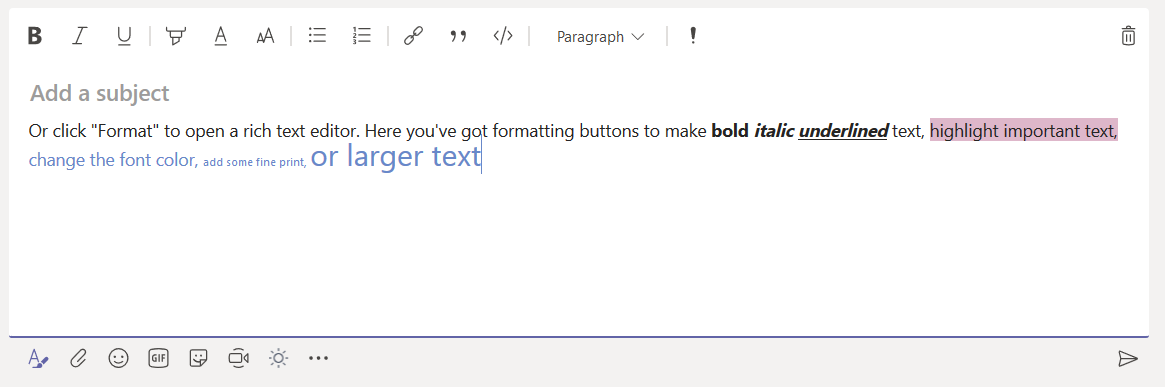
So you can add really tiny or larger text.
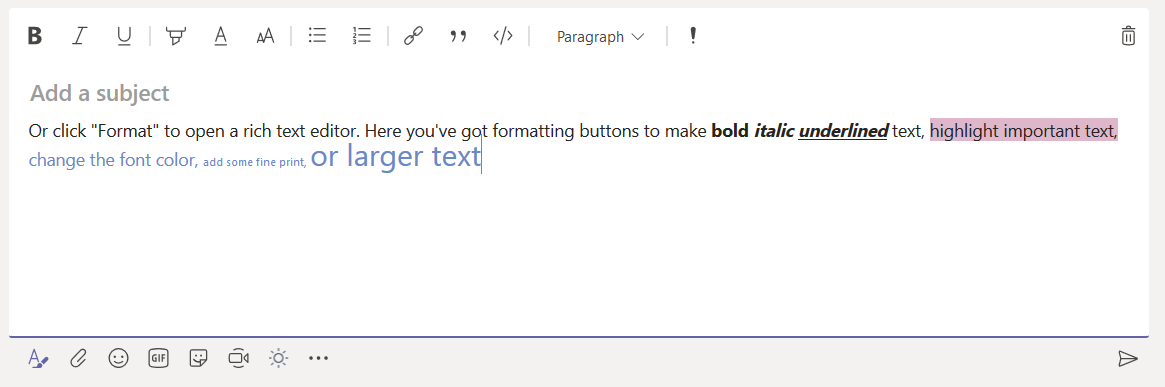
Allowing you to use smaller or larger text.
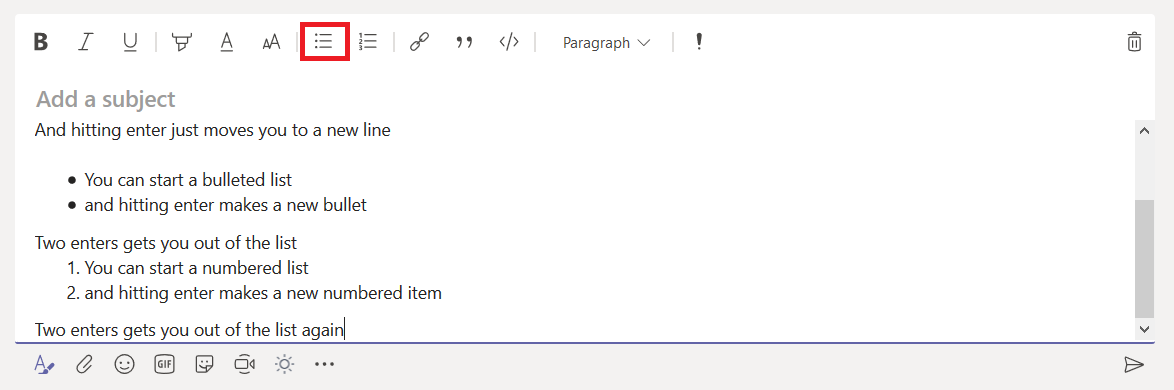
You can create a bulleted list by clicking the icon with bulleted lines (or a numbered list by clicking the one with numbered lines). To end the list, either click the icon again or hit enter twice.
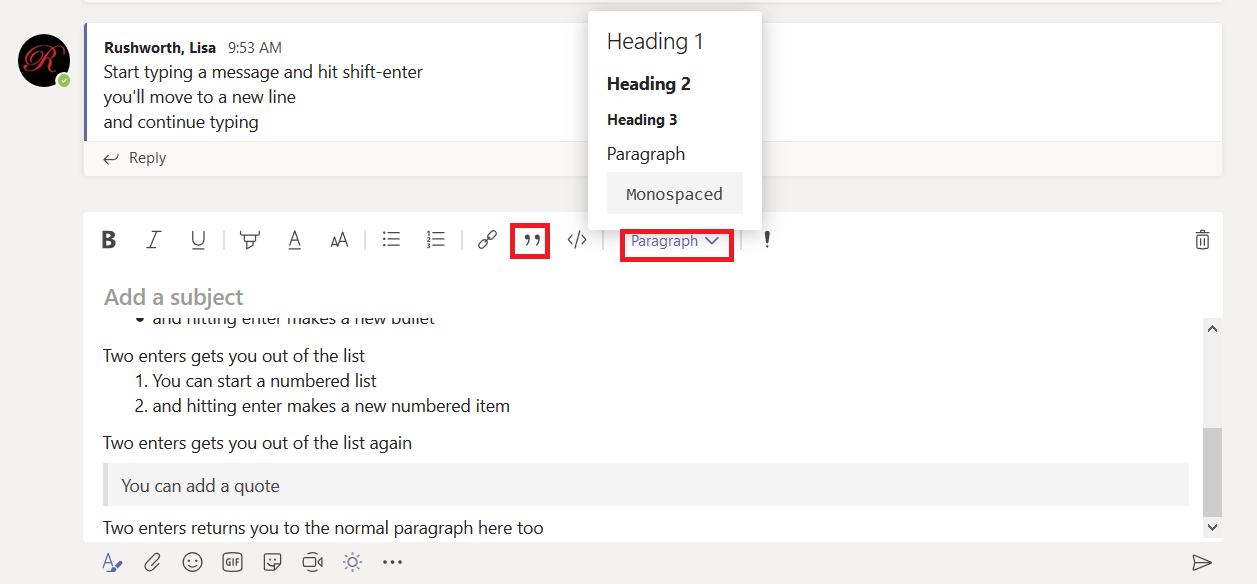
The quotation marks highlights text as a quote (two enters returns you to normal paragraph format here too), and hitting the drop-down next to “Paragraph” provides a list of pre-formatted text options.
A really cool feature for programmer-types – click the ‘code snipped’ icon.
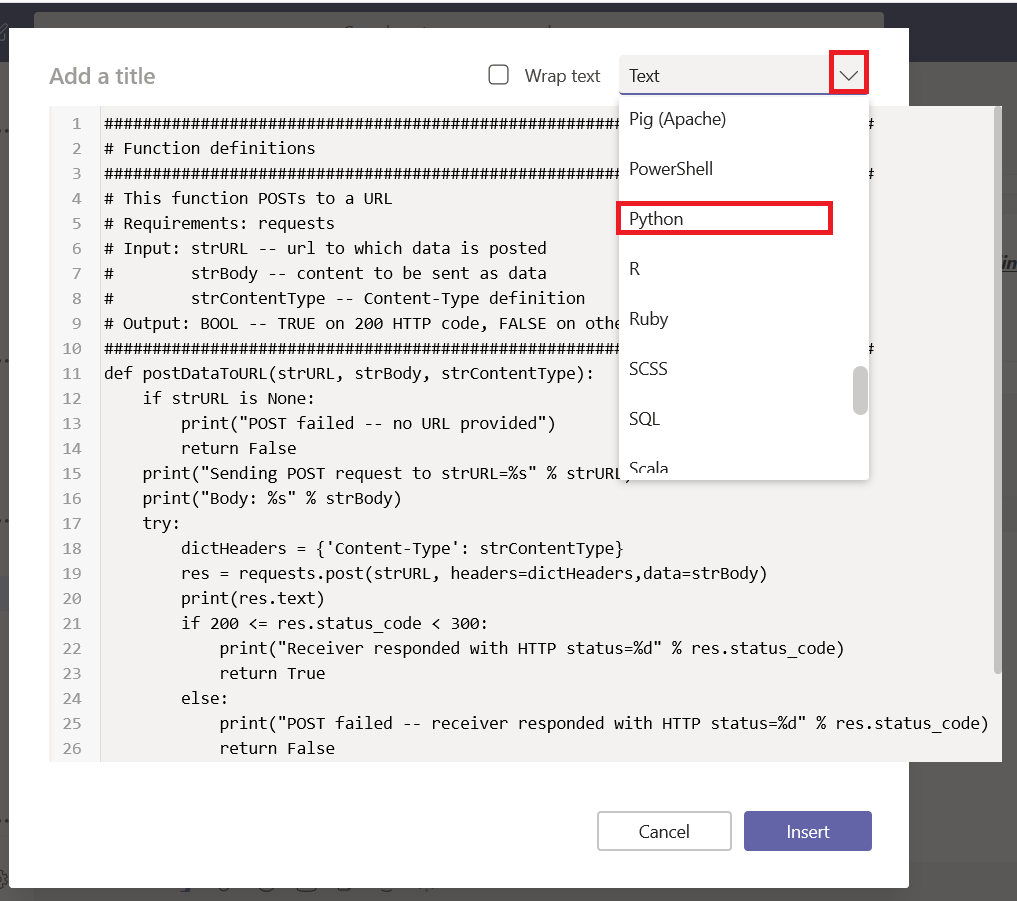
A new composition window will be displayed – click the drop-down text to “Text” and select the programming language.
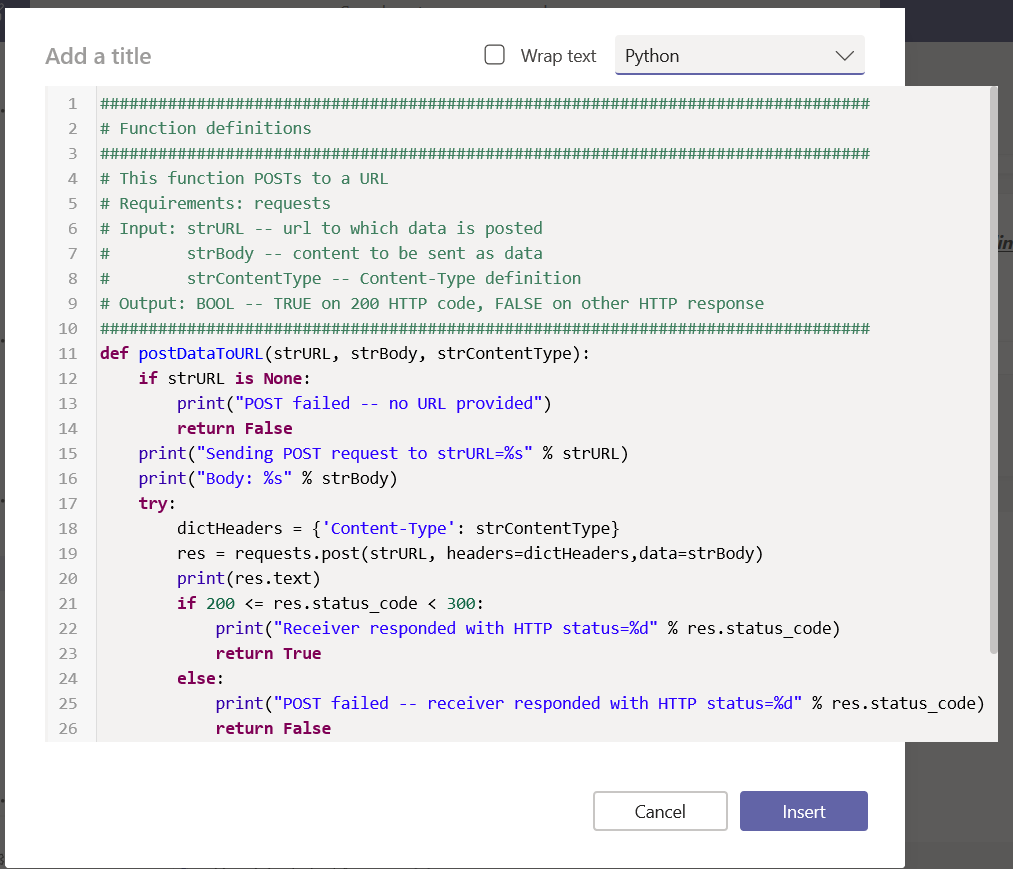
Text formatting will be applied to your code – the code I paste into Teams looks exactly like it does in my IDE.
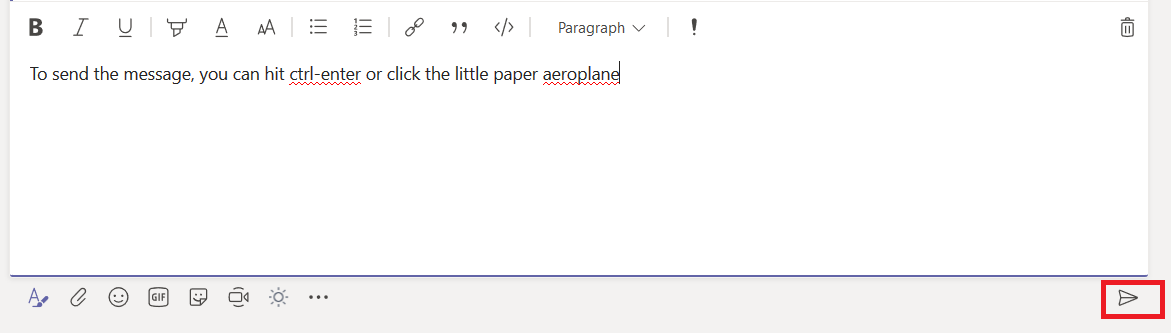
When you have finished composing your message, you can click the little paper aeroplane to send your message. Or, if you prefer keeping your hands on the keyboard, hit ctrl-enter.
There are a lot of tools we use at work that are silly
overkill in your personal life – I don’t want to open a Remedy ticket for every
squeaky hinge! But some of our tools are quite helpful away from work too – making
flyers in Word or using Excel to keep track of the softball league standings. “Is
Teams useful in my personal life” seems like a purely hypothetical question –
it’s not like I can invite the rest of the Parent Teacher Organization to join
us here in Teams (and even if I could, that’s hardly an appropriate use of
company resources!). But did you know Microsoft offers a free version of Teams?
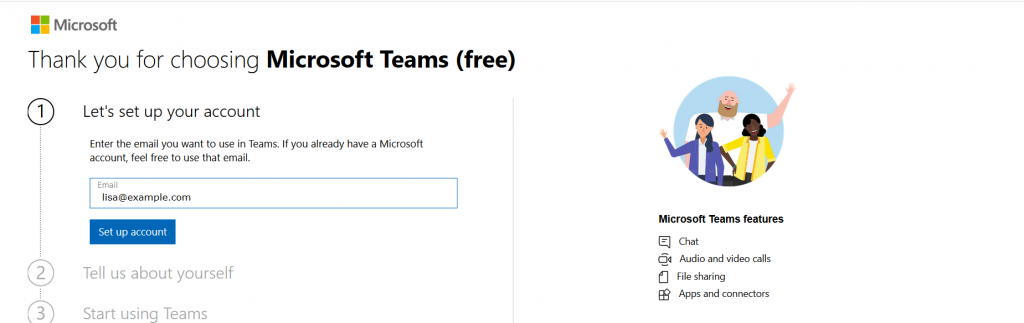
Signing up for a free account, you don’t get access to all of the Teams features we’ve got here – you cannot schedule meetings, record meetings, there isn’t a Planner board, you don’t have access to the full suite of Office 365 applications. But you do have a Teams space, can use the integrated apps and connectors, have some file storage space, have persistent chats in channels, and can even have group audio/video calls.
Don’t use your company e-mail address to sign up – this will
need to be your personal address.
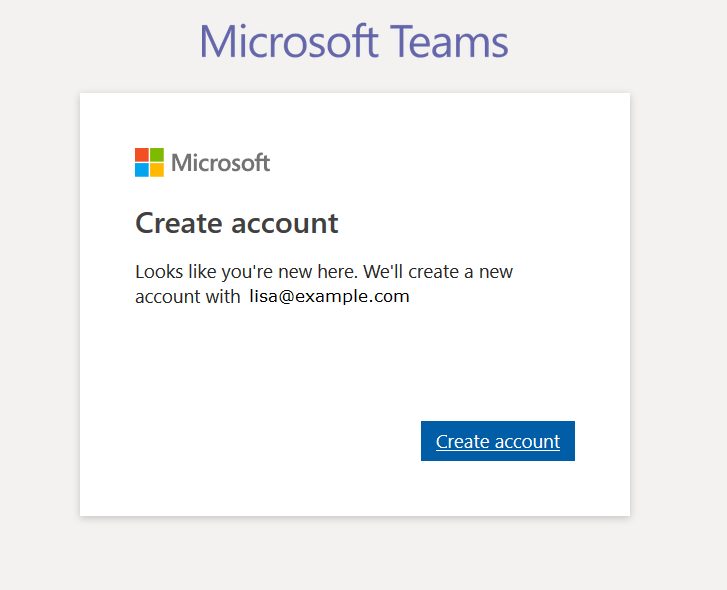
If you don’t already have a Microsoft account associated
with the e-mail address, you’ll be asked to create a new Microsoft account.
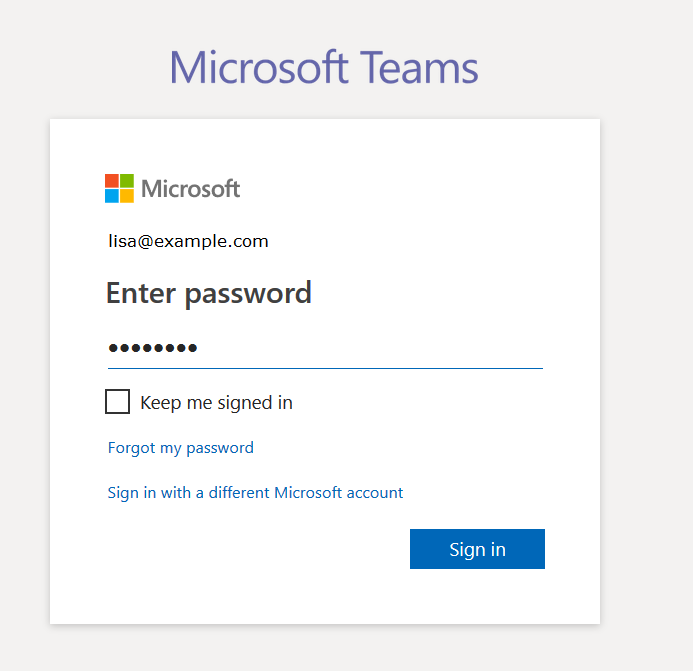
Otherwise you’ll be asked to sign in to your Microsoft
account.
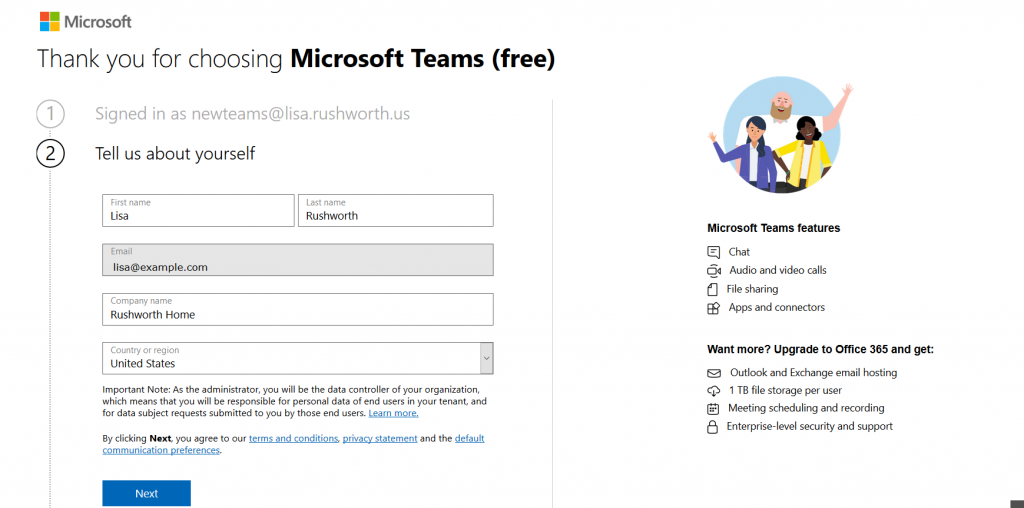
Supply your name, organization name, and country of origin.
Read the terms of use and privacy statement. Assuming your use complies with
the terms of use and the privacy policy is acceptable, click “Next”
It will take a few minutes for everything to be set up. Once
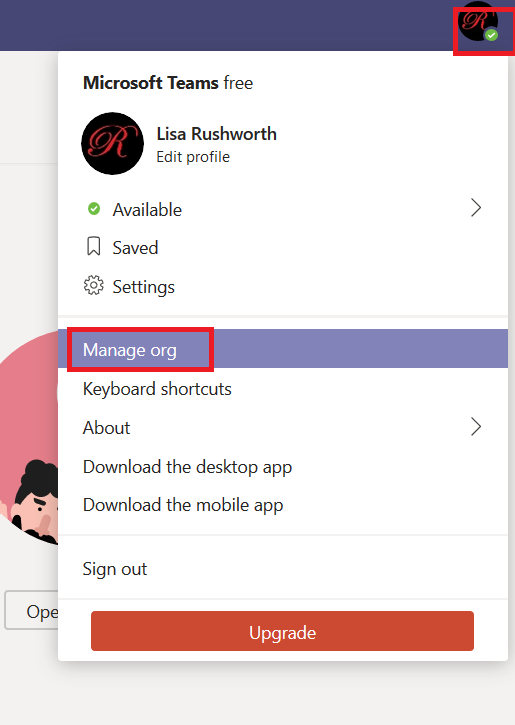
your personal Teams organization is built, you can invite others to join. Click
on your avatar in the upper right-hand corner of the screen and select “Manage
org”
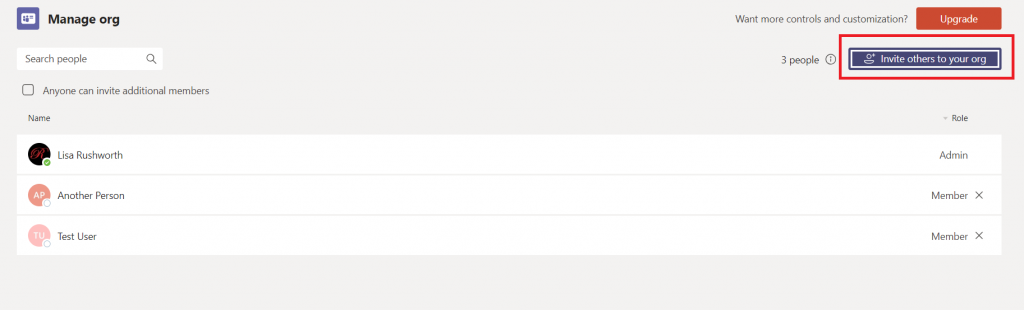
Click “Invite others to your org”
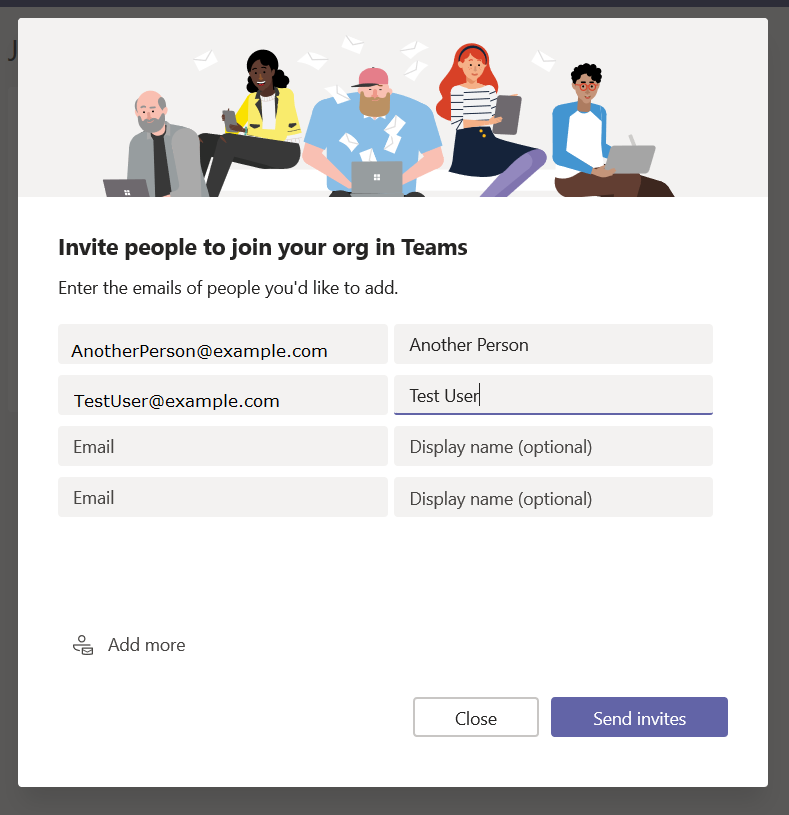
And enter their e-mail addresses
They will get an e-mail message inviting them to join your
Teams org.
You’re ready to start using Teams – add tabs to websites
your group commonly uses, set up connectors, create new channels, chat, video
calls, share files. You can even add new Teams to your organization.
Everyone added to your org is automatically able to access
the default Teams space (the one with the name of your org). Teams spaces you create can be private or public,
just like at work – but you can also select “Org-wide” which automatically
joins any newly-added individuals to the Teams space.
One drawback to retaining all of your chat and team discussion content is that there’s a LOT
of content … which makes it challenging to find a specific discussion or
comment. Luckily, Teams data is easily searched. At the top of your Teams
application (or website), there is a long gray bar. Click in it and type a word
or phrase to begin searching. Using multiple words will find conversations
containing both words, to find a phrase place the phrase “in quotes”. Hit enter.
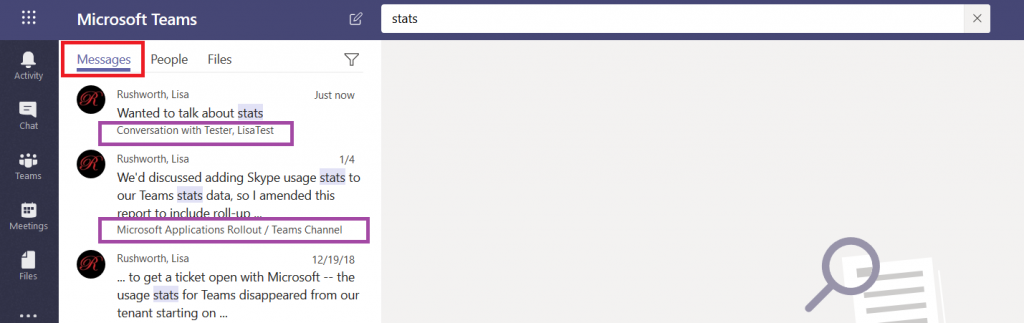
You’ll see messages that contain the words or phrase –
notice this includes both chat messages and channel discussions. Each search
result has a reference letting you know where the discussion is located, and
you can click on the item to switch to the chat or channel discussion.
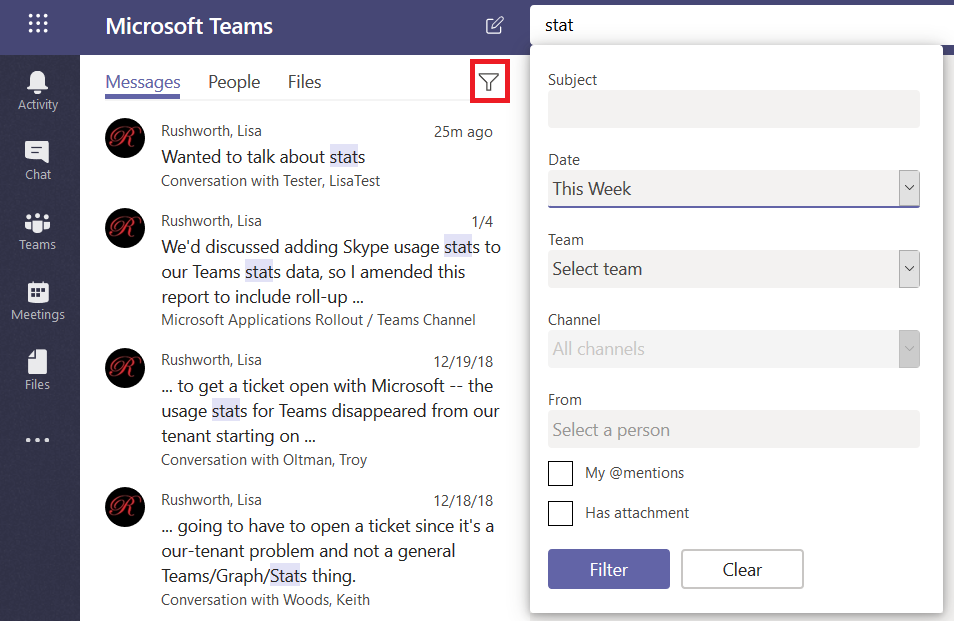
If your search returns too many results, click on the little
funnel – you can refine your search results with a filter – a specific
individual, a time frame.
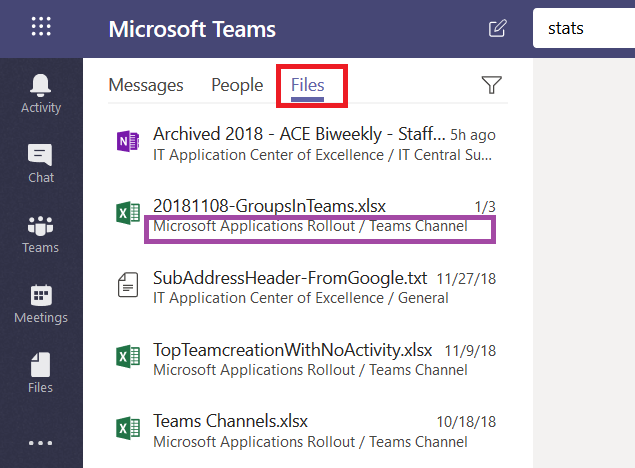
In addition to searching chat messages, you can search files.
Just click on “Files” and you’ll see files with names or content that contain
your search terms. Again, you can see where the file is located, and you can
click on the file to preview the file.
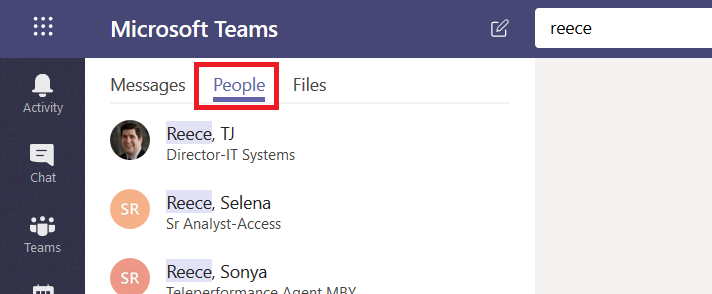
Click on “People” and you’ll find, well, people who work here.
This is a name search – you cannot search for “stats” and see people with whom you’ve
had discussions about statistics. Search for a last name, a first name, or a
name in “last, first” format.
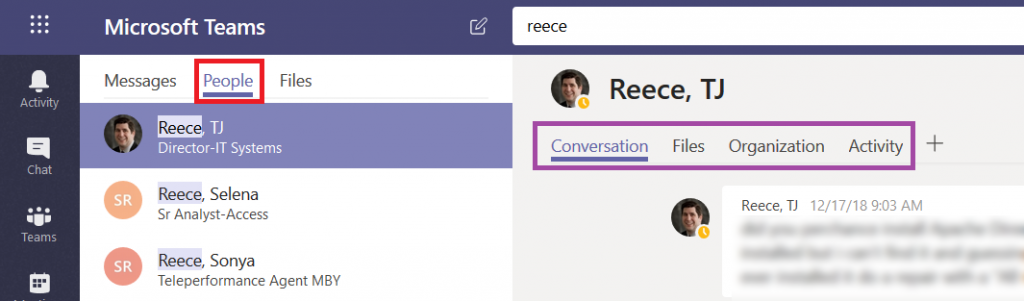
If you click on a person, you’ll see the conversations you
have had with them, as well as any shared files, an org chart for their
position in the company, and their channel posts for the past two weeks (‘Activity’).
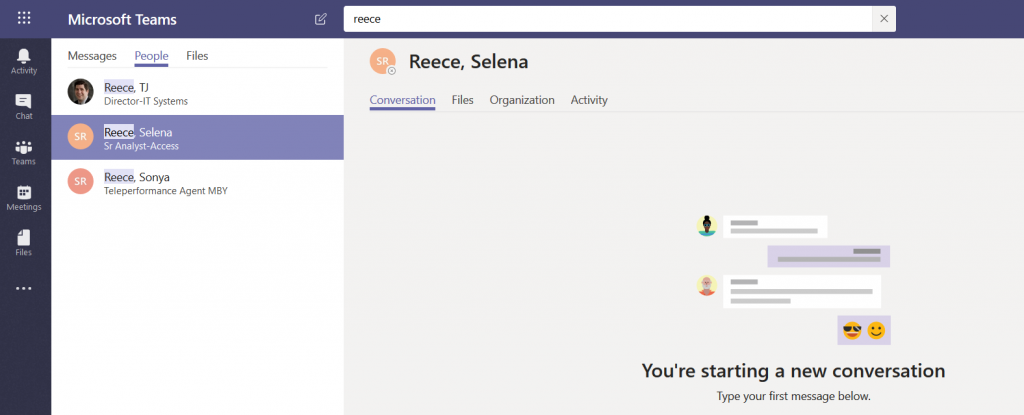
If you haven’t chatted with them before, you can start a new
conversation too.
There are times when it is easy to tell who is speaking – there aren’t a lot of women in my group, so “the female voice” is usually me. My friend Richard is generally the only person with a New Zealand accent on any call (although someone who didn’t grow up in a Commonwealth country may have trouble distinguishing him from the guy from Australia). And after you work with someone for a while, you learn the voice and lexical nuances of colleagues. The rest of the time? I end up pausing the conversation to check who it was that volunteered to serve as my tester and clarify who is going to be getting back to me next week. In a Teams meeting, though, you can quickly tell who is speaking – and respond with a much friendlier “thanks, Jim, for offering to help”.
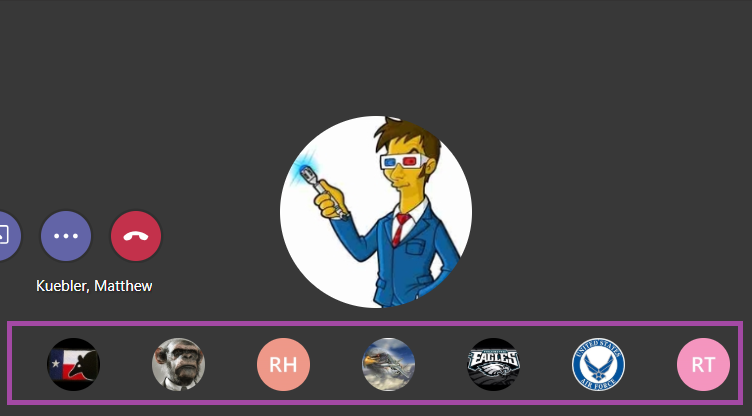
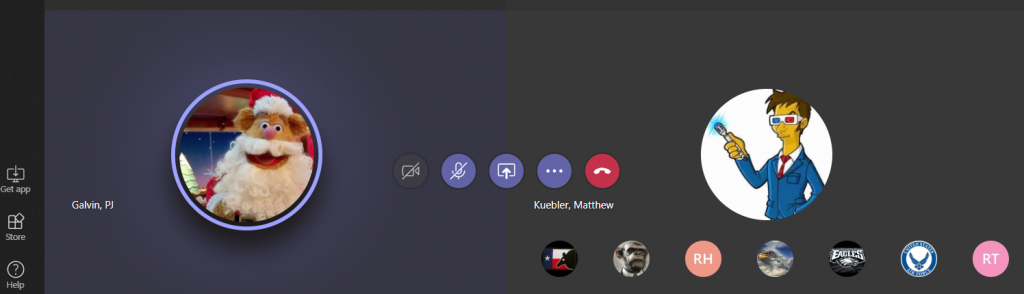
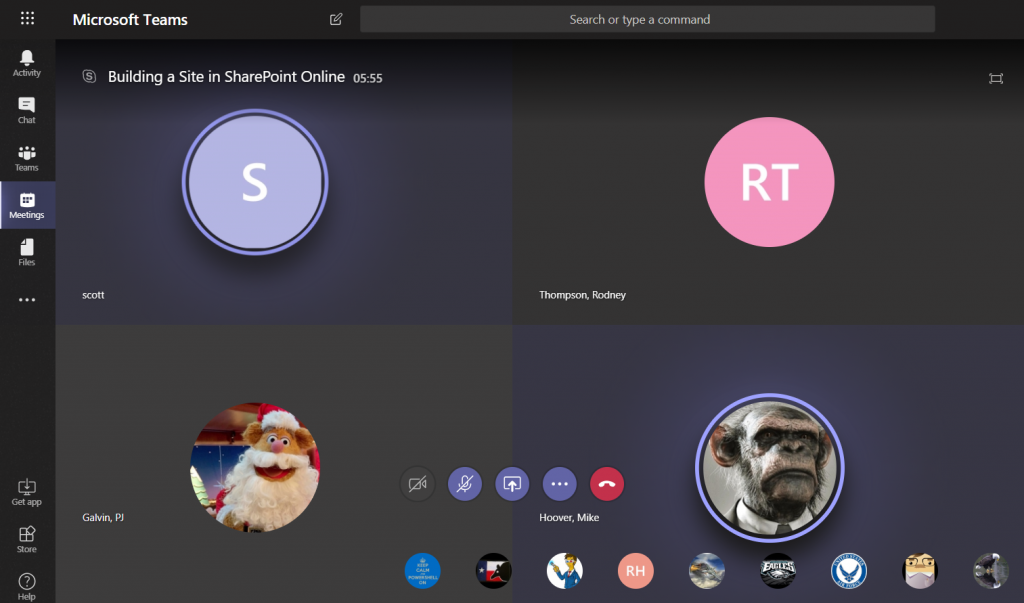
When you join a Teams meeting, you’ll see up to four large tiles
with meeting participants. If there are more than five participants (you don’t show
up on your own view!), the remaining people will be represented by smaller
images in the lower right-hand corner of the screen.
When someone is speaking, their tile will be highlighted in
a purply-blue and a brighter highlight circumscribes their image.
The four large tiles represent the most recent speakers, so
you will notice who is in these four tiles change throughout the call. And, yeah,
it’s possible for more than one person to be talking at a time – you’ll have
multiple highlighted tiles.
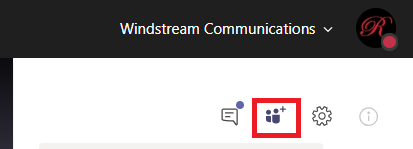
There is another place to view who is speaking. On the right-hand
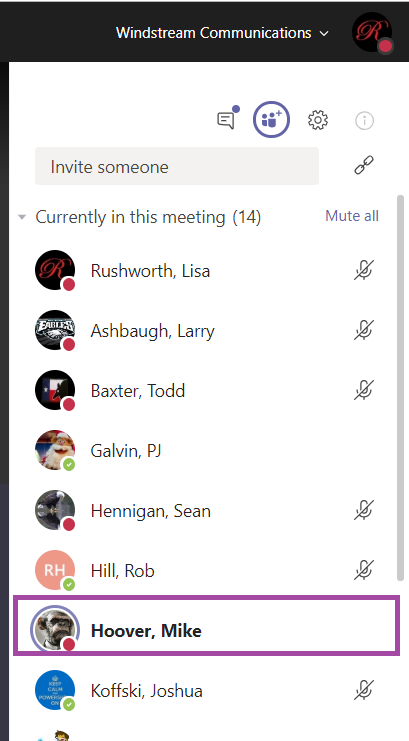
column, click to enter the participant pane.
The current speaker will be bolded.
Bonus Features: Sometimes
I’ll start a large call and have trouble getting everyone’s attention to start the call. In the participant pane,
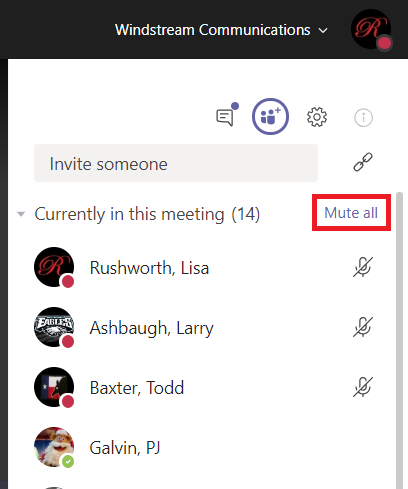
you can click “Mute all” to mute all
participants. N.B. Any participant can do this – so don’t test it in the
middle of a real discussion!
And just like meetings through the PSTN system or other web-meeting
platforms, you’ll get the occasional person typing without hitting mute. Or speaking
to someone who popped into their office. Or experiencing feedback on the connection.
In Teams, it’s easier to identify who
is causing a disruption – they are going to be highlighted as speaking.
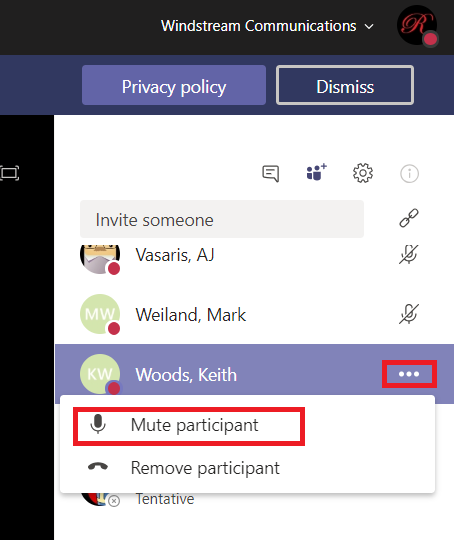
Once you’ve identified the source of the noise, click the
not-quite-a-hamburger-button next to their name and select “Mute participant”.
If you want to create a simple bot that uses natural language processing training to allow users to ask questions that aren’t exactly what has been attached to the answer (i.e. I could say “I forgot my password”, “I don’t remember my password”, or “what’s my password” and be directed to the password portal URL without anyone having to come up with every possible iteration of the query),you can create one without actually programming a bot. You’ll need to enter some questions and answers – and it’s best to have a few questions associated with each answer so the bot can ‘learn’ what a real user might ask.
Before we start, understand how the billing works for Microsoft’s cloud services. There are generally free tiers for selections, but they are resource limited. When you first start with the Azure magic cloudy stuff, you get a 200$ credit. A message indicating your remaining credit is shown when you log into the Azure portal. Pay attention to that message – if you think you are using free tiers for everything but see your credit decreasing … you’ll need to investigate. Some features, like usage analytics,cost extra too.
Instead of programming a bot, you can use a pre-built bot and a question/answer knowledgebase maintained at https://www.qnamaker.ai/ Sign in to your company account
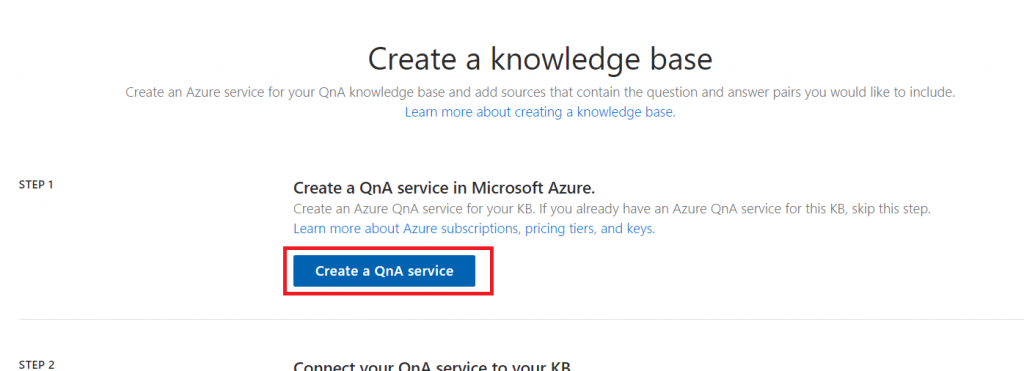
Select “Create a knowledge base” to start.
Click the button to “Create a QnA service”
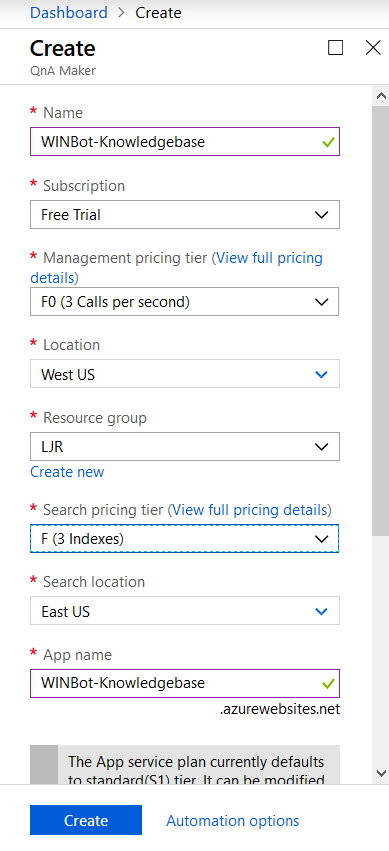
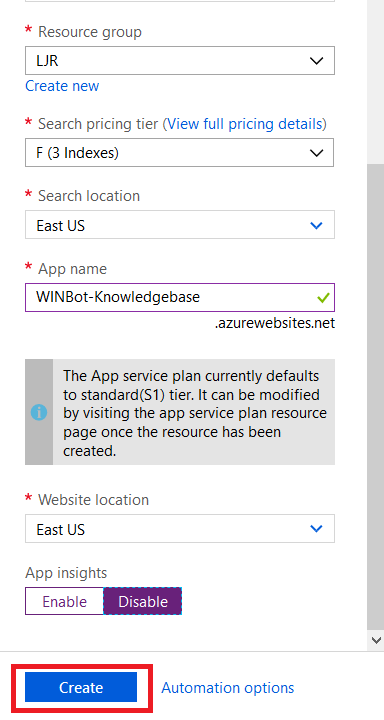
A tab will open to the Azure portal, and you’ll see a wizard to create a QnA Maker resource. Provide a name and select your subscription – you may be walked through creating a new trial subscription. For the management pricing tier and search pricing tier, select the free plans unless you expect high usage or need to store a lot of documents. The selections below are the free tiers.
Disable app insights unless you want to study usage of the q&a – app insights is a paid add-on. Click create to create.
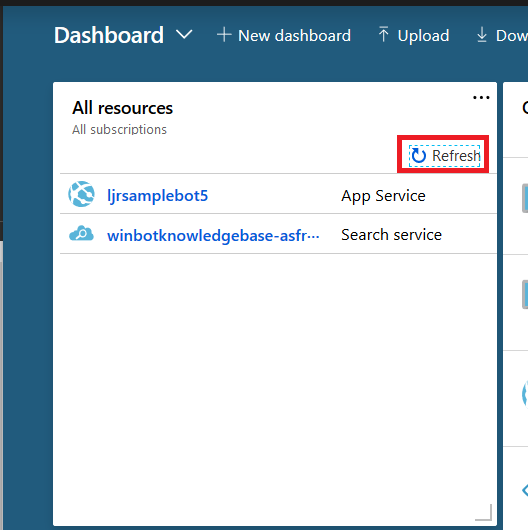
Return to the Azure Portal dashboard and click “Refresh” in the “All resources” section. Eventually, you will see your knowledge base appear.
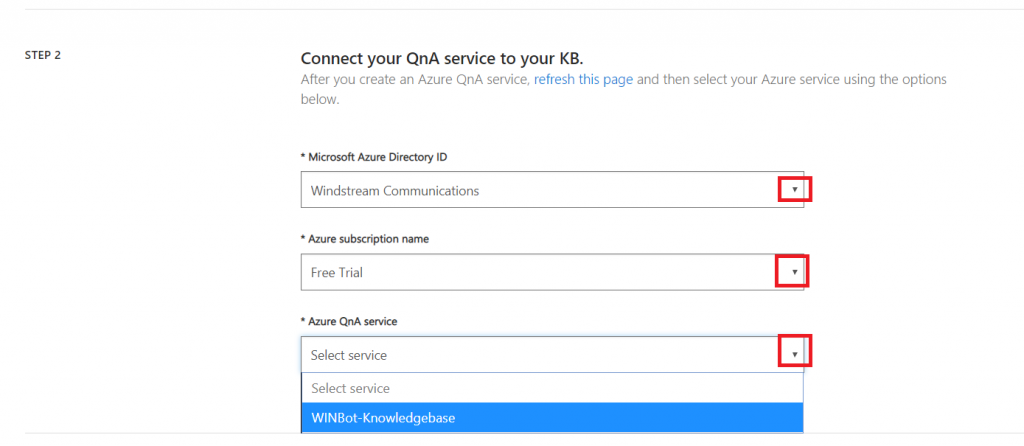
Return to the QnA Maker tab. In “Step 2”, click the drop-down arrows to select the Azure Directory (you should just see our company), the subscription (again, probably just the one), and the knowledge base we just created.
In “Step 3”, provide a name for your knowledge base. If you have an existing Q&A file, or a URL with Q&A pairs, you can import them here. I will enter question/answer pairs manually later.
Optionally, add ‘chit chat’ – this allows your bot to respond to common things users type like “do you know Siri” or “how are you”. It isn’t needed, but it saves adding answers to “are you there” manually. This imports question sets to your KB, so you can remove any you don’t feel are appropriate for your implementation.
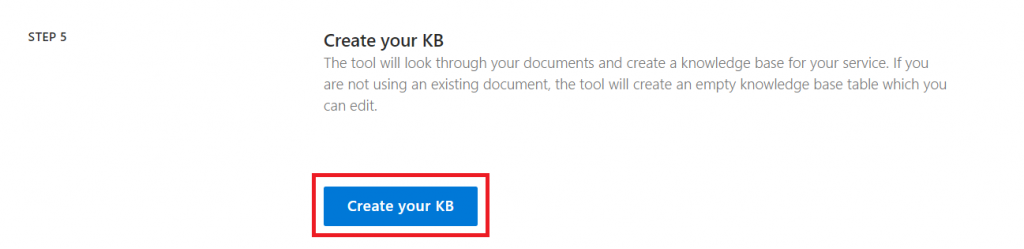
Click “Create your KB”.
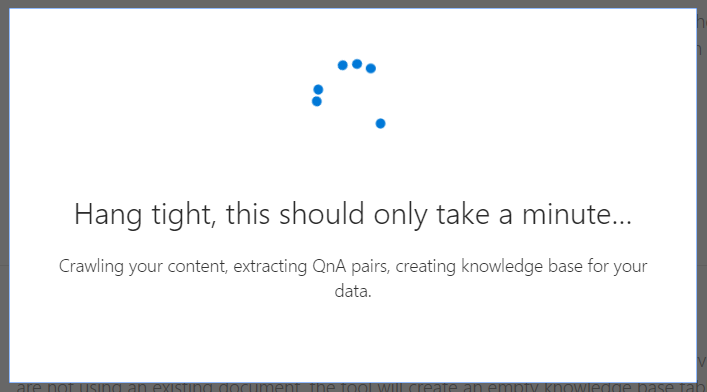
And wait a few minutes.
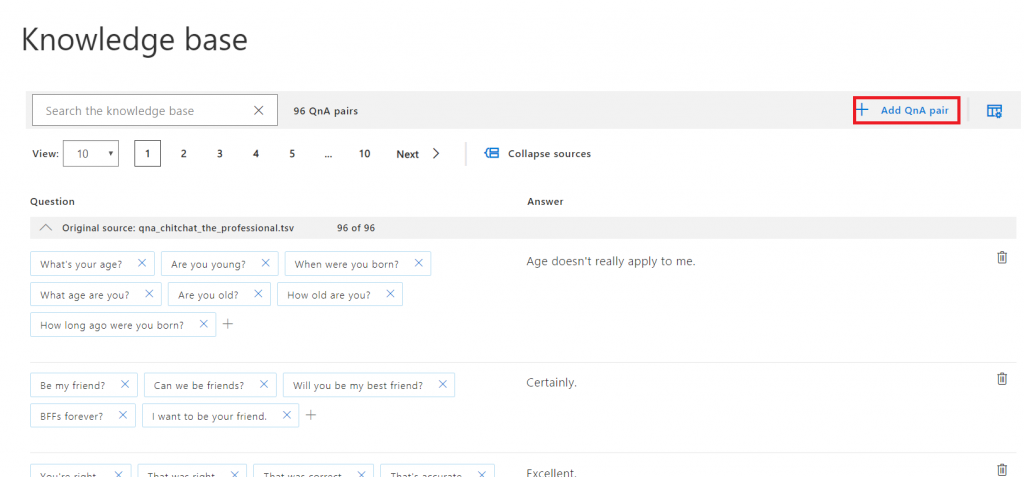
Once the KB has been created, click “Add QnA pair” to begin adding questions. You can also scroll through the imported “chit chat”questions and modify/remove any you don’t like.
Answers use markdown formatting, so you can add hyperlinks, italics, bold, numbered lists.
Once you have added your question/answer pairs, click “Save and train” – training allows the bot to respond with an appropriate answer when the question isn’t exactly one of the questions provided.
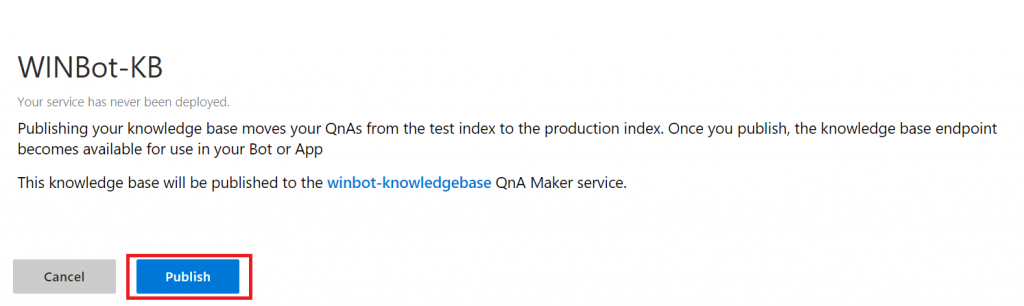
Wait again … when you are returned to the q&a pair screen, click “Publish” – this implements your changes in production. You can stage changes, allowing others to review them, by waiting to click Publish.
Read the warning – assuming you actually want your changes to be in production, click “Publish”.
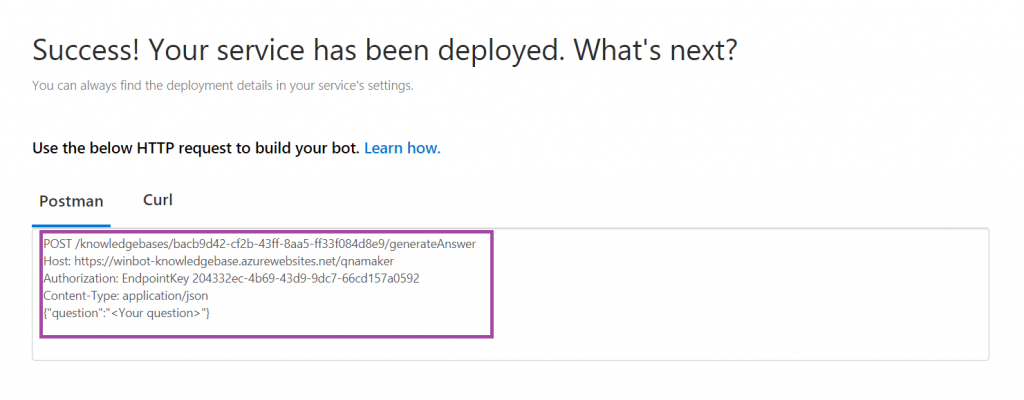
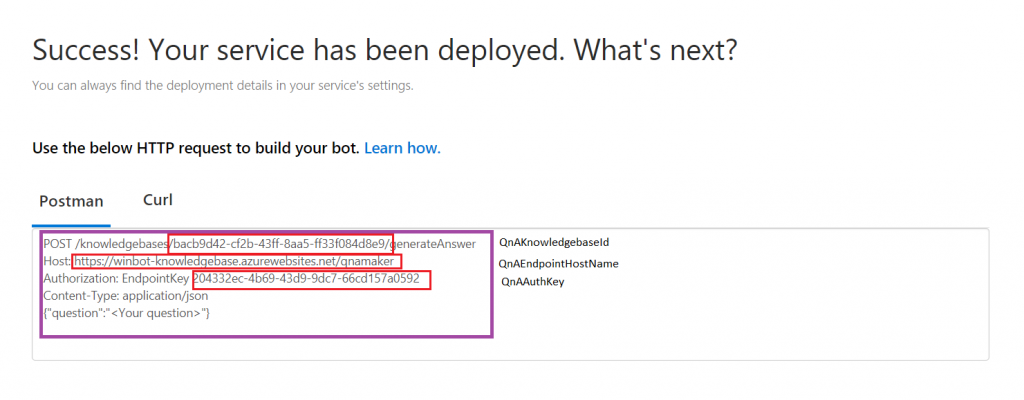
Wait some more, and you have an endpoint!
Copy the ‘stuff’ from the box into a text file somewhere. Find your QnAEndpointHostName, QnAKnowledgebaseId, and QnAAuthKey
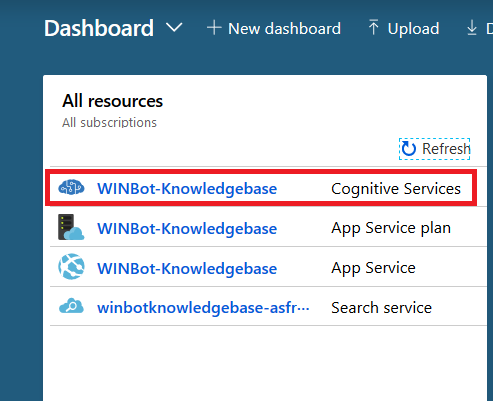
Unless you are going to be the *ONLY* person editing your KB (and never go on holiday, never ring up sick), you’ll want to share access with others. Log into https://portal.azure.com and locate your “cognitive service”. Click on its name to edit it.
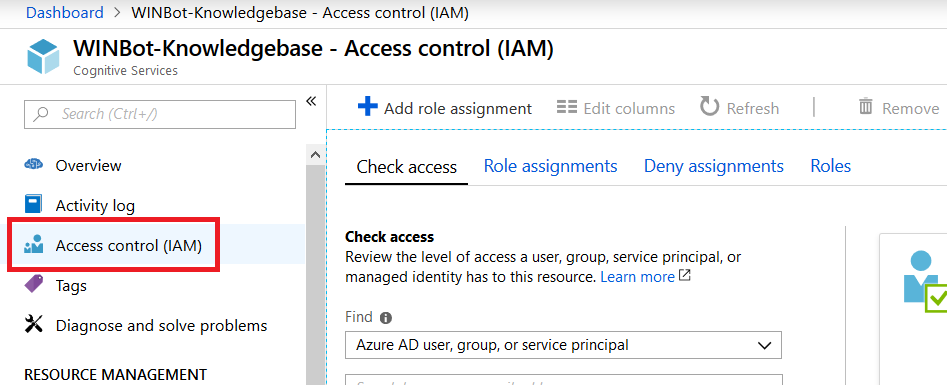
Click on “Access control (IAM)”
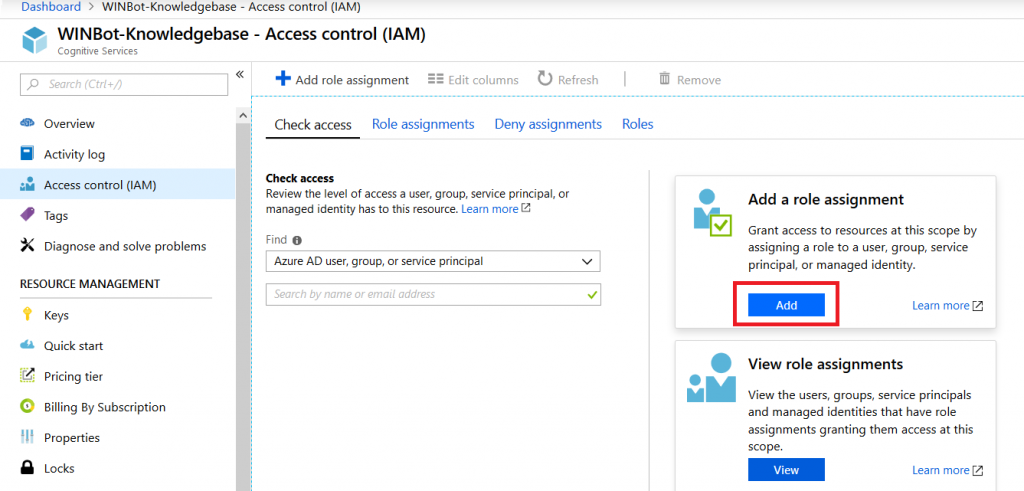
In the “Add a role assignment” section, click “Add”.
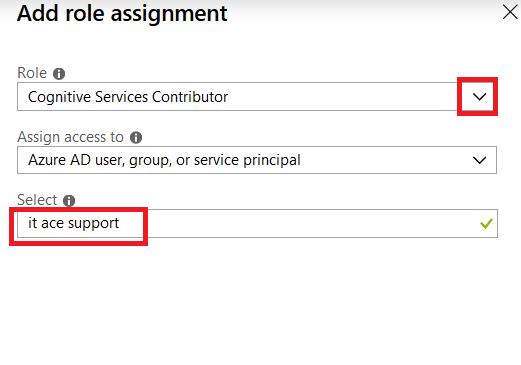
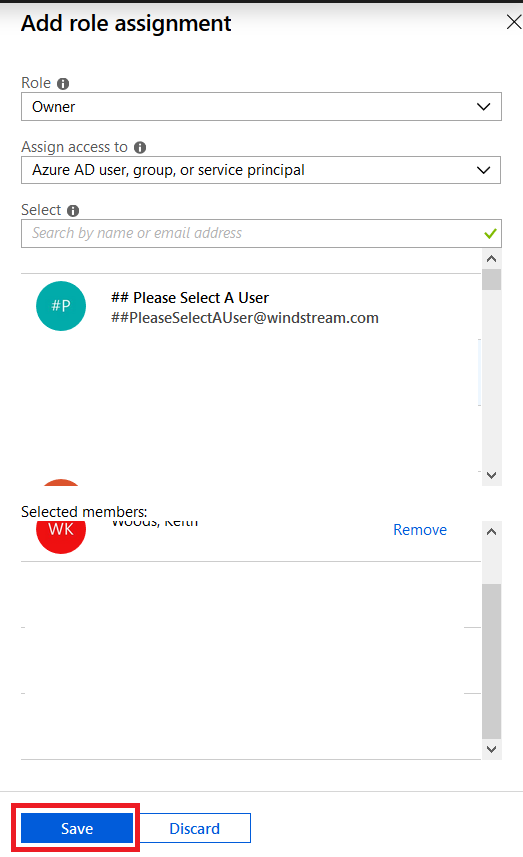
Select either “Cognitive Services Contributor” or “Owner” as the role (owners are allowed to manage all settings, including permissions whereas service contributors can only manage data within the knowledge base). Enter an Active Directory group name – you can enter individual people, but then someone will need to manually edit the permissions as people join and leave your group.
If you didn’t select owner, make sure you add some other owners (either a group or a few people)
Now we’re ready to set up a bot …
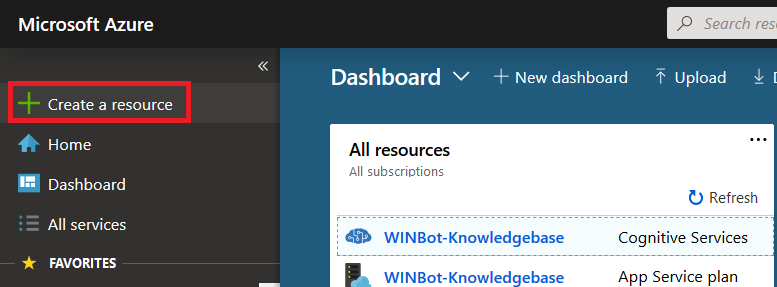
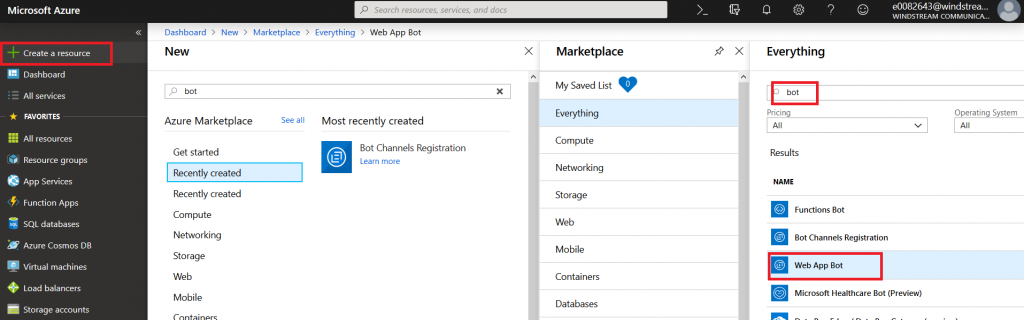
Microsoft Teams uses Azure bots – so you’ll need to create an Azure bot. From https://portal.azure.com, click on ‘Create a resource’.
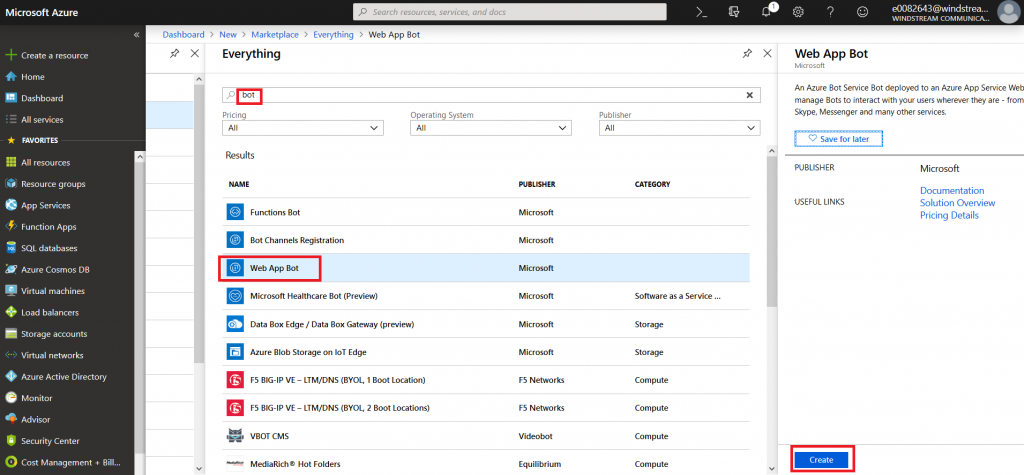
Search for “bot” and find the bots you are looking for. Either “Functions Bot’ and “Web App Bot” can be selected – I am using a WebApp bot because that’s what I’ve used for other bots I’ve coded. Functions bots use Azure functions, which are C# scripts, for logic processing; WebApp bots use WebAPIApp Service for logic processing (C# or NodeJS). If you’re not planning on tweaking anything … doesn’t much matter. Click “Create” to create the bot.
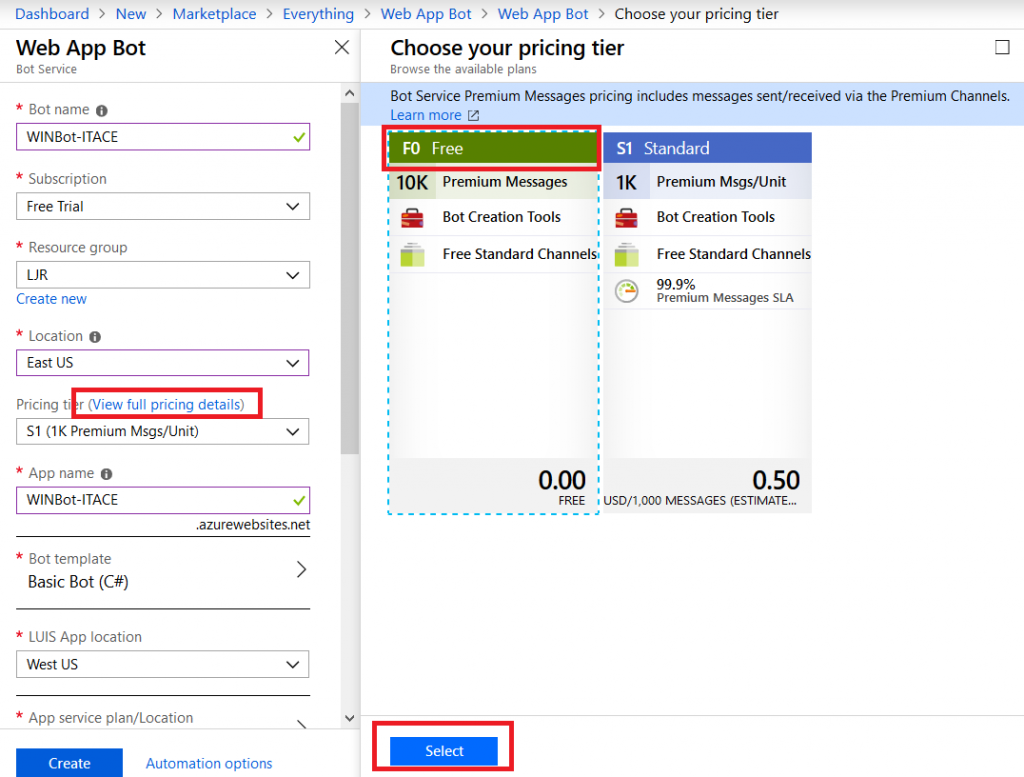
Give your bot a name – this needs to be unique. In the pricing tier, click on “View full pricing details” to see the options. Again, I am selecting the free tier. Don’t forget to hit ‘select’, or your selection will not be updated.
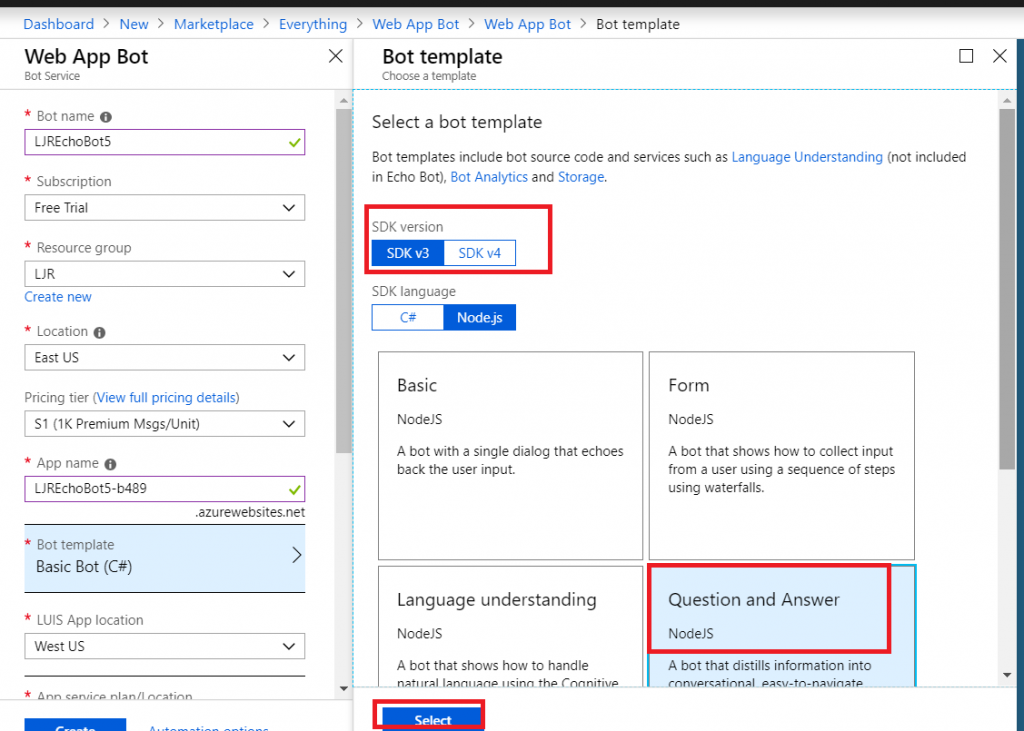
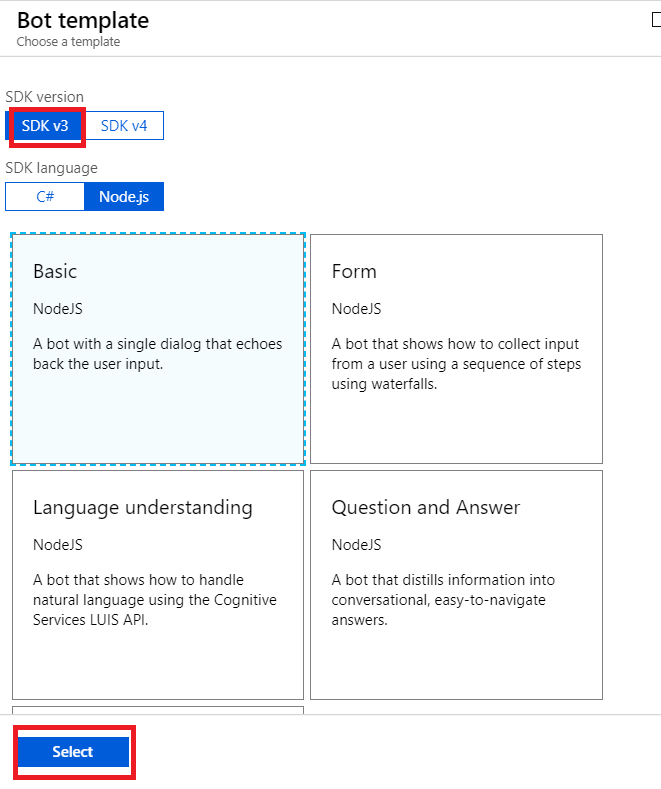
When you get to the bot template section, you can pick either C# or NodeJS – again, if you don’t plan on tweaking anything … doesn’t much matter. I am using C# because I know C#. Select the SDK v3, then find the “Question and Answer” bot template. Again, don’t forget to click “Select” or your selection won’t be saved.
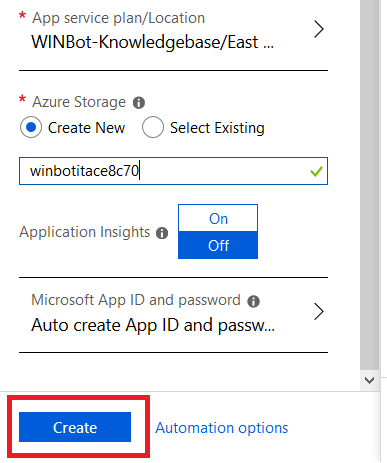
Create a new storage location, disable application insights (it’s a for-fee add-on), and click “Create”.
Wait for it …. You’ll see a blue bar running under the bell icon in the upper right-hand corner of the site.
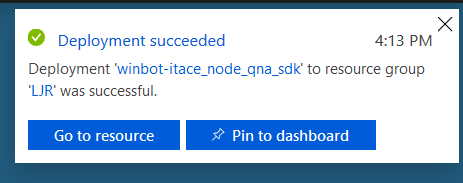
Soon, you’ll see a success message in the upper right-hand corner.
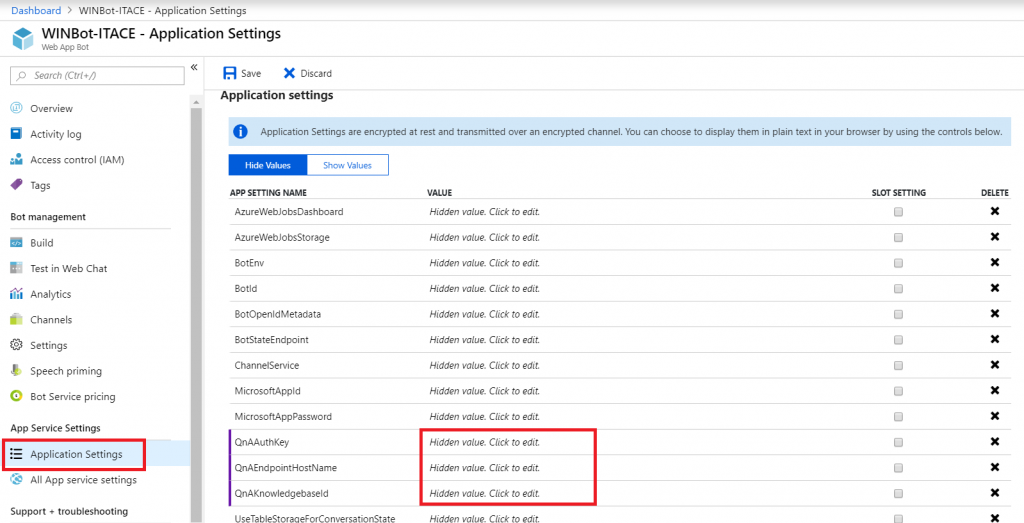
Refresh the resources on the dashboard and select the “WebApp Bot”. Under ‘App Service Settings’, go into “Application Settings”. Here’s where you enter the QnA information we saved after your knowledge base was published. Click in the “Value” column to paste in the values for QnAAuthKey, QnAEndpointHostname, and QnAKnowledgebaseId. Don’t have them? No big – go back to QnA Maker, open your KB, and select the “Settings” tab. There it is again!
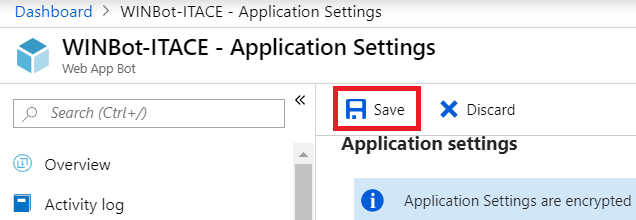
Click “Save” to commit your changes.
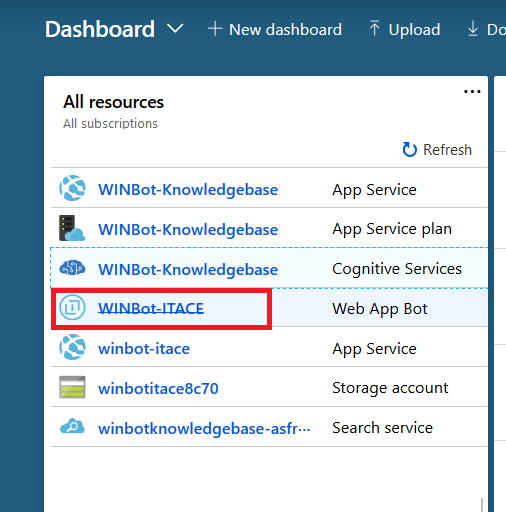
Return to the Dashboard and select your “Web App Bot”
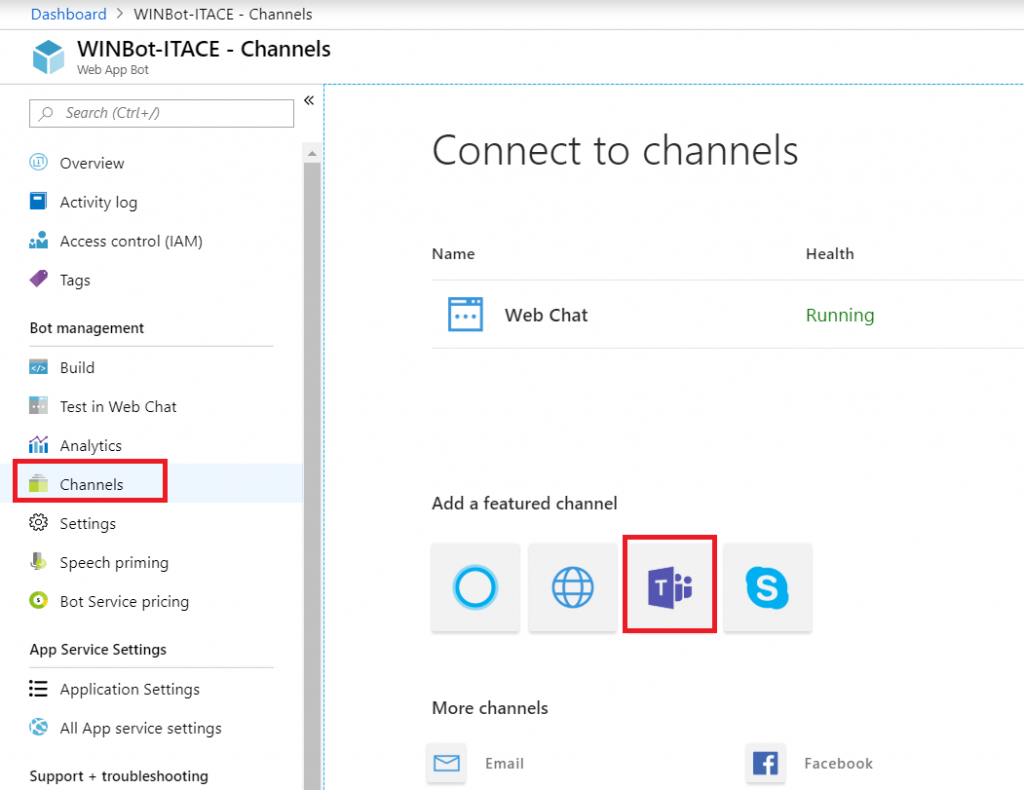
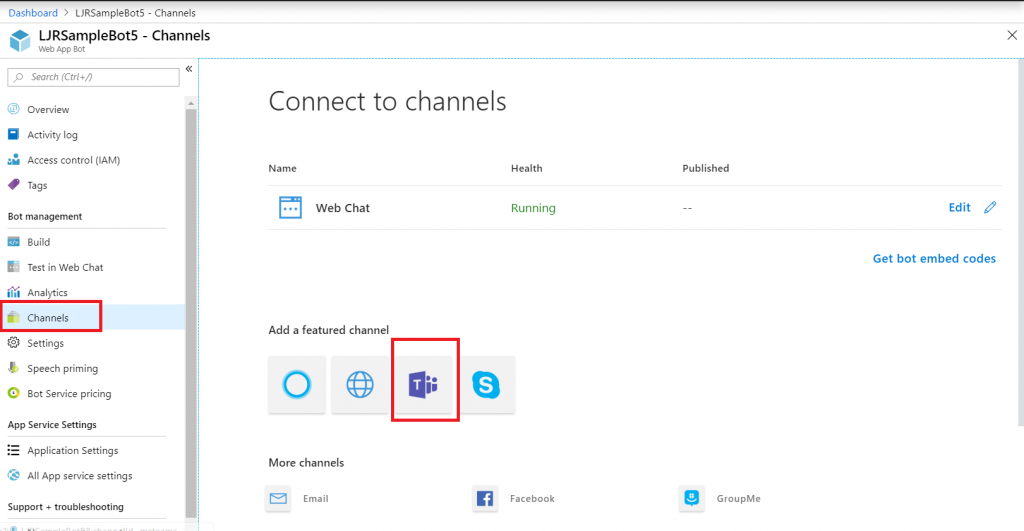
In the left-hand navigation column, select “Channels”. Click on the Teams logo.
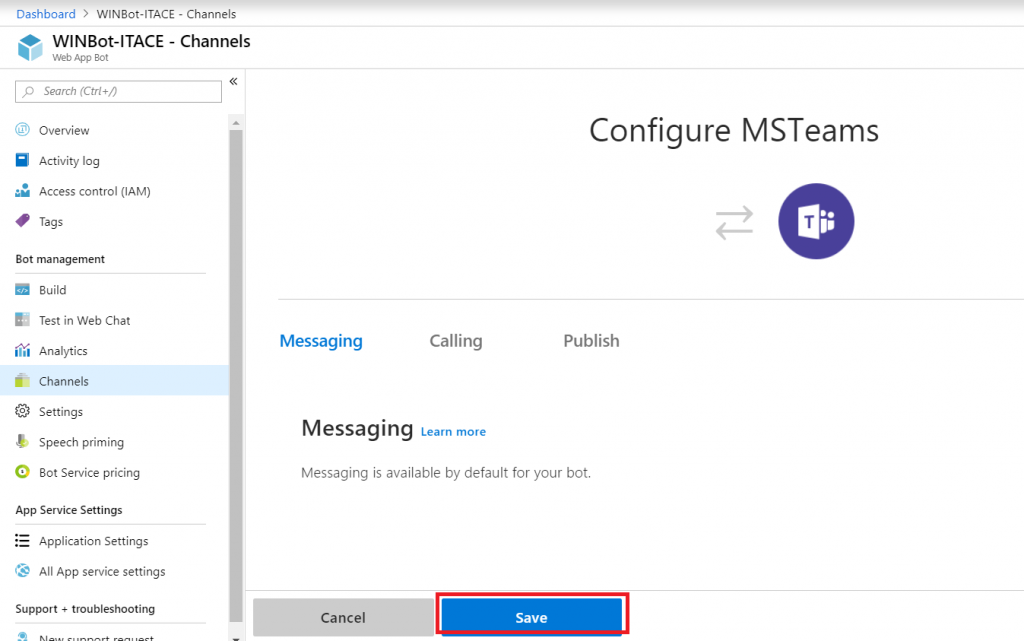
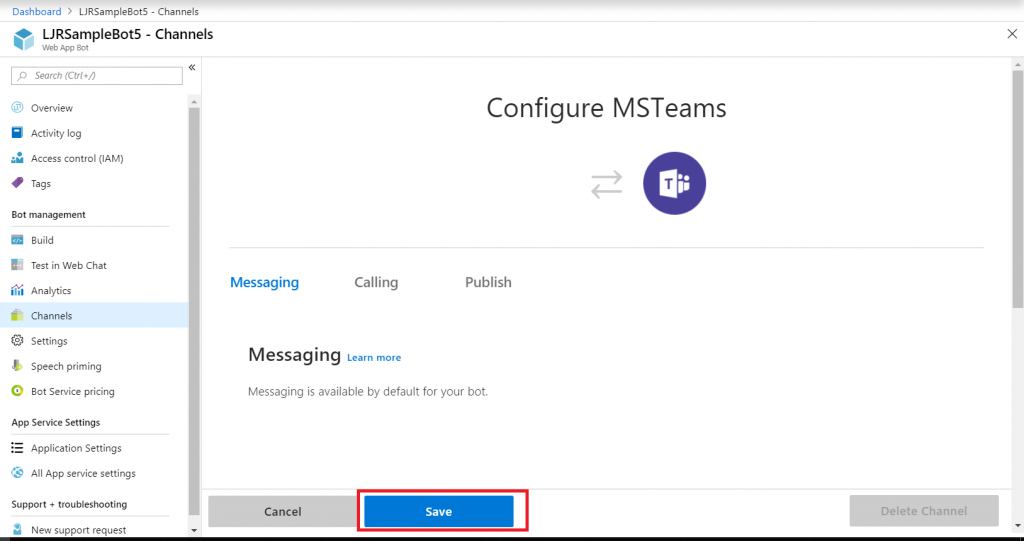
The “Calling” tab will enable IVR or real-time media interaction with your bot – I have never done this, it may not be possible with our product set. “Publish” is to publish your Bot in the Microsoft store – not something I want to do with a bot designed to answer employee-specific questions, but I could see creating a Enterprise Customer Q&A bot that enterprise customers can add to their Teams spaces … in which case, making the bot available in the Microsoft Store would be convenient. Click “Save” to create a Teams channel for communication with your bot.
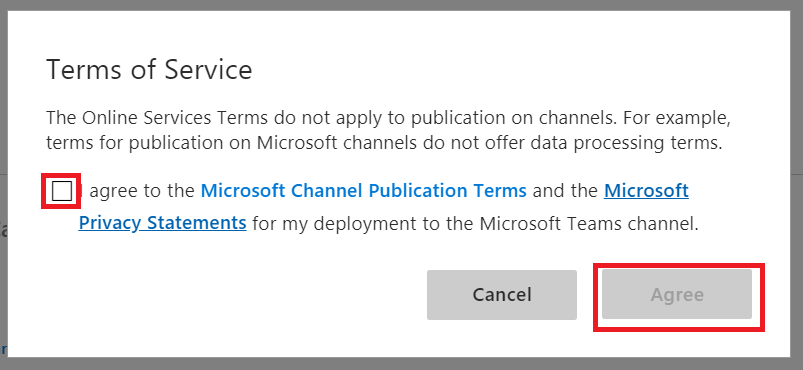
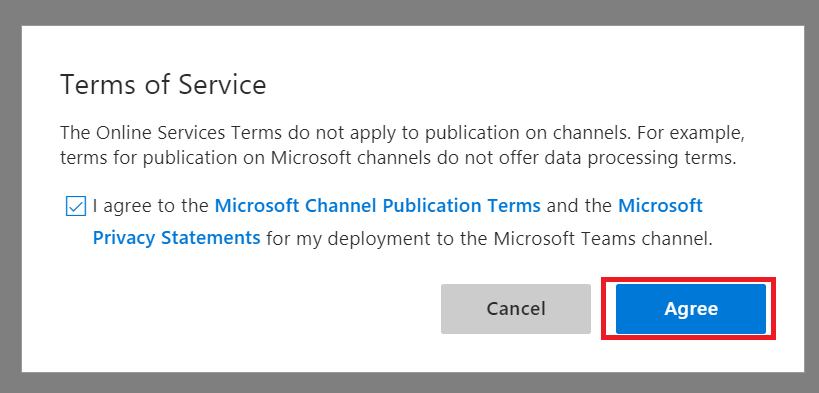
Read the publication terms and privacy statement. If you agree, check the box and click “Agree”.
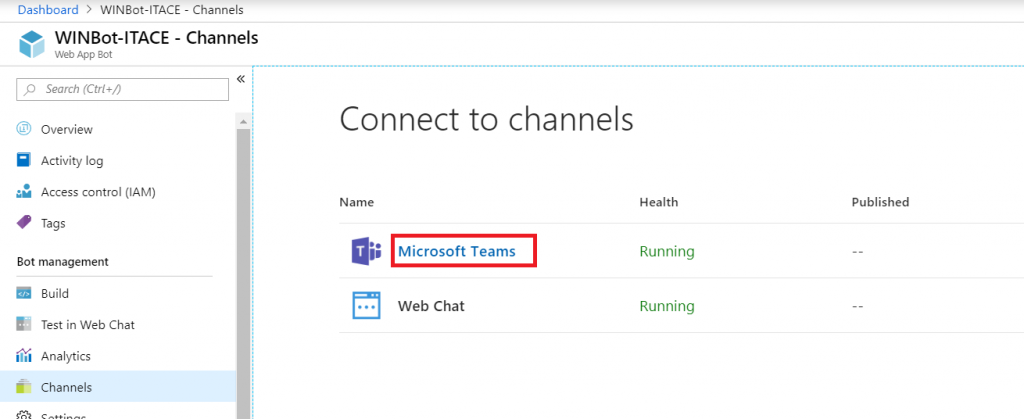
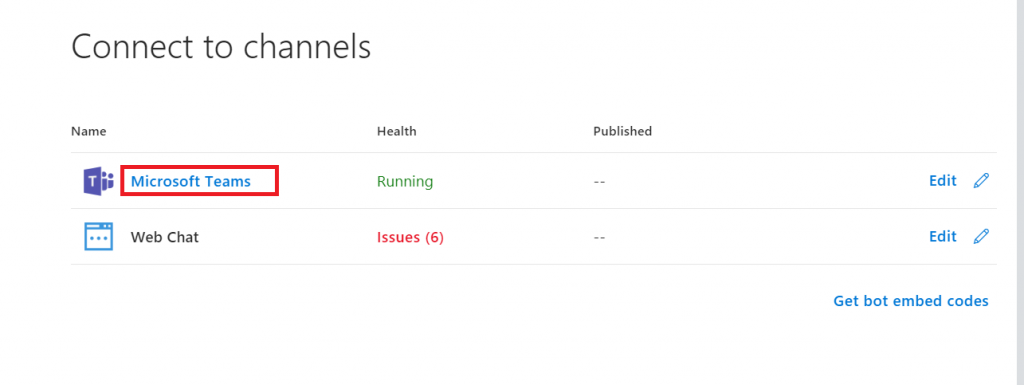
In the Channel section, click the “Microsoft Teams” hyperlink.
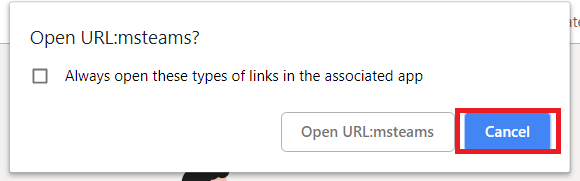
This will open a new browser tab. Click “Cancel” so you can copy the URL.
Once you’ve copied the URL, click “Open in Teams web app” to interact with your bot using the Teams web client (or ‘launch it now’ for Teams desktop client)
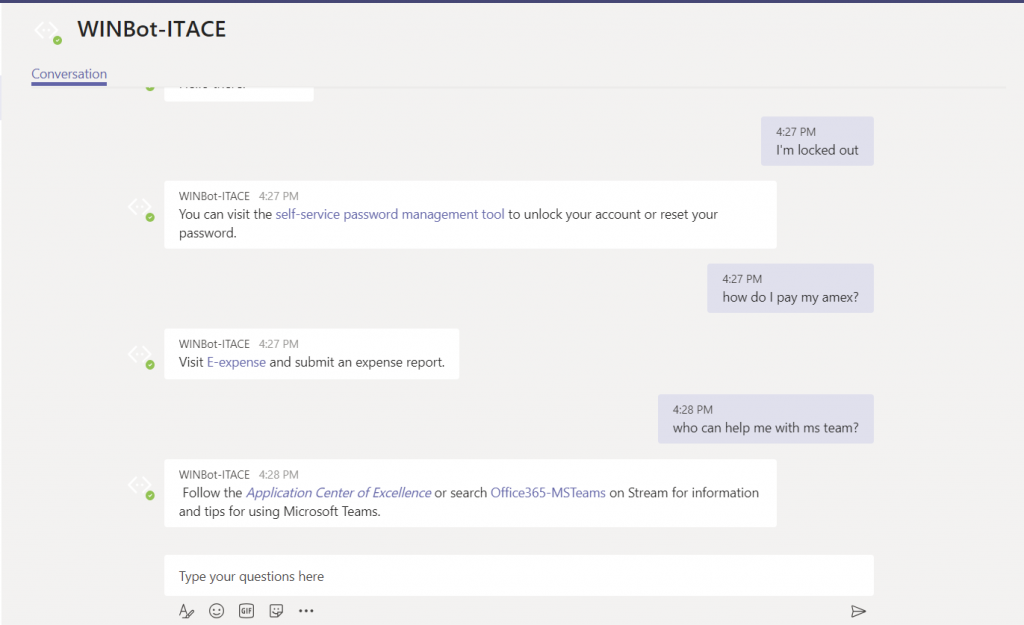
It’s alive! Ask some questions and verify that your answers are being delivered. Check for formatting problems or bad hyperlinks.
Anyone you have set as “Cognitive Service Maintainer” or“Owner” should be able to use QnA Maker to maintain the question and answer set. Log in to https://www.qnamaker.ai, select the “My knowledge bases” tab, and click on the knowledge base name. Modify/add question/answer pairs, then click “Save and train”, then “Publish”.
I am a member of multiple Teams, and I can remember that Keith posted something about creating a Q&A a few days ago … but I don’t remember where he posted that message. I cannot reply to it until I find it. Search can help — chat conversations are searchable. But did he type QnA, Q&A, Q and A …
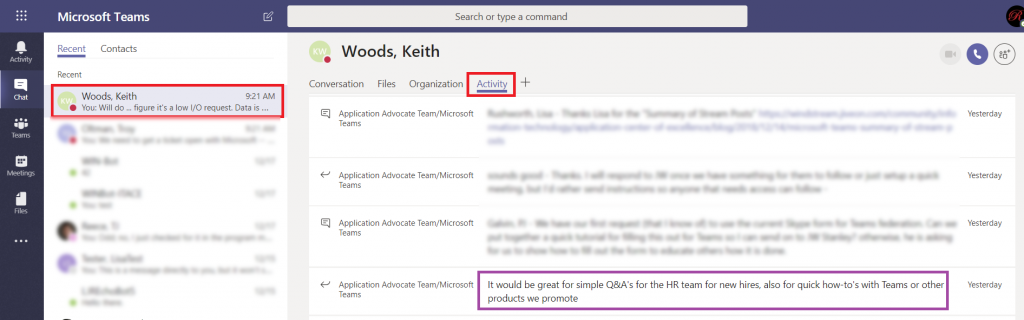
Instead of clicking through all of the channels in all of my Teams spaces trying to find a single post or working my way through the various ways of phrasing “questions and answers”, I can look at my chat with Keith. Click the “Activity” tab. Now I am looking at things Keith has posted to our shared Teams spaces in the past two weeks.
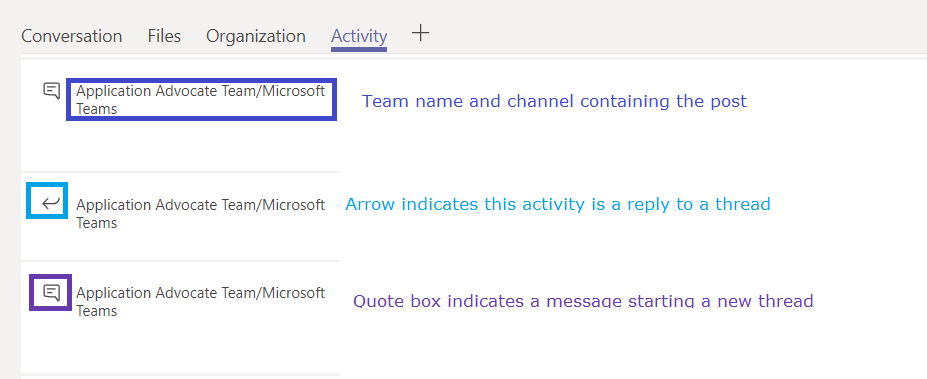
The Team and channel into which the activity was posted is included before each message. An icon indicates if the activity is a reply to an existing thread or a message starting a new thread.
You can click on any entry in the activity log.
Your Teams client will show you the message in its context – you are in the correct Team and Channel, and the message is briefly highlighted. This makes replying to the message we found in the activity feed quite quick.
What if you’ve never chatted with the person? Start a new chat and type in their name. You don’t have to send a message to them (although I could totally see myself writing “ignore this message – I just needed to get you listed in my recent conversations”), just click away and there will be a draft chat with them. Click on that draft chat, and you’ll have an “Activity” tab.
Before you start, understand how billing works for Microsoft’s cloud services. There are generally free tiers for selections, but they are resource limited. When you first start with the Azure magic cloudy stuff, you get a 200$ credit. A message indicating your remaining credit is shown when you log into the Azure portal. Pay attention to that message – if you think you are using free tiers for everything but see your credit decreasing …you’ll need to investigate. Some features, like usage analytics, cost extra too.
Microsoft Teams uses Azure bots – so you’ll need to create an Azure bot to get started. From https://portal.azure.com, click on ‘Create a resource’. Search for “bot” and find the bots you are looking for. To host your bot on Azure, select either the “Functions Bot’ or “Web App Bot”. Functions bots use Azure functions, which are C# scripts, for logic processing; WebApp bots use WebAPI App Service for logic processing (C# or NodeJS). To host your bot elsewhere, select “Bot Channels Registration”. In this example, we are using a “Web App Bot”.
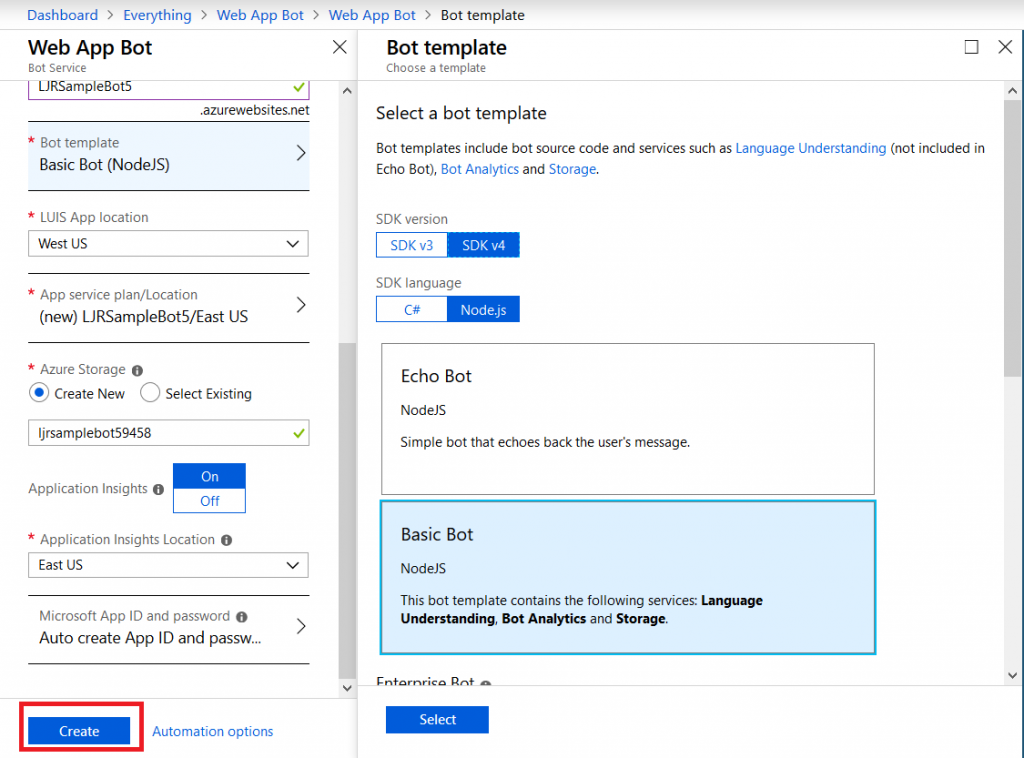
Give your bot a name– there will be a green check if the name is unique. Pick your language – C# or Node.JS – and then decide if you want an Echo bot (which gives you a starting place if you’re new to developing bots) or a blank slate (basic bot). Don’t forget to click “Select” otherwise you’ll be back to the defaults. You’ll need to create a resource group. Click on “Bot template” and select what you want to use as the basis for your bot. As of 14 Dec 2018, use v3 unless you need something new in v4 – there’s a lot more available there, and the Bot Builder extensions only work with v3 (https://github.com/OfficeDev/BotBuilder-MicrosoftTeams)
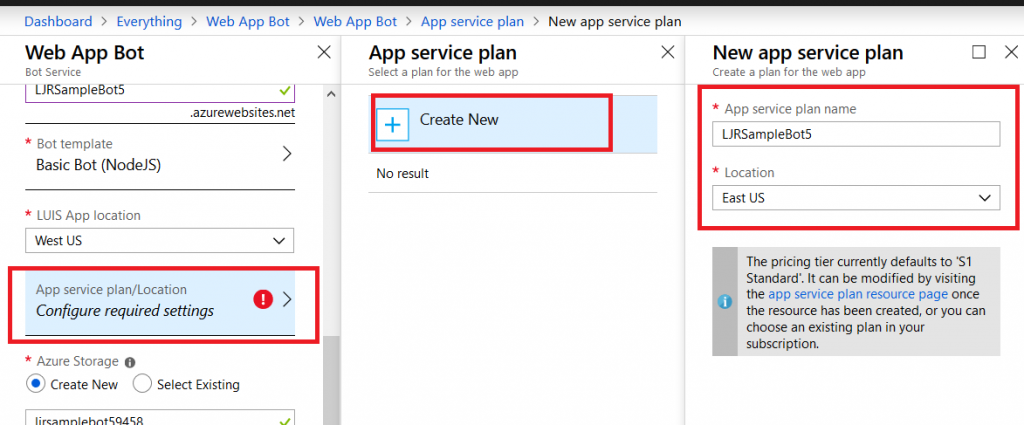
You may need to create a service plan
And storage configuration. Once you have completed the bot configuration, click “Create” and Azure will deploy resources for your bot.
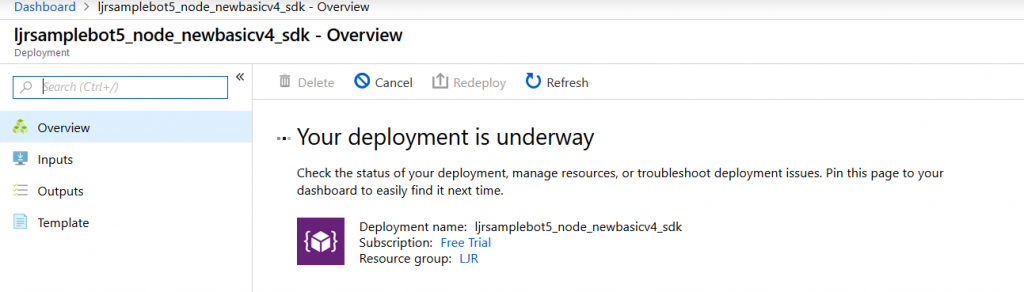
You’ll see a deployment process message, and your messages will have a similar notification. Wait a minute or three.
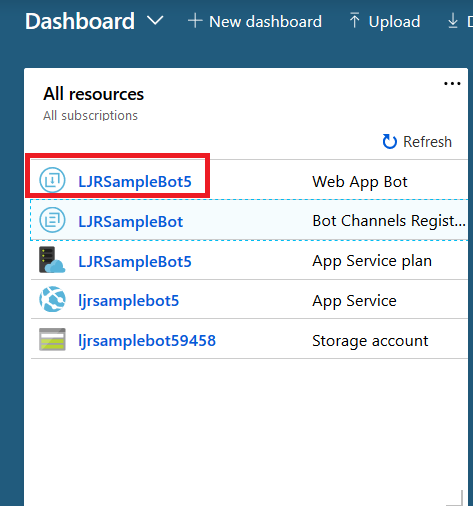
Return to the dashboard & you’ll see your bot services. Go into the bot that you just created.
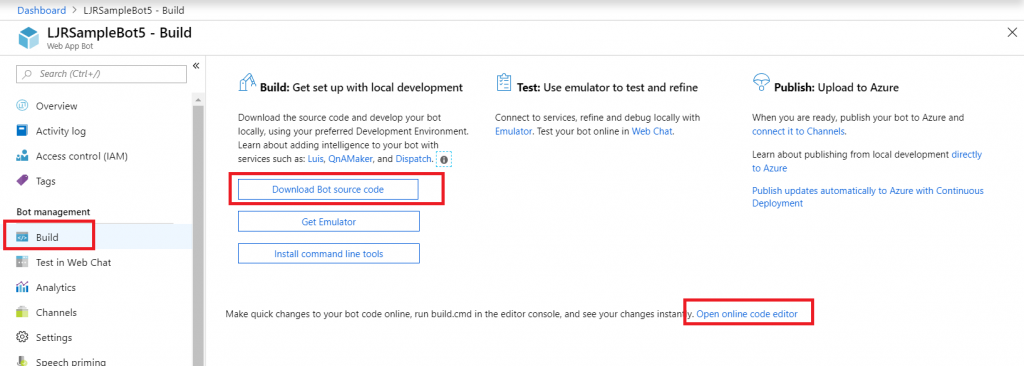
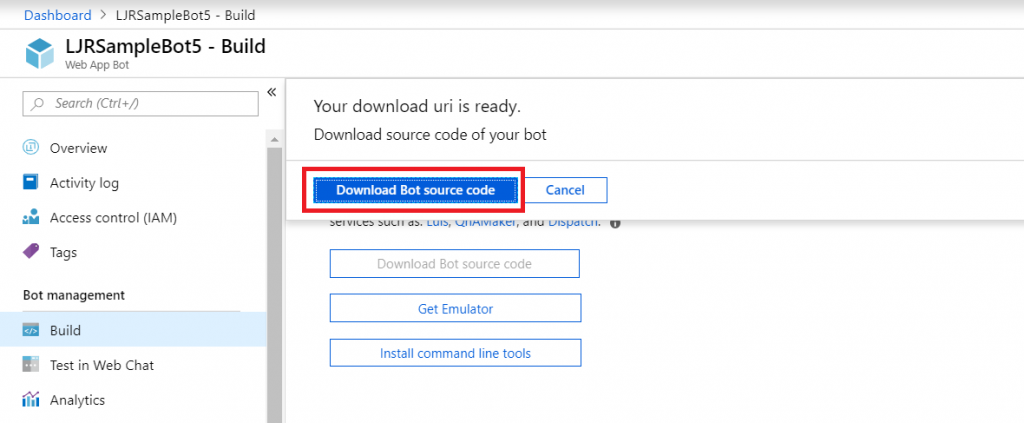
Select “Build” – you can use the online code editor or use an existing source repository and configure a continuous integration. I will be setting up a continuous integration – don’t click the link under “Publish”, it goes to an old resource. Click to download the source code – it takes a minute to generate a zip file for download.
Once the download link is available, download and extract the file – this will be the base of your project. Put it somewhere – in this example, I’ll be using a GitHub project. Extract the zip file and get the content into your source repository.
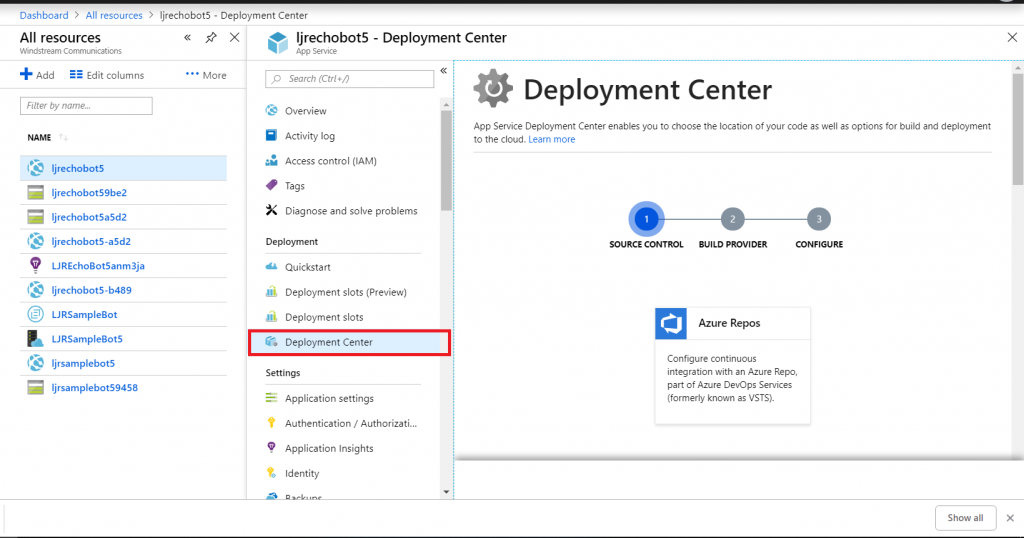
Return to your dashboard and open the App Service for your bot. Select the “Deployment Center”.
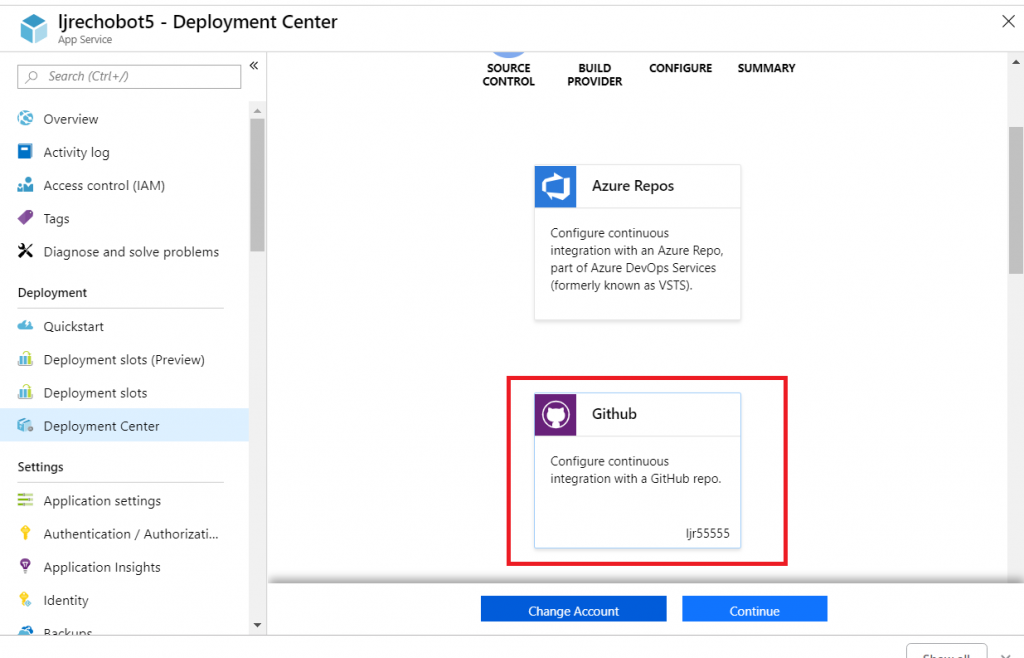
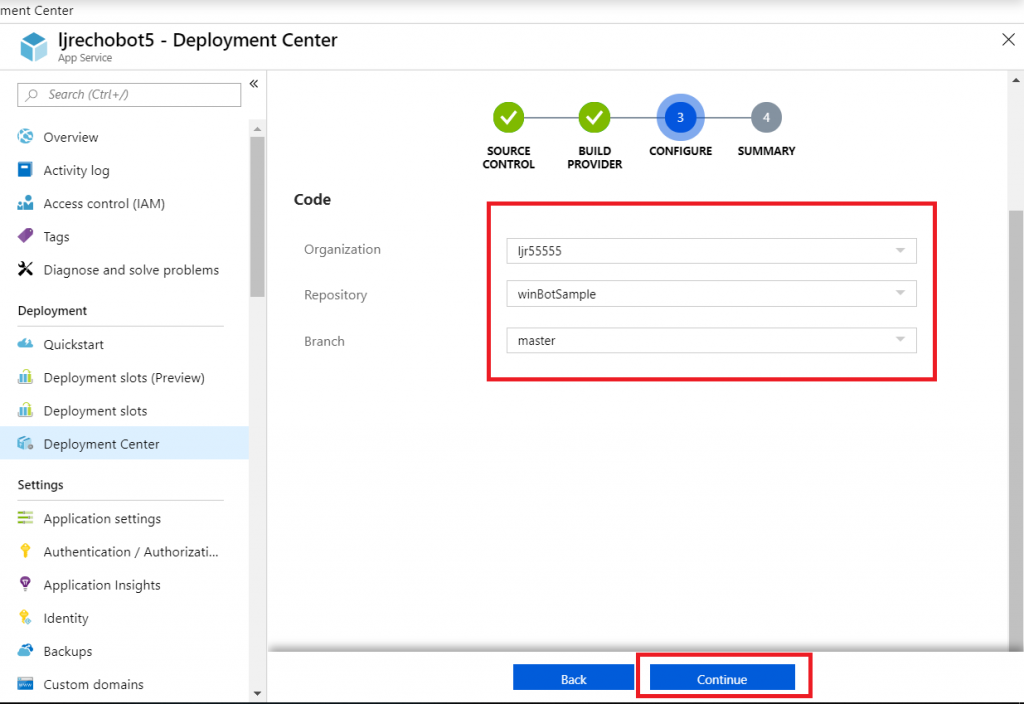
Select the appropriate source repository. When GitHub is used, you will need to sign in and grant access for Azure to use your GitHub account. Click “Continue” once the repository has been set up.
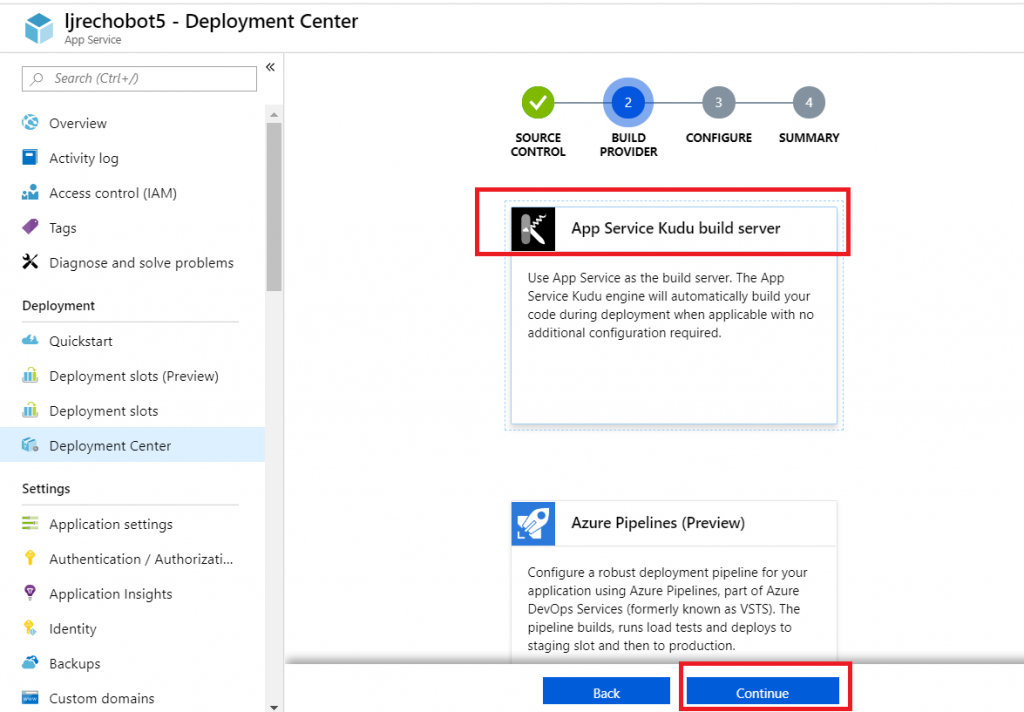
Select the build provider – Kudu or Azure Pipelines. Which one – that’s a personal preference. Azure Pipelines can deploy code stored in git (at least GitHub, never tried other Git services). Kudu can build code housed in Azure DevOps. Kudu has a debugging console that I find useful, and I’ve successfully linked Kudu up with GitLab to manage the build process elsewhere. Azure Pipelines is integrated with the rest of the Azure DevOps (hosted TFS) stuff, which is an obvious advantage to anyone already using Azure DevOps. It uses WebDeploy to deploy artifacts to your Azure websites (again, an advantage to anyone already doing this elsewhere).
The two build environments can be different – MS doesn’t concurrently update SDK’s in each environment, so there can be version differences. It’s possible to have a build fail in one that works in the other. Settings defined in one platform don’t have any meaning if you switch to the other platform (i.e. you’ll be moving app settings into a Build Definition file if you want to switch from Kudu to Azure Pipelines) so it’s not always super quick to swing over to the other build provider, but it might be an option.
I prefer Kudu, so I’ll be using it here.
Select your repository name from the drop-down, then select the project and branch you want to use for deployment. In my repository, the master branch has functional code and there is a working branch for making and testing changes.
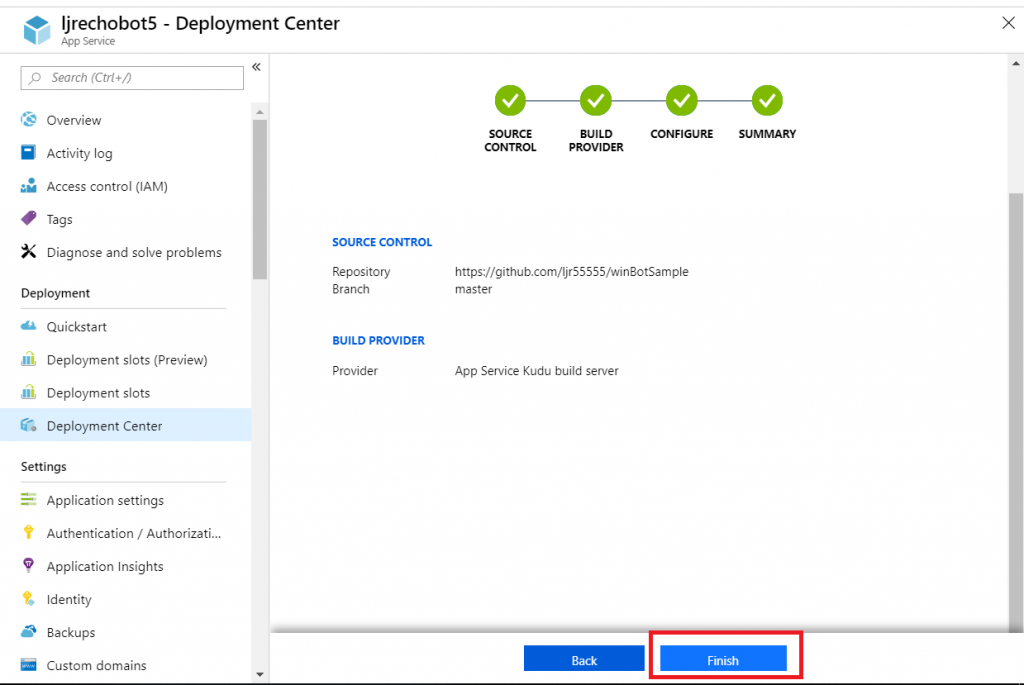
Review the summary and click “Finish”.
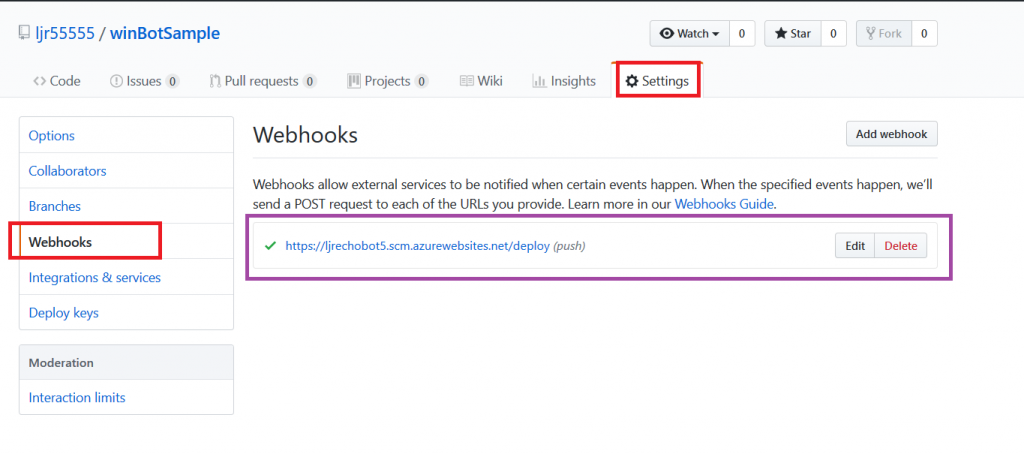
In GitHub, you confirm a webhook has been added to your project on push events. From your project’s settings tab, select “Webhooks” and look for a azurewebsites URL that includes your bot name. You can view the results of these webhook calls by clicking “Edit” and scrolling down to “Recent deliveries”.
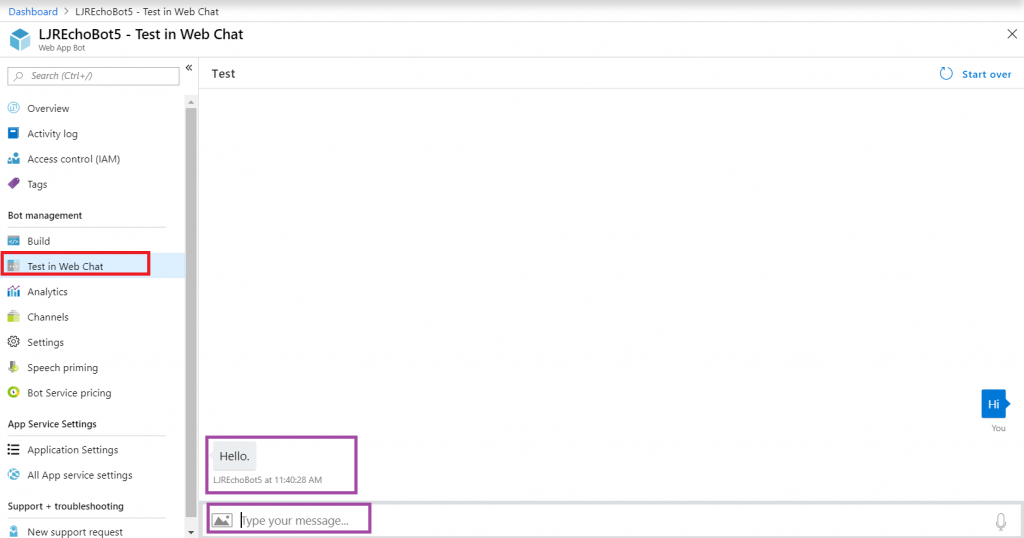
Add the interactions you want – information needs to be accessible from the Azure network, otherwise your bot won’t be able to get there. You can test your bot from the Azure portal to identify anything that works fine from your local computer but fails from the cloud. From the Web App Bot (*note* we are no longer in the App Service on the Azure portal — you need to select the bot resource), select “Test in Web Chat” and interact with your bot.
Once you have your bot working, you need to add the Teams channel to allow the bot to be used from Teams. Select “Channels” and click on the Teams logo.
There’s not much to set up for a bot – messaging is enabled by default. I don’t want IVR or real-time media functionality … but if you do click on the “Calling” tab. The “Publish” tab is to publish your bot in the Windows store – this might be a consideration, for instance, if you wanted to create a customer service interaction bot that enterprise customers could add to their Teams spaces (i.e. something you want random people to find and use). Since I am answering employee specific questions, I do not want to publish this bot to the Internet. Click “Save” when you have configured the channel as needed (in my case, just click ‘save’ without doing anything).
Review the publication terms and privacy statement. If these are agreeable, click “Agree”.
You’ll be returned to the Channels overview. Click on the hyperlinked “Microsoft Teams” – this will open a new URL that is your bot.
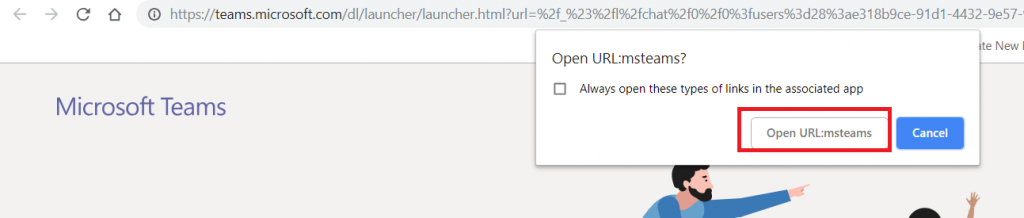
You can copy the URL here – others can use the same URL to use your bot. Either open the link in the Teams app
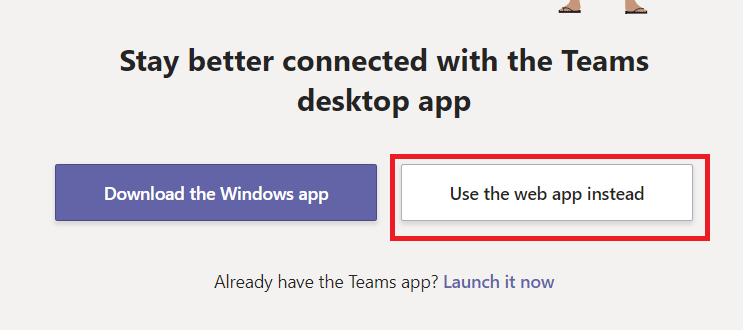
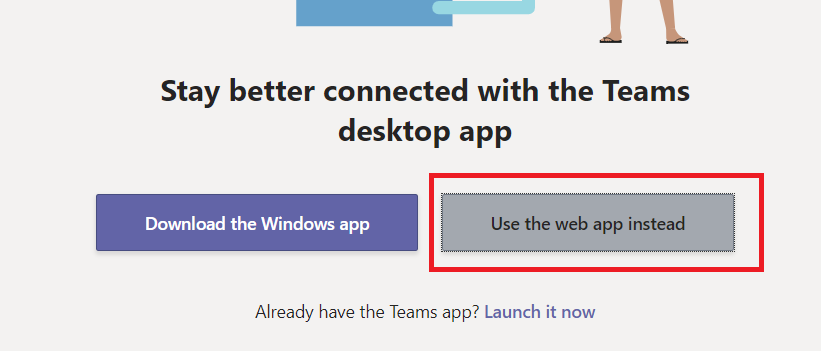
Or cancel and click “Use the web app instead” at the bottom of the screen.
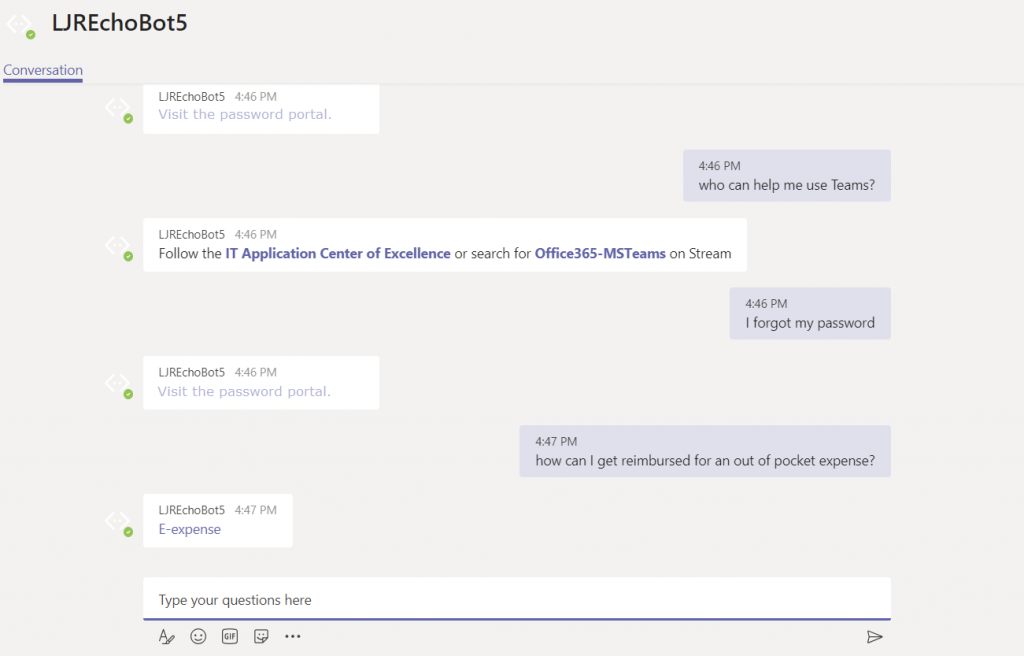
Wait for it … your bot is alive!
That’s great … how do I interact with company resources? Quick answer is “you don’t” – this bot uses resources available on the Internet. To interact with private sources, the magic cloudy Microsoft network must be able to get there. Personally, I’d host my own bot engine. Expose the bot to the Internet and create a “Bot Channels Registration” instead.