Tag: ssl

Updating Weblogic Certificate For OUD Management Utility

This is the process I use to update the WebLogic SSL certificate for our OUD management web interface. 


# PRE-CHANGE VERIFICATION
# There are two environment variables set to allow this to work:
WLSTOREPASS=Wh@t3v3rY0uU53d # WLSTOREPASS is set to whatever is used for the keystore and truststore password
# OUDINST=/path/to/OUD/installation (root into which both java and OUD were installed — if you are using an OS package
# for java, your paths will be different)
#Log into https://hostname.domain.gTLD:7002/console (or whatever your WL console URL is)
# As my WebLogic instance auths users via LDAP, I log in with my UID & pwd … you may have a generic account like ‘admin’
#
#Navigate to Domain Structure => Environment => Servers
#Select “AdminServer”
#
#Keystores tab — will tell you the name of the keystore and trust store
#SSL tab — will tell you the friendly name of the certificate
# Verify the keystore and truststore are $OUDINST/Oracle/Middleware/${HOSTNAME%%.*}.jks,
# Verify the friendly name of the certificate is the short hostname
#
# Verify the keystore is using the normal keystore password
#[ldap@dell115 ~]$ $OUDINST/java/jdk/bin/keytool -v -list -keystore $OUDINST/Oracle/Middleware/dell115.jks –storepass $WLSTOREPASS| grep Alias
#Alias name: dell115
#Alias name: win-we
#Alias name: win-root
#Alias name: winca1-root
#Alias name: winca1-issuing
# *** If you do not get any output, remove the ” | grep Alias” part and check for errors. “keytool error: java.io.IOException: Keystore was tampered with, or password was incorrect” means the password is different.
# *** either try to guess the password (company name or ‘a’ are good guesses, along with the java-typical default of changeit)
# *** to continue using the existing password or you’ll need to update the keystore and truststore passwords in the web GUI.
# *** Since the keystores are generated using the process below … 99% of the time, the password matches.
#
# Generate a cert with appropriate info, export public/private key as a PFX file named with the short hostname of the server (i.e. dell115.pfx here) and, as the keystore password, use whatever you’ve set in $WLSTOREPASS

 # DURING THE CHANGE, as the ldap service account on the server:

mkdir /tmp/ssl

# Put base 64 public keys for our root and web CA in /tmp/ssl as Win-Root-CA.b64.cer and Win-Web-CA.b64.cer
# Put public/private key export from above in /tmp/ssl 

# Import the keychain for your certificate
$OUDINST/java/jdk/bin/keytool -import -v -trustcacerts -alias WIN-ROOT -file /tmp/ssl/Win-Root-CA.b64.cer -keystore /tmp/ssl/${HOSTNAME%%.*}.jks -keypass $WLSTOREPASS -storepass $WLSTOREPASS

$OUDINST/java/jdk/bin/keytool -import -v -trustcacerts -alias WIN-WEB -file /tmp/ssl/Win-Web-CA.b64.cer -keystore /tmp/ssl/${HOSTNAME%%.*}.jks -keypass $WLSTOREPASS -storepass $WLSTOREPASS 

# get GUID for cert within PFX file
HOSTCERTALIAS=”$($OUDINST/java/jdk/bin/keytool -v -list -storetype pkcs12 -keystore /tmp/ssl/${HOSTNAME%%.*}.pfx –storepass $WLSTOREPASS | grep Alias | cut -d: -f2-)” 

# Import the private key
$OUDINST/java/jdk/bin/keytool -importkeystore -srckeystore /tmp/ssl/${HOSTNAME%%.*}.pfx -destkeystore /tmp/ssl/${HOSTNAME%%.*}.jks -srcstoretype pkcs12 -deststoretype JKS -alias $HOSTCERTALIAS -storepass $WLSTOREPASS -srcstorepass Ra1n1ng1

# Change the alias to match what is configured in the web GUI
$OUDINST/java/jdk/bin/keytool -changealias -alias $HOSTCERTALIAS -destalias ${HOSTNAME%%.*} -keypass $WLSTOREPASS-keystore /tmp/ssl/${HOSTNAME%%.*}.jks -storepass $WLSTOREPASS
 

# Verify you have a WIN-ROOT, WIN-WEB, and hostname record

$OUDINST/java/jdk/bin/keytool -v -list -keystore /tmp/ssl/${HOSTNAME%%.*}.jks –storepass $WLSTOREPASS | grep Alias

# Stop the weblogic server

# Back up current keystore file and move new one into place
CURRENTDATE=”$(date +%Y%m%d)”
mv $OUDINST/Oracle/Middleware/${HOSTNAME%%.*}.jks $OUDINST/Oracle/Middleware/$CURRENTDATE.jks
cp /tmp/ssl/${HOSTNAME%%.*}.jks $OUDINST/Oracle/Middleware/${HOSTNAME%%.*}.jks

# Start the weblogic server in the screen session, then disconnect from the screen session

# Assuming success
rm -rf /tmp/ssl

# Backout is
# stop weblogic
mv $OUDINST/Oracle/Middleware/$CURRENTDATE.jks  $OUDINST/Oracle/Middleware/${HOSTNAME%%.*}.jks
# start weblogic

Checking Supported TLS Versions and Ciphers

There have been a number of ssl vulnerabilities (and deprecated ciphers that should be unavailable, especially when transiting particularly sensitive information). On Linux distributions, nmap includes a script that enumerates ssl versions and, per version, the supported ciphers.

[lisa@linuxbox ~]# nmap -P0 -p 25 –script +ssl-enum-ciphers myhost.domain.ccTLD

Starting Nmap 7.40 ( https://nmap.org ) at 2017-10-13 11:36 EDT
Nmap scan report for myhost.domain.ccTLD (#.#.#.#)
Host is up (0.00012s latency).
Other addresses for localhost (not scanned): ::1
PORT STATE SERVICE
25/tcp open smtp
| ssl-enum-ciphers:
| TLSv1.0:
| ciphers:
| TLS_ECDHE_RSA_WITH_AES_256_CBC_SHA (rsa 2048) – A
| TLS_DHE_RSA_WITH_AES_256_CBC_SHA (dh 2048) – A
| TLS_DHE_RSA_WITH_CAMELLIA_256_CBC_SHA (dh 2048) – A
| TLS_ECDHE_RSA_WITH_AES_128_CBC_SHA (rsa 2048) – A
| TLS_DHE_RSA_WITH_AES_128_CBC_SHA (dh 2048) – A
| TLS_DHE_RSA_WITH_CAMELLIA_128_CBC_SHA (dh 2048) – A
| TLS_RSA_WITH_AES_256_CBC_SHA (rsa 2048) – A
| TLS_RSA_WITH_CAMELLIA_256_CBC_SHA (rsa 2048) – A
| TLS_RSA_WITH_AES_128_CBC_SHA (rsa 2048) – A
| TLS_RSA_WITH_CAMELLIA_128_CBC_SHA (rsa 2048) – A
| compressors:
| NULL
| cipher preference: server
| TLSv1.1:
| ciphers:
| TLS_ECDHE_RSA_WITH_AES_256_CBC_SHA (rsa 2048) – A
| TLS_DHE_RSA_WITH_AES_256_CBC_SHA (dh 2048) – A
| TLS_DHE_RSA_WITH_CAMELLIA_256_CBC_SHA (dh 2048) – A
| TLS_ECDHE_RSA_WITH_AES_128_CBC_SHA (rsa 2048) – A
| TLS_DHE_RSA_WITH_AES_128_CBC_SHA (dh 2048) – A
| TLS_DHE_RSA_WITH_CAMELLIA_128_CBC_SHA (dh 2048) – A
| TLS_RSA_WITH_AES_256_CBC_SHA (rsa 2048) – A
| TLS_RSA_WITH_CAMELLIA_256_CBC_SHA (rsa 2048) – A
| TLS_RSA_WITH_AES_128_CBC_SHA (rsa 2048) – A
| TLS_RSA_WITH_CAMELLIA_128_CBC_SHA (rsa 2048) – A
| compressors:
| NULL
| cipher preference: server
| TLSv1.2:
| ciphers:
| TLS_ECDHE_RSA_WITH_AES_256_GCM_SHA384 (rsa 2048) – A
| TLS_DHE_RSA_WITH_AES_256_GCM_SHA384 (dh 2048) – A
| TLS_ECDHE_RSA_WITH_CHACHA20_POLY1305_SHA256 (rsa 2048) – A
| TLS_DHE_RSA_WITH_CHACHA20_POLY1305_SHA256 (dh 2048) – A
| TLS_DHE_RSA_WITH_AES_256_CCM_8 (dh 2048) – A
| TLS_DHE_RSA_WITH_AES_256_CCM (dh 2048) – A
| TLS_ECDHE_RSA_WITH_AES_128_GCM_SHA256 (rsa 2048) – A
| TLS_DHE_RSA_WITH_AES_128_GCM_SHA256 (dh 2048) – A
| TLS_DHE_RSA_WITH_AES_128_CCM_8 (dh 2048) – A
| TLS_DHE_RSA_WITH_AES_128_CCM (dh 2048) – A
| TLS_ECDHE_RSA_WITH_AES_256_CBC_SHA384 (rsa 2048) – A
| TLS_DHE_RSA_WITH_AES_256_CBC_SHA256 (dh 2048) – A
| TLS_ECDHE_RSA_WITH_CAMELLIA_256_CBC_SHA384 (rsa 2048) – A
| TLS_DHE_RSA_WITH_CAMELLIA_256_CBC_SHA256 (dh 2048) – A
| TLS_ECDHE_RSA_WITH_AES_128_CBC_SHA256 (rsa 2048) – A
| TLS_DHE_RSA_WITH_AES_128_CBC_SHA256 (dh 2048) – A
| TLS_ECDHE_RSA_WITH_CAMELLIA_128_CBC_SHA256 (rsa 2048) – A
| TLS_DHE_RSA_WITH_CAMELLIA_128_CBC_SHA256 (dh 2048) – A
| TLS_ECDHE_RSA_WITH_AES_256_CBC_SHA (rsa 2048) – A
| TLS_DHE_RSA_WITH_AES_256_CBC_SHA (dh 2048) – A
| TLS_DHE_RSA_WITH_CAMELLIA_256_CBC_SHA (dh 2048) – A
| TLS_ECDHE_RSA_WITH_AES_128_CBC_SHA (rsa 2048) – A
| TLS_DHE_RSA_WITH_AES_128_CBC_SHA (dh 2048) – A
| TLS_DHE_RSA_WITH_CAMELLIA_128_CBC_SHA (dh 2048) – A
| TLS_RSA_WITH_AES_256_GCM_SHA384 (rsa 2048) – A
| TLS_RSA_WITH_AES_256_CCM_8 (rsa 2048) – A
| TLS_RSA_WITH_AES_256_CCM (rsa 2048) – A
| TLS_RSA_WITH_AES_128_GCM_SHA256 (rsa 2048) – A
| TLS_RSA_WITH_AES_128_CCM_8 (rsa 2048) – A
| TLS_RSA_WITH_AES_128_CCM (rsa 2048) – A
| TLS_RSA_WITH_AES_256_CBC_SHA256 (rsa 2048) – A
| TLS_RSA_WITH_CAMELLIA_256_CBC_SHA256 (rsa 2048) – A
| TLS_RSA_WITH_AES_128_CBC_SHA256 (rsa 2048) – A
| TLS_RSA_WITH_CAMELLIA_128_CBC_SHA256 (rsa 2048) – A
| TLS_RSA_WITH_AES_256_CBC_SHA (rsa 2048) – A
| TLS_RSA_WITH_CAMELLIA_256_CBC_SHA (rsa 2048) – A
| TLS_RSA_WITH_AES_128_CBC_SHA (rsa 2048) – A
| TLS_RSA_WITH_CAMELLIA_128_CBC_SHA (rsa 2048) – A
| compressors:
| NULL
| cipher preference: server
|_ least strength: A

Nmap done: 1 IP address (1 host up) scanned in 144.67 seconds

OpenSSL As A Trusted CA

There are wrappers for OpenSSL that provide certificate authority functionality, but I found myself spending a lot of time trying to get any to work. Since I only wanted to generate a few internal certificates (i.e. not something that needed a simple interface for non-techies), so I set up an OpenSSL certificate authority and used it to sign certificates.

First, generate a public/private keypair for your CA (use however many days you want, this is ten years:

openssl genrsa -aes256 -out ca.key 2048
openssl req -new -x509 -key ca.key -out ca.cer -days 3652 -sha256

Take ca.cer and publish it in our domain GPO as a trusted root certificate authority (Computer Configuration => Policies => Windows Settings => Security Settings => Public Key Policies => Trusted Root Certification Authorities)

If you are impatient, force client to update GPO. Otherwise wait. Eventually you will see your CA in the Windows computer’s certificate store as a trusted root certification authority.

Now generate certificate(s) against the CA (again use whatever value for days is reasonable for your purpose):

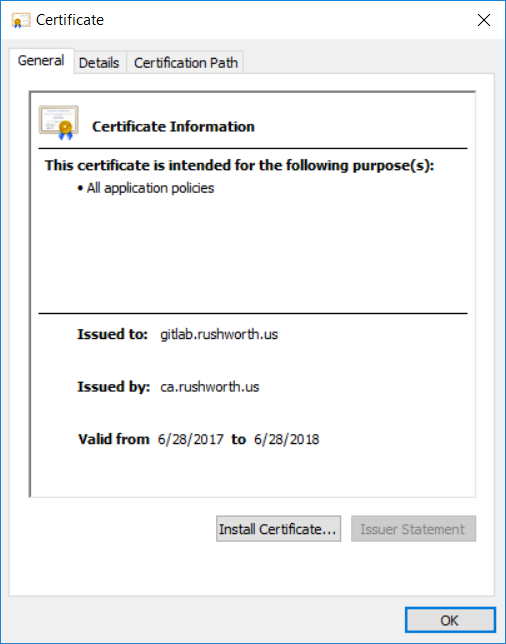
openssl genrsa -aes256 -out gitlab.rushworth.us.key 2048
openssl req -new -key gitlab.rushworth.us.key -out gitlab.rushworth.us.req
openssl x509 -req -in gitlab.rushworth.us.req -out gitlab.rushworth.us.cer -days 365 -CA /ca/ca.cer -CAkey /ca/ca.key -sha256 -CAcreateserial

On subsequent requests, you can omit the “-CAcreateserial” option.

In domain clients will trust your certificate. Non-domain clients will need to import the CA public key to their trust store.